

If you have pain at your desk, whether you have tried ergonomic mice already or are looking into them for the first time, this guide is for you. Maybe you are still using a standard mouse and your wrist aches by the end of every workday. Maybe a vertical mouse helped your wrist for a month, then your shoulder started burning by 2pm. Maybe a trackball made the carpal tunnel feel worse, not better. Maybe you have cycled through five or six "ergonomic" mice in three years and none of them held.
Here is what most "best ergonomic mouse" articles miss: the best ergonomic mouse for you depends less on the design and more on where the pain is. Wrist and forearm pain (carpal tunnel, RSI, tendinitis, tennis elbow) has a different cause than shoulder and neck pain. The ergonomic design that fixes one will not fix the other.
In the next 90 seconds you will see the three winners for 2026, the science that explains why they win, and a 30-second self-check to figure out which one fits your pain pattern. The mouse most "best ergonomic mouse" lists put at the top is not on this one. Read on.
On This Page
- What is the best ergonomic mouse?
- Best ergonomic mouse at a glance
- What makes a mouse ergonomic?
- Why does my wrist still hurt?
- The three designs that reduce strain
- How to choose the right ergonomic mouse
- RollerMouse Red vs UniMouse vs Contour Touch
- What real buyers say
- Frequently asked questions
What is the Best Ergonomic Mouse?
The best ergonomic mouse is the one whose ergonomic design matches the cause of your strain, not the one with the highest price tag or the loudest marketing. Three engineering approaches have measurable peer-reviewed support: a vertical mouse, a centered rollerbar, and a standalone touchpad. Each one fixes a different lever.
For most office workers in 2026, the two best ergonomic mice are the Contour RollerMouse Red (best ergonomic mouse overall, for shoulder, neck, and combined upper-body pain), the Contour UniMouse (best vertical mouse with an adjustable angle, for wrist and forearm pain), and the Contour Touch (best standalone ergonomic touchpad with intuitive and high-performance interaction, for shoulder pain).
Best Ergonomic Mouse at a Glance
Here is the 60-second overview.
Best Overall: RollerMouse Red
The Contour RollerMouse Red is the best ergonomic mouse for desk workers whose pain has spread beyond the wrist into the shoulder, neck, or upper back. Instead of sitting beside the keyboard like a traditional mouse, it sits in front of the keyboard. The dominant arm never reaches sideways.
The RollerMouse Red enables precise cursor control through its unique rollerbar design, allowing users to move the cursor up, down, left, and right with minimal effort and reducing strain during extended use.
The shoulder-and-neck benefit is well established in peer-reviewed ergonomics research. A 2015 study (Lin, Dennerlein et al.) at the Harvard School of Public Health and Northeastern University, published in Applied Ergonomics, used motion capture and EMG to compare a Contour RollerMouse against a conventional mouse, a trackball, and a standalone touchpad. The RollerMouse produced the most neutral hand and wrist posture of any device tested, with significantly lower forearm extensor muscle activity than the conventional mouse.
Because it sits centrally rather than off to the side, it also kept the shoulder in a more neutral position and reduced ulnar deviation at the wrist.
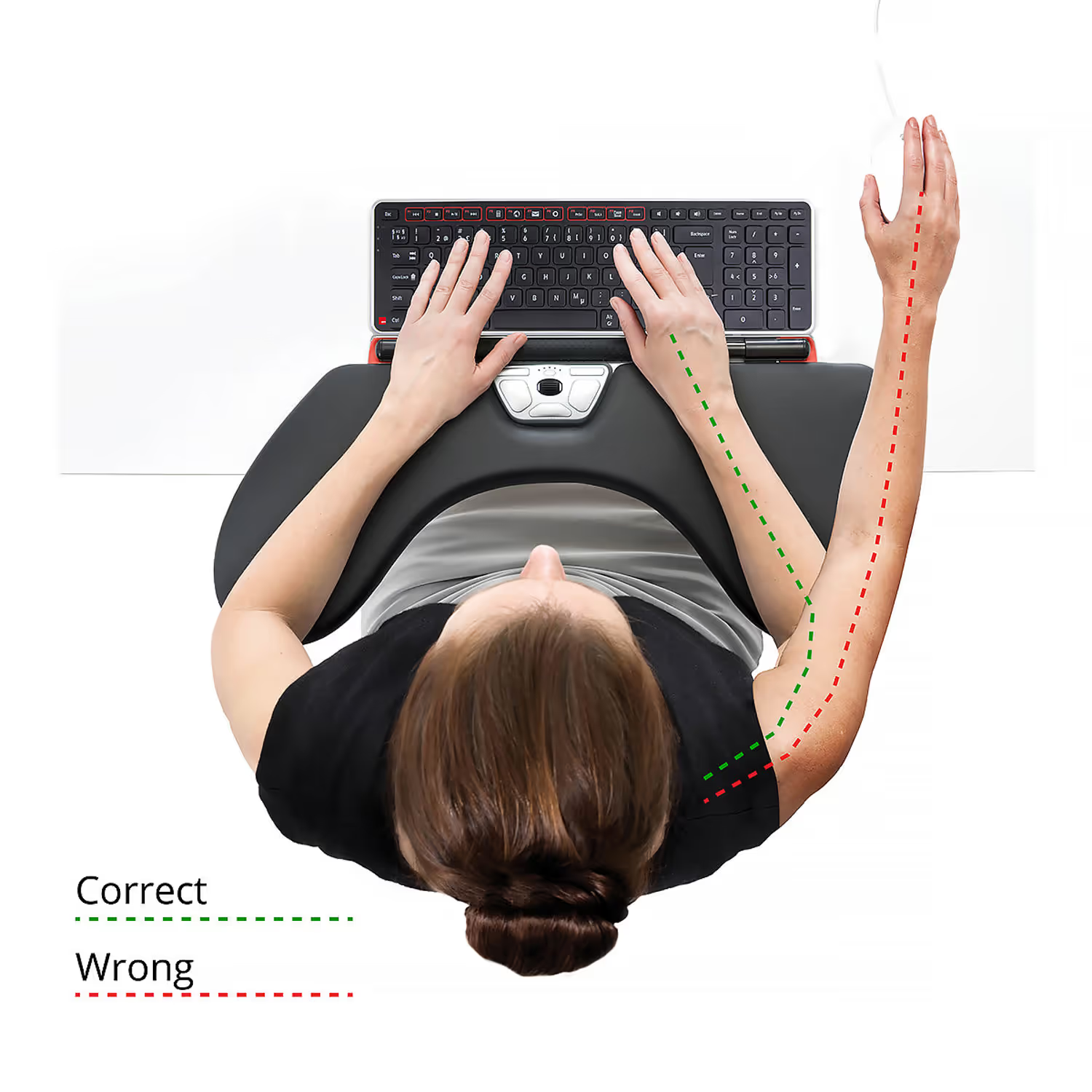
This single change removes the lateral reach that activates the upper-back muscle hundreds of times an hour. Most heavy mousers report the shoulder relaxing inside the first week.
Key Features:
- Three wrist-rest sizes: Red, Red Plus, Red Max
- Wired (USB-C), wireless dongle (USB receiver), and Bluetooth
- Adjustable cursor speed for precise pointer control
- Six reprogrammable buttons and a smooth scroll wheel
- Memory-foam palm rest with vegan-leather wrap
- Wired version powered over USB-C; wireless version uses a rechargeable battery, charged over USB-C
- Ambidextrous: no separate left or right version needed
Best Vertical Mouse: UniMouse
The Contour UniMouse is the best vertical mouse on the market because it is the only one with a fully adjustable hinge. Set the angle anywhere from 35° to 70° to fit your hand. A five-way adjustable thumb rest fits small or large hands, left or right, and accommodates different grip styles for optimal comfort.

If your pain is in the wrist or forearm, including carpal tunnel and tendinitis, the vertical handshake position takes the rotation out of the forearm and reduces extensor muscle load. This design specifically minimizes forearm twisting, a common cause of discomfort with traditional mice. The UniMouse is the best vertical mouse for buyers who have not yet found a fixed-angle vertical mouse they can live with.
Key Features:
- Adjustable verticality angle: 35° to 70°
- Five-way adjustable thumb rest
- Left-handed and right-handed versions
- Five reprogrammable buttons and a mechanical scroll wheel
- Adjustable cursor speed
- Wired (USB-C), wireless dongle (USB receiver), and Bluetooth
- Wired version powered over USB-C; wireless version uses a rechargeable battery, charged over USB-C
Best Touchpad: Contour Touch
The Contour Touch is the best ergonomic touchpad for desk workers whose pain is concentrated in the shoulder and upper back, and who prefer gesture-based input over a rollerbar or a handheld mouse. Like the RollerMouse Red, it sits centrally in front of the keyboard rather than off to the side, so the dominant arm never reaches sideways for the cursor. Unlike the RollerMouse, control happens through finger gestures on a glass surface, the same input style most users already know from a laptop trackpad.

The shoulder benefit comes from the same ergonomic principle backed in the 2015 Harvard School of Public Health and Northeastern University study published in Applied Ergonomics. Alongside the RollerMouse, the centrally-located touchpad in that study produced significantly more neutral shoulder postures and reduced ulnar deviation at the wrist compared to a conventional side-mounted mouse. Central placement is what carries the shoulder relief.
A full-size integrated wrist rest supports the palm during long sessions, and native Windows gesture support means swipes, taps, and shortcuts work the moment the device is plugged in. Four dedicated shortcut buttons handle Copy, Paste, Back, and Forward without leaving the touchpad surface.
Key Features:
- Centrally-positioned design eliminates the lateral reach of a side-mounted mouse
- High-resolution glass surface with click-anywhere functionality
- Native Windows gesture support and four programmable shortcut buttons (Copy, Paste, Back, Forward)
- Adjustable touchpad speed and customizable commands via Windows or the Contour app
- Full-size integrated wrist rest for palm and wrist support
- USB-C wired connection (USB-A adapter included) or Bluetooth 5.1
- Rechargeable battery (20 days per charge)
- Windows compatible
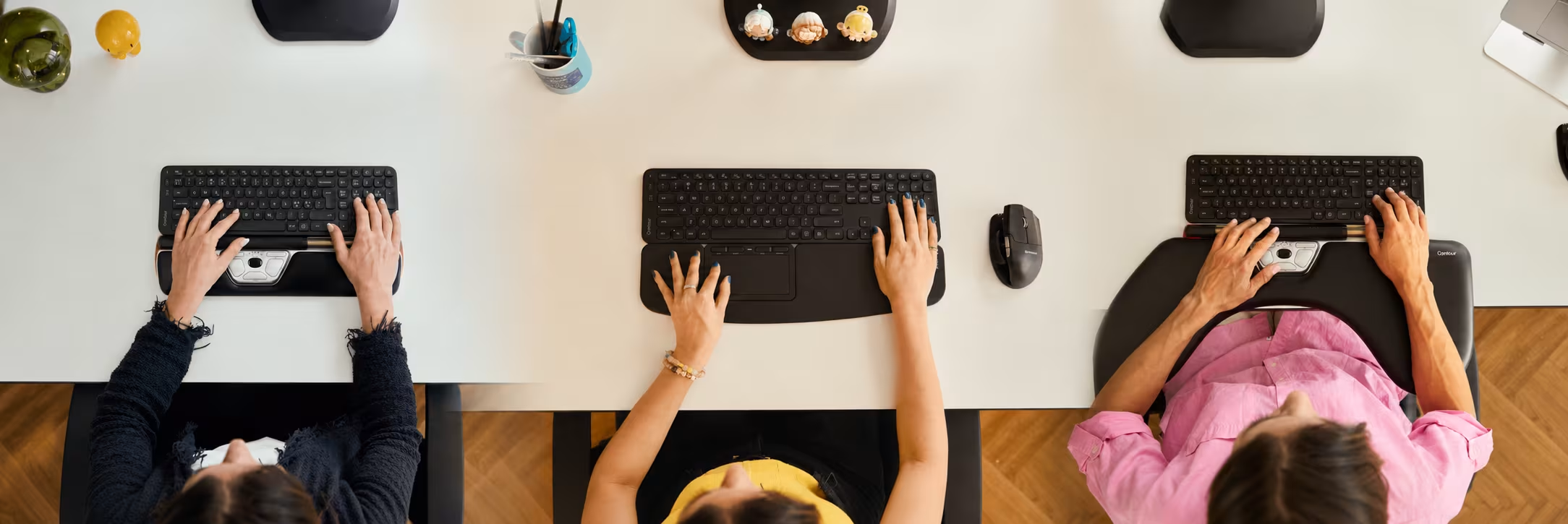
All of the above products are available in wired and wireless versions. The wired versions are powered by the USB-C cable, no battery required. The wireless versions use a rechargeable battery, charged over USB-C, and include a small USB receiver for the wireless dongle alongside Bluetooth as a third connection option.

What Makes a Mouse Ergonomic?
An ergonomic mouse keeps the wrist, forearm, and shoulder closer to a neutral posture by engineering out the angles that overload them. A good ergonomic mouse holds the wrist at a healthy angle, reduces wrist pain, and lets the hand rest in the shape it naturally wants to take. How the mouse feels in your hand is crucial—an ergonomic, comfortable mouse should support your palm, allow your fingers to reach all buttons without overstretching, and prevent friction against the desk. This ensures comfort and usability for a wide range of hand sizes and grip styles, making it suitable for long-term use.
Every ergonomic mouse pulls on three biomechanical levers:
- Forearm rotation. How far the palm has to twist toward the desk to reach the buttons.
- Wrist deviation. How far the wrist bends sideways to align with the device.
- Shoulder reach. How far the arm travels away from the body to use the mouse.
Secondary mouse features matter too. An adjustable cursor speed setting cuts how far you physically move the mouse to cross the screen. A scroll wheel with smooth scrolling reduces finger travel, and a horizontal scroll wheel helps with wide spreadsheets and timelines. Programmable thumb buttons replace repeated clicks with single keystrokes. None of these mouse features is ergonomic on its own, but together they lower total hand load over a workday.
A wireless mouse adds a small USB receiver or Bluetooth so you can move without cable drag. The trade-off is power. Look at how long the battery life lasts on a single charge, whether the wireless mouse uses a rechargeable battery or disposable batteries, and how charging works day to day. A modern wireless mouse with a rechargeable battery now matches a wired mouse on latency and tracking precision.
Why Does My Wrist Still Hurt?

Here is the part most “ergonomic mouse” guides skip.
If you have already tried an ergonomic mouse, a vertical mouse, or one of the popular trackball mice and the pain came back, the device probably did not match the cause. Wrist pain that starts at the wrist is one thing. Wrist pain that radiates from the shoulder down through the elbow into the hand is another, and a vertical mouse will not fix it. The reach is the cause, not the wrist angle. Sounds obvious once it is on the page. It is not, when you are four months into a “vertical mouse should fix this” theory and the pain has crept into a new place.
This is the kinetic-chain reframe. The shoulder fires every time you reach sideways for the mouse. Over months, the upper-back muscles compensate, and the pain travels down the arm. Buyers we have spoken with describe shoulder, neck, and even thumb pain that started “as a wrist thing.” When that ache settles into the base of the thumb, our breakdown of thumb joint pain from computer use covers what's actually loading the joint. Trackball mice can help by keeping the arm still, and they minimize wrist movement by allowing users to control the cursor with their thumb, which can help alleviate wrist strain during extended computer sessions. However, most trackball mice still sit beside the keyboard, so the lateral reach remains.
The Three Designs That Reduce Strain
Three ergonomic design approaches have meaningful peer-reviewed support. Each one solves one of the three biomechanical levers above. The best ergonomic mouse for any given buyer is the one matched to the right lever.
Vertical Mouse (Wrist Pain)
A vertical ergonomic mouse rotates the forearm into a natural handshake position, anywhere from 30° to 90° away from full palm-down. That single change takes the load off the muscle that rotates the wrist all day, which is why a vertical ergonomic mouse is consistently associated with lower repetitive-strain risk than a traditional mouse. A 2013 study by Quemelo and Vieira in Ergonomics, using EMG and joint-angle measurement on 16 subjects, found that the vertical mouse reduced forearm pronation by a third compared to a standard mouse and significantly lowered wrist extensor muscle activity, the sustained load pattern most directly linked to forearm and wrist RSI.
A vertical ergonomic mouse fits buyers whose pain is in the wrist, forearm, or hand. Carpal tunnel, tendinitis, tennis elbow, de Quervain’s tenosynovitis at the base of the thumb, and the 2pm tingle in the ring and pinky finger all fall into this bucket. If carpal tunnel specifically is what's driving the pain, our guide to the best mouse for carpal tunnel syndrome breaks down which design fits where the symptoms sit. A vertical mouse is also one of the strongest ergonomic design choices for left-handed users when the device is genuinely usable in either hand, not a mirrored right-handed shape.
The honest trade-off. Fine pointing tasks feel slower for the first one to two weeks while your nervous system relearns the motor pattern. Most users adapt fully inside the second week.
The UniMouse sits at the top of this category because the hinge is adjustable. As a vertical ergonomic mouse, the UniMouse lets you fit the device to your hand, anywhere from 35° to 70°. Combined with the five-way thumb rest, this is the best vertical mouse for buyers who have not found a fixed-angle vertical they can live with.
Standalone Touchpad (Shoulder Pain)
A standalone touchpad sits centrally in front of the keyboard like a rollerbar mouse, but uses a flat surface and finger gestures instead of a bar. Both hands can reach it without any sideways shoulder travel, and cursor control happens through finger movement rather than wrist or arm motion.
This is the ergonomic design that suits shoulder-dominated pain when the user prefers a gesture-based interaction style over a rollerbar. A standalone touchpad fits buyers whose pain is concentrated in the shoulder and upper back, who do a high volume of general office work (documents, email, browsing, light spreadsheet use), and who are already comfortable with gesture-based input from a laptop trackpad or a tablet.
The honest trade-off. A touchpad asks one finger to do the work several fingers would share on a rollerbar, which is why the same Harvard study found touchpad users reported higher task difficulty than rollerbar users. Precision work — photo retouching, CAD, vector illustration — is also harder on a touchpad than on a handheld mouse, since fingertip swipes don't deliver the same sub-pixel control.
The Contour Touch is the centrally-positioned touchpad in our line, designed to replace a side-mounted mouse for users who want shoulder relief through gesture input rather than a rollerbar.
Centered Rollerbar (Shoulder and Wrist Pain)
A centered rollerbar sits directly in front of the keyboard. Both hands operate the rollerbar from a neutral position. There is no reach to the side at all.
This is the ergonomic design that removes the 12 to 18 inches of repeated shoulder travel a side-mounted standard mouse forces every time you switch from typing to clicking. The link between where the mouse sits and how the shoulder loads has been established in peer-reviewed ergonomics research for decades. A foundational 1998 study by Karlqvist, Hagberg, and Selin in the Scandinavian Journal of Work, Environment & Health found that moving the mouse from a lateral position to a more central one significantly reduced muscle load in the shoulder and upper arm, along with lowering perceived exertion during sustained mouse work.
A centered rollerbar fits shoulder and neck-dominated pain, ambidextrous use, and anyone clocking six or more hours of mouse time a day. The pattern in our customer reviews is consistent: heavy mousers describe shoulder relief inside the first week and full adaptation by week two.
What it costs you. A centered rollerbar takes some keyboard-tray real estate, and your motor pattern has to relearn the basic click-and-drag for about a week.
The RollerMouse Red is the flagship of this category, and the best ergonomic mouse in our line for buyers whose pain has spread past the wrist. Memory-foam wrist rest in three sizes, aluminum chassis, adjustable sensor resolution, a smooth scroll wheel, and six programmable buttons.
What About Trackball Mice?
Trackball mice are a related family. There are two main types of trackballs: thumb-operated and finger-operated, each offering different levels of familiarity and ergonomic benefits for users. Instead of moving the device across the desk, you control the cursor by rotating a ball with your fingers or thumb, minimizing wrist and arm movement, which can be especially beneficial for those with certain physical limitations. Thumb operated trackballs are a popular ergonomic alternative, though whether they actually help the thumb is more contested than most buyers realize. Many trackball mice also let users assign functions to programmable gestures and buttons, enhancing customization and versatility for various tasks. Trackball mice keep the arm still, which helps some buyers with shoulder pain, but most trackball mice still sit to the side of the keyboard, so the lateral reach is still there.
How to Choose the Right Ergonomic Mouse
Three inputs decide the answer.
- Where the pain is. Wrist or forearm only? You want a vertical mouse like the UniMouse. Shoulder, neck, or multi-point pain that started in the wrist and spread? You want a centered rollerbar like the RollerMouse Red.
- How long you mouse each day. Under four hours, any of the three designs gives relief. Six or more hours, the centered rollerbar typically outperforms because it removes the highest-frequency motion (the lateral reach).
- What kind of work you do. Heavy typists who switch constantly between typing and clicking get the most from a centered rollerbar as the bar sits directly below the spacebar, so the hand never travels sideways to reach a mouse. For precision-driven work like photo retouching, vector illustration, CAD, or video editing timelines, a handheld ergonomic mouse remains the better choice.
Before you buy, also check the mouse features that affect day-to-day comfort: a scroll wheel with smooth scrolling, programmable buttons you can map to your most-used shortcuts, an adjustable sensor resolution, a comfortable thumb rest, and on a wireless mouse, a rechargeable battery whose battery life gets you through a typical workweek between charges.
If you are still not sure, our Help Me Choose tool narrows it down in and find the right mouse for you under a minute.

RollerMouse Red vs UniMouse vs Contour Touch
What Real Buyers Say
A pattern stands out across reviews: most buyers of the best ergonomic mouse for their specific pain pattern have already tried something else first. The testimonials below come from buyers who had cycled through at least one other ergonomic design before switching.
"Tried a vertical mouse for a year. My wrist felt fine but my shoulder got worse." Within four weeks of switching to the RollerMouse Red, the buyer reported the shoulder pain had dropped off. (Marketing director, US fintech, eight hours of mouse use a day.)
"I had trigger thumb from gripping a regular mouse and a fixed-angle vertical mouse made it worse." The UniMouse with the adjustable angle and thumb rest "fit my hand instead of fighting it." (Independent video editor, ten or more hours of mouse use a day.)
"After two rounds of physical therapy and a brace by Friday every week, I was skeptical that a mouse could be the answer." The buyer reported noticeable improvement within three days after switching to the RollerMouse Red. (Litigation attorney, US.)
If you have already tried a vertical mouse or a trackball and it did not hold, the data point we hear most is this: the ergonomic design matched the wrong cause. The two winners above are matched to the two most common cause patterns.
Frequently Asked Questions
Do ergonomic mice work?
Yes. Peer-reviewed controlled trials show alternative ergonomic mouse designs reduce forearm muscle activity and produce more neutral wrist and shoulder postures than a traditional mouse. The 2015 Lin, Young, and Dennerlein study in Applied Ergonomics found measurable improvements in both forearm extensor activity and shoulder posture with a centered rollerbar. The benefits depend on matching the ergonomic design to the pain pattern. A vertical mouse will not fix shoulder pain caused by lateral reach.
How long is the adjustment period?
Most users adapt to a new ergonomic mouse within one to two weeks of daily use. The first three days feel slowest, and fine pointing improves by the second week. A vertical mouse tends to take a little longer than a centered rollerbar. Some ergonomic mice, such as trackballs and vertical mice, may have a steep learning curve, requiring extra time and practice to master, but they offer significant long-term ergonomic benefits. Use the new mouse exclusively during the adjustment. Switching back and forth between the new mouse and your old one doubles the time it takes.
Can it fix carpal tunnel?
An ergonomic mouse can reduce or eliminate mouse-driven wrist pain when the ergonomic design matches the cause, but it is not a medical treatment for diagnosed carpal tunnel syndrome. If discomfort improves with a better device, the device was likely the trigger. A neutral wrist angle takes pressure off the median nerve. Persistent or worsening pain still warrants a clinical assessment. In the meantime, our roundup of carpal tunnel relief at your desk covers the changes that ease symptoms day to day.
Vertical mouse vs centered rollerbar?
A vertical mouse is better when the pain is purely in the wrist and forearm and the cause is rotational. A centered rollerbar like the RollerMouse Red is better when the pain has spread into the shoulder or neck, because removing the lateral reach is the higher-leverage change. If you have both, start with the centered rollerbar. It fixes more of the problem at once.
Wired vs wireless mouse?
A modern wireless mouse matches a wired mouse on tracking and latency, and the lighter cable-free movement can reduce shoulder load slightly over a long workday. The trade-off is power. Look at how long the battery life lasts on a full charge, whether the wireless mouse uses a rechargeable battery or disposable batteries, and how easy it is to top up the charge. Some wireless models do not include onboard storage for the USB dongle, which may be inconvenient for users who travel frequently and need to keep track of the receiver. The RollerMouse Red and the UniMouse each ship in a wired version (powered over USB-C) and a wireless version (rechargeable battery, charged over USB-C, with a small USB receiver and Bluetooth as a third option).
Best for left-handed users?
A truly ergonomic left-handed mouse is one usable in either hand by design, not a right-handed shape mirrored. The UniMouse comes in a dedicated left-handed version, and the RollerMouse Red is ambidextrous so it works the same in either hand. A mirrored right-handed sculpted mouse is not a real ergonomic answer because the side buttons and grip curvature stay optimized for the dominant hand.
Good for design or creative work?
Yes, but the right tool here is a handheld ergonomic mouse rather than a centered rollerbar. Precision work, like illustration, photo retouching, CAD, vector design, video editing, relies on fingertip control over a traditional cursor, which a handheld mouse delivers naturally. The UniMouse is built for exactly this kind of use: an adjustable angle from 35° to 70° lets you find the wrist position that keeps the forearm neutral during long detail sessions, and the pointer precision matches what designers and CAD users already expect from a conventional mouse. A centered rollerbar is the better pick for typing-heavy, high-volume general mousing, but when individual pixels matter, a well-tuned handheld wins.
Does it help shoulder pain?
Only the designs that remove the lateral reach to the side of the keyboard. A vertical mouse changes the angle of the forearm but does not remove the reach, so it will not fix shoulder pain on its own. A centered rollerbar like the RollerMouse Red removes the reach entirely. Most buyers report the shoulder relaxing inside the first week after switching.
Match the Design to Your Pain
The best ergonomic mouse is not a single product. It is the ergonomic design whose engineering matches the cause of your pain, fits the way you actually work, and feels comfortable from the first hour. Match the design to the pain. Or, more precisely, match the design to the lever the pain is pulling on, because two people with "wrist pain" can have two different mechanical causes and need two different mice. Give your nervous system one to two weeks to adapt. Let the device do its job.
If your pain is wrist or forearm-only, the UniMouse is the best vertical mouse on the market because the angle adjusts to your hand. If the pain has spread to the shoulder or neck, the RollerMouse Red is the best ergonomic mouse overall because it removes the lateral reach that drives most upper-body computer pain. Pairing either with one of our ergonomic keyboards further shortens the reach distance between typing and pointing. And if you're trying to stay ahead of the strain rather than chase it, our guide to preventing carpal tunnel at your desk lays out the daily habits that keep the wrist neutral.
Ready to find yours? The Help Me Choose tool takes under a minute and points you to the right Contour design. Or jump straight to the RollerMouse Red or the UniMouse and Contour Touch if you already know which one fits.
Which Device Is Right for You?
Take a quick quiz and get a personalized recommendation based on how you work.

