
Good Laptop Stand: How to Choose the Right One for Comfort and Productivity
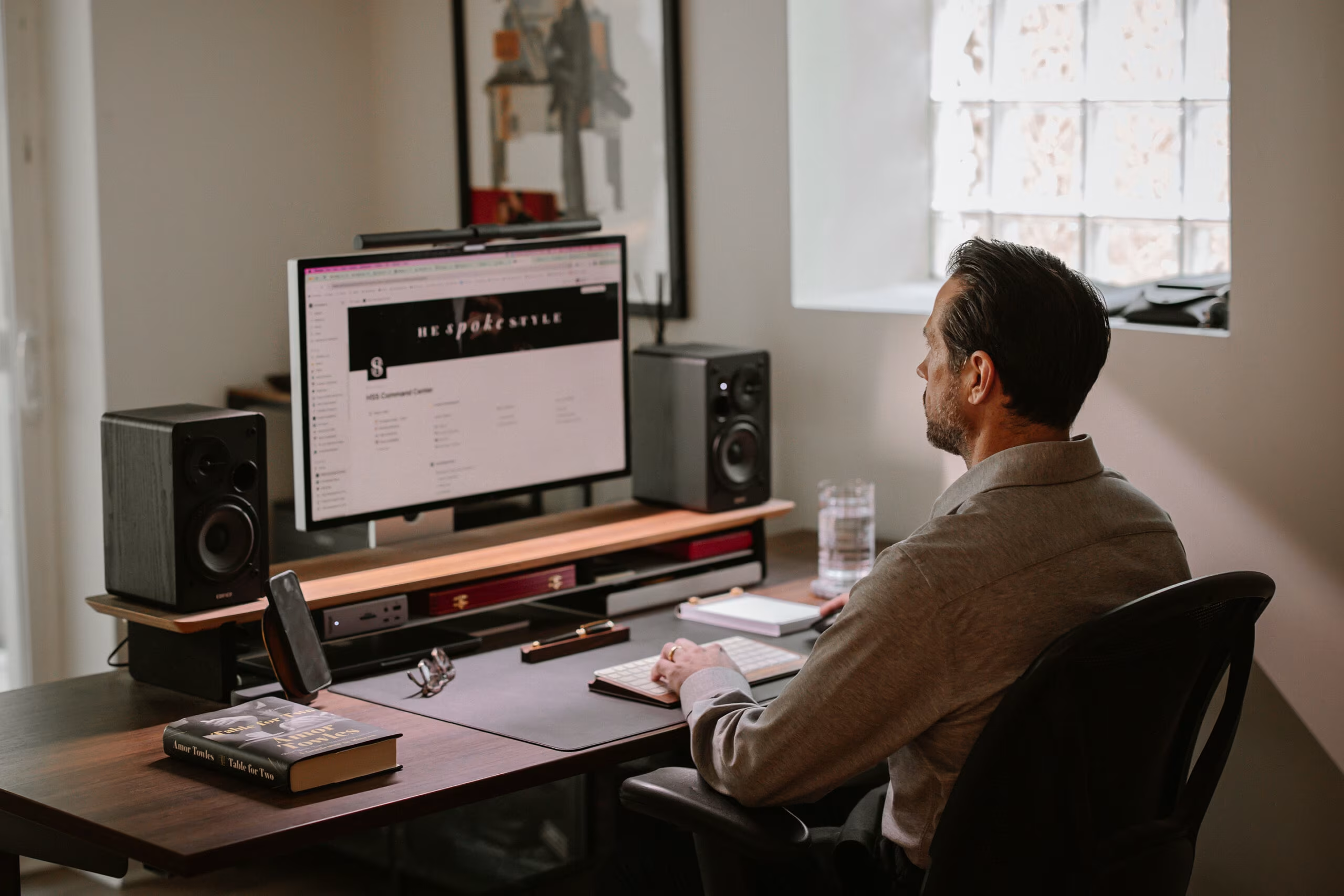
A good laptop stand can transform your workday. If you spend 6 to 10 hours hunched over a screen, you know the ache: stiff neck, tight shoulders, that dull throb in your lower back by 3 PM. The culprit isn't just your chair or your posture habits. It's often your laptop itself, sitting flat on a desk and forcing your head down at angles your spine was never designed to hold.
Here's what surprised me when I started researching laptop stands: the difference isn't subtle. Studies show that elevating your screen to eye level can reduce neck strain by up to 32%. That's not a marginal improvement. That's the difference between ending your workday exhausted and ending it ready for dinner with your family.
But not every laptop stand delivers these benefits. Some wobble. Some can't adjust high enough. Others look great but crack under the weight of a 16-inch MacBook Pro. This guide breaks down exactly what separates good laptop stands from forgettable ones, which type fits your work style, and how to set everything up for real ergonomic relief.
Key Takeaways
- A good laptop stand can reduce neck strain by up to 32% by elevating your screen to eye level.
- Adjustability, build quality, and stability are the most important features to look for when choosing a laptop stand.
- Once your laptop is elevated, you'll need an external keyboard and mouse to maintain proper arm and wrist positioning.
- Portable folding stands are ideal for remote workers who need ergonomic support across multiple locations.
- Pairing your laptop stand with a supportive chair, proper desk height, and regular movement breaks creates a complete ergonomic workstation.
- Position your screen so the top sits at or slightly below eye level, about an arm's length away for optimal comfort.
Why a Laptop Stand Makes a Difference for Your Posture

When your laptop sits flat on a desk, you tilt your head forward by 30 to 45 degrees to see the screen. Ergonomists call this "tech neck," and it places enormous strain on your cervical spine. For every inch your head moves forward, your neck muscles work as if your head weighs an extra 10 pounds.
Over months and years, this posture leads to chronic pain in your neck, shoulders, upper back, and even your wrists. A good laptop stand addresses this problem directly by raising your display to eye level. Your head stays balanced over your spine. Your shoulders relax. The muscles that were constantly fighting gravity finally get a break.
Research from the National Institutes of Health confirms that adjustable laptop stands significantly improve sitting posture during typing tasks. Participants using elevated screens showed reduced neck flexion and less reported discomfort after extended work sessions.
The takeaway: if you're already dealing with RSI symptoms or want to prevent them, a laptop stand isn't a luxury purchase. It's a foundational fix for how your body interacts with your computer every single day.
Try this today: Notice your head position right now. If your chin is jutting forward, you're experiencing exactly the strain a laptop stand eliminates.
Key Features to Look for in Good Laptop Stands
Height and Angle Adjustability
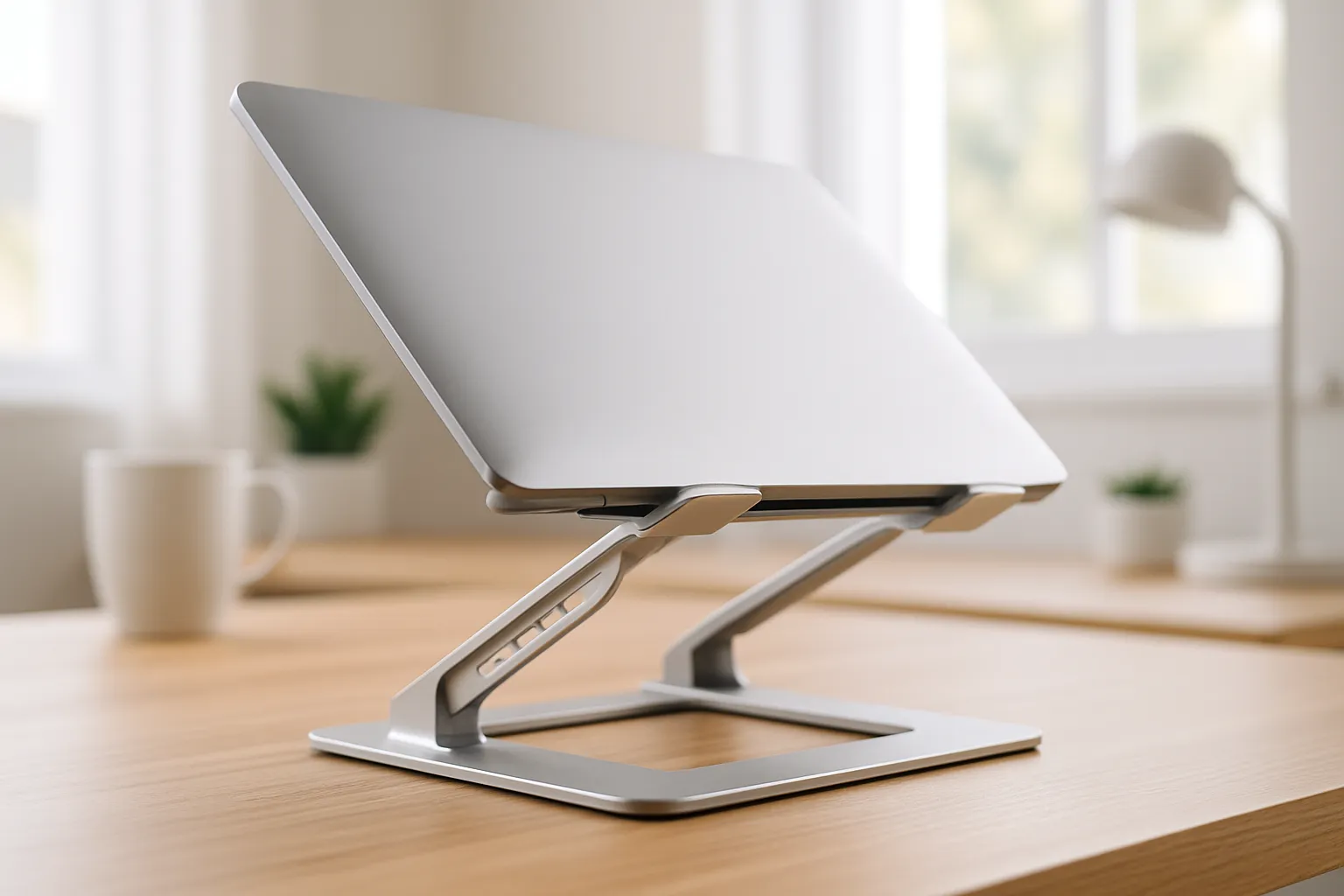
The single most important feature in any laptop stand is adjustability. Your ideal screen position places the center of your display roughly 15 to 20 degrees below your natural line of sight. But "ideal" varies based on your height, desk setup, and chair.
Fixed-height stands work for some people. But if you're 5'4" using the same stand as someone who's 6'2", one of you is compromising. Adjustable stands let you dial in the exact angle and elevation your body needs.
Look for stands with multiple height settings or continuous adjustment mechanisms. Some premium options offer tilt adjustment too, which helps reduce glare and fine-tune your viewing angle. If you want a detailed breakdown of what makes a stand truly ergonomic, this guide on key features that relieve neck and shoulder pain covers the essentials.
Build Quality and Stability
A wobbly stand defeats the purpose of using one. Every time you type, your screen shouldn't shake. Every time you adjust your position, your laptop shouldn't slide.
Materials matter. Aluminum stands tend to offer the best combination of durability and heat dissipation. Plastic stands work for lighter laptops but may flex under heavier machines. Look for rubber grips or silicone pads that prevent your laptop from sliding, especially if you use a stand with significant tilt.
Weight capacity is another consideration. A stand rated for 15-inch laptops may struggle with a 17-inch workstation. Check the specs before buying.
Portability and Workspace Compatibility
If you work from coffee shops, co-working spaces, or split time between home and office, portability becomes essential. Many good laptop stands feature lightweight, foldable designs that slip into a backpack or laptop bag.
According to our office ergonomics checklist, maintaining ergonomic positioning across multiple workspaces requires equipment that travels with you. A 3-pound aluminum stand that folds flat takes up minimal space while delivering the same benefits as a permanent desktop setup.
Consider your desk size too. Some stands have wide bases that dominate small desks. Others feature minimal footprints that leave room for notebooks, external drives, and your morning coffee.
Types of Laptop Stands and Who They're Best For
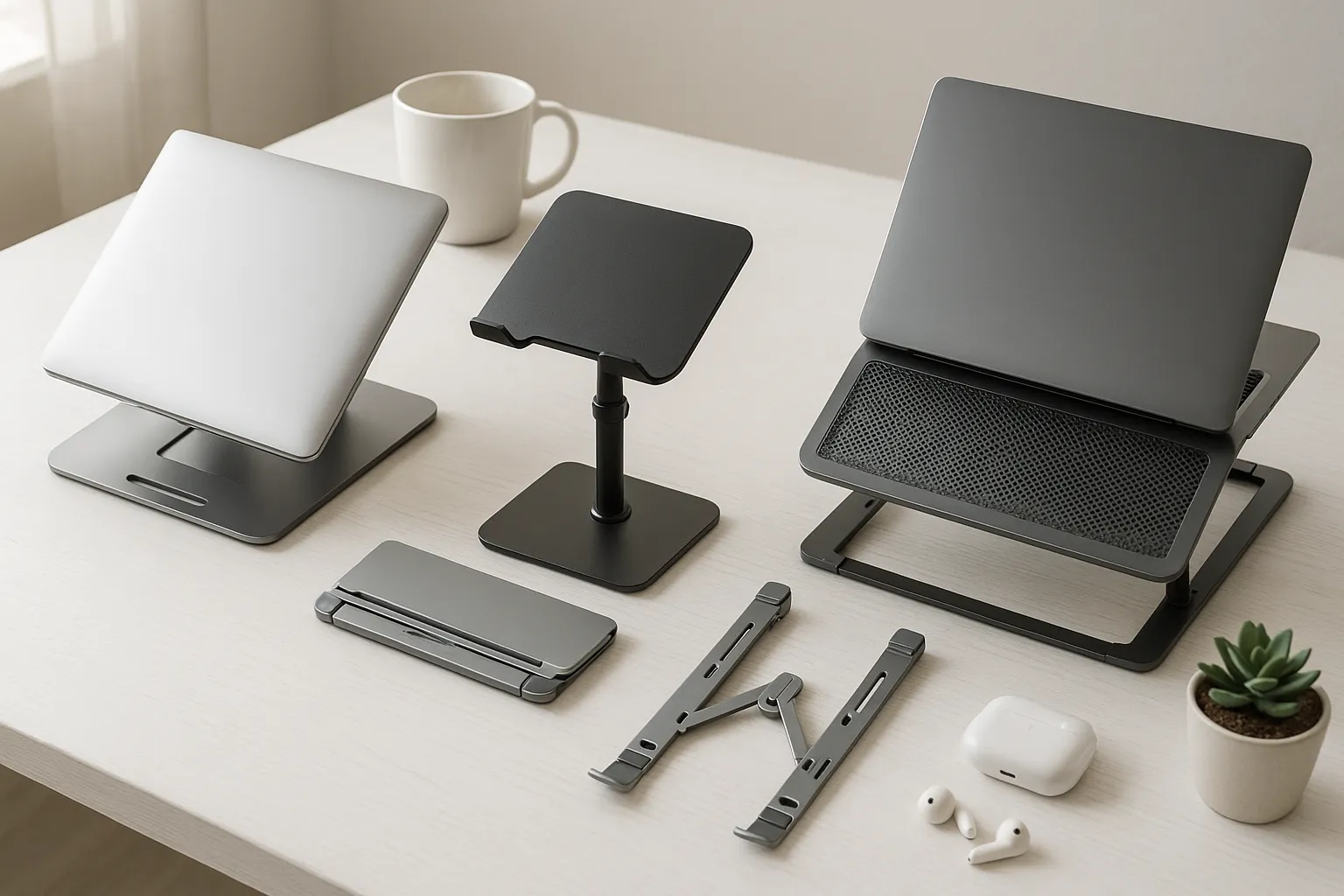
Not all laptop stands serve the same purpose. Understanding the main categories helps you match your purchase to your actual work habits.
Fixed desktop stands offer maximum stability and often include features like cable management or built-in USB hubs. They're ideal for permanent home offices where your laptop lives in one spot. If you never move your workstation, these deliver rock-solid support without the complexity of adjustment mechanisms.
Adjustable height stands provide flexibility for users who share workspaces or change positions throughout the day. These work well for standing desk users who transition between sitting and standing. The ability to raise or lower your screen quickly means your ergonomic setup follows you.
Portable folding stands prioritize travel convenience. They typically weigh under one pound, collapse to the size of a small notebook, and set up in seconds. Remote workers and digital nomads rely on these to maintain posture standards across hotel rooms, airports, and cafes.
Riser stands with ventilation combine elevation with active or passive cooling. If you run demanding software, these prevent thermal throttling while improving your posture. Particularly useful for video editors, developers running local servers, or anyone pushing their laptop's processor.
For professionals who travel frequently but refuse to compromise on ergonomics, the RollerMouse Travel Kit bundles a laptop stand with an ergonomic keyboard and centralized mouse, which means your entire workstation fits in one bag.
Action step: Identify where you do 80% of your work. That environment should drive your stand selection. Permanent office? Go for stability. Frequent travel? Prioritize portability.
How to Set Up Your Laptop Stand for Maximum Ergonomic Benefit
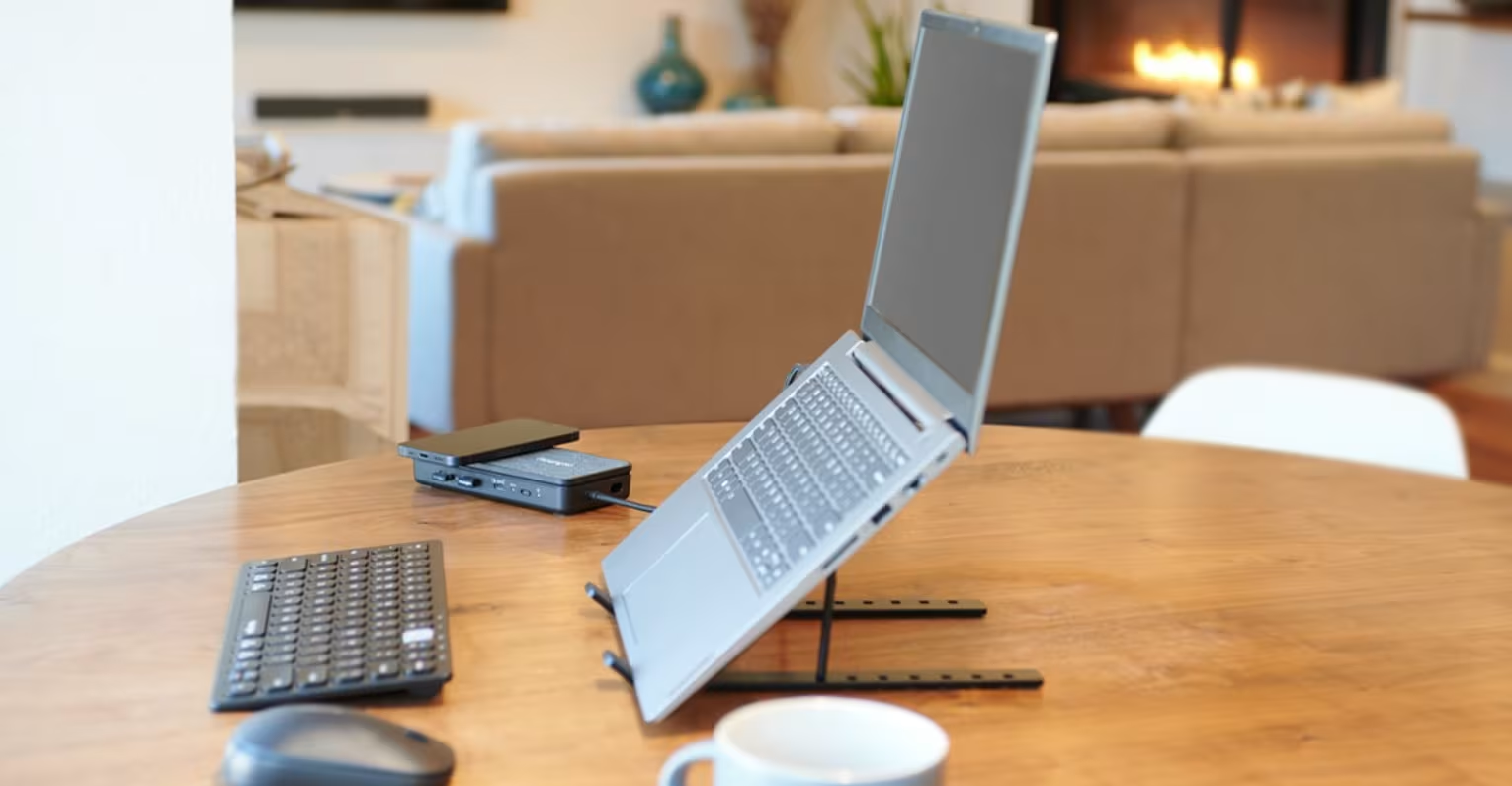
Buying a good laptop stand is step one. Setting it up correctly is where the real benefits happen.
Screen height: Position your display so the top of the screen sits at or slightly below eye level. When you look straight ahead, your eyes should naturally land on the upper third of your screen. This prevents both upward strain (which causes forehead tension) and downward strain (which causes neck pain).
Screen distance: Most ergonomic guidelines recommend positioning your screen about an arm's length away. Extend your arm straight out. Your fingertips should just touch the display. Too close causes eye strain. Too far causes you to lean forward, negating your stand's benefits.
Keyboard and mouse placement: Here's where many people go wrong. Once you elevate your laptop, the built-in keyboard becomes nearly unusable without awkward arm positions. You need an external keyboard positioned so your elbows rest at 90-degree angles, with your wrists neutral.
Experts at Wirecutter recommend that your forearms should be roughly parallel to the floor when typing. If you're reaching up to a raised laptop keyboard, you're trading neck strain for shoulder strain. For a full breakdown of how to position every element correctly, see our guide on how to set up your desk ergonomically.
Take breaks: Even perfect posture needs interruption. Set a timer for every 30 to 60 minutes. Stand up. Stretch your neck, shoulders, and wrists. Walk to get water. These micro-breaks prevent the muscle fatigue that accumulates even in well-designed workstations.
This advice works best for: desk-bound knowledge workers logging 6+ hours daily. If you only use your laptop for an hour at a time, these adjustments matter less.
Pairing Your Laptop Stand With an Ergonomic Workstation
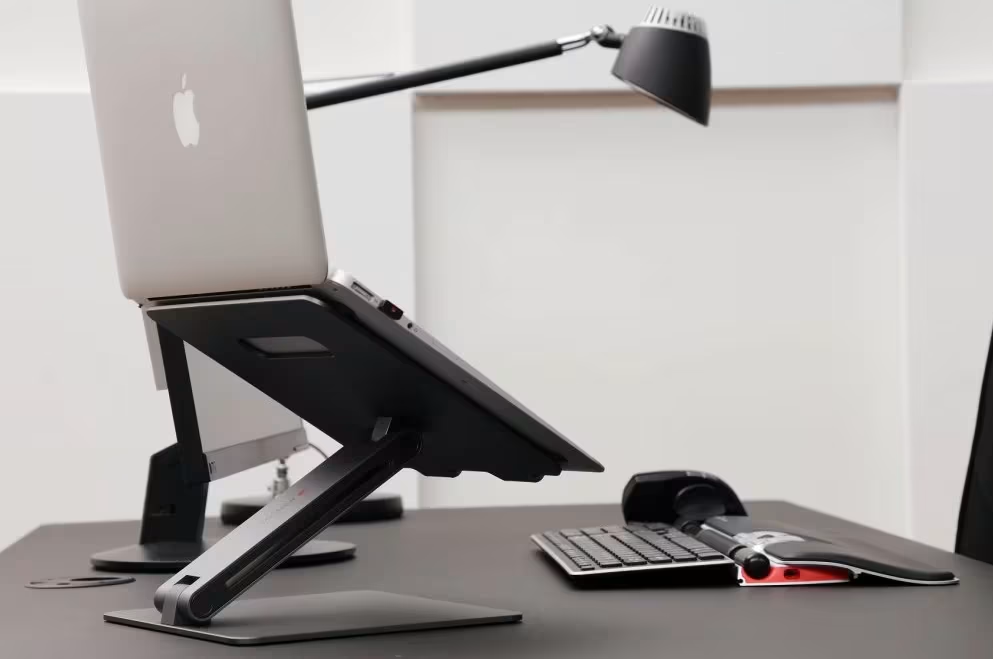
A laptop stand alone won't solve all your discomfort. It's one component of a complete ergonomic setup.
External keyboard and mouse: Once your screen is elevated, you need input devices that keep your arms in neutral positions. The built-in trackpad forces awkward wrist angles. A separate mouse and keyboard let you maintain proper alignment while still benefiting from the raised display. Centralized pointing devices like the RollerMouse keep your hands in front of your body instead of reaching to the side, which reduces shoulder strain significantly.
Chair support: Your lower back needs lumbar support to maintain the natural curve of your spine. Without it, you'll slump forward within 20 minutes, regardless of how perfectly you've positioned your screen. Adjust your chair height so your feet rest flat on the floor and your thighs are parallel to the ground.
Desk height: Standard desks sit around 29 to 30 inches high, which works for people around 5'10". If you're shorter or taller, you may need an adjustable desk or a keyboard tray to achieve proper arm positioning. For a comprehensive breakdown of how posture-focused setups come together, check out this guide on building a pain-free workspace.
Add movement: Static posture, even good static posture, causes fatigue. Standing desk converters let you alternate between sitting and standing. Balance boards engage your core while you work. Simply walking for five minutes every hour improves circulation and energy.
Real results require all the pieces. A laptop stand elevates your screen. An external keyboard protects your wrists. A supportive chair maintains your spine. Together, these reduce discomfort in your neck, lower back, shoulders, and hands.
The Cleveland Clinic emphasizes that ergonomic workstations prevent the cumulative strain that leads to chronic pain conditions. If you're serious about protecting your body for the long haul, invest in the complete setup.
Your next step: Audit your current workspace. Which component is weakest? Fix that one first, then address the others systematically.
Conclusion
Choosing a good laptop stand comes down to three factors: adjustability, build quality, and fit for your work style. The stands that deliver real ergonomic benefits let you position your screen at eye level, stay stable during daily use, and match whether you work in one location or many.
But the stand itself is just the starting point. Pair it with an external keyboard and mouse. Sit in a chair that supports your lower back. Take breaks to move and stretch. These habits turn a simple accessory purchase into genuine, lasting relief from the strain that accumulates over thousands of hours at your desk.
Your body is your primary tool for getting work done. Protect it with equipment designed for how humans actually function. Start with the stand. Build from there.
Frequently Asked Questions
What makes a good laptop stand for improving posture?
A good laptop stand elevates your screen to eye level, reducing the forward head tilt that causes tech neck. Key features include height and angle adjustability, stable construction, and build quality that prevents wobbling. Research shows elevated screens can reduce neck strain by up to 32%.
How do I set up a laptop stand for maximum ergonomic benefit?
Position the top of your screen at or slightly below eye level, about an arm's length away. Pair your elevated laptop with an external keyboard and mouse, keeping elbows at 90 degrees. Take micro-breaks every 30–60 minutes to stretch and prevent muscle fatigue.
Do I need an external keyboard when using a laptop stand?
Yes. Once you elevate your laptop, the built-in keyboard forces awkward arm positions and wrist strain. An external keyboard lets you maintain proper elbow angles and neutral wrists while benefiting from the raised screen height for better posture.
What type of laptop stand is best for remote workers who travel?
Portable folding stands are ideal for frequent travelers. They typically weigh under one pound, collapse to notebook size, and set up in seconds. This allows remote workers and digital nomads to maintain ergonomic posture across hotel rooms, airports, and cafes.
Can a laptop stand help with neck and shoulder pain?
Yes. When laptops sit flat, you tilt your head forward 30–45 degrees, straining your cervical spine. A good laptop stand raises your display to eye level, reducing neck flexion and shoulder tension. Consistent use relieves discomfort in the neck, shoulders, and upper back.
Should I choose an adjustable or fixed laptop stand?
Adjustable stands offer greater flexibility, ideal for shared workspaces or standing desk users who change positions. Fixed desktop stands provide maximum stability for permanent setups. Choose based on whether you need portability and customization or rock-solid support in one location.

Which Device Is Right for You?
Take a quick quiz and get a personalized recommendation based on how you work.

