
Ergonomic Laptop Stand for Desk: 8 Key Features That Relieve Neck and Shoulder Pain

An ergonomic laptop stand for desk use can transform how your body feels after a full workday. If you spend 6–10 hours staring at a screen, you already know the dull ache that creeps into your neck and shoulders by 3 p.m.
Here's a number that might surprise you: approximately 45% of people who use laptops for extended periods report musculoskeletal discomfort, according to research published by the National Institutes of Health. That's nearly half of us hunching, straining, and paying the price later.
The good news? The right laptop stand addresses these problems at the source. By raising your screen to eye level and encouraging better posture, a quality stand reduces the physical toll of desk work. But not all stands deliver the same benefits.
In this guide, you'll discover the 8 essential features that separate pain-relieving laptop stands from glorified shelf props. Whether you're recovering from RSI symptoms or trying to prevent them, these criteria will help you choose a stand that actually works.
Key Takeaways
- An ergonomic laptop stand for desk use should offer 4–8 inches of adjustable height to bring your screen to eye level and reduce neck strain.
- Look for tilt angle options between 10–20 degrees to maintain proper posture whether sitting or standing.
- Sturdy, wobble-free construction with materials like aluminum alloy or steel ensures stability during extended typing sessions.
- Open-frame or perforated designs provide proper ventilation, reducing laptop temperatures by 10–15°F and extending device lifespan.
- Pair your laptop stand with an external keyboard and mouse positioned at elbow height for a complete ergonomic workstation.
- Choose stands with tool-free adjustment mechanisms to encourage consistent use and easy transitions throughout your workday.
1. Adjustable Height for a Natural Line of Sight
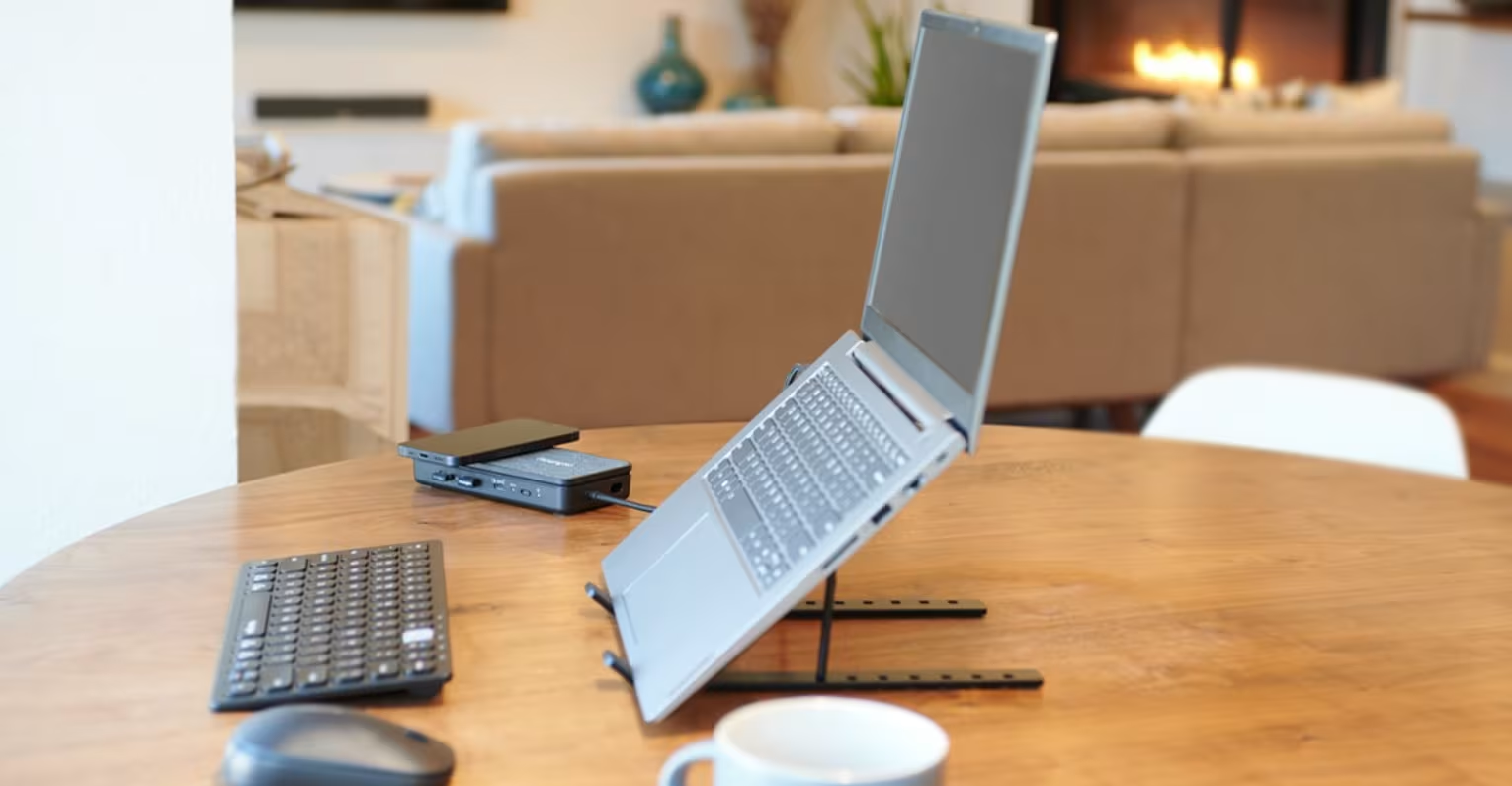
Height adjustability is the single most important feature in any ergonomic desk laptop stand. Without it, you're still craning your neck downward, just at a slightly different angle.
Most laptop screens sit 4–6 inches below optimal eye level when placed flat on a desk. This forces your head forward and down, adding up to 60 pounds of effective weight on your cervical spine. Over months and years, this leads to the chronic neck pain many remote workers experience.
Look for stands offering at least 4–8 inches of vertical adjustment. This range accommodates most desk heights and body proportions. Some premium models, like the Contour Laptop Stand, provide precise incremental adjustments so you can dial in exactly the right position.
Why Eye-Level Screens Reduce Neck Strain
When your screen sits at eye level, your head balances naturally over your spine. Your neck muscles don't have to work overtime holding your head in a forward position.
The math is straightforward: every inch your head moves forward adds roughly 10 pounds of strain to your neck muscles. At a 45-degree bend (common when looking down at a laptop), your neck supports the equivalent of 49 pounds instead of the normal 10–12.
Positioning your screen so the top third falls at or slightly below eye level keeps your cervical spine in its natural curve. Your neck muscles relax. Your shoulders drop. And that 3 p.m. ache? It becomes far less common.
Today's action: Measure the distance from your desk surface to your eye level while seated with good posture. Subtract your laptop screen's height. That's the minimum elevation your stand needs to provide.
2. Tilt Angle Options That Support Better Posture

Height alone isn't enough. The angle at which your screen tilts toward you matters just as much for comfortable viewing.
A screen tilted too far back forces you to look upward, straining different neck muscles. Too far forward, and you're back to hunching. The sweet spot sits between 10–20 degrees of backward tilt for most users.
Quality laptop stands offer adjustable tilt ranges, typically 0–35 degrees. This flexibility lets you fine-tune your viewing angle based on:
- Your specific eyeglass prescription (progressive lenses often require different angles)
- Ambient lighting conditions
- Whether you're sitting or using a standing desk
- Personal comfort preferences
According to the Canadian Centre for Occupational Health and Safety, alternating between sitting and standing throughout the day reduces musculoskeletal strain. But each position requires slightly different screen angles. An adjustable tilt makes these transitions smoother.
Today's action: If you wear glasses, test your current laptop position while looking through different parts of your lenses. Note whether you naturally tilt your head to see clearly. An adjustable stand eliminates this compensation.
3. Sturdy, Wobble-Free Construction

A wobbly stand defeats the purpose of ergonomic positioning. Every time your laptop shakes during typing, your eyes strain to track the moving screen. Your hands compensate. Your shoulders tense.
Stability comes down to base design and build quality. Wide footprints distribute weight better than narrow ones. Rubber or silicone feet grip desk surfaces and absorb vibration. Solid locking mechanisms keep adjustable components from slipping under pressure.
Test any stand by pressing firmly on the laptop platform while it's extended to full height. Quality models hold position without wavering. Cheaper alternatives flex, wobble, or slowly drift downward over time.
Materials That Balance Durability and Weight
The best laptop stands use materials that maximize strength while keeping weight reasonable:
- Aluminum alloy: Lightweight, strong, excellent heat dissipation. Premium choice for professionals.
- Steel: Heavier but extremely stable. Good for permanent desk setups.
- High-grade plastic/polycarbonate: Budget-friendly, decent durability. Watch for long-term flex.
- Wood/bamboo: Aesthetic appeal, good stability. Less common but increasingly popular.
Weight capacity matters too. Your stand should comfortably support at least 1.5x your laptop's weight to account for occasional pressure during use. A 15-inch MacBook Pro weighs about 4.5 pounds, so look for stands rated for at least 7–10 pounds.
Today's action: Check your current laptop's weight in its specifications. Add 50% to determine your minimum stand capacity requirement.
4. Proper Ventilation to Keep Your Laptop Cool
Heat is your laptop's enemy. When internal temperatures rise, processors throttle performance to prevent damage. Your machine slows down. Fans spin louder. And over time, components degrade faster.
Flat desk surfaces trap heat beneath your laptop, where ventilation ports typically sit. Elevating your device allows air to circulate freely underneath, reducing temperatures by 10–15°F in typical conditions.
Look for these ventilation features in an ergonomic laptop stand:
- Open-frame designs that expose the laptop's bottom entirely
- Perforated platforms with holes or mesh patterns
- Elevated ridges that create air channels even on solid surfaces
- Adequate clearance (at least 1 inch) between laptop and platform
Some stands include built-in fans, though these add weight, noise, and power requirements. For most users, passive ventilation through thoughtful design works just as well.
This isn't just about performance. Excessive heat shortens battery lifespan and can cause premature component failure. A well-ventilated stand helps your laptop last years longer.
Today's action: Run your hand under your laptop after an hour of work. If you feel significant heat, airflow improvements should be a priority in your stand selection.
5. Compact and Portable Designs for Hybrid Workers
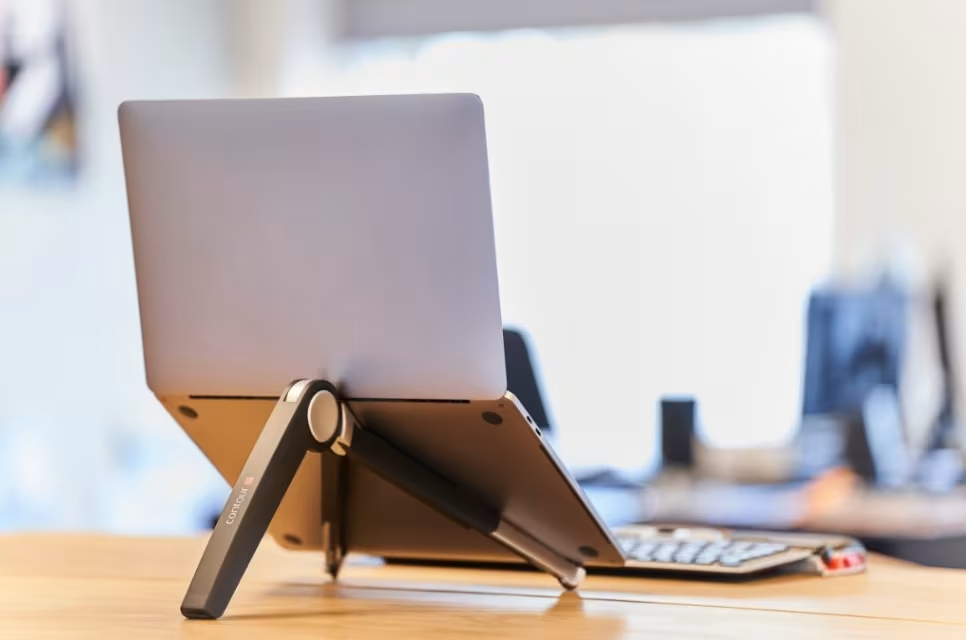
If you split time between office and home, portability matters. A 15-pound aluminum behemoth might be perfect for a permanent home setup but impractical for daily commutes.
Portable laptop stands fall into two categories:
Folding stands collapse flat for transport. The best models fold to under 1 inch thick and weigh 1–2 pounds. They fit easily into laptop bags alongside your device.
Lightweight risers sacrifice some adjustability for extreme portability. Some weigh mere ounces and fold small enough for jacket pockets.
The Contour Laptop Riser exemplifies this balance, offering meaningful ergonomic elevation in a travel-friendly package. For professionals who need a complete mobile workstation, the Travel Kit combining RollerMouse, keyboard, and stand provides everything needed for ergonomic work anywhere.
Consider these factors for hybrid work:
- Setup time: Can you adjust and position the stand in under 30 seconds?
- Bag compatibility: Does it fit your existing laptop bag?
- Surface flexibility: Does it work on uneven surfaces like café tables?
For hybrid and remote professionals, it’s worth thinking beyond the stand itself and considering the overall ergonomics of your space. A well-planned ergonomic home office set up ensures your laptop stand, chair, and desk height all work together to minimise strain over long workdays.
Today's action: Time how long your current setup takes to arrange. If it's over 2 minutes, you're likely skipping proper ergonomic positioning on busy days.
6. Cable Management for a Clutter-Free Desk
Cable chaos creates more problems than aesthetics. Tangled cords catch on arms, pull devices, and add visual stress to your workspace. Research consistently shows that organized workspaces correlate with lower stress and higher focus.
Laptop stands with integrated cable management solve this invisibly. Common approaches include:
- Routing channels along the stand's spine or legs
- Clip attachments that secure cables at intervals
- Open backs that hide cable bundles behind the elevated platform
- Dedicated docking stations built into premium models
The space beneath an elevated laptop also creates natural storage for cable coils, small hubs, or charging accessories. This reclaims desk real estate for items you actually need within reach.
Clean cable management becomes especially important when using external peripherals like keyboards, mice, and monitors. Multiple devices mean multiple cables, and a stand that helps organize them prevents your desk from resembling a server room.
Today's action: Count the cables currently visible on your desk. A stand with good cable management should reduce visible cable runs by at least half.
7. Compatibility With External Keyboards and Mice
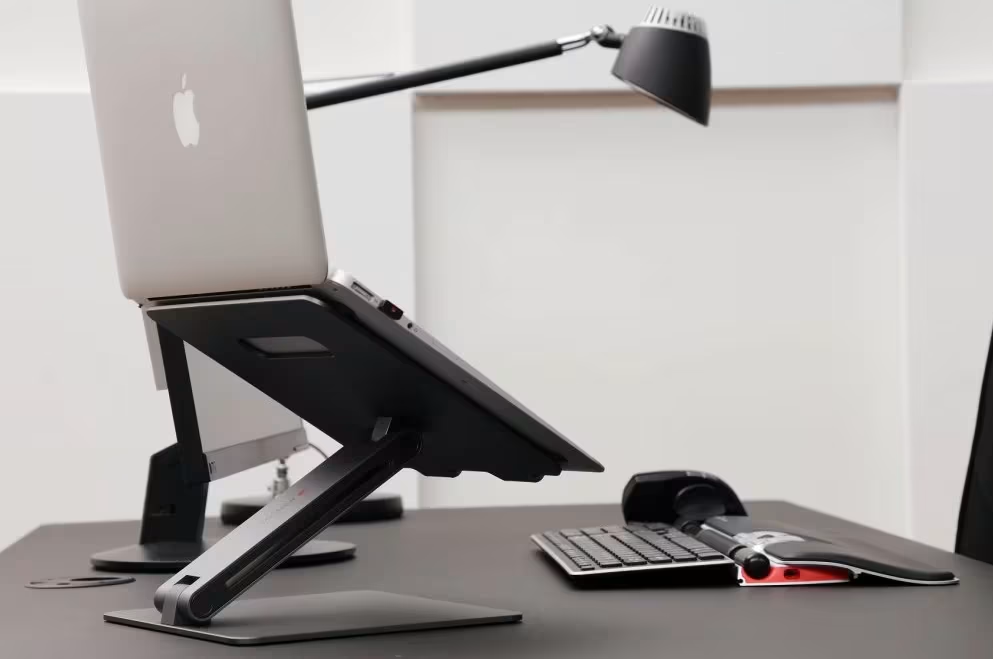
Using a laptop stand without external peripherals misses half the benefit. When your screen rises to eye level, your built-in keyboard becomes awkward to reach. Your wrists bend at uncomfortable angles. Your shoulders shrug upward.
External keyboards and mice positioned at elbow height solve this problem. Your forearms rest parallel to the floor. Your wrists stay neutral. Your shoulders relax downward.
This separation of screen and input devices is fundamental to setting up an ergonomic home office correctly. The Cleveland Clinic recommends positioning keyboards so your elbows bend at roughly 90 degrees, with wrists in a neutral position.
Pairing Your Stand With an Ergonomic Desk Laptop Stand Setup
Creating a complete ergonomic workstation means selecting peripherals that complement your elevated laptop:
Keyboards: Look for models with adjustable tilt (negative tilt is often better) and comfortable key travel. Split keyboards reduce ulnar deviation for some users.
Pointing devices: Traditional mice force forearm rotation that stresses tendons. Centered pointing devices like rollerbars eliminate reaching entirely, keeping your hands in front of your body.
Monitor arms: If you add an external monitor, a quality arm lets you position it at the same eye level as your laptop. Matching heights prevents constant focal readjustment.
The goal is a unified system where every component supports neutral posture. A laptop stand is the foundation, but complete relief requires matching peripherals and smart ergonomic desk supplies like document holders, wrist supports, and monitor risers that keep everything within a comfortable reach zone.
Today's action: Place your hands in your current typing position. Are your wrists straight or bent? Bent wrists indicate your keyboard height needs adjustment.
8. Easy Assembly and Everyday Adjustability
Complex setup procedures kill ergonomic compliance. If adjusting your stand requires tools, significant force, or multiple steps, you'll eventually stop bothering. The stand becomes decoration rather than functional equipment.
The best laptop stands feature tool-free adjustment mechanisms:
- Single-lever releases that unlock height settings instantly
- Friction hinges that hold position without locks
- Preset notches that click into common positions
- Pneumatic lifts for smooth, effortless changes
Everyday adjustability matters because your optimal position changes throughout the day. Morning energy might favor standing with a higher screen. Afternoon fatigue calls for seated work at a lower height. Quick transitions between positions keep your body moving and your muscles engaged.
Assembly experience varies dramatically between manufacturers. Some stands arrive ready to use from the box. Others require 20+ minutes of assembly with provided hardware. Read reviews specifically mentioning setup difficulty before purchasing.
Warning: Stands with flimsy adjustment mechanisms often fail within months. Plastic levers crack. Metal joints loosen. Investing slightly more in quality mechanisms saves replacement costs and frustration.
Today's action: Practice adjusting any equipment on your current desk without looking at it. If you can't make changes by feel, you'll make them less often.
Conclusion
Choosing the right ergonomic laptop stand for desk use isn't complicated once you know what matters. The 8 features covered in this guide address the real causes of neck and shoulder pain: poor screen height, inadequate tilt options, instability, heat buildup, and the absence of external peripheral support.
Start with adjustable height and tilt. These two features alone eliminate most of the postural compromises that cause discomfort. Add sturdy construction and good ventilation for reliability and laptop longevity. Consider portability if you work in multiple locations.
The investment pays for itself quickly. A quality stand costs less than a single physical therapy session. It lasts for years. And every hour you work without pain is an hour you're more productive and present.
Your body has been adapting to your laptop's limitations. It's time your laptop adapted to you.
Frequently Asked Questions
What is the best height for an ergonomic laptop stand for desk use?
The ideal height positions your screen so the top third falls at or slightly below eye level. Most users need 4–8 inches of elevation since laptop screens typically sit 4–6 inches below optimal eye level when placed flat on a desk, causing neck strain over time.
How does a laptop stand help reduce neck and shoulder pain?
An ergonomic laptop stand raises your screen to eye level, allowing your head to balance naturally over your spine. This eliminates the forward head posture that can add up to 60 pounds of effective strain on your cervical spine, significantly reducing the neck and shoulder pain common among laptop users.
Do laptop stands improve laptop performance and lifespan?
Yes, elevating your laptop improves airflow beneath the device, reducing internal temperatures by 10–15°F. This prevents processor throttling, keeps fans quieter, and protects components from heat damage—helping your laptop maintain performance and last years longer.
What features should I look for in a portable laptop stand for hybrid work?
Look for folding stands that collapse to under 1 inch thick and weigh 1–2 pounds. Key considerations include setup time under 30 seconds, compatibility with your laptop bag, and stability on various surfaces like café tables or shared office desks.
Why should I use an external keyboard with my laptop stand?
When your laptop screen rises to eye level, the built-in keyboard becomes awkward to reach. An external keyboard positioned at elbow height keeps your forearms parallel to the floor and wrists neutral, preventing strain and completing your ergonomic setup.
Are ergonomic laptop stands worth the investment?
Absolutely. Research shows approximately 45% of laptop users experience musculoskeletal discomfort from prolonged use. A quality ergonomic laptop stand costs less than a single physical therapy session while improving posture, reducing pain, and boosting productivity for years.

Which Device Is Right for You?
Take a quick quiz and get a personalized recommendation based on how you work.

