
How to Set Up an Ergonomic Workstation That Actually Prevents RSI Pain
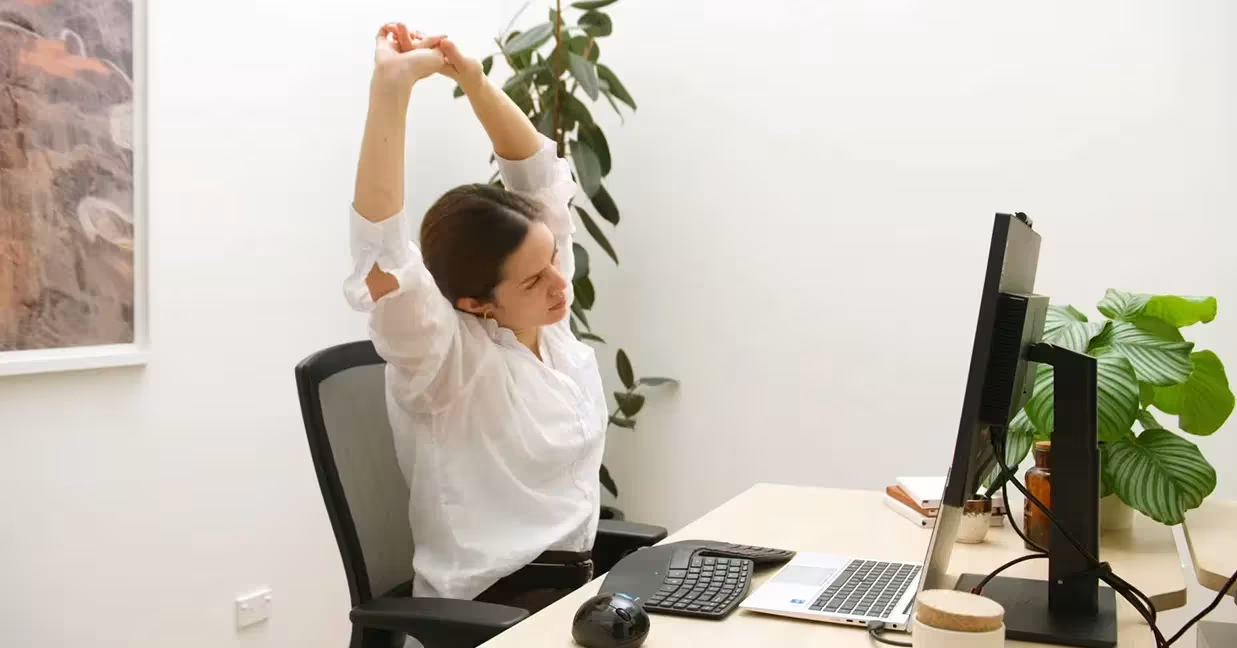
Ergonomic workstation setup can mean the difference between ending your workday feeling energized or hobbling to the couch with aching wrists and a stiff neck. If you spend 6–10 hours daily at your computer, you've probably felt that creeping tension, the dull ache in your forearm, the knots forming between your shoulder blades.
Here's the uncomfortable truth: 1 in 3 workplace injuries stem from musculoskeletal disorders, many caused by poor workstation ergonomics. But here's the good news. You can fix this. Not with expensive office overhauls, but with precise, intentional adjustments to what you already have.
This guide walks you through setting up an ergonomic workstation step by step, from monitor height to mouse placement to building movement into your day. By the end, you'll know exactly how to configure your space to prevent repetitive strain injuries and work without physical compromise.
Key Takeaways
- A proper ergonomic workstation setup positions your monitor at arm's length with the top of the screen at or slightly below eye level to prevent neck strain.
- Adjust your chair so your feet rest flat on the floor, thighs are parallel to the ground, and lumbar support fits the natural curve of your lower back.
- Keep your keyboard and mouse close together at the same height to avoid shoulder overreaching—your wrists should remain straight while typing.
- Incorporate micro-breaks every 30–60 minutes by shifting positions, stretching, or standing to counteract the effects of prolonged sitting.
- If pain persists after consistent ergonomic adjustments, track your symptoms and consult a professional to rule out underlying conditions.
- Start with the highest-impact changes—monitor height, chair adjustment, and mouse position—then refine your ergonomic workstation setup over time.
Why Your Current Setup Might Be Hurting You

That nagging wrist pain isn't random. It's the result of cumulative strain, hours, days, months of your body compensating for a poorly configured workstation.
When your monitor sits too low, your neck flexes forward. When your mouse is too far away, your shoulder reaches. When your chair doesn't support your lower back, your spine curves unnaturally. Each small misalignment forces your muscles and joints into positions they weren't designed to hold for 8+ hours.
The damage is sneaky. You might not feel it for weeks or months. Then one morning, you wake up with numbness in your fingers or a shoulder that won't stop aching. According to OSHA's computer workstation guidelines, poor workstation design is a leading contributor to work-related musculoskeletal disorders.
Common Workstation Mistakes That Lead to Strain
After years of helping people optimize their setups, certain mistakes appear again and again:
- Monitor positioned too high or low, forces your neck into constant flexion or extension
- Chair at the wrong height, creates pressure points on your thighs or forces hip misalignment
- Keyboard placed too far away, causes shoulder elevation and forward reaching
- Mouse positioned away from keyboard, requires repeated overreaching, straining your shoulder rotator cuff
- No lumbar support, leads to slouching and lower back compression
The fix isn't buying the most expensive chair or standing desk. It's understanding how your body should be positioned, then adjusting your equipment to match. Even simple workstation fixes can dramatically reduce strain. If you want a complete picture of what a healthy setup looks like before making any changes, this ergonomic workstation setup checklist walks through every adjustment point systematically.
Action step: Before reading further, sit at your workstation right now. Notice where you feel tension. That's your starting point.
Step 1: Position Your Monitor at the Right Height and Distance

Your monitor position determines your head and neck posture for every moment you're working. Get this wrong, and you're setting yourself up for chronic neck strain and tension headaches.
Finding Your Ideal Viewing Angle
The research here is clear. Position your monitor at arm's length away, approximately 20–26 inches from your eyes. If you wear bifocals or progressive lenses, you may need it slightly farther to avoid tilting your head back.
The top of your screen should sit at or slightly below eye level. When you look straight ahead with relaxed eyes, your gaze should land about 2–3 inches below the top of the monitor. This creates a natural 15–20 degree downward viewing angle that reduces eye strain and keeps your neck in neutral alignment.
Tilt the monitor slightly upward (10–20 degrees) so it's perpendicular to your line of sight. This prevents you from hunching forward to read.
For dual monitors: Position your primary monitor directly in front of you. Place the secondary monitor at a 30-degree angle to the side you turn toward most often. If you use both equally, center them at eye level with edges touching.
Laptop users: This is where most people go wrong. Laptop screens sit too low by design. Use a laptop stand or stack of books to raise the screen, then add an external keyboard and mouse. Your neck will thank you.
If you work primarily from a laptop, raising the screen is only half the fix. See how to approach a full ergonomic laptop stand for desk setup so the rest of your posture doesn't suffer once the screen is at the right height.
Action step: Sit in your normal position. Close your eyes, relax your neck, then open them. If you're looking at the top third of your monitor, you're close. Adjust height accordingly. This takes 2 minutes and prevents years of neck strain.
Step 2: Set Up Your Chair for Proper Posture Support
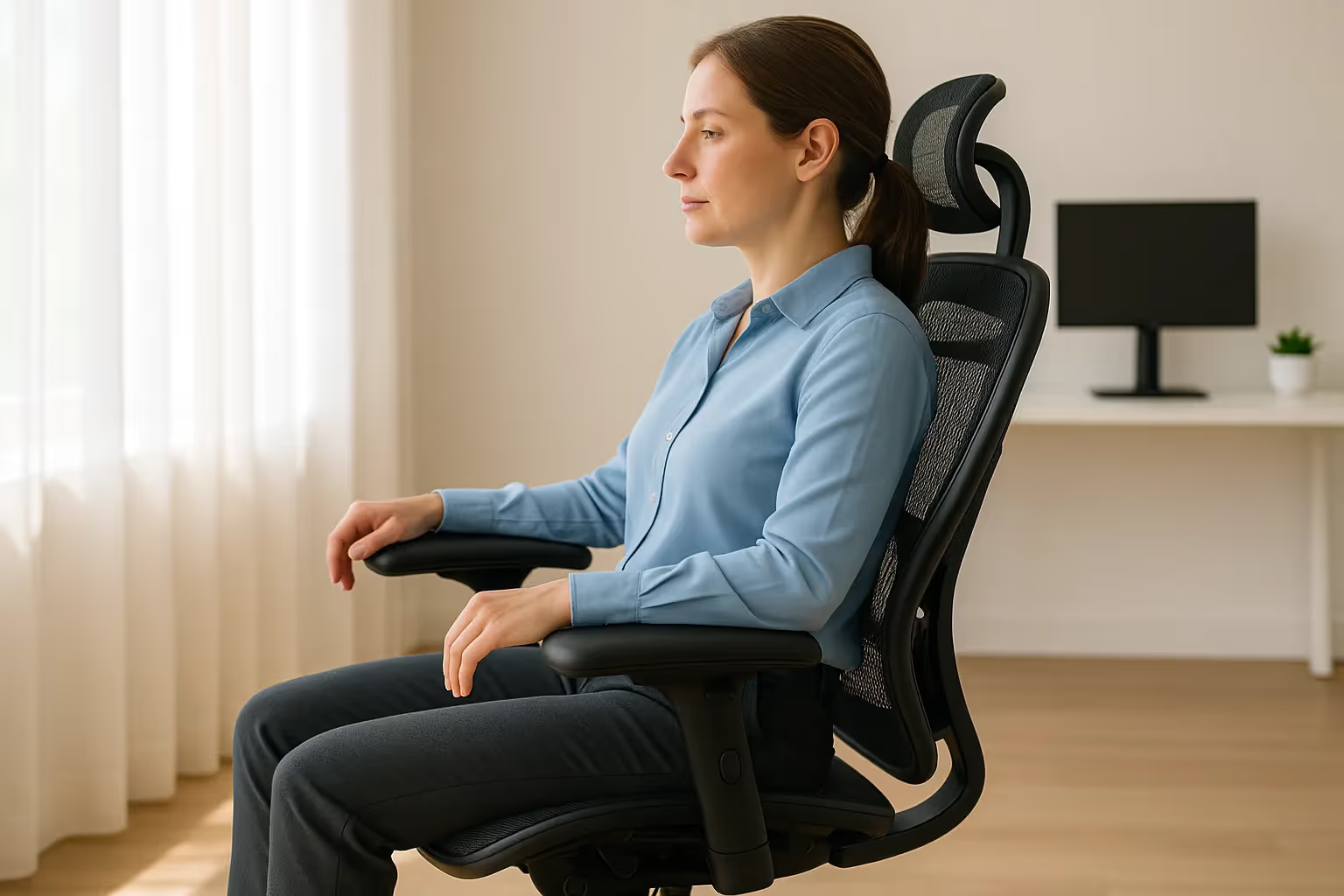
Your chair is the foundation of your entire workstation setup. A $500 ergonomic chair set up incorrectly will hurt you just as much as a cheap office chair.
Adjusting Seat Height, Armrests, and Lumbar Support
Start with seat height. Adjust it so your feet rest flat on the floor with your thighs parallel to the ground or angling slightly downward. Your knees should bend at approximately 90–100 degrees. If your desk is too high and your feet dangle, add a footrest, don't compromise your leg circulation.
Your chair's backrest should be at least 15 inches high and 12 inches wide, contouring to support your lower back's natural curve. Adjust the lumbar support to fit the small of your back, not your mid-back or shoulders.
Armrest position matters more than most people realize. Set them so your elbows bend at 90 degrees with your shoulders completely relaxed. Armrests positioned too high push your shoulders up toward your ears, creating trapezius tension. Too low, and you'll slump sideways. The ideal range is 7–10.5 inches above the compressed seat height.
Seat depth adjustment is often overlooked. You should have 2–4 fingers of space between the seat edge and the back of your knees. Too deep, and the seat cuts off circulation. Too shallow, and your thighs lack support.
Action step: Sit all the way back in your chair with feet flat. If there's no lumbar support, roll up a small towel and place it at your lower back curve. Adjust armrests until your shoulders drop naturally. This single adjustment can eliminate shoulder and neck tension within days.
Step 3: Create a Neutral Desk Surface for Your Arms and Wrists

Once your chair is dialed in, your desk surface needs to accommodate neutral arm and wrist positioning. This is where repetitive strain injuries like carpal tunnel syndrome often originate.
Why Desk Height and Forearm Position Matter
Set your desk height, or keyboard tray, so your forearms are parallel to the floor when typing. Your wrists should remain straight, not bent upward (extension), downward (flexion), or sideways (deviation). According to OSHA's computer workstation guidelines, keeping wrists in a neutral position is one of the most effective ways to prevent upper limb disorders.
The angle between your upper arm and forearm should fall between 75–135 degrees. Anything outside this range forces your muscles to work harder to maintain position.
If your desk is fixed and too high, consider an adjustable keyboard tray with a range of 22–28 inches from the floor. If your desk is too low (rare, but it happens), keyboard risers or a new desk may be necessary.
About wrist rests: Contrary to popular belief, you shouldn't rest your wrists while actively typing, this compresses the carpal tunnel. Use wrist rests only during pauses, and position them to support your palms, not your wrists.
A standing desk adds valuable position variety, but the same principles apply. Alternate between sitting and standing throughout the day rather than committing to either exclusively. If you alternate between positions, a dedicated ergonomic standing desk setup requires a few additional adjustments to keep your posture correct at both heights.
Action step: Place a ruler or straight edge across both wrists while typing. If either wrist bends more than 10 degrees in any direction, adjust your keyboard height or angle. This 30-second test reveals problems you've been ignoring for years.
Step 4: Choose Ergonomic Peripherals That Reduce Repetitive Strain
.avif)
Your keyboard and mouse are where repetitive strain injury actually happens. You might make 10,000+ mouse movements and 50,000+ keystrokes daily. The wrong tools, or right tools positioned wrong, accumulate damage fast.
Selecting the Right Mouse for Pain-Free Mousing
Traditional mice force your forearm into pronation (palm-down rotation), which compresses nerves and strains the muscles running from elbow to wrist. If you've tried standard mice and vertical mice without lasting relief, the problem might be the fundamental design.
Position matters as much as the device itself. Place your mouse directly beside your keyboard at the same height, close enough that you don't reach forward or sideways. Every inch of reach multiplies shoulder strain over thousands of daily movements.
Centered pointing devices like the Contour Design RollerMouse eliminate reaching entirely by positioning cursor control directly in front of you, between keyboard and body. Users report significant reduction in shoulder and forearm tension because the arms stay in their natural, neutral zone. The adjustable rollerbar allows cursor control with minimal finger movement, a welcome change if mouse gripping aggravates your symptoms.
For those preferring a traditional mouse form factor, the Contour Unimouse offers 35–70 degrees of adjustable tilt, which means you can find the exact angle where your forearm feels most relaxed, not locked into a single vertical or horizontal position.
Not sure which mouse type fits your specific pain pattern? The guide on how to choose the perfect mouse breaks down the decision by symptom and work style.
Keyboard Placement and Ergonomic Options
Position your keyboard so your hands land naturally without reaching. Center it with the B key aligned with your body's midline, not the keyboard's edge. Most people position keyboards too far right because of the number pad.
Split or tented keyboards reduce ulnar deviation (bending wrists outward) and can significantly help those with wrist pain. Products like the Contour Balance Keyboard maintain a low profile that keeps wrists neutral while allowing natural hand positioning. For a full breakdown of how keyboard, wrist rest, and mouse work together as a system, see the guide on ergonomic office accessories.
Action step: Measure the distance from your keyboard's edge to your mouse. If it's more than 6 inches, you're overreaching. Move the mouse closer or consider a compact keyboard without a number pad.
Step 5: Add Movement and Micro-Breaks Into Your Day

Here's an uncomfortable truth: even the perfect ergonomic workstation setup won't save you if you sit frozen in one position for 8 hours.
Your body isn't designed for static postures. Muscles fatigue. Blood pools. Joints stiffen. The solution isn't perfect stillness, it's strategic movement.
The 20-20-20 rule addresses eye strain: every 20 minutes, look at something 20 feet away for 20 seconds. But your whole body needs similar attention.
Build micro-breaks into your workflow:
- Every 30 minutes: Shift your seated position. Roll your shoulders. Stretch your fingers.
- Every 60 minutes: Stand up. Walk to get water. Do 10 seconds of wrist circles.
- Every 2 hours: Take a 5-minute movement break. Walk stairs. Stretch your hip flexors.
If you use a sit-stand desk, alternate positions every 30–60 minutes rather than standing all day (which creates its own problems). Standing burns approximately 0.15 more calories per minute than sitting, but the real benefit is postural variety, not calorie burn.
Apps like Stretchly, Time Out, or even simple phone timers can remind you to move. The key is consistency. Three weeks of hourly micro-breaks will become automatic habit.
Action step: Set a timer for 30 minutes right now. When it goes off, stand up, reach overhead, and take 5 deep breaths. Notice how different your body feels. That's your baseline for building movement habits.
Troubleshooting: What to Do If Pain Persists
You've adjusted your monitor. Your chair is perfect. Your mouse is positioned correctly. But the pain persists.
This happens more often than you'd think, and it doesn't mean ergonomics failed. It means something else needs attention.
First, check the obvious:
- Are you reverting to old postures when focused? Set hourly posture check reminders.
- Did you change one thing but not others? Workstation ergonomics is a system. Chair height affects desk height affects monitor position.
- Are you tensing muscles unconsciously? Many people grip their mouse with far more force than necessary or hunch shoulders while typing.
Second, consider factors beyond your desk:
- Sleep position can aggravate daytime symptoms
- Stress causes muscle tension that compounds workstation strain
- Underlying conditions (arthritis, disc problems, nerve compression) may need medical evaluation
If pain continues after 2–3 weeks of consistent ergonomic adjustments, consult a professional. Occupational therapists, physical therapists, and certified ergonomists can assess your specific biomechanics. Some conditions, like thoracic outlet syndrome or cubital tunnel syndrome, mimic RSI but require different interventions.
Also consider: is your equipment actually helping? If you've tried multiple ergonomic mice with limited relief, the problem might be mouse design philosophy, not just mouse angle. Centered pointing devices and fully adjustable peripherals offer options when conventional ergonomic tools fall short.
Action step: Keep a pain journal for one week. Note when pain appears, its intensity (1–10), and what you were doing. Patterns often reveal causes that adjustments alone can't address.
Your Next Steps Toward a Pain-Free Workday
Setting up an ergonomic workstation isn't a single afternoon project — it's an ongoing relationship with your workspace. Bodies change. Work demands shift. What felt perfect six months ago might need adjustment today.
Start with the highest-impact changes: monitor height, chair adjustment, and mouse position. Use the office ergonomics checklist to confirm you haven't missed anything before moving on to more advanced optimizations.
For remote workers setting up a home office, a comprehensive home office guide covers peripheral selection alongside furniture and lighting considerations.
Your body does the work that earns your living. Protecting it isn't optional. It's the foundation everything else depends on.
Frequently Asked Questions
What is the correct monitor height for an ergonomic workstation setup?
Position your monitor at arm's length (20–26 inches) with the top of the screen at or slightly below eye level. Your natural gaze should land 2–3 inches below the top edge, creating a 15–20 degree downward viewing angle that reduces neck strain and eye fatigue.
How do I adjust my chair for proper ergonomic posture?
Set your chair height so feet rest flat on the floor with thighs parallel to the ground and knees bent at 90–100 degrees. Adjust lumbar support to fit your lower back's natural curve, and position armrests so elbows bend at 90 degrees with shoulders completely relaxed.
Where should I place my mouse and keyboard to prevent repetitive strain injuries?
Position your keyboard centered with the B key aligned with your body's midline. Place your mouse directly beside the keyboard at the same height, within 6 inches, so you don't reach forward or sideways. Keep wrists straight while typing—bent no more than 10 degrees in any direction.
How often should I take breaks when working at a computer?
Follow the 20-20-20 rule for eyes: every 20 minutes, look 20 feet away for 20 seconds. Shift positions every 30 minutes, stand and move every 60 minutes, and take a 5-minute movement break every 2 hours to prevent muscle fatigue and joint stiffness.
Can a standing desk improve my ergonomic workstation setup?
Yes, but alternate between sitting and standing every 30–60 minutes rather than standing all day. Standing continuously creates its own problems. The primary benefit is postural variety, which reduces strain from static positions and keeps muscles and joints from fatiguing.
What should I do if pain persists despite ergonomic adjustments?
Keep a pain journal tracking when symptoms appear and their intensity. Check for unconscious habits like mouse gripping or shoulder tensing. If pain continues after 2–3 weeks of consistent adjustments, consult a physical therapist, occupational therapist, or certified ergonomist for personalized assessment.

Which Device Is Right for You?
Take a quick quiz and get a personalized recommendation based on how you work.

