
Work Station Set Up: Your Guide to a Comfortable, Pain-Free Desk

Work station set up can mean the difference between ending your workday energized or ending it in pain. If you spend 6 to 10 hours daily at a computer, the way you arrange your desk, monitor, and peripherals directly impacts your wrists, neck, shoulders, and long-term health.
Here's the uncomfortable truth: most desk setups are built for looks or convenience, not for your body. That misalignment adds up. A 2023 study found that 1 in 3 remote workers reported new or worsening musculoskeletal pain after switching to home offices. The good news? Small, intentional changes to your work station can deliver real relief.
This guide walks you through every element of an ergonomic desk setup. You'll learn exactly where to place your monitor, how to position your keyboard and mouse, and which mistakes to avoid. Whether you're recovering from repetitive strain injury or trying to prevent it, you'll find practical steps you can take today.
Key Takeaways
- The repetitive strain from poor positioning doesn't just cause temporary discomfort. It can lead to chronic conditions like carpal tunnel syndrome, tendinitis, and cervical spine issues.
- Position your monitor so the top of the screen sits at eye level, approximately an arm's length (20–26 inches) away from your face.
- Set your chair height so your thighs are parallel to the floor, knees bent at 90 degrees, and feet resting flat.
- Keep your wrists straight and elbows at 90–100 degrees when typing—if your desk is too high, use a keyboard tray or raise your chair with a footrest.
- Take movement breaks every 50 minutes and follow the 20-20-20 rule to reduce eye strain and reset your posture.
- Conduct weekly work station audits to ensure your setup hasn't drifted from its optimal ergonomic position.
Why Your Current Work Station Might Be Working Against You

Your current setup probably feels "fine." That's the problem. Discomfort often creeps in gradually. By the time you notice wrist tension, neck stiffness, or shoulder aches, poor ergonomics have already done months of damage.
Consider what happens during a typical workday. You hunch forward to see your screen. Your wrists bend upward on a flat keyboard. Your mouse sits too far to the right, forcing your shoulder to reach. These micro-stresses repeat thousands of times daily.
According to the Cleveland Clinic's guide on ergonomic home offices, spending several hours at a desk commonly leads to aches and pain when your workspace isn't properly configured. The repetitive strain from poor positioning doesn't just cause temporary discomfort. It can lead to chronic conditions like carpal tunnel syndrome, tendinitis, and cervical spine issues.
The real cost is productivity. Workers dealing with pain take more breaks, make more errors, and lose focus faster. One survey of knowledge workers found that those with ergonomic discomfort reported 23% lower concentration during afternoon hours.
Your desk isn't neutral. It's either supporting your body or slowly working against it. The sections that follow will help you identify which category you fall into and what to change.
Essential Components of an Ergonomic Work Station
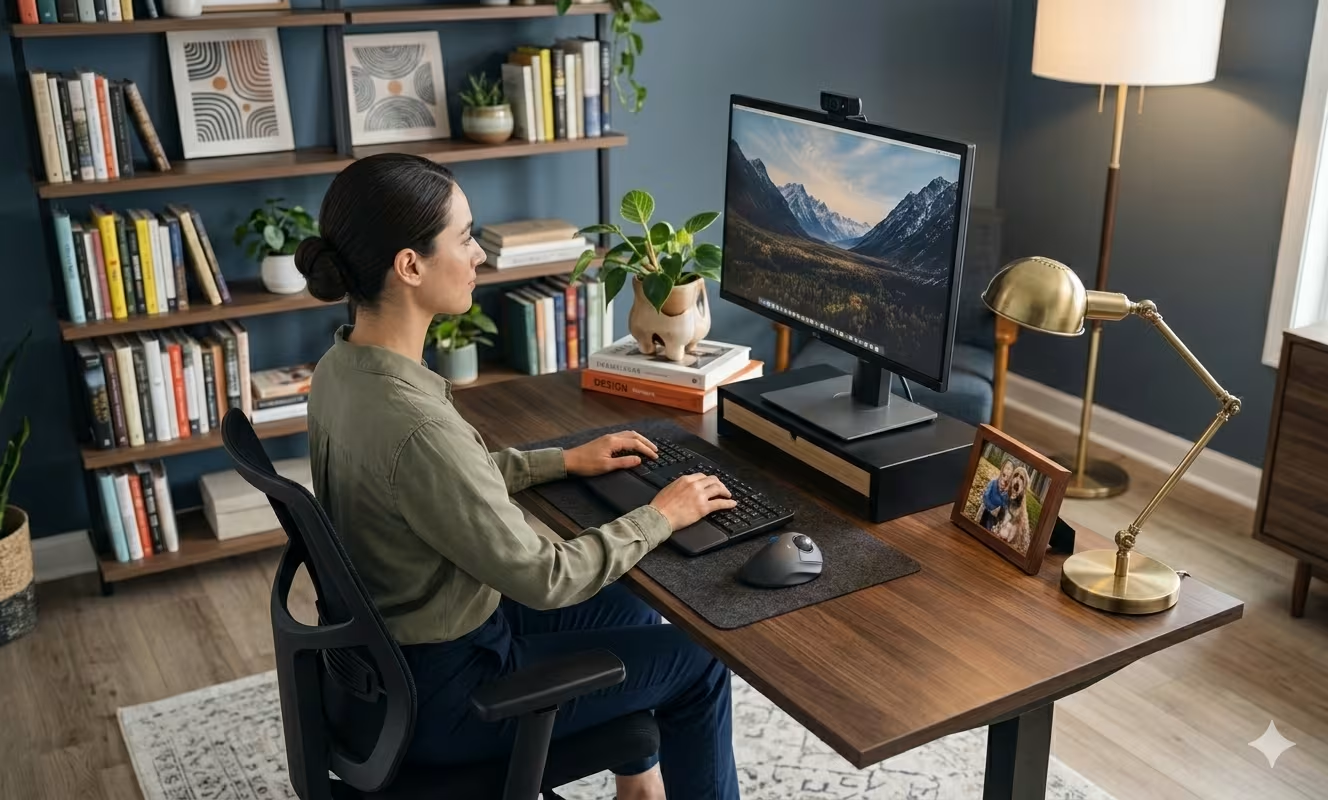
An ergonomic work station isn't one piece of equipment. It's a system where every component works together to keep your body in a neutral, strain-free position. Let's break down the three most critical elements.
Monitor Placement and Eye-Level Alignment
Your monitor's position determines your head and neck posture for hours at a time. Get it wrong, and you'll strain your cervical spine without realizing it.
The rule: Place the top of your screen at or slightly below eye level. This keeps your gaze angled slightly downward (about 15 to 20 degrees), which is your eyes' natural resting position. Your monitor should sit approximately an arm's length away, roughly 20 to 26 inches from your face.
If you use a laptop, this is nearly impossible without a separate keyboard. Laptop screens are too low, forcing you to look down and hunch forward. A monitor arm or laptop stand solves this instantly.
Action step: Sit in your normal working position. Close your eyes, then open them. Where do you naturally look? That's where the center of your screen should be.
Chair Height and Posture Support
Your chair does more than hold you up. It should actively support your spine's natural curve and allow your feet to rest flat on the floor.
Set your chair height so your thighs are parallel to the ground and your knees bend at approximately 90 degrees. Your feet should rest flat. If they dangle, use a footrest. If your chair has lumbar support, adjust it to fit the small of your back. If it doesn't, a rolled towel or lumbar cushion can fill the gap.
OSHA's computer workstation guidelines emphasize that improper chair height contributes to lower back pain and circulation problems. A chair that's even 2 inches too high can compress the backs of your thighs and restrict blood flow.
Warning: Expensive doesn't mean ergonomic. A $1,200 gaming chair with no lumbar adjustment will cause more problems than a $300 office chair with proper support.
Keyboard and Mouse Positioning for Neutral Wrists
Your wrists are the most vulnerable part of your work station setup. They're small, complex, and absorb thousands of repetitive motions daily.
Neutral wrist position means your wrists are straight, not bent up, down, or sideways. Your elbows should rest at your sides, bent at 90 to 100 degrees, with forearms parallel to the floor.
Most desks are too high for proper keyboard positioning. If you can't lower your desk, raise your chair and use a footrest. A keyboard tray that tilts slightly away from you (negative tilt) keeps wrists straighter than a flat keyboard on a desk surface.
Your mouse matters just as much. Traditional mice force your wrist into a palm-down (pronated) position, which strains the forearm muscles over time. Positioning your mouse too far from your keyboard causes shoulder strain from constant reaching.
Action step: Look at your wrists right now. Are they bent? If so, adjust your keyboard height or angle until they're straight.
How to Set Up Your Desk for All-Day Comfort

Now that you understand the components, let's assemble them into a complete ergonomic desk setup that works for 8-plus-hour days.
Step 1: Start with your chair. Adjust seat height until your feet are flat and thighs parallel to the floor. Set lumbar support to match your lower back curve. Armrests (if you use them) should let your shoulders relax downward, not hunch up.
Step 2: Position your monitor. With your chair set, your screen's top edge should align with your eye level. Distance matters: too close causes eye strain, too far causes leaning. Arm's length is your baseline.
Step 3: Set keyboard and mouse height. Your keyboard should allow elbows at 90 degrees with wrists straight. If your desk is too high, consider a keyboard tray. Place your mouse directly beside your keyboard at the same height.
Step 4: Organize your immediate work zone. Items you use constantly (phone, notepad, water bottle) should sit within easy reach without twisting or stretching. The Wirecutter's ergonomics guide recommends keeping frequently used items within 16 inches of your keyboard.
Step 5: Check your lighting. Glare on your screen causes squinting and forward leaning. Position your monitor perpendicular to windows, not facing them. Add a desk lamp for document work rather than relying on overhead lights.
This process takes about 15 minutes. But those 15 minutes can save you from months of accumulated strain.
Choosing the Right Peripherals to Reduce Strain

Standard keyboards and mice weren't designed with 10-hour workdays in mind. They were designed to be cheap and familiar. If you're serious about preventing or relieving strain, upgrading your peripherals makes a measurable difference.
Keyboards: Split or ergonomic keyboards allow your hands to rest at natural angles instead of forcing them together. Look for models with negative tilt capability (front higher than back) and low-profile keys that don't require excessive finger travel.
Mice: This is where most people get it wrong. Traditional mice force your forearm into a pronated position that strains muscles and compresses nerves. Vertical mice help, but they still require gripping and repetitive wrist movements.
A different approach eliminates reaching entirely. Centered pointing devices like the RollerMouse Pro sit directly in front of your keyboard. You control the cursor with your fingertips while keeping your hands centered and shoulders relaxed. Users report relief from shoulder tension and wrist pain because they're no longer reaching to the side repeatedly.
What to look for in any ergonomic peripheral:
- Adjustability (one size does not fit all bodies)
- Minimal grip force required
- Wrist-neutral positioning
- Quality construction that lasts years, not months
Who shouldn't upgrade yet: If you haven't optimized your desk height, monitor position, and chair first, new peripherals won't solve your problems. Fix the foundation before adding equipment.
According to Mayo Clinic's office ergonomics guide, supporting your arms and keeping your wrists in a natural position reduces strain on muscles and tendons. The right peripherals make maintaining that position effortless.
Common Work Station Mistakes and How to Fix Them

Even well-intentioned setups have blind spots. Here are the mistakes I see most often and the fixes that actually work.
Mistake 1: Monitor too low.
Laptop users and dual-monitor setups are the worst offenders. Your neck flexes forward 15 degrees for every inch your screen sits below eye level. Fix: Use a monitor arm, stand, or stack of books. Seriously. Books work.
Mistake 2: Chair armrests too high.
When armrests push your shoulders up, you create constant tension in your trapezius muscles. That tension leads to neck pain and headaches. Fix: Lower armrests until your shoulders can fully relax. If they won't go low enough, remove them.
Mistake 3: Mouse too far away.
Reaching for your mouse rounds your shoulder forward and strains your rotator cuff. Over months, this creates chronic pain that physical therapy alone won't fix. Fix: Bring your mouse directly beside your keyboard. Or switch to a centered pointing device that eliminates reaching entirely.
Mistake 4: Sitting in one position all day.
The best posture is your next posture. Static sitting, even in a "perfect" position, still causes problems. Fix: Stand for 10 to 15 minutes every hour. Shift your weight. Take micro-breaks to move.
Mistake 5: Ignoring early warning signs.
Tingling fingers, occasional wrist aches, end-of-day neck stiffness. These aren't normal. They're your body warning you before serious injury develops. Fix: Address these signals immediately. Adjust your setup, schedule a break, or consult an ergonomics specialist.
Reality check: Most people make 2 to 3 of these mistakes simultaneously. The compound effect accelerates strain.
Creating a Sustainable Routine for Long-Term Wellness
An ergonomic work station is step one. Maintaining it requires habits that most people skip.
Movement breaks are non-negotiable. Set a timer for every 50 minutes. Stand up. Walk around. Stretch your wrists, neck, and shoulders. This isn't productivity theater. Movement increases blood flow to fatigued muscles and resets your posture.
The 20-20-20 rule protects your eyes. Every 20 minutes, look at something 20 feet away for 20 seconds. Eye strain contributes to headaches and the forward-leaning posture that causes neck pain.
Weekly work station audits catch drift. You adjusted everything perfectly once. Then your chair slowly lowered. Your monitor got pushed back. Your keyboard tray angle shifted. Spend 2 minutes each Monday running through your workstation setup checklist to confirm your setup hasn't migrated.
Strengthening exercises support your ergonomic gains. Specifically target your upper back, neck stabilizers, and forearm extensors. Posture is partly a muscular issue. Weak upper back muscles make maintaining proper positioning exhausting.
Track your symptoms. Keep a simple log: date, what hurt, how severe (1-10), and what you did that day. Patterns emerge. Maybe your pain spikes after video calls (hunching toward the screen) or deadline weeks (skipping breaks). Data helps you intervene earlier.
This routine adds roughly 30 minutes to your week. The return: fewer sick days, less pain medication, and the ability to keep working at peak performance for decades.
Conclusion
Your work station set up is either an investment in your long-term health or a slow drain on it. There's no neutral option when you spend 2,000-plus hours per year at your desk.
The changes that matter most take minutes, not hours. Raising your monitor. Lowering your armrests. Moving your mouse closer. These adjustments compound over time, preventing the chronic conditions that sideline careers.
Start with one change today. Then add another tomorrow. Within a week, you'll have a workspace that supports your body instead of breaking it down.
Frequently Asked Questions
What is the ideal monitor height for an ergonomic work station set up?
The top of your monitor should sit at or slightly below eye level, positioning your gaze about 15 to 20 degrees downward. Place the screen approximately an arm's length away (20 to 26 inches). This alignment prevents neck strain and keeps your cervical spine in a neutral position throughout the workday.
How should I position my keyboard and mouse to prevent wrist pain?
Keep your wrists straight and neutral—not bent up, down, or sideways. Your elbows should rest at 90 to 100 degrees with forearms parallel to the floor. Position your mouse directly beside your keyboard at the same height to avoid shoulder strain from reaching, as recommended by Mayo Clinic's ergonomics guide.
Why does my neck hurt after working at my desk all day?
Neck pain typically results from a monitor positioned too low, forcing your head to tilt forward. According to the Cleveland Clinic, spending hours at an improperly configured workspace leads to chronic aches. For every inch your screen sits below eye level, your neck flexes forward 15 degrees, straining muscles over time.
What is the best chair height for a proper ergonomic desk setup?
Set your chair so your thighs are parallel to the ground with knees bent at approximately 90 degrees and feet flat on the floor. Per OSHA's workstation guidelines, improper chair height contributes to lower back pain and circulation issues. Use a footrest if your feet dangle, and ensure lumbar support fits your lower back curve.
How often should I take breaks during long work sessions?
Take movement breaks every 50 minutes to stand, walk, and stretch your wrists, neck, and shoulders. Additionally, follow the 20-20-20 rule: every 20 minutes, look at something 20 feet away for 20 seconds. These habits increase blood flow to fatigued muscles and help reset your posture throughout the day.
Can a centered mouse improve my work station set up?
Yes, centered pointing devices like the RollerMouse Pro eliminate side-reaching entirely, keeping your hands centered and shoulders relaxed. Traditional mice force your forearm into a pronated position that strains muscles. Centered devices let you control the cursor with fingertips, reducing shoulder tension and repetitive wrist movements.

Which Device Is Right for You?
Take a quick quiz and get a personalized recommendation based on how you work.

