
Ergonomic Workstation Design: Build a Setup That Supports Your Body All Day

Ergonomic workstation design isn't about fancy furniture or expensive gadgets. It's about fitting your workspace to your body so you can work 8, 10, even 12 hours without paying the price in pain.
Here's the reality: 1 in 3 workplace injuries across all industries are musculoskeletal disorders (MSDs) like carpal tunnel, chronic neck strain, and lower back problems (The Bureau of Labor Statistics). Most of these injuries develop slowly over months or years of sitting at poorly configured desks. The good news? A few strategic adjustments can prevent them.
Whether you're a software engineer clocking long coding sessions, a designer working in CAD, or an accountant deep in spreadsheets, your workstation either supports your body or slowly breaks it down. This guide shows you exactly how to build a setup that does the former.
Key Takeaways
- Ergonomic workstation design reduces musculoskeletal injuries by fitting your workspace to your body—not the other way around.
- Position your monitor at arm's length with the top of the screen at or slightly below eye level to prevent neck strain.
- Keep your keyboard at elbow height with wrists in a neutral position to avoid developing carpal tunnel and tendinitis.
- Alternate between sitting and standing, and take movement breaks every 45–60 minutes to combat the effects of static sitting.
- Target your ergonomic upgrades to where you feel the most strain—common problem areas include monitor height, mouse placement, and chair adjustment.
- Build habits like the 20-20-20 rule for eye strain and regular posture resets to maximize the benefits of your ergonomic setup.
Why Your Workstation Setup Matters for Long-Term Health

That dull ache in your shoulder after a long workday? It's not just fatigue. It's your body sending an early warning signal.
Poor workstation setups force your body into unnatural positions for hours. Your neck cranes forward to read from a monitor placed too low. Your wrists bend awkwardly over a keyboard positioned too high. Your spine curves because your chair lacks proper support. Over months and years, these small misalignments compound into real injuries.
The statistics are striking. According to OSHA, work-related musculoskeletal disorders account for $15–20 billion annually in workers' compensation costs.
But here's what matters to you: ergonomic workstation design reduces these risks significantly. Workers at properly configured stations report:
- Fewer sick days related to musculoskeletal complaints
- Higher sustained focus due to reduced physical discomfort
- Better posture habits that carry into life outside work
If you are an office worker who spends 6-10+ hours daily at a computer, your workstation isn't just furniture. It's health infrastructure. Understanding why your workstation is so important is the first step toward protecting your body for the long haul.
Your action step: Spend 5 minutes right now noticing your body. Where do you feel tension? That's where your current setup is failing you.
The Core Elements of an Ergonomic Workstation

An ergonomic workstation isn't one product. It's a system of components working together to support neutral body positioning. Get one element wrong, and it throws off everything else.
The core elements include your desk, chair, monitor, lighting, keyboard, and mouse. Each must be adjustable and properly positioned relative to your body. Let's break down each component.
Desk and Chair: Your Foundation for Comfort
Your chair and desk set the baseline for everything else. A poorly fitted chair makes proper monitor and keyboard positioning nearly impossible.
For your chair:
- Seat height should allow thighs to be parallel to the floor
- Lumbar support should fill the natural curve of your lower spine
- Armrests should let shoulders relax while elbows rest at 90 degrees
- Seat depth should leave 2-3 fingers of space between seat edge and back of knees
For your desk:
- Surface height should position elbows at roughly 90 degrees when typing
- Sit-stand desks provide flexibility to alternate positions throughout the day
- Depth should accommodate monitor placement at arm's length
Shorter users often need a footrest to maintain proper thigh positioning. Taller users may need desks that adjust higher than standard 30-inch heights. One size does not fit all.
Monitor Placement and Lighting
Monitor position directly affects neck and eye strain. The top of your screen should sit at or slightly below eye level. This keeps your neck in a neutral position rather than tilted up or down.
Distance matters too. Position your monitor at roughly arm's length away—typically 20–28 inches depending on your height, screen size, and vision. If you find yourself leaning forward to read text, increase font size rather than moving the screen closer.
Lighting causes more eye strain than most people realize. Position your screen perpendicular to windows to minimize glare. Use task lighting with adjustable brightness rather than relying solely on harsh overhead fluorescents. ISO 9241 ergonomic standards recommend keeping ambient lighting at 300-500 lux - a range also supported by Cornell University's ergonomics research , which emphasizes minimizing glare and contrast differences between your screen and surroundings.
Keyboard and Mouse Positioning
Keyboard and mouse placement affects your wrists, forearms, and shoulders. Get this wrong and you're setting yourself up for carpal tunnel, tendinitis, or chronic shoulder tension.
Key positioning principles:
- Keyboard at elbow height or slightly below
- Wrists in neutral position (not bent up, down, or sideways)
- Mouse at the same height as keyboard
- Mouse close to keyboard to minimize reaching
Traditional mice force your forearm into pronation (palm-down rotation), which strains the muscles and tendons over thousands of daily clicks. Ergonomic alternatives like adjustable vertical mice or centered pointing devices like the RollerMouse reduce this strain by keeping your arm in a more natural position.
Today's action: Check your keyboard height right now. If your wrists bend upward to type, lower your keyboard or raise your chair (and add a footrest if needed).
How to Arrange Your Workspace for Neutral Posture
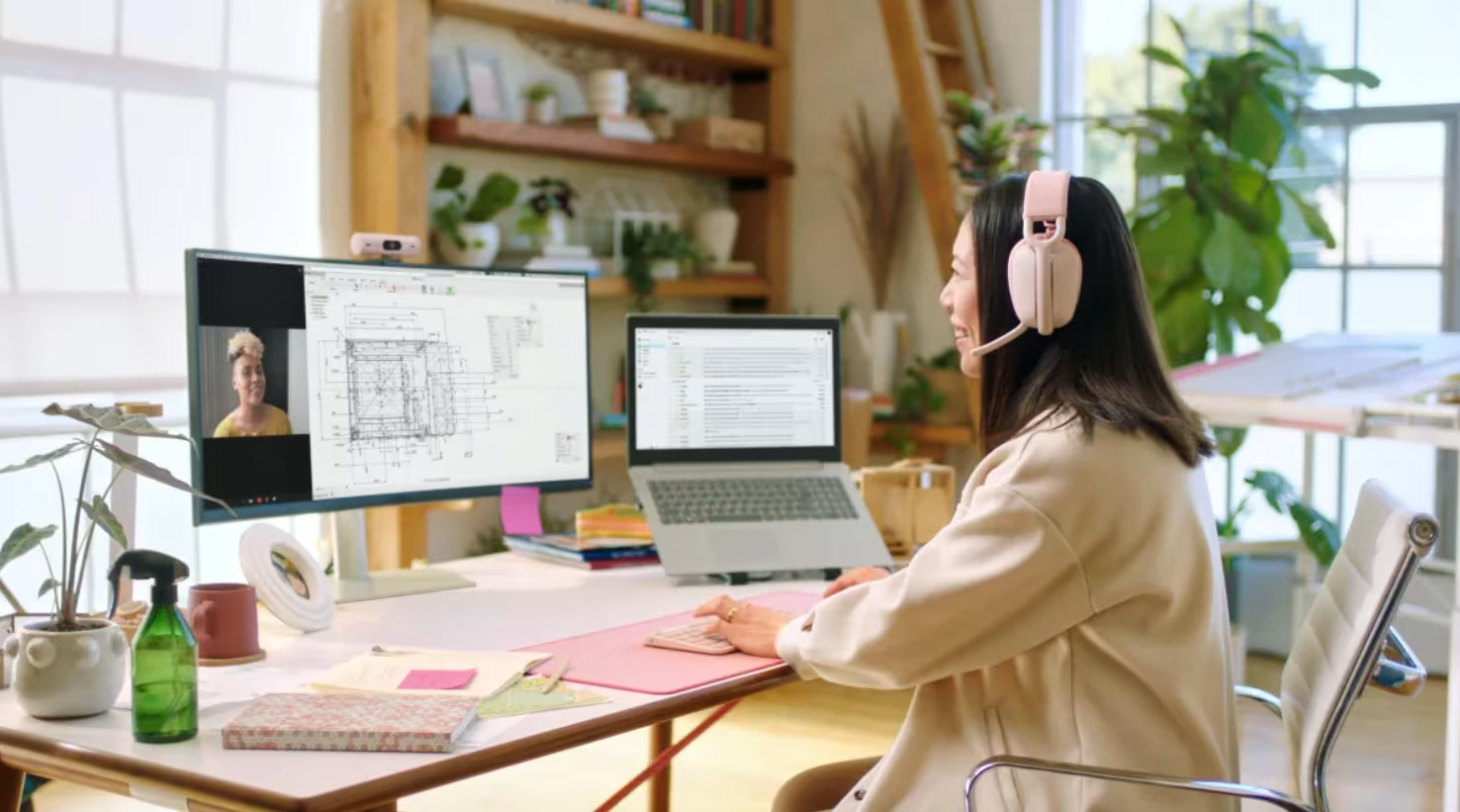
"Neutral posture" sounds clinical, but it's simple: your body in its most relaxed, balanced position. Joints at natural angles. Muscles not strained. No part of your body working harder than necessary.
Picture yourself standing relaxed. Arms hang at your sides. Head balanced over your spine. That's neutral. Your seated workstation should recreate this as closely as possible.
The neutral posture checklist:
- Head: Balanced over spine, not jutting forward
- Neck: Slight natural curve, chin level
- Shoulders: Relaxed, not hunched or raised
- Upper arms: Hanging naturally at sides
- Elbows: At approximately 90-100 degrees
- Wrists: Straight, not bent in any direction
- Lower back: Supported by chair, maintaining natural curve
- Thighs: Parallel to floor or slightly angled down
- Feet: Flat on floor or footrest
- Forearms: Resting comfortably on an arm rest or arm support
Arrange your workspace so frequently-used items stay within easy reach. Your mouse, keyboard, phone, and notepad should all be accessible without stretching or twisting. Items you use less often can sit further away.
For a complete walkthrough, this ergonomic workstation setup guide provides step-by-step instructions for achieving neutral posture at your desk.
One critical habit: change your posture regularly. Even perfect ergonomics can't overcome 8 hours of static sitting. Shift your weight. Stand periodically. Move.
Action step: Set a timer for every 45-60 minutes. When it goes off, stand, stretch, and do a quick posture reset before sitting back down.
Choosing Ergonomic Peripherals That Actually Reduce Strain

Not all "ergonomic" products deliver relief. Some are marketing fluff. Others address real problems but don't fit your specific body or work style. Here's how to choose peripherals that genuinely reduce strain.
Keyboards: Split and tented keyboards reduce ulnar deviation (the outward wrist angle caused by standard keyboards). Mechanical switches with appropriate actuation force reduce finger fatigue. Look for adjustable tenting angles so you can find what works for your hands.
Pointing devices: Traditional mice are surprisingly problematic. They force forearm pronation and concentrate repetitive stress on the index and middle fingers. Alternatives include:
- Vertical mice: Reduce pronation by tilting your hand into a handshake position. The
- Trackballs: Eliminate arm movement, reducing shoulder strain
- Centered pointing devices: Keep your hands in front of your body instead of reaching to the side
Centered devices like the RollerMouse sit in front of your keyboard, which means no reaching. This reduces shoulder strain significantly for heavy mouse users.
Monitor arms: A good monitor arm lets you position your screen precisely at eye level and the correct distance. It also frees up desk space and makes repositioning easy throughout the day.
Footrests: Often overlooked, but essential for users whose feet don't rest flat on the floor when their chair is at the correct height.
The Wirecutter's guide to ergonomically correct workstations offers product-specific recommendations based on expert testing. For a comprehensive overview of what makes peripherals truly ergonomic, our complete ergonomics guide covers everything you need to know.
Choosing wisely: Match peripherals to your actual usage patterns. A video editor making thousands of precise movements daily has different needs than someone primarily typing. Identify where your strain originates, then target solutions there first.
Common Workstation Mistakes and How to Fix Them

I've seen workstations set up by smart, health-conscious professionals that still had fundamental problems. These mistakes are common because they're not obvious until someone points them out. If you're already experiencing shoulder or wrist discomfort from overreaching, learn how repetitive strain injuries are developed and how to do with it.
Mistake 1: Monitor too high
Many people position monitors too high, especially when using laptop stands or monitor arms at maximum height. This forces your neck into constant extension, straining muscles and compressing cervical vertebrae.
Fix: Lower your screen until the top edge sits at or just below eye level. If you wear bifocals, position it even lower to avoid tilting your head back.
Mistake 2: Chair at wrong height
Chairs adjusted too high leave feet dangling. Too low creates awkward knee angles and hip strain.
Fix: Adjust so your thighs run parallel to the floor. If that puts your feet off the ground, add a footrest rather than lowering the chair.
Mistake 3: Mouse too far away
Reaching for a mouse positioned to the side of your keyboard strains shoulders throughout the day. Even a few inches of extra reach adds up over thousands of movements.
Fix: Move your mouse closer, or consider a centered pointing device that sits directly in front of your keyboard. Check our step-by-step ergonomic checklist for proper positioning.
Mistake 4: Ignoring glare
Screen glare causes eye strain and encourages hunching forward to see better.
Fix: Reposition your monitor perpendicular to windows. Add adjustable task lighting. Consider an anti-glare screen filter if repositioning isn't possible.
Mistake 5: Static sitting all day
Even a perfect ergonomic setup causes problems if you don't move. Human bodies aren't designed for 8 hours of immobility.
Fix: Alternate between sitting and standing. Take movement breaks. Shift positions frequently.
Action step: Walk through each mistake above and honestly assess your current setup. Fix the easiest problem today, then tackle one more each week.
Building Healthy Habits Into Your Workday
The best ergonomic setup in the world fails without supporting habits. Your body needs movement, position changes, and regular breaks. Building these into your routine matters as much as buying the right equipment.
The 20-20-20 rule for eye strain: Every 20 minutes, look at something 20 feet away for 20 seconds. This relaxes the focusing muscles in your eyes and reduces digital eye strain significantly.
Movement micro-breaks: Set a reminder to stand and move for 2-3 minutes every hour. Walk to get water. Do a few stretches. Roll your shoulders. These small breaks improve circulation and reduce muscle stiffness.
Posture resets: Throughout the day, check in with your body. Are your shoulders creeping up toward your ears? Is your head jutting forward? Quick awareness checks help you correct drift before it becomes strain.
Recommended stretches for desk workers:
- Neck rolls: Slowly tilt your head toward one ear, hold for 5 seconds, return to center, and repeat on the other side.
- Shoulder shrugs: Raise shoulders to ears, hold 5 seconds, release
- Wrist circles: Extend arms, rotate wrists 10 times each direction
- Chest opener: Clasp hands behind back, squeeze shoulder blades together
- Seated spinal twist: Twist gently to each side, holding 15 seconds
If you work from home, this home office guide covers setup considerations specific to remote work environments.
Making habits stick: Tie new behaviors to existing triggers. Every time you finish a meeting, do a posture check. Every time you refill your water, do shoulder rolls. Habit stacking makes these behaviors automatic.
Who this is for: These habits benefit anyone at a desk more than 4 hours daily. They're especially critical for those already experiencing discomfort or recovering from RSI.
Action step: Choose one habit from this section and commit to it for the next week. Just one. Master it before adding another.
Conclusion
Ergonomic workstation design isn't a one-time purchase or a single afternoon project. It's an ongoing relationship between your body and your tools.
Start with the foundations: a properly adjusted chair and desk. Then optimize your monitor, keyboard, and mouse positioning. Add movement habits to break up static sitting. Pay attention to how your body feels and adjust accordingly.
The goal isn't perfection. It's creating a workspace that supports you through long productive days without extracting a physical toll. Small improvements compound. A better chair height this week. A repositioned monitor next week. Movement breaks built into your routine.
Your body does the work that pays your bills. Protecting it is protecting your livelihood.
Frequently Asked Questions
What is ergonomic workstation design and why does it matter?
Ergonomic workstation design fits your workspace to your body, supporting neutral postures that reduce strain during long work hours. It matters because roughly 1 in 3 workplace injuries are musculoskeletal disorders caused by poorly configured desks, leading to chronic pain and billions in compensation costs annually.
How should I position my monitor for proper ergonomic setup?
Position your monitor so the top of the screen sits at or slightly below eye level, about arm's length away (20–26 inches). This keeps your neck neutral and prevents forward head posture. Place screens perpendicular to windows to minimize glare and reduce eye strain.
What are the signs my workstation setup is causing strain?
Common warning signs include dull aches in your shoulders or neck after work, wrist discomfort while typing, lower back pain, eye fatigue, and headaches. These symptoms often develop gradually over weeks or months of working at a poorly configured desk.
Can a standing desk improve ergonomic workstation design?
Yes, sit-stand desks support ergonomic workstation design by allowing you to alternate positions throughout the day. Since even perfect seated posture causes problems with prolonged static sitting, standing periodically improves circulation, reduces muscle stiffness, and helps prevent fatigue.
How do I choose the right ergonomic keyboard and mouse?
Select keyboards with split or tented designs to reduce wrist strain, and consider vertical mice or centered pointing devices that keep your forearm in a natural position. Match peripherals to your usage patterns—heavy mouse users benefit most from devices that minimize reaching and pronation.
How often should I take breaks when working at a desk?
Take movement micro-breaks every 45–60 minutes to stand, stretch, and reset your posture. Follow the 20-20-20 rule for eye strain: every 20 minutes, look at something 20 feet away for 20 seconds. These habits are essential even with an optimally configured workstation.

Which Device Is Right for You?
Take a quick quiz and get a personalized recommendation based on how you work.

