
Ergonomic Mouse Alternatives for Preventing RSI: Find Comfort That Actually Lasts
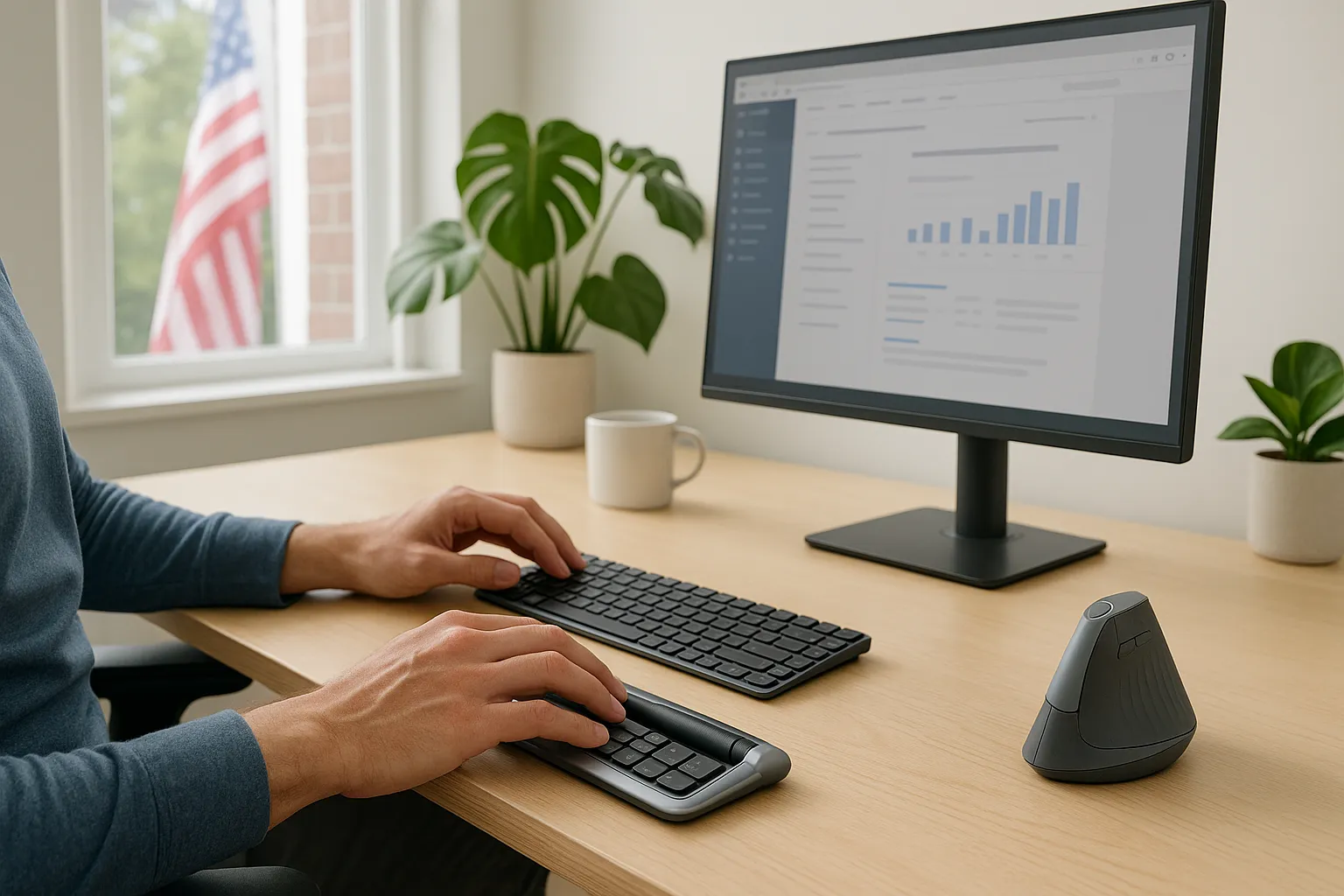
Ergonomic mouse alternatives for preventing RSI aren't a luxury anymore. They're a career decision. If you spend eight or more hours a day clicking, scrolling, and dragging with a standard mouse, you're repeating the same small motions thousands of times per shift. Over months and years, those micro-movements can quietly damage the tendons, nerves, and muscles in your hand, wrist, and forearm.
The good news? You don't have to wait for pain to force the issue. The right pointing device, matched to your hand and your workflow, can reduce strain before it becomes a real problem. This guide walks you through why traditional mice create risk, which alternatives actually work, and how to set up your workspace so the fix sticks.
Key Takeaways
- Traditional mice force your forearm into a pronated position and require lateral reaching, both of which significantly increase your risk of repetitive strain injury (RSI) over time.
- Ergonomic mouse alternatives like vertical mice, roller bar mice, trackballs, and pen-style devices each solve different biomechanical problems — match the device to your specific pain point and workflow.
- A centered roller bar mouse eliminates lateral shoulder reach entirely, while a vertical mouse reduces forearm pronation — identify your primary symptom location to choose the right fit.
- Pairing an ergonomic mouse alternative with proper workstation setup (neutral joint angles, correct monitor height, and centered keyboard placement) delivers significantly better RSI prevention results than switching the device alone.
- Follow the 20-8-2 principle — 20 minutes sitting, 8 minutes standing, 2 minutes moving — to reduce static loading and keep tendons and muscles healthy throughout the workday.
- Commit to a full two-week trial with any new ergonomic pointing device, and consult a clinician if pain, numbness, or grip weakness persists beyond that adjustment period.
Why Traditional Mice Put You at Risk for RSI
A standard mouse looks harmless. It's small, flat, and familiar. But that shape forces your forearm into a palm-down position called pronation, which twists the two bones in your forearm (the radius and ulna) over each other. Hold that twist for hours every day, and the tendons running through your wrist and forearm are under constant low-grade tension.
On top of that, most traditional mice sit off to the side of your keyboard. That means you're reaching out and away from your body to grip, click, and scroll. This lateral reach loads your shoulder and outer elbow, contributing to conditions like mouse elbow, a desk-related form of lateral epicondylitis.
A CDC-published study evaluating four pointing device designs found that device type significantly affects upper extremity posture and muscle activity. Traditional mice consistently produced higher forearm pronation and greater muscle engagement than alternative designs.
How Repetitive Strain Builds Over Time
RSI doesn't arrive with a single dramatic injury. It's the sum of thousands of tiny, identical motions. Each click, scroll, or lateral wrist movement creates micro-stress in your tendons and surrounding tissue. Healthy tissue repairs itself overnight, but when the rate of damage outpaces recovery, you get a slow accumulation of micro-tears and collagen disorganization in the tendon.
This process can take months or years before you feel anything obvious. By the time you notice a dull ache in your forearm at 3 p.m. on a Wednesday, the underlying tendon changes may already be well established. That's what makes RSI deceptive: the early stages are painless, and the later stages are stubborn.
Common Symptoms You Shouldn't Ignore
Pay attention to these warning signs, especially if they show up during or after computer work:
- Aching or burning in your wrist, forearm, or outer elbow that worsens through the workday
- Tingling or numbness in your fingers, particularly the thumb, index, or middle finger
- Grip weakness, like difficulty opening jars or holding a coffee mug steadily
- Stiffness in the morning that loosens up after 20–30 minutes of movement
- Pain that travels from your wrist up into your forearm or down into your hand
If any of these symptoms persist for more than two weeks or worsen even though rest, see a clinician. Early intervention makes a significant difference in outcomes. This article is general information, not medical advice.
Types of Ergonomic Mouse Alternatives Worth Considering
Not every ergonomic mouse alternative works the same way, and not every one suits every hand. The key is understanding which biomechanical problem each design solves so you can match it to your specific situation. For a broader comparison of how ergonomic mice differ from regular mice, that's a good starting point. Below are the main categories.
Vertical Mice
A vertical mouse rotates your hand into a "handshake" position, typically between 50 and 70 degrees from the desk surface. This significantly reduces forearm pronation, which is the primary mechanical culprit behind many wrist and forearm RSI complaints.
Contour Design®'s UniMouse takes this further with an adjustable tilt angle (35°–70°) and a thumb support that you can position to fit your exact hand shape. That adjustability matters because hand sizes, grip styles, and comfort preferences vary widely. A fixed 57-degree angle might be perfect for one person and slightly wrong for another.
Best for: Users who want a familiar mouse feel with reduced pronation. The transition from a traditional mouse is usually quick, often just a day or two.
Roller Bar Mice
Here's the thing: even a well-designed vertical mouse still sits beside your keyboard, which means you're still reaching laterally to use it. Roller bar mice eliminate that reach entirely.
A roller bar (also called a central pointing device) sits directly in front of your keyboard. You control the cursor by rolling and sliding a textured bar with your fingertips or thumbs. Your hands stay centered in front of your body, your shoulders stay relaxed, and your elbows stay close to your sides.
Contour's RollerMouse line, including the RollerMouse Red and RollerMouse Pro, was built around this principle. The patented Rollerbar keeps your hands in a neutral position while giving you precise cursor control. The Pro model is made from 100% post-consumer materials, and both models let you adjust cursor speed, click force, and programmable buttons to match your workflow.
A Cochrane systematic review on ergonomic interventions for office workers found mixed but promising evidence that alternative pointing devices can reduce upper limb and neck musculoskeletal complaints, particularly when combined with workstation adjustments.
Best for: Users with shoulder or neck tension from lateral reaching, or anyone who wants ambidextrous control without moving their hands between the keyboard and a separate mouse.
Trackballs and Trackpads
Trackballs keep your arm stationary while you move the cursor with your thumb or fingers. This eliminates the repetitive gliding motion that loads your wrist and forearm during traditional mouse use. Finger-operated trackballs (where the ball sits on top) tend to distribute effort across multiple fingers, while thumb-operated models concentrate motion in the thumb joint.
Trackpads, including touch-based devices like the Contour Touch, offer gesture-based navigation with minimal physical effort. They work well for users who prefer light, flat input surfaces.
Best for: Users who need a stationary option and are comfortable with a short learning curve. Thumb-operated trackballs may not be ideal if you already have thumb joint pain.
Pen-Style and Joystick Mice
Pen-style mice look like a thick stylus. You hold them vertically, the same way you'd hold a pen, and move the cursor by gliding the tip across a surface or tablet. Joystick mice stand upright and let you nudge the cursor with finger pressure.
Both designs change the grip pattern entirely, moving the effort away from the wrist and into the fingers and hand. They can work well for precision tasks like illustration or CAD, but they need the most adaptation time. Most users need one to two weeks before they feel proficient.
Best for: Users who already work with a stylus or pen tablet, or those whose wrist and forearm symptoms are severe enough that conventional mouse grips are uncomfortable.
How to Choose the Right Alternative for Your Workflow
Picking an ergonomic mouse alternative isn't about finding the "best" device on a spec sheet. It's about matching the device to your body, your tasks, and the way you actually work.
Start with three questions:
1. Where does your discomfort show up?
If your pain is primarily in your wrist and forearm, a vertical mouse like the UniMouse addresses pronation directly. If your tension sits in your shoulders, neck, or outer elbow, the real issue may be lateral reach, and a centered device like the RollerMouse is a stronger fit. For more on elbow pain linked to mouse use, Contour's resource library covers it in depth.
2. What does your typical workday look like?
If you toggle constantly between typing and cursor work (writing, coding, data entry), a roller bar mouse lets you switch in milliseconds because your hands never leave the keyboard zone. If your work is heavily mouse-driven (design, CAD, video editing), a vertical mouse or trackball may give you the precision control you need for detailed manipulation.
3. What's your hand size and grip style?
Hand size matters more than most people realize. A mouse designed for large hands will cramp a smaller hand, and vice versa. Contour's UniMouse has an adjustable thumb support and tilt, which helps it fit a wider range of hand sizes. The RollerMouse Red comes with three interchangeable palm rests in different sizes. Measure your hand from wrist crease to the tip of your middle finger: under 7 inches is small, 7–7.5 inches is medium, and over 7.5 inches is large.
If you're exploring options for conditions like arthritis alongside RSI, the same principles apply: reduce grip force, minimize pronation, and keep devices centered when possible.
Your action step: Write down your top symptom location, your primary work task, and your hand measurement. Those three data points will narrow your options to one or two device types in under five minutes.
Setting Up Your Workspace to Maximize RSI Prevention
Switching your mouse is a big step. But a great pointing device in a poorly arranged workspace is like running shoes on a broken treadmill. Your monitor, keyboard, chair, and movement habits all play a role in whether your new device actually delivers long-term relief.
Monitor, Keyboard, and Mouse Placement
Your goal is a neutral body position: joints at natural angles, muscles relaxed, no sustained reaching or bending.
- Chair height: Adjust until your feet rest flat on the floor. Your thighs should be roughly parallel to the floor, with your knees at or slightly below hip level.
- Desk or keyboard tray height: Raise or lower it until your elbows form a 90-degree angle. Your forearms should rest on the desk surface with zero upward or downward wrist angle.
- Keyboard position: Center the B key with your belly button. This keeps your arms symmetrical and prevents one shoulder from creeping send.
- Pointing device position: Place your mouse or roller bar as close to the keyboard as possible. If using a RollerMouse or SliderMouse, it sits directly in front of the keyboard, eliminating lateral reach entirely. If using a separate mouse, keep it immediately beside the keyboard with no gap.
- Monitor distance and height: Position your screen at arm's length (roughly 20–30 inches). Close your eyes, then open them. Your gaze should land on the top third of the screen without any head movement.
For a full walkthrough with measurements and checklists, Contour's guide on setting up an ergonomic workstation covers every surface and angle.
A Cochrane review on ergonomic design and training found that combining ergonomic equipment with proper workstation setup produced better outcomes than equipment changes alone. The setup matters as much as the device.
Breaks, Stretches, and Movement Habits
No posture is good posture if you hold it for hours without moving. Static loading, even in a neutral position, reduces blood flow to muscles and tendons over time.
According to the Cornell Human Factors Lab, the evidence-based approach is the 20-8-2 principle: 20 minutes sitting, 8 minutes standing, 2 minutes moving. This cycle keeps your tissues active without the fatigue that comes from prolonged standing.
During your 2-minute movement breaks, try these:
- Wrist flexion stretch: Extend your right arm straight in front of you, palm facing away. With your left hand, gently pull your right fingers back toward your body until you feel a stretch along the inside of your forearm. Hold 15 seconds. Switch hands.
- Forearm rotation: Hold your right arm at your side, elbow bent at 90 degrees, palm facing down. Slowly rotate your palm to face the ceiling, then back to face the floor. Repeat 10 times per side.
- Shoulder blade squeeze: Sit upright. Pull both shoulder blades back and together as if pinching a pencil between them. Hold 5 seconds, release. Repeat 5 times.
Your action step: Set a timer for 30-minute intervals. At each alarm, stand for the next cycle or take a 2-minute movement break. This alone can reduce your static loading by roughly 40% over a full workday. This is practical for desk workers with schedule control: it may not suit everyone in meetings-heavy roles.
Real-World Results: What Switching Actually Feels Like
Let's be honest about the transition. Switching to an ergonomic mouse alternative isn't like upgrading your phone, where everything feels better on day one. There's an adjustment period, and it helps to know what to expect.
Days 1–3: You'll probably feel slower. Your cursor won't land exactly where you want it, and tasks that took two seconds now take five. This is normal. Your brain is remapping motor patterns it's practiced for years.
Days 4–7: Accuracy improves noticeably. Most vertical mouse users report feeling comfortable within the first week. Roller bar users often take slightly longer, around 5–7 days, because the input method (rolling and sliding vs. gripping and gliding) is more different from what you're used to.
Weeks 2–4: This is where you start to notice what's not happening. The 3 p.m. forearm ache doesn't show up. Your shoulders aren't hiked up by end of day. You're not shaking out your wrist between tasks. The absence of discomfort is the clearest signal that the device is working.
Contour's own customer surveys have found that 9 out of 10 users report improved comfort after switching to a RollerMouse or UniMouse. Individual results vary, and an ergonomic device isn't a substitute for clinical treatment if you have an active injury. But for the thousands of users who've made the switch, the pattern is consistent: less pain, more control, and a workday that doesn't punish your body.
One practical observation worth noting: users who pair a centered device with a compact keyboard, like the Balance Keyboard, tend to see faster results because the narrow keyboard eliminates the lateral distance that a full-size keyboard creates. The combination keeps everything within your shoulder width.
Your action step: Commit to a full two-week trial before making a judgment. Track your discomfort on a simple 0–10 scale at the end of each workday. Most people see a measurable drop by day 10.
When to Consult a Professional About RSI
An ergonomic mouse alternative is a prevention and comfort tool, not a medical treatment. It's important to know where self-management ends and professional care begins.
See a clinician (a physician, hand therapist, or work-related health specialist) if you experience any of these:
- Persistent pain that doesn't improve after two weeks of ergonomic changes and activity modification
- Numbness or tingling that wakes you up at night or is present when you first wake in the morning
- Visible swelling in your wrist, hand, or forearm
- Loss of grip strength that interferes with daily tasks beyond computer work
- Sharp or shooting pain during specific movements
Conditions like carpal tunnel syndrome, De Quervain's tenosynovitis, and cubital tunnel syndrome need clinical diagnosis and may need splinting, therapy, injections, or in some cases surgery. Early referral typically leads to better outcomes and shorter recovery times.
For more on the relationship between mouse use and repetitive strain injuries, Contour's ergonomics guide is a useful companion resource.
Bottom line: Ergonomic devices help reduce your risk and improve your daily comfort. They don't replace professional diagnosis or treatment. If something feels wrong, get it checked. Your hands are your career tools.
Your Next Move
Pick the symptom that bothers you most, match it to the device category that addresses it, and start a two-week trial. That single change, made today, can reshape what your workday feels like a month from now. Your hands have decades of work left in them. Give them the setup they deserve.

Which Device Is Right for You?
Take a quick quiz and get a personalized recommendation based on how you work.

