
Essential Ergonomic Equipment for Your Home Office: 8 Must-Have Tools for Pain-Free Productivity
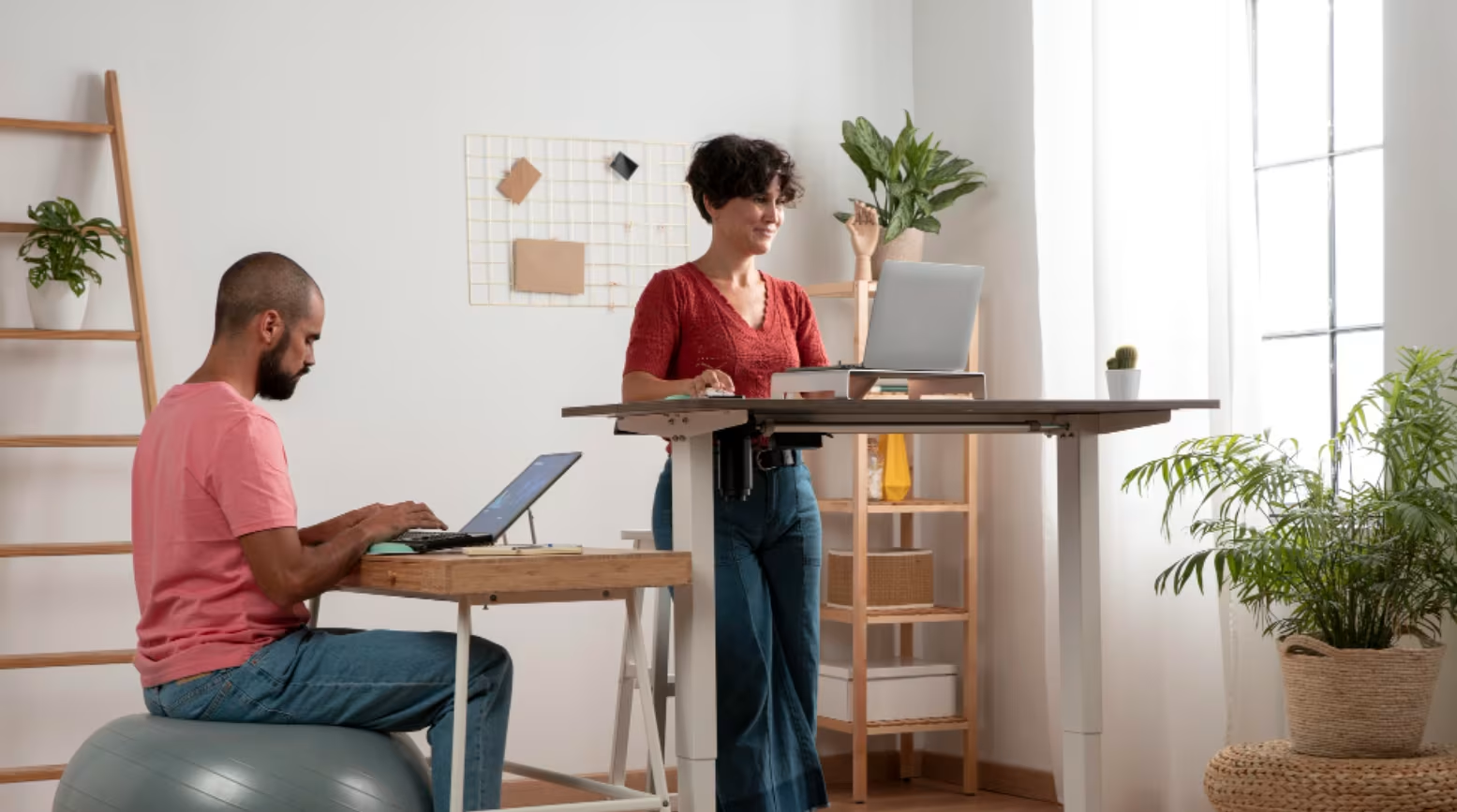
Ergonomic equipment for home office setups isn't a luxury anymore. It's a necessity. If you spend 6–10 hours daily at your desk, your body is keeping score. Want it all in one place? Download our office ergonomics PDF for a printable setup checklist.
Here's the reality: 2.7 million U.S. workers reported musculoskeletal disorders in 2024, according to Bureau of Labor Statistics data. Wrist strain, neck tension, lower back pain, these aren't just annoyances. They're warning signs that something in your setup needs to change.
The good news? The right ergonomic home office equipment can transform how you feel at the end of each workday. No more limping to the couch. No more ice packs and ibuprofen. Just comfortable, productive hours doing work that matters.
This guide covers eight essential pieces of equipment that address pain from your fingertips to your feet. Whether you're recovering from repetitive strain injury or proactively building a healthier workspace, these tools deliver measurable relief.
Key Takeaways
- Ergonomic equipment for home office setups can reduce musculoskeletal disorders, with ergonomic mice alone cutting RSI risk by up to 60%.
- Position your monitor at eye level and arm's length away to prevent neck strain—your head effectively weighs 27 pounds when tilted just 15 degrees forward.
- Sit-stand desks help users reduce sitting time by 60–130 minutes daily, improving circulation and reducing spinal compression.
- Invest in an office chair with adjustable lumbar support, as slouching increases disc pressure by 40%.
- Laptop users must elevate their screens and use external keyboards and mice to avoid the forced choice between neck and wrist strain.
- Start upgrading your ergonomic home office equipment based on where you feel the most pain, and remember that many items qualify for HSA/FSA reimbursement.
1. Ergonomic Mice: Your First Line of Defense Against Wrist Strain
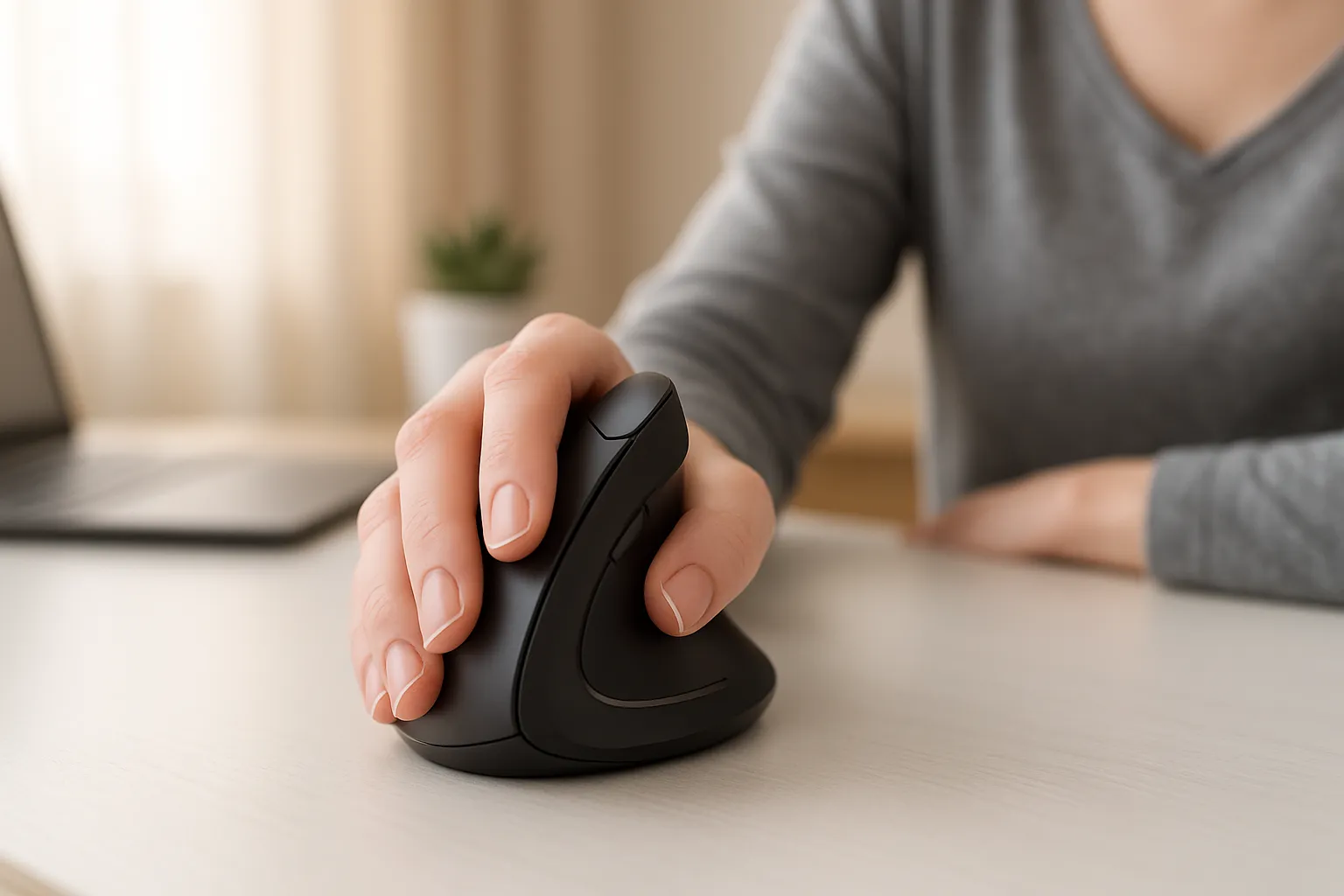
Your mouse is the most-used tool in your home office. The average knowledge worker clicks 5,000+ times per day. That's 5,000 micro-movements that can either protect or damage your wrist.
Traditional mice force your forearm into a pronated (palm-down) position. Over months and years, this strains the tendons crossing your wrist and can trigger carpal tunnel symptoms, tendinitis, or chronic RSI.
An ergonomic mouse reduces RSI risk by up to 60% compared to standard designs. That's not marketing, it's biomechanics.
Vertical Mice vs. Centered Pointing Devices
Vertical mice rotate your hand into a neutral "handshake" position. This eliminates forearm pronation and takes pressure off the median nerve. They're excellent for users already experiencing wrist pain.
Centered pointing devices (like rollerbars and trackballs) sit directly in front of your keyboard. This eliminates the reach-and-grab motion that strains shoulders. For users dealing with shoulder or neck tension, centered designs often provide better relief than vertical options.
Contour Design's RollerMouse series exemplifies the centered approach, placing the cursor control bar between your keyboard and body, so both hands share the workload. Users report significantly reduced strain because there's no repetitive reaching.
Key Features to Look For
When shopping for an ergonomic mouse, prioritize these features:
- Adjustable DPI/sensitivity so you can reduce hand movement
- Multiple grip sizes to match your hand dimensions
- Programmable buttons to minimize repetitive clicking
- Wireless connectivity for cleaner desk setup and positioning flexibility
If you want to learn how to reduce pain with the right mouse choice, proper selection matters more than brand loyalty.
Action step: Measure your hand from wrist crease to middle fingertip. Match this measurement to manufacturer sizing charts before purchasing. Wrong size = wrong ergonomics.
2. Adjustable Monitor Arms: Position Your Screen for Neck and Eye Relief
Here's a number that might surprise you: your head weighs 10–12 pounds. Tilt it forward just 15 degrees to look at a low monitor, and your neck muscles work as if supporting 27 pounds.
That's the hidden cost of a poorly positioned screen.
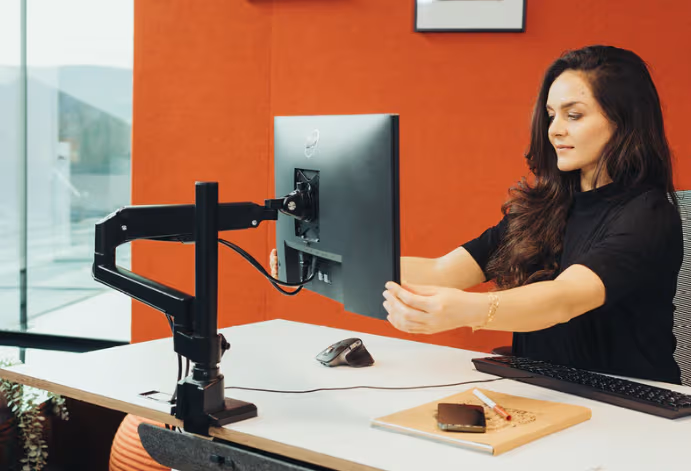
Adjustable monitor arms solve this by letting you position your display at the perfect height, distance, and angle. They also reclaim valuable desk real estate, no more bulky monitor stand eating into your workspace.
According to Mayo Clinic's office ergonomics guidelines, proper monitor positioning is one of the most important factors in preventing neck and eye strain.
Finding Your Ideal Monitor Height
The top edge of your screen should sit at or slightly below eye level. When you look straight ahead with relaxed shoulders, your gaze should hit the upper third of the display.
Distance matters too: position your monitor approximately arm's length away (20–26 inches). If you're squinting or leaning forward, something's wrong.
Key arm features to consider:
- Height adjustment range of at least 13 inches
- Swivel and tilt for fine-tuning angles
- Weight capacity that exceeds your monitor's specs by 20%
- Cable management to keep your setup clean
Action step: Sit at your desk right now. Without moving your head, note where your eyes naturally rest. Is that the center of your screen? If not, a monitor arm can fix this today.
3. Ergonomic Keyboards: Keep Your Wrists Aligned and Comfortable
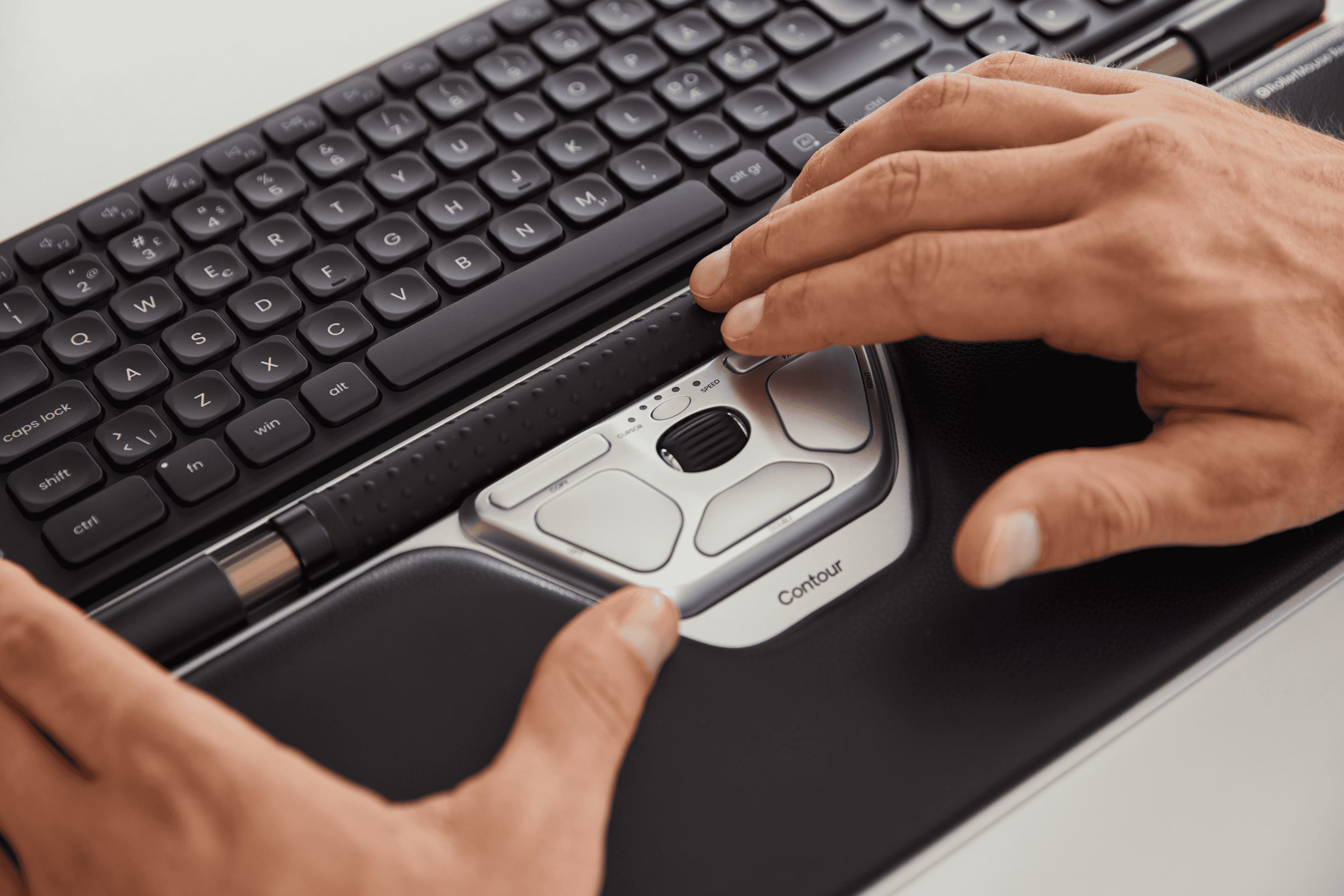
Standard keyboards force an unnatural position. Your hands angle inward, wrists extend upward, and shoulders scrunch together. Eight hours of this daily creates a recipe for pain.
Ergonomic keyboards address these problems through thoughtful design changes. They're one of the three pillars of office equipment ergonomics, along with proper mouse selection and wrist support.
Split vs. Compact Designs
Split keyboards separate the key clusters for each hand. This allows your arms to approach the keys at a natural angle rather than forcing them inward. For users with shoulder tension or existing wrist issues, split designs often provide the most relief.
Compact keyboards eliminate the number pad, reducing the reach distance to your mouse. If you don't use the numpad daily, this single change can cut shoulder strain significantly.
Some keyboards combine both approaches — the Contour Design Balance Keyboard, for example, uses a compact layout that keeps your mouse within comfortable reach while maintaining a familiar typing feel.
Critical setup tips:
- Keep keyboard height so your elbows bend at 90 degrees
- Use a keyboard riser with negative tilt (0–15 degrees) if needed to keep wrists in a neutral position.
- Position the "B" key aligned with your belly button
Cleveland Clinic recommends keeping wrists in a neutral position, not bent up, down, or sideways, during typing to prevent repetitive strain.
Action step: Place a ruler across your current keyboard and note its angle. If the back sits higher than the front (positive tilt), you're creating unnecessary wrist extension. Flip those keyboard feet down.
4. Sit-Stand Desks: Break the Cycle of Sedentary Work
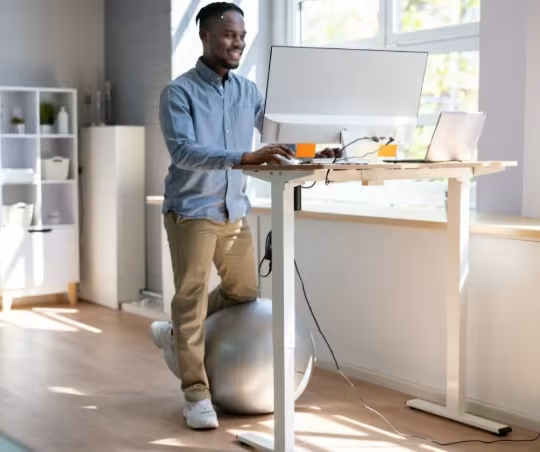
Sitting for 8+ hours daily increases your risk of cardiovascular disease, diabetes, and chronic back pain. Standing all day isn't the answer either, it creates its own problems including leg fatigue and varicose veins.
The solution? Movement variety.
Sit-stand desks let you alternate between positions throughout the day. Research shows users reduce sitting time by 60–130 minutes daily when they have this option. That's not trivial, it translates to better circulation, reduced spinal compression, and more energy in the afternoon.
According to CCOHS guidelines on sit/stand desks, alternating between sitting and standing helps reduce fatigue and discomfort while increasing blood flow.
What to look for:
- Height range of 22–48 inches to accommodate both positions
- Electric lift mechanisms for effortless transitions (you'll actually use them)
- Stable surface that doesn't wobble at standing height
- Memory presets so you can switch with one button press
Budget matters here. Quality electric sit-stand desks range from $400–$1,500. Cheaper manual options exist but create friction, and friction means you won't change positions as often.
Action step: If a new desk isn't in the budget, try a desktop converter ($150–$300) that sits on your existing desk. Start by standing for just 15 minutes every hour and build from there.
5. Supportive Office Chairs: The Foundation of Good Posture
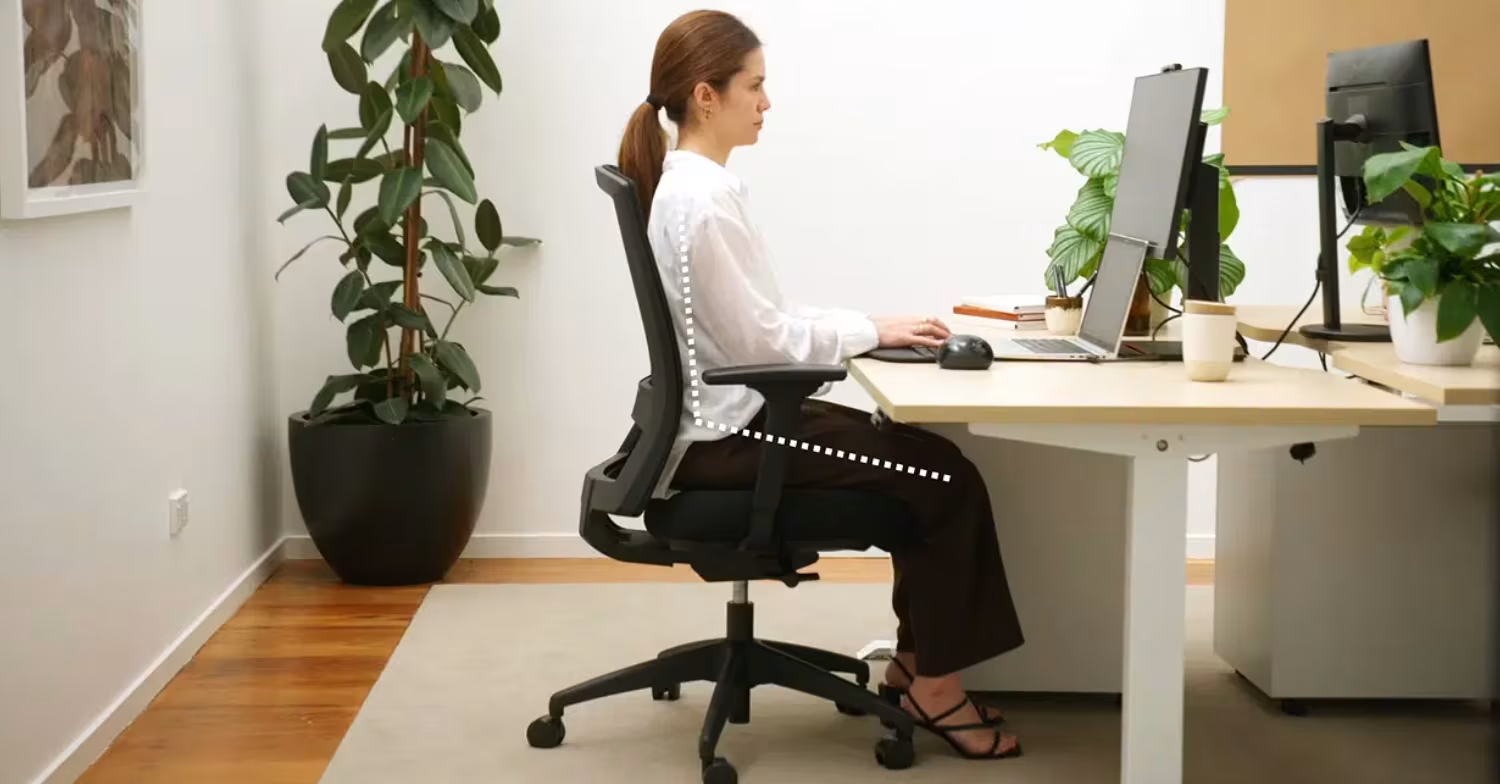
You'll spend approximately 2,000 hours in your office chair this year. That chair is either supporting your spine or slowly damaging it.
A quality ergonomic chair isn't about luxury, it's about maintaining the natural S-curve of your spine throughout the workday. When your lower back rounds forward (the "slouch"), disc pressure increases by 40%.
What to Look For in Lumbar Support
Adjustable lumbar support is non-negotiable. The curve should fit into the small of your back (L3–L5 vertebrae region), not push against your mid-back.
Essential chair features:
- Seat height adjustment (16–21 inches) so feet rest flat on floor
- Seat depth less than 16.3 inches or adjustable, leaving 2–3 fingers of space behind your knees
- Armrest adjustments for height, width, and pivot
- Waterfall seat edge that slopes downward to reduce pressure behind thighs
- Breathable mesh or high-quality foam for temperature regulation
The comprehensive guide on setting up your ideal home office covers how chair selection integrates with your complete workspace setup.
The $200 vs. $1,000 question: Expensive chairs often last 10–15 years with better warranty coverage. A $200 chair might need replacing in 3 years. Do the math for your situation.
Action step: Sit in your current chair and slide your hand between your lower back and the backrest. If there's a gap larger than 2 inches, you need better lumbar support, either from a new chair or an add-on lumbar pillow.
6. Laptop Stands and Docking Stations: Elevate Your Mobile Setup
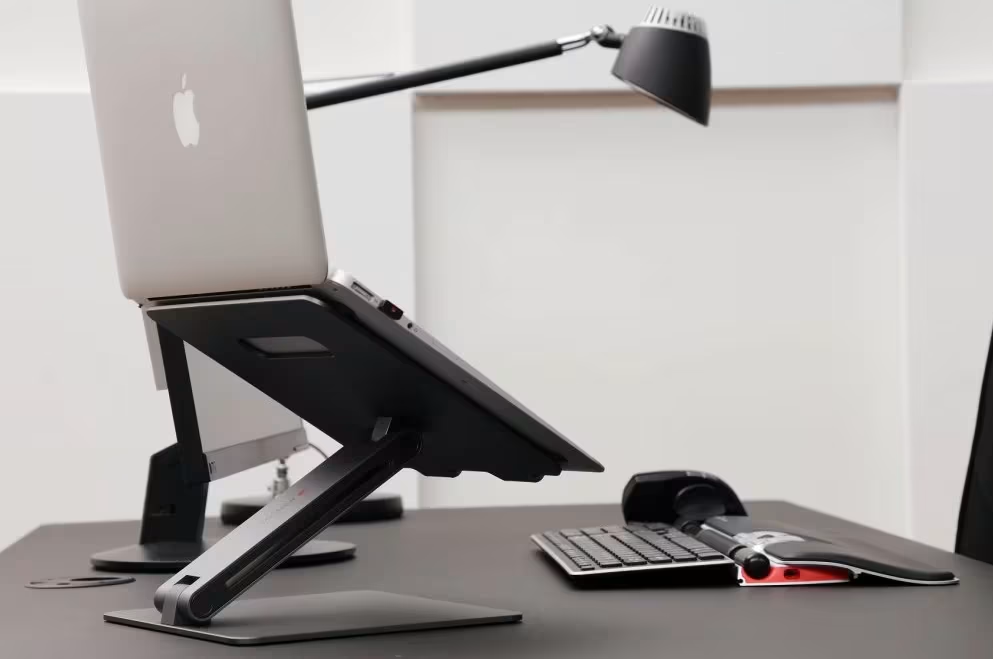
Laptops are ergonomic disasters by design. The screen and keyboard are attached, forcing a terrible choice: neck strain (looking down) or wrist strain (raising the laptop to eye level).
Laptop stands break this compromise by raising your screen to proper height. Pair with an external keyboard and mouse, and your laptop becomes an ergonomically sound workstation.
Benefits of elevation:
- Raises screen to eye level, eliminating the "vulture neck" posture
- Improves airflow underneath, reducing overheating (and fan noise)
- Creates a more organized, professional workspace
- Portable options travel easily for hybrid workers
Wirecutter's ergonomics experts emphasize that laptop users absolutely need external peripherals and elevation to work comfortably for extended periods.
Docking stations add functionality, multiple monitor outputs, USB ports, ethernet connections, while keeping cables organized. They're especially valuable if you move between locations.
Stand selection criteria:
- Adjustable height beats fixed-height stands
- Ventilation slots or open design for cooling
- Stability under typing pressure (if using laptop keyboard occasionally)
- Portability if you work in multiple locations
For a detailed breakdown of what to look for, our guide to ergonomic laptop stands for desk use covers height, ventilation, and stability features in depth.
Action step: Stack some books under your laptop right now. If this height feels better on your neck after 30 minutes, invest in a proper stand. You just ran your own ergonomics test.
7. Footrests and Anti-Fatigue Mats: Don't Forget What's Below Your Desk
Most people overlook everything below desk level. That's a mistake.
When your feet dangle or your legs press against the chair edge, circulation suffers. Blood pools in your lower extremities. By 3 PM, you're dealing with swollen ankles and restless legs.
Adjustable footrests reduce leg swelling by approximately 20% while improving circulation and reducing lower back pressure. They're particularly important if your chair doesn't adjust low enough for your feet to rest flat on the floor.
Footrest features that matter:
- Angle adjustment (0–20 degrees) for comfort variety
- Height adjustment to match your seated position
- Textured or rocking surface to encourage micro-movements
- Large enough platform for both feet comfortably
Anti-fatigue mats serve standing desk users. The cushioned surface encourages subtle weight shifting and reduces the strain of standing on hard floors. Quality mats use high-density foam that doesn't flatten over months of use.
For a comprehensive look at how ergonomic equipment prevents injury and saves money over time, small investments like footrests often deliver outsized returns.
Action step: Notice your feet right now. Are they flat on the floor with thighs parallel to the ground? If you're on tiptoes or your thighs slope downward, a footrest will immediately improve your posture chain.
8. Wrist Rests and Forearm Supports: Added Comfort for Long Work Sessions
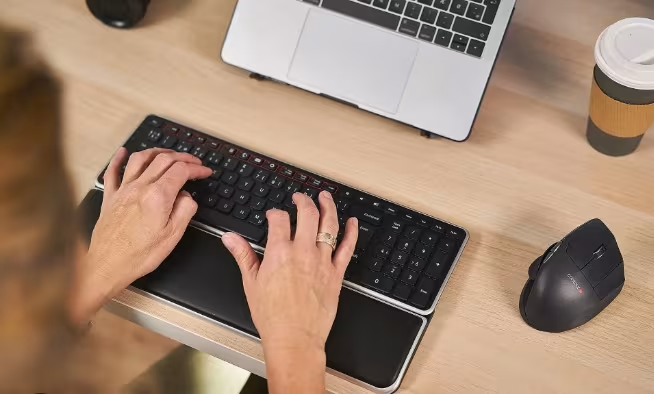
Let's be clear about wrist rests: they're for resting between typing, not for resting on while typing. Using them wrong can actually increase carpal tunnel pressure.
Used correctly, wrist rests and forearm supports provide relief during pauses and help maintain neutral wrist positioning.
Wrist rest types:
- Gel-filled rests conform to your wrist shape and stay cool
- Memory foam options provide consistent support but may retain heat
- Firm padding works better for heavier hands that would sink into soft materials
Forearm supports attach to your desk and cradle your forearms during mouse use. They prevent the "desk edge dig" that creates pressure points and circulation issues.

Proper usage guidelines:
- Rest the heel of your palm, not your wrist itself
- Keep wrists straight, not bent upward or downward
- Use during pauses, lifting hands while actively typing
- Position keyboard wrist rest at same height as keyboard front edge
The complete guide to home office ergonomics explains how wrist support integrates with your keyboard and mouse setup for maximum comfort.
Who should skip wrist rests: If you already have carpal tunnel syndrome, consult a healthcare provider before adding wrist rests. For some conditions, they may increase symptoms.
Action step: If you use a wrist rest or Universal ArmSupport, check your form right now.. Is the pressure on your wrist crease (bad) or the fleshy heel of your palm (good)? Adjust your positioning or the rest's placement accordingly.
Conclusion
Building an ergonomic home office isn't about buying everything at once. It's about identifying where your body hurts and addressing those pain points first.
Start with your most-used input device, usually the mouse. Move to monitor positioning. Then work through the list based on where you feel strain.
The investment pays off quickly. Ergonomic equipment for your home office reduces sick days, increases productivity, and prevents the kind of chronic injuries that can derail careers.
Beyond investing in the right ergonomic equipment, professionals working remotely can also benefit from learning practical strategies for being efficient when working from home to maintain productivity throughout the day.
Your body is your most important work tool. Protect it with equipment designed to support how humans actually move and sit. After all, you've got decades of productive work ahead, and you deserve to feel good doing it.
Frequently Asked Questions
What ergonomic equipment do I need for a home office?
Essential ergonomic equipment for a home office includes an ergonomic mouse, adjustable monitor arm, ergonomic keyboard, sit-stand desk, supportive office chair, laptop stand, footrest, and wrist rests. Prioritize items based on where you experience the most discomfort—most people should start with their mouse and monitor positioning.
How does an ergonomic mouse reduce wrist pain?
An ergonomic mouse reduces RSI risk by up to 60% compared to traditional designs. Vertical mice position your hand in a neutral "handshake" grip, eliminating forearm pronation that strains tendons. Centered pointing devices reduce shoulder strain by eliminating the repetitive reach-and-grab motion of standard mice.
What is the correct monitor height for an ergonomic setup?
Position your monitor so the top edge sits at or slightly below eye level, approximately arm's length away (20–26 inches). When looking straight ahead with relaxed shoulders, your gaze should naturally fall on the upper third of the screen. An adjustable monitor arm makes achieving this ideal height simple.
How often should I alternate between sitting and standing at my desk?
Research shows standing for 15 minutes every hour is a good starting point. Sit-stand desk users typically reduce sitting time by 60–130 minutes daily. The key is movement variety—neither prolonged sitting nor standing all day is ideal. Listen to your body and switch positions when you feel fatigued.
Can ergonomic home office equipment help prevent carpal tunnel syndrome?
Yes, proper ergonomic equipment significantly reduces carpal tunnel risk. Ergonomic keyboards keep wrists in a neutral position, while vertical mice eliminate forearm pronation that pressures the median nerve. Wrist rests—used correctly during typing pauses—also help maintain neutral wrist positioning and prevent strain.
Are expensive ergonomic office chairs worth the investment?
Quality ergonomic chairs ($800–$1,500) often last 10–15 years with better warranties, while budget options ($200) may need replacing in 3 years. Key features like adjustable lumbar support, seat depth, and armrests protect your spine's natural S-curve. Calculate cost-per-year and consider HSA/FSA reimbursement eligibility.

Which Device Is Right for You?
Take a quick quiz and get a personalized recommendation based on how you work.

