
Essential Ergonomic Desk Supplies for Pain-Free, Productive Workdays

Your right wrist is doing that familiar ache, tight, hot, like you've been wringing out a towel for hours. You shake it out, roll your shoulders, and get back to the spreadsheet. But the discomfort lingers, a low hum beneath every keystroke. If this sounds like your workday, you're not alone. The right ergonomic desk supplies can transform how your body feels after eight, ten, or twelve hours at the screen, reducing strain, sharpening focus, and protecting your career from the slow creep of repetitive stress injuries.
1. Ergonomic Mouse: The Foundation of Wrist and Forearm Relief
Your mouse is probably the most-used tool on your desk. And if you're reaching, gripping, or twisting to use it, your forearm and wrist absorb every micro-motion, thousands of times a day. Over months and years, that adds up. An ergonomic mouse is often the first upgrade that makes a real, noticeable difference.
Vertical Mice vs. Centered Mice
Vertical mice rotate your hand into a "handshake" position, reducing the pronation (palm-down twist) that strains forearm tendons. They're popular, and for good reason: many users feel immediate relief. But there's a tradeoff, vertical designs can increase forearm tension if you're still reaching to the side.
Centered mice, like Contour Design's RollerMouse, sit directly in front of your keyboard. This setup keeps your hands close together, eliminating the sideways reach that pulls on your shoulder. The CDC's ergonomics guidance highlights reducing repetitive reaching as a key factor in preventing work-related musculoskeletal disorders. For a deeper look at how shoulder and neck pain develops from standard mouse use, see mouse shoulder — and what it takes to fix it.
Key Features to Look For
When shopping for an ergonomic mouse, prioritize:
- Adjustable DPI: Match pointer speed to your workflow. Lower DPI means less hand movement: higher DPI suits fast navigation.
- Low-force buttons: Look for light click resistance to reduce finger strain.
- Thumb and palm support: Rests or contours that keep your hand relaxed, not clenched.
- Customizable controls: Programmable buttons let you work your way, reducing repetitive clicks.
If you want to reduce pain with an ergonomic mouse, Contour's UniMouse offers tilt adjustment from 35° to 70°, so you can dial in the angle that feels best for your hand.
.avif)
2. Ergonomic Keyboard: Reducing Shoulder and Wrist Strain
A standard keyboard forces your hands together and your wrists into awkward angles. Over time, this can compress nerves and strain tendons, hello carpal tunnel. If you're already noticing symptoms, the guide on what is carpal tunnel syndrome explains what's happening and when to act. An ergonomic keyboard reshapes your typing posture, letting your shoulders relax and your wrists stay neutral.
Split and Tented Designs Explained
Split keyboards separate the key sections so your hands sit at shoulder width. This opens up your chest and lets your shoulders drop, reducing tension that builds during long writing or coding sessions.
Tented keyboards angle each half upward, raising the inner edge. This lifts your wrists out of the flat, pronated position, easing pressure on the carpal tunnel. Some keyboards combine both features for maximum adjustability.
Contour's Balance Keyboard takes a different approach: a compact, low-profile design with scissor keys that require minimal force. Pair it with the Balance Keyboard Wrist Rest for cushioned support. The narrow frame keeps your mouse closer, reducing side-reaching.
When you combine a centered mouse (like RollerMouse or the Contour Touch touchpad) with a compact keyboard, you create a workstation that keeps everything within a comfortable reach zone, arms relaxed, shoulders neutral, wrists straight.
3. Monitor Arm: Positioning Your Screen for Neutral Neck Posture
Ever catch yourself leaning forward, chin jutting toward your monitor? That forward head posture adds serious load to your neck, up to 60 pounds of effective weight, according to Cornell University's ergonomics research. A monitor arm lets you position your screen at the right height and distance, so your head stays balanced over your spine.
Adjust your monitor so the top of the screen is at or just below eye level. The display should sit about an arm's length away. If you use dual monitors, angle them in a gentle arc so you don't have to twist your neck to see either one.
A good monitor arm also frees up desk space, making room for ergonomic desk supplies like a centered mouse or a footrest. And if you switch between sitting and standing, a quality arm moves with you, keeping your screen in the right spot no matter your position. Supplies are only half the equation — see how everything comes together in the most ergonomic desk setup.
4. Laptop Stand: Elevating Your Display to Eye Level
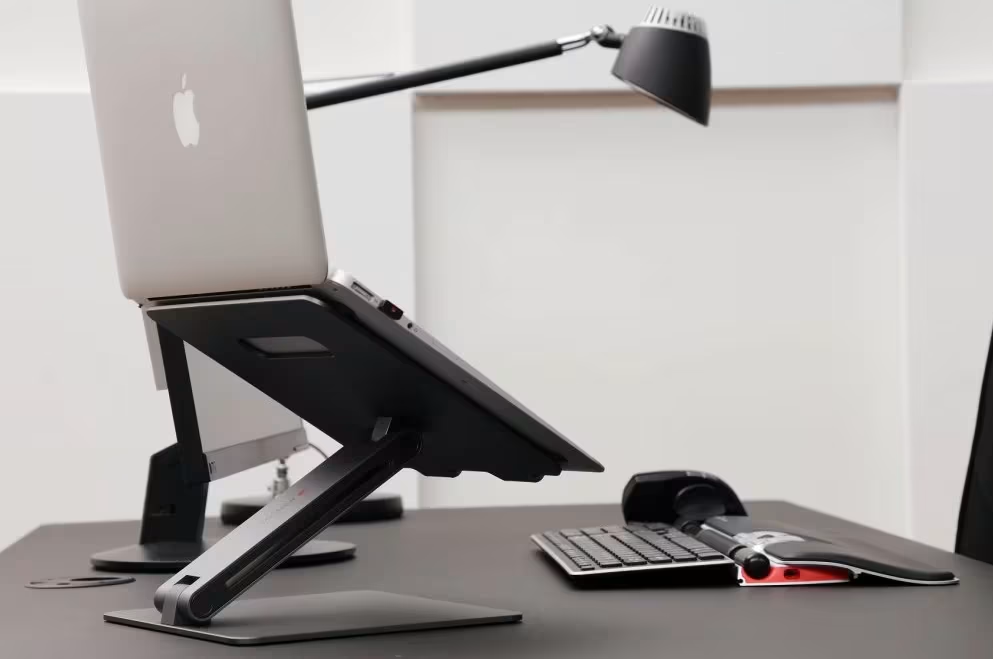
Laptops are convenient, but they're ergonomic nightmares. The screen sits too low, the keyboard too close, so you hunch, crane, and squint. A laptop stand lifts your display to eye level, letting you sit up straight without straining your neck. For the best results, pair your Contour Laptop Riser with an external keyboard and mouse — this separates your input devices from your screen, so you can position each for comfort.
For the best results, pair your stand with an external keyboard and mouse. This separates your input devices from your screen, so you can position each for comfort. The University of Michigan's Center for Ergonomics recommends this setup to reduce the awkward postures that cause fatigue and pain during long work sessions.
If you work from home, or hop between the office and the couch, a portable laptop stand can travel with you. Small investment, big payoff for your posture.
5. Adjustable Desk: Alternating Between Sitting and Standing
Standing desks have become a staple of modern workspaces, and for good reason. Alternating between sitting and standing reduces static load on your spine, improves circulation, and can cut fatigue by over 50%. But there's a catch: standing all day isn't the answer either. The magic is in the movement.
Sit-Stand Timing Tips
- Stand 20–30% of the day: That's roughly two to three hours in an eight-hour shift.
- Alternate every 30–60 minutes: Set a timer or use software reminders. Don't wait until you're stiff to switch.
- Adjust your desk height: When standing, your elbows should be at about 90 degrees, forearms parallel to the floor. For standing desk users, an ergonomic standing desk setup requires a few extra adjustments to keep your posture correct at both heights.
A standing desk pairs well with a centered mouse and compact keyboard, no matter your height, you can keep your arms relaxed and your wrists neutral.
6. Ergonomic Chair: Supporting Your Spine Throughout the Day
Your chair is the backbone of your workstation, literally. A good ergonomic chair supports the natural curve of your spine, especially the lower back (lumbar region). Without that support, you'll slump, twist, or perch on the edge, and your back will let you know about it later.
Look for these features:
- Adjustable seat height: Feet flat on the floor, thighs parallel to the ground.
- Lumbar support: A curve or adjustable pad that fits the small of your back.
- Seat depth adjustment: The seat should support your thighs without pressing into the backs of your knees.
- Armrests (optional, but helpful): Adjustable armrests can support your forearms and reduce shoulder strain, just make sure they don't force your shoulders up or prevent you from getting close to your desk.
If you're investing in a quality chair, make sure your other ergonomic desk supplies, keyboard, mouse, monitor, are set up to match.

7. Footrest: Grounding Your Posture From the Floor Up
Here's a detail many people overlook: if your feet dangle or rest awkwardly, your whole posture suffers. A footrest lifts your feet to a comfortable angle, keeping your knees at about 90 degrees and taking pressure off your lower back.
Footrests are especially useful if your chair or desk height doesn't quite fit your body. They're also helpful when you switch to standing, some models double as balance boards, encouraging subtle movement that keeps your legs and core engaged.
When your feet are grounded, your pelvis tilts into a better position, your spine stacks more naturally, and you're less likely to cross your legs or shift into lopsided postures. It's a small upgrade with a surprisingly big impact.
8. Desk Organizers: Keeping High-Use Items Within Easy Reach
Every time you twist, lean, or stretch to grab a pen, a cable, or your phone, you're introducing micro-strain. Multiply that by dozens of reaches a day, and you've got a recipe for neck and shoulder fatigue.
Desk organizers keep your most-used items within an 18-inch radius, what ergonomists call the "primary reach zone." This minimizes twisting and overreaching, letting you work more efficiently and with less physical cost.
Think about what you touch most often: phone, notebook, headphones, charger. Place those within arm's reach, and push rarely used items to the edges or into drawers. A clutter-free desk isn't just about aesthetics, it's about protecting your body.
For a printable version of every adjustment covered here, the ergonomic workstation setup checklist keeps everything in one place.
How to Set Up Your Ergonomic Workstation: A Step-by-Step Guide
Setting up an ergonomic workspace doesn't require a complete office overhaul. We've outlined the essential steps to create a comfortable, productivity-boosting workstation:
Step 1: Position Your Monitor Correctly: Set your screen at arm's length away, with the top edge at or just below eye level. This positioning prevents neck strain and reduces eye fatigue during extended work sessions.
Step 2: Organize Your Desk Surface: Use a quality desk mat to provide wrist support and establish your primary work area. Arrange your ergonomic desk supplies so essential items are always within comfortable reach.
Step 3: Invest in a Standing Desk: A standing desk gives you the flexibility to switch between sitting and standing positions throughout your workday, combating the negative effects of sedentary work habits.
Step 4: Use a Footrest for Proper Support: When your feet can't rest flat on the ground, a footrest maintains healthy posture alignment and promotes better blood circulation.
Conclusion
The right ergonomic desk supplies don't just reduce pain, they let you do your best work, day after day, without worrying about what your body will feel like next year or next decade. Start with the tools you use most: your mouse, your keyboard, your chair. Pair a centered or vertical mouse with a compact keyboard, and you'll feel the difference in your shoulders and wrists within days.
Contour devices like the RollerMouse, UniMouse, and Balance Keyboard are built for exactly this kind of high-mileage, comfort-first work. They're adjustable, durable, and designed by people who understand what it's like to spend a career at a screen. Your hands and wrists are your livelihood, treat them like the assets they are.
Key Takeaways
- The right ergonomic desk supplies, including mice, keyboards, and chairs—reduce strain and protect against repetitive stress injuries during long work hours.
- A centered mouse eliminates sideways reaching, while a vertical mouse reduces wrist pronation, both helping relieve forearm and shoulder tension.
- Pairing a compact ergonomic keyboard with a centered mouse keeps your arms relaxed, shoulders neutral, and wrists straight throughout the day.
- Monitor arms and laptop stands position screens at eye level, preventing forward head posture that can add up to 60 pounds of strain on your neck.
- Alternating between sitting and standing every 30–60 minutes reduces static spinal load and can cut fatigue by over 50%.
- Keep high-use items within an 18-inch reach zone to minimize twisting and micro-strain on your neck and shoulders.
Frequently Asked Questions
What are the most important ergonomic desk supplies for reducing wrist and shoulder pain?
The most important ergonomic desk supplies include an ergonomic mouse, keyboard, and chair. Centered or vertical mice reduce forearm strain, while split or compact keyboards keep wrists neutral. A quality ergonomic chair with lumbar support completes the foundation for all-day comfort and injury prevention.
How does a centered mouse differ from a vertical ergonomic mouse?
A vertical mouse rotates your hand into a handshake position to reduce forearm pronation, but may still require side-reaching. A centered mouse sits in front of your keyboard, eliminating the lateral reach that strains shoulders and neck, ideal for designers, coders, and high-volume users.
How often should I switch between sitting and standing at my desk?
Experts recommend alternating every 30–60 minutes and standing about 20–30% of your workday (roughly two to three hours). This reduces static spinal load, improves circulation, and can cut fatigue by over 50% compared to sitting all day.
Can ergonomic desk supplies help prevent carpal tunnel syndrome?
Yes. Ergonomic keyboards with split or tented designs keep wrists in a neutral position, reducing pressure on the carpal tunnel. Pairing them with a low-force ergonomic mouse and wrist rest further minimizes repetitive strain that contributes to carpal tunnel syndrome over time.
What is the correct monitor height for good posture?
Position your monitor so the top of the screen is at or just below eye level, about an arm's length away. This keeps your head balanced over your spine, preventing forward head posture that can add up to 60 pounds of effective load on your neck.
Are ergonomic desk accessories worth the investment for remote workers?
Absolutely. Remote workers often spend extended hours at less-than-ideal setups. Investing in ergonomic desk supplies like a laptop stand, external keyboard and mouse, and supportive chair reduces strain, boosts productivity, and helps prevent long-term repetitive stress injuries.

Which Device Is Right for You?
Take a quick quiz and get a personalized recommendation based on how you work.

