
Contour RollerMouse Red: Say Goodbye to Wrist Pain and Work the Way You Were Meant To

The Contour RollerMouse Red puts cursor control exactly where your hands already rest, right in front of your keyboard. No reaching. No gripping. No repeating the same shoulder rotation 10,000 times a day.
If you've spent years chasing relief through wrist rests, vertical mice, or stretched lunch breaks, you already know how frustrating it is when "ergonomic" turns out to mean "slightly less bad." This guide breaks down exactly how the RollerMouse Red works, who it helps most, and whether it's the right upgrade for your setup. For a broader overview, start with our guide to the best ergonomic mouse.
Key Takeaways
- The Contour RollerMouse Red eliminates arm extension and shoulder strain by positioning cursor control directly in front of your keyboard, reducing upper extremity muscle activity compared to traditional mice.
- The centered rollerbar design distributes repetitive stress across multiple fingers, thumbs, and joints, making it an effective solution for preventing and relieving RSI, carpal tunnel symptoms, and chronic wrist pain.
- The RollerMouse Red is best suited for professionals logging 6+ hours of daily computer use-such as developers, designers, accountants, and writers-who need precision control and ergonomic relief without gaming functionality.
- Setup takes under 10 minutes with automatic Windows and Mac compatibility, and most users adapt to the rollerbar interface within one to three days of regular use.
- At $300-$374, the RollerMouse Red costs more than standard ergonomic mice but delivers superior relief for heavy computer users through its patented aluminum design and fully customizable speed, click pressure, and button functions.
- Pairing the RollerMouse Red with an ergonomic keyboard bundle or memory foam wrist rest compounds the ergonomic benefits and provides a comprehensive solution for long-term desk comfort.
What Makes the RollerMouse Red Different from a Traditional Mouse
.avif)
A traditional mouse forces your arm outward, away from your body. You grip, you extend, you reach, thousands of times per session. That repetitive arm extension is one of the primary drivers of shoulder abduction and forearm strain in desk workers.
The RollerMouse Red sits centered in front of your keyboard. Instead of pushing a mouse across a pad, you roll and slide a patented aluminum rollerbar with your fingers or thumbs. Your arms stay relaxed at your sides. Your shoulders stay neutral.
This isn't just a different shape, it's a fundamentally different interaction model. Research published by the CDC evaluating pointing device designs found that centralized pointing devices reduce upper extremity muscle activity compared to traditional mice, which means less fatigue and less strain over a full workday.
Who this matters to: Anyone logging 6+ hours of daily computer use who has noticed tension creeping into their neck, shoulders, or forearms.
How the Centered Rollerbar Design Relieves RSI Pain
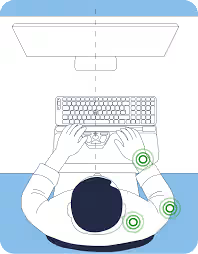
RSI, repetitive strain injury, doesn't happen overnight. It builds from thousands of small, awkward movements stacked on top of each other over months or years. The mouse is one of the biggest culprits.
The RollerMouse Red addresses this at the source. The centered rollerbar design lets both hands share cursor control without any single hand bearing the full load. You can switch between fingers and thumbs freely, which distributes repetitive stress across more joints and muscles instead of concentrating it in one wrist.
The result: reduced strain across the neck, shoulders, forearms, and wrists, the four areas most commonly affected by traditional mousing. For users already dealing with diagnosed RSI or carpal tunnel symptoms, this redistribution can be significant.
Paired with a quality wrist rest, the benefit compounds. CCOHS wrist rest guidance notes that proper wrist support reduces contact pressure and helps maintain a neutral wrist position, exactly what the RollerMouse Red's memory foam rest is designed to provide.
-1649-p.avif)
Try this today: If you currently use a standard mouse, time yourself for one hour and note where tension builds. Then compare after one week on the RollerMouse Red.
Key Features That Make Daily Computing Effortless
The RollerMouse Red isn't just an ergonomic concept, it's a fully engineered device built for professionals who depend on precision and comfort every day.
- Aluminum body with a textured, thicker rollerbar for accurate laser tracking and smooth, frictionless cursor movement
- Memory foam wrist rest that supports your wrists in a neutral position during extended sessions
- Wired and wireless options for flexible desk setups
- USB compatibility with both Mac and PC, no adapter needed
- Physical dimensions of 16.15"W x 3.95"D x 0.95"H, designed to span the full width of a standard keyboard
- Five programmable buttons including copy, paste, double-click, and scroll functions built directly into the bar
Each of these features connects directly to one outcome: fewer interruptions, less physical effort, and more hours of comfortable work.
Customizable Speed, Click Pressure, and Lift
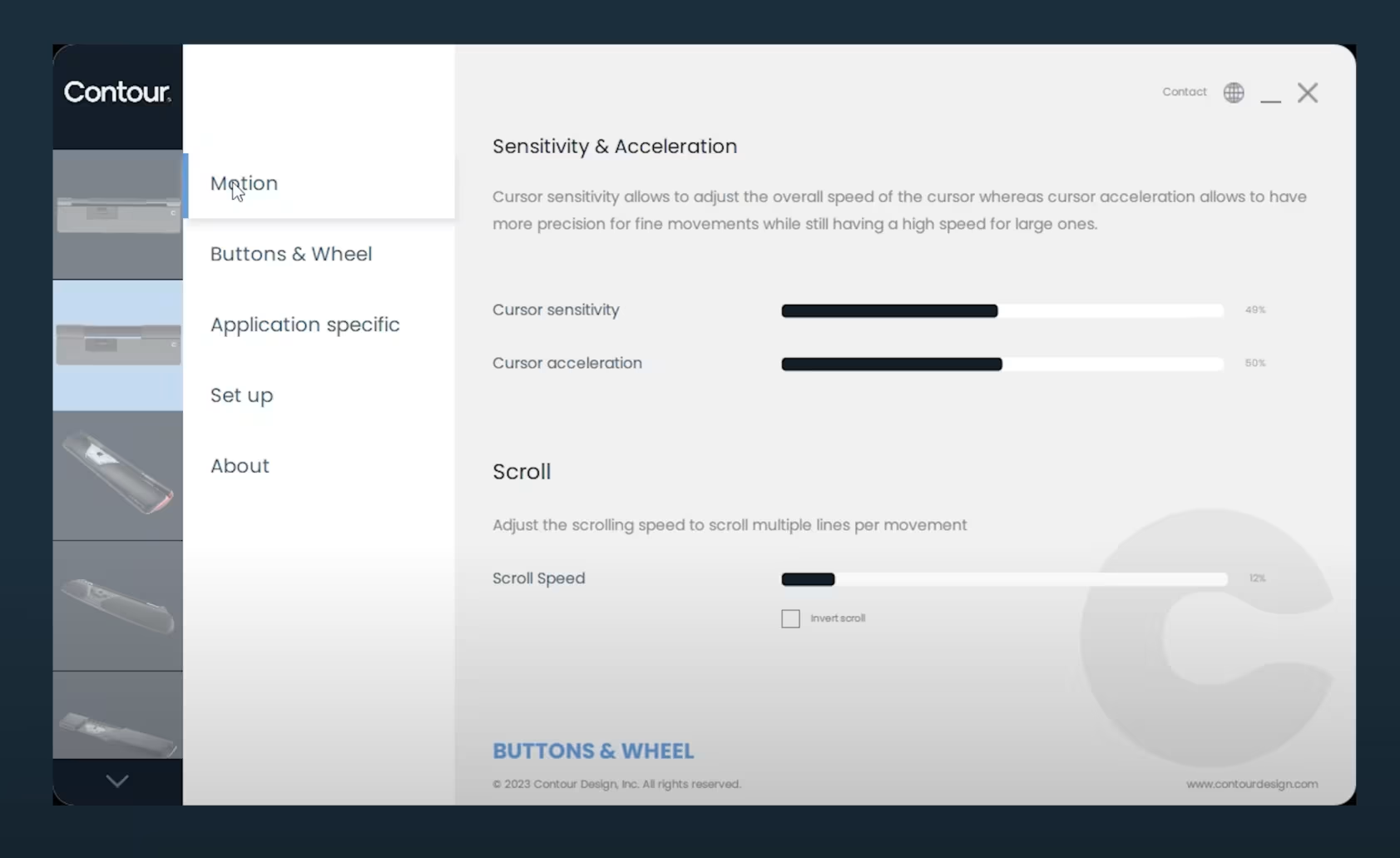
Contour's driver software gives you precise control over how the RollerMouse Red behaves. You can adjust scroll speed, lines per scroll, and cursor sensitivity to match your workflow, which means a designer working in Figma and a developer navigating long code files can each dial in the exact feel they need.
Click pressure is adjustable too, which matters more than most people expect. Lighter click resistance means less force per action, and over a full day of clicking, that adds up fast.
The driver also supports per-application button customization, Mac HID mode, and scroll inversion. LED indicators on the device show your current mode at a glance. For bundle options that include a full ergonomic keyboard, the RollerMouse Red + Balance Keyboard wired combo is worth considering.
Who the RollerMouse Red Is Built For
The RollerMouse Red is built for professionals who use a computer as their primary work tool and can't afford to lose hours, or weeks, to pain.
It's a strong fit for:
- Software engineers and developers who spend hours scrolling through code
- Architects and CAD users who need precision cursor control for detailed work in AutoCAD or similar tools
- Content editors and writers managing long documents and multi-tab workflows
- Accounting and data professionals navigating spreadsheets and financial software all day
- Health and safety managers sourcing ergonomic solutions for teams
It's also genuinely useful for anyone who wants to prevent RSI before it starts, not just treat it after the fact.
Who it's not for: Gamers who need rapid, precise directional input won't find the rollerbar suited to fast-paced titles. The RollerMouse Red is a productivity tool, not a gaming peripheral. For more on the shoulder side of this, read about how mouse use leads to shoulder pain.
For users who want a full ergonomic keyboard bundle, the RollerMouse Red Plus + Balance Keyboard wired option covers both input devices in one purchase.
How to Set Up and Start Using the RollerMouse Red
Setup is straightforward. Most users are up and running in under 10 minutes.
Step 1: Connect the device. Plug the USB cable into an available port. Windows and Mac both recognize the RollerMouse Red as a standard HID device, no driver required for basic use.
Step 2: Install the driver (recommended). Download Contour's driver software to unlock scroll customization, button mapping, and Mac HID mode. This is where the device goes from functional to fully personalized.
Step 3: Position the device. Place the RollerMouse Red directly in front of your keyboard, centered to your body. Your forearms should rest comfortably on the device with wrists in a neutral position. If you want added cushioning, a dedicated Wrist Rest for RollerMouse is available separately.
Step 4: Adjust and adapt. Most users need about one hour to feel comfortable with the rollerbar. Roll the bar forward and back to move the cursor vertically. Slide it left and right for horizontal movement. Use your thumbs or fingers for clicks.
Be patient with yourself during the first few days. The adjustment period is real, but short. Most users report that the rollerbar feels natural within one to three days of regular use.
RollerMouse Red vs. Other Ergonomic Mice: Is It Worth It?
At $300-$374 depending on configuration, the RollerMouse Red costs more than a vertical mouse or a standard ergonomic option from Logitech or Microsoft. So the honest question is: does it actually deliver more relief?
For most heavy users, yes, and here's why.
Vertical mice reduce wrist pronation but still require arm extension and repetitive gripping. They address one problem while leaving the others untouched.
Mousetrapper products share the centered design concept, but the fourth-generation RollerMouse Red outperforms earlier centralized devices with improved edge detection, a more precise laser sensor, and a premium aluminum build.
Compared to the original RollerMouse Free2, the Red offers better precision, a more responsive rollerbar, and more reliable cursor tracking at the edges of movement range. To understand the design behind it, learn about the ergonomic roller mouse.
The RollerMouse Red + Balance Keyboard wireless bundle makes the investment easier to justify if you're upgrading your full input setup at once, combining centralized cursor control with an ergonomically split keyboard in one purchase.
Bottom line: If you're a professional spending 6-10 hours daily at a computer and pain is affecting your work or your quality of life, the RollerMouse Red is one of the most direct solutions available. The price reflects a purpose-built device, not a reshaped standard mouse.
If you're not sure which ergonomic mouse to choose, our Help Me Choose Tool narrows it down and finds the mouse that fits you in under a minute.
Frequently Asked Questions About the Contour RollerMouse Red
How does the RollerMouse Red reduce RSI and wrist pain?
The centered rollerbar design eliminates arm extension and repetitive gripping, allowing both hands to share cursor control with minimal effort. This redistributes strain across more joints and muscles, reducing tension in the neck, shoulders, forearms, and wrists-the four areas most affected by traditional mousing.
What is the main difference between the RollerMouse Red and a traditional mouse?
A traditional mouse forces arm extension and repetitive gripping away from your body. The RollerMouse Red sits centered in front of your keyboard, letting you roll and slide the patented aluminum rollerbar with your fingers or thumbs while keeping your arms relaxed at your sides and shoulders neutral.
Is the RollerMouse Red suitable for gaming?
No. The RollerMouse Red is designed as a productivity tool for professionals who need precision and comfort during extended desk work. Gamers requiring rapid, precise directional input will find the rollerbar better suited to CAD, coding, and content editing than fast-paced gaming titles.
How long does it take to adjust to using the RollerMouse Red?
Most users feel comfortable with the rollerbar within one hour of initial use. The adjustment period is brief-typically one to three days of regular use before the device feels natural. Setup itself takes under 10 minutes, and basic functionality requires no driver installation.
What customization options does the RollerMouse Red driver software provide?
Contour's driver software lets you adjust scroll speed, lines per scroll, cursor sensitivity, and click pressure resistance. It also supports per-application button customization, Mac HID mode, scroll inversion, and displays your current mode via LED indicators for personalized workflows.
Is the RollerMouse Red worth the cost compared to other ergonomic mice?
For professionals spending 6-10 hours daily at a computer, yes. While priced at $300-$374, the RollerMouse Red fully centralizes cursor control-addressing shoulder abduction, arm extension, and gripping strain simultaneously. Vertical mice and standard ergonomic options address only one problem while leaving others untouched.

Which Device Is Right for You?
Take a quick quiz and get a personalized recommendation based on how you work.

