
The Ergonomic Roller Mouse: Say Goodbye to Wrist Pain and Work More Comfortably
.avif)
If you use a computer for 6, 8, or 10 hours a day, your mouse may be quietly damaging your wrists. The ergonomic roller mouse was designed specifically to fix that. Instead of reaching sideways and gripping a traditional mouse, you rest both hands naturally on the desk and control your cursor with a smooth rollerbar positioned right in front of your keyboard. It's a small shift with a surprisingly big impact.
If you’re comparing options across the cluster, start with the best ergonomic mouse to prevent carpal tunnel overview to see where a centered roller device fits alongside vertical and trackball designs. For a broader overview, start with our guide to the best ergonomic mouse.

Key Takeaways
- An ergonomic roller mouse eliminates side-reaching by positioning a central rollerbar in front of your keyboard, helping reduce repetitive strain.
- Traditional mice can encourage awkward arm positions and sustained gripping, but a centered roller device helps keep wrists flatter and elbows closer to your sides.
- The ergonomic roller mouse is ideal for professionals working 6+ hours daily at computers, especially those managing RSI symptoms like tendinitis or carpal tunnel.
- Proper setup takes about 10 minutes: place it directly in front of the keyboard, center it to your body, and keep wrists neutral.
- Prioritize adjustable click force, programmable buttons, and precise tracking so the device stays comfortable during long sessions.
- Most users adapt quickly to rollerbar motion and often notice reduced shoulder tension within the first days of use.
What Is an Ergonomic Roller Mouse and How Does It Work?
An ergonomic roller mouse is a central pointing device that replaces your traditional side mouse. Instead of moving a mouse across a pad, you roll or slide a horizontal bar with your fingertips to move the cursor. If you want the broader category definition first, here’s what a mouse roller is and why it changes shoulder and wrist reach.
With a centered rollerbar you can:
- Roll the bar up or down to move the cursor vertically
- Slide the bar left or right to move it horizontally
- Click via the rollerbar itself or through dedicated buttons
- Use the scroll wheel for page navigation
Because the device sits in front of your keyboard, it supports both hands and keeps your shoulders from drifting outward. For a concrete example of the form factor, the Contour RollerMouse Red is designed to keep cursor control centered without a mouse pad or a side reach.
.avif)
Why Traditional Mice Fall Short for Heavy Computer Users
A standard mouse pushes your arm off to the side, which often leads to shoulder protraction, forearm pronation (palm-down rotation), and subtle wrist deviation—repeated thousands of times per day. Over months, that adds up for anyone doing high-repetition work.
In general ergonomic guidance, the CDC NIOSH ergonomics guidance emphasizes reducing awkward postures and repetition—two issues that side-reaching mouse use can reinforce during long sessions.
The Key Ergonomic Benefits of Switching to a Roller Mouse
Switching to an ergonomic roller mouse changes your posture immediately: hands stay centered at the keyboard’s home row, elbows rest closer to your torso, and the wrist stays more neutral because you’re rolling with a light fingertip motion rather than dragging a device across a surface.
Practical benefits most users notice include:
- No mouse pad needed, freeing desk space
- Ambidextrous use, so either hand can roll/click
- Less lateral reach, especially helpful with dual monitors
- Better shared-desk fit, since the device stays centered
-1649-p.avif)
Who Benefits Most from an Ergonomic Roller Mouse?
Not everyone needs a rollerbar device, but it can be a game-changer if you:
- Log 6 or more hours of computer time daily
- Feel wrist, forearm, or shoulder discomfort after long sessions
- Have a diagnosed RSI condition like tendinitis or carpal tunnel syndrome
- Work at a shared workstation where changing a side mouse is inconvenient
- Use a dual-monitor or ultrawide display and want less reaching
What to Look for When Choosing the Right Roller Mouse
Before buying, focus on the features that actually affect comfort: adjustable click force, programmable buttons, precise tracking, and a compact design that sits comfortably in front of your keyboard. Wirecutter’s ergonomic workstation guide is a helpful reminder that input devices and posture work together—mouse choice matters most when the whole setup supports neutral alignment.
If you want a deeper decision checklist, this guide to choosing the perfect mouse breaks down comfort and performance trade-offs. And if your pain profile leans toward a different mechanism, compare against an ergonomic mouse roller ball option before committing to a rollerbar format. If you're ready to switch, consider the Contour Red.
How to Set Up Your Roller Mouse for Maximum Comfort
Setup takes about 10 minutes and makes a real difference in how the device feels.
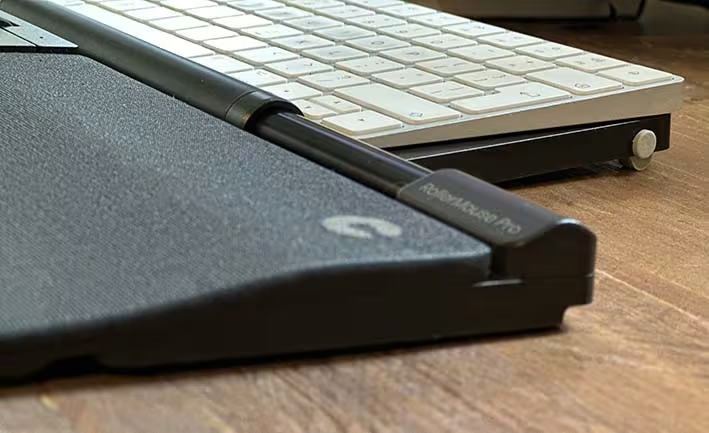
Step 1: Place the roller mouse directly in front of your keyboard so you don’t have to reach.
Step 2: Center the rollerbar relative to your body (a quick check is lining the bar up near the gap between your G and H keys).
Step 3: Adjust chair and keyboard height so wrists stay straight. The CCOHS wrist posture guidelines are a useful reference for keeping your wrists neutral rather than bent up or down.
Step 4: Use it for 20–30 minutes and evaluate tension in your fingertips and forearms. If you feel yourself “pressing down,” lighten your touch and re-check your chair height.
If you're not sure which ergonomic mouse to choose, our Help Me Choose Tool narrows it down and finds the mouse that fits you in under a minute.
Frequently Asked Questions About Ergonomic Roller Mice
What is an ergonomic roller mouse and how does it work?
An ergonomic roller mouse is a centered pointing device positioned directly in front of your keyboard. You control the cursor by rolling or sliding a horizontal bar with your fingertips, clicking via the bar or dedicated buttons, and scrolling with a wheel. For more on the shoulder side of this, read about the best mouse for shoulder pain.
Why is an ergonomic roller mouse better than a traditional mouse?
Traditional mice often require side-reaching and sustained gripping. A centered roller device keeps your hands closer to the keyboard’s home row, which can help reduce reach, keep elbows closer to your sides, and encourage a more neutral wrist posture during long sessions.
Who should use an ergonomic roller mouse?
Heavy computer users (6+ hours daily), people with recurring wrist or shoulder discomfort, and those managing RSI conditions like tendinitis or carpal tunnel often benefit most—especially in compact or shared workstation setups.
What key features should I look for in a roller mouse?
Prioritize adjustable click force, programmable buttons, precise tracking, and a design that sits comfortably in front of your keyboard without forcing you to push the keyboard too far back.
How do I set up an ergonomic roller mouse correctly?
Place it directly in front of the keyboard, center it to your body, and ensure your chair/desk height supports straight wrists and relaxed shoulders. Small alignment tweaks can make a noticeable difference over a full day of use.
Can an ergonomic roller mouse help with existing wrist or forearm pain?
It can, particularly by reducing side reach and allowing lighter, more distributed fingertip control. If pain persists, consider discussing your workstation setup with a qualified ergonomics professional.

Which Device Is Right for You?
Take a quick quiz and get a personalized recommendation based on how you work.

