
The Best Computer Mouse to Prevent Carpal Tunnel: Your Guide to Pain-Free Computing in 2026
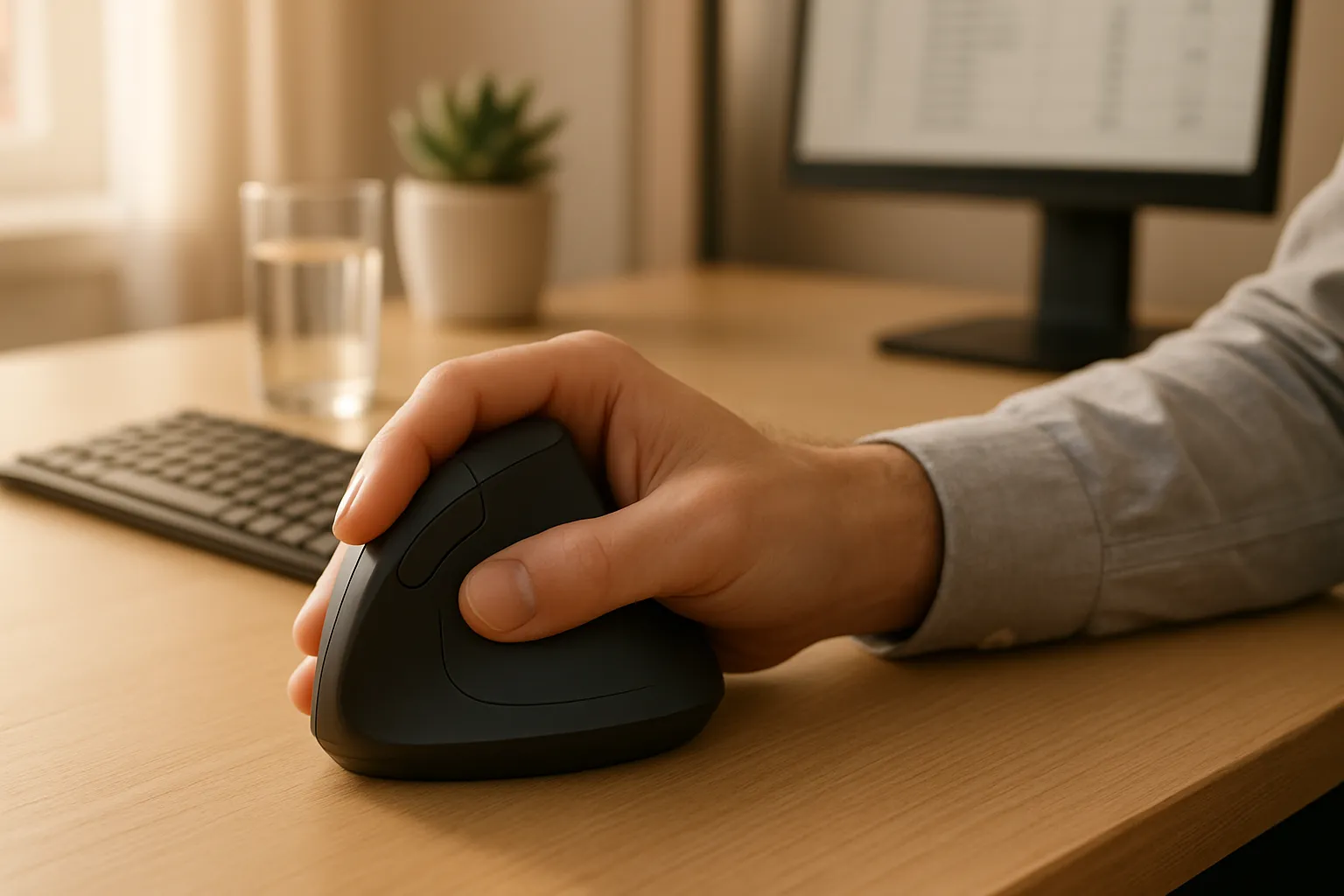
If you're searching for the best computer mouse to prevent carpal tunnel, you already know something is wrong. Maybe it's a dull ache in your wrist after a long sprint of work. Maybe it's that tingling that wakes you up at 2 a.m. Either way, your mouse is more involved in that pain than most people realize.
The good news? The right ergonomic mouse to prevent carpal tunnel can genuinely change how you feel at your desk. This guide breaks down exactly what carpal tunnel does to your wrist, how standard mice make it worse, and which designs actually help, so you can make a confident, informed choice. For a broader overview, start with our guide to the best ergonomic mouse.
Key Takeaways
- Carpal tunnel compression from standard mice is caused by forced pronation (palm-down position) and repetitive lateral arm movement that tightens forearm muscles and pinches the median nerve over time.
- A computer mouse to prevent carpal tunnel should keep your hand in a neutral posture between fully flat and fully vertical, with precise adjustability to match your hand size and grip style.
- Centralized roller mice eliminate the lateral reaching strain by keeping both hands near the body's center line, offering more relief than vertical mice alone for users with ongoing shoulder and forearm pain.
- Proper workstation setup—including 90-degree elbow positioning, reduced mouse reach, and not resting your wrist during active movement—is essential and must work alongside an ergonomic mouse to prevent carpal tunnel symptoms.
- An adjustment period of two weeks or more is normal when switching to an ergonomic mouse, so avoiding judgment in the first few days and allowing muscle memory to reprogram is critical for finding genuine relief.
- Regular breaks every 30–45 minutes, DPI adjustments to reduce physical movement, and alternating between hands or mouse types all significantly reduce cumulative strain and protect long-term wrist health.
What Carpal Tunnel Syndrome Actually Does to Your Wrist

Carpal tunnel syndrome occurs when the median nerve gets compressed inside the carpal tunnel, a narrow passageway in your wrist formed by bones and ligaments. That nerve controls sensation in your thumb, index, middle, and part of your ring finger, which means compression causes pain, numbness, and tingling in exactly the places you use most when mousing.
The compression usually builds over time. Repetitive wrist movements, sustained awkward positions, and inflammation in the surrounding tendons all reduce the space available for the nerve. The tunnel itself is roughly the diameter of your index finger, so there isn't much room to spare.
For a deeper breakdown of the anatomy and symptoms, the what is carpal tunnel syndrome guide covers the clinical detail clearly. What matters for your daily setup is this: anything that forces your wrist into a bent or pronated (palm-down) position for hours at a time increases pressure on that nerve. And the typical computer mouse does exactly that.
Early symptoms to watch for:
- Tingling or numbness in the thumb and first two fingers
- Weak grip strength, especially in the morning
- Wrist pain that radiates up the forearm
- Dropping objects more than usual
Left unaddressed, carpal tunnel syndrome can progress from occasional discomfort to permanent nerve damage. The earlier you adjust your setup, the better your outcome.
Start here: If you're experiencing any of the symptoms above, make a note of when they happen, during work, after work, or at night. That pattern tells you a lot about the cause and helps you and your doctor track improvement when you change equipment.
How Your Mouse Could Be Making Things Worse
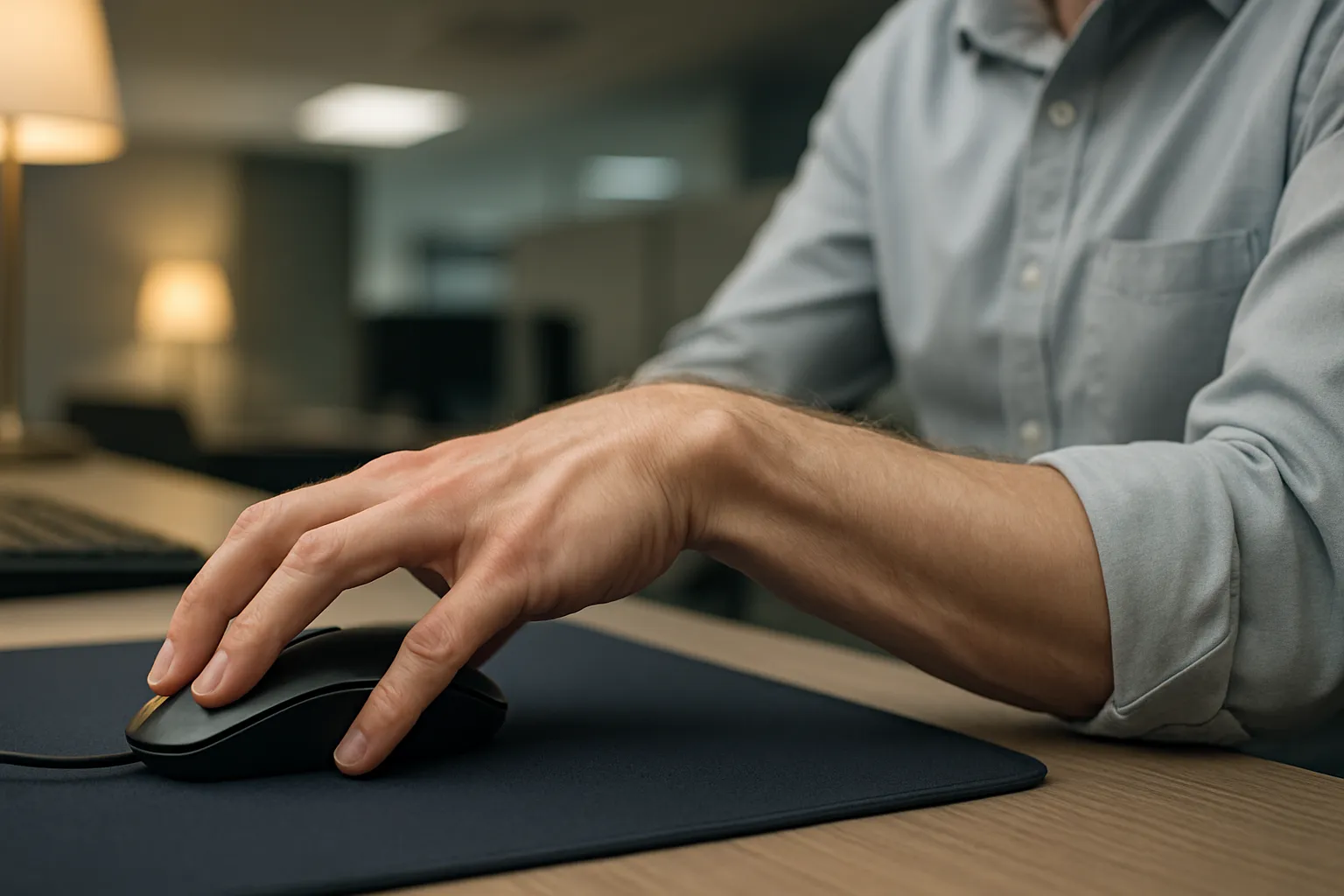
The Hidden Strain in Everyday Mouse Movements
The average office worker makes somewhere between 3,000 and 7,000 mouse clicks per day. Each click, each scroll, each lateral sweep across the desk adds up to thousands of small, repetitive wrist and forearm contractions.
Standard mice are designed around manufacturing convenience, not human anatomy. The flat, horizontal orientation forces your forearm into full pronation, a palm-down rotation that tightens the muscles and tendons running through your wrist. Research published via CDC ergonomics evaluations on pointing device designs found that this position increases muscular load compared to more neutral orientations.
Beyond pronation, the constant lateral reaching motion, extending your arm away from your body to move the mouse, loads the shoulder, strains the forearm, and introduces repetitive stress across the wrist tendons. Over months and years of full-time computer work, this is how RSI develops. For a broader look at how RSI: Carpal Tunnel conditions develop and overlap, it's worth understanding the full picture.
Poor Grip and Posture: The Silent Culprits
How you hold your mouse matters as much as which mouse you use. A collapsed grip, where your wrist bends downward to rest on the desk surface while your fingers reach up to the buttons, pinches the carpal tunnel from below. This is one reason wrist rests, even though being widely recommended, can actually make things worse if used during active mousing rather than during rest breaks.
The CCOHS guidance on wrist rests makes this distinction clearly: wrist rests are intended for pauses in typing or mousing, not for continuous contact during movement. Using one while actively moving your mouse adds upward pressure directly on the carpal tunnel.
Poor forearm alignment compounds the problem. If your elbow is too low, your wrist flexes upward. If your mouse sits too far to the right (for right-handed users), your shoulder abducts and your arm rotates outward, both of which feed tension back into the wrist.
Fix this today: Move your mouse closer to your body so your elbow stays at roughly 90 degrees and your forearm stays level. This single adjustment reduces wrist strain before you even change your mouse.
What to Look for in a Mouse That Protects Your Wrists
Natural Hand Position and Forearm Alignment
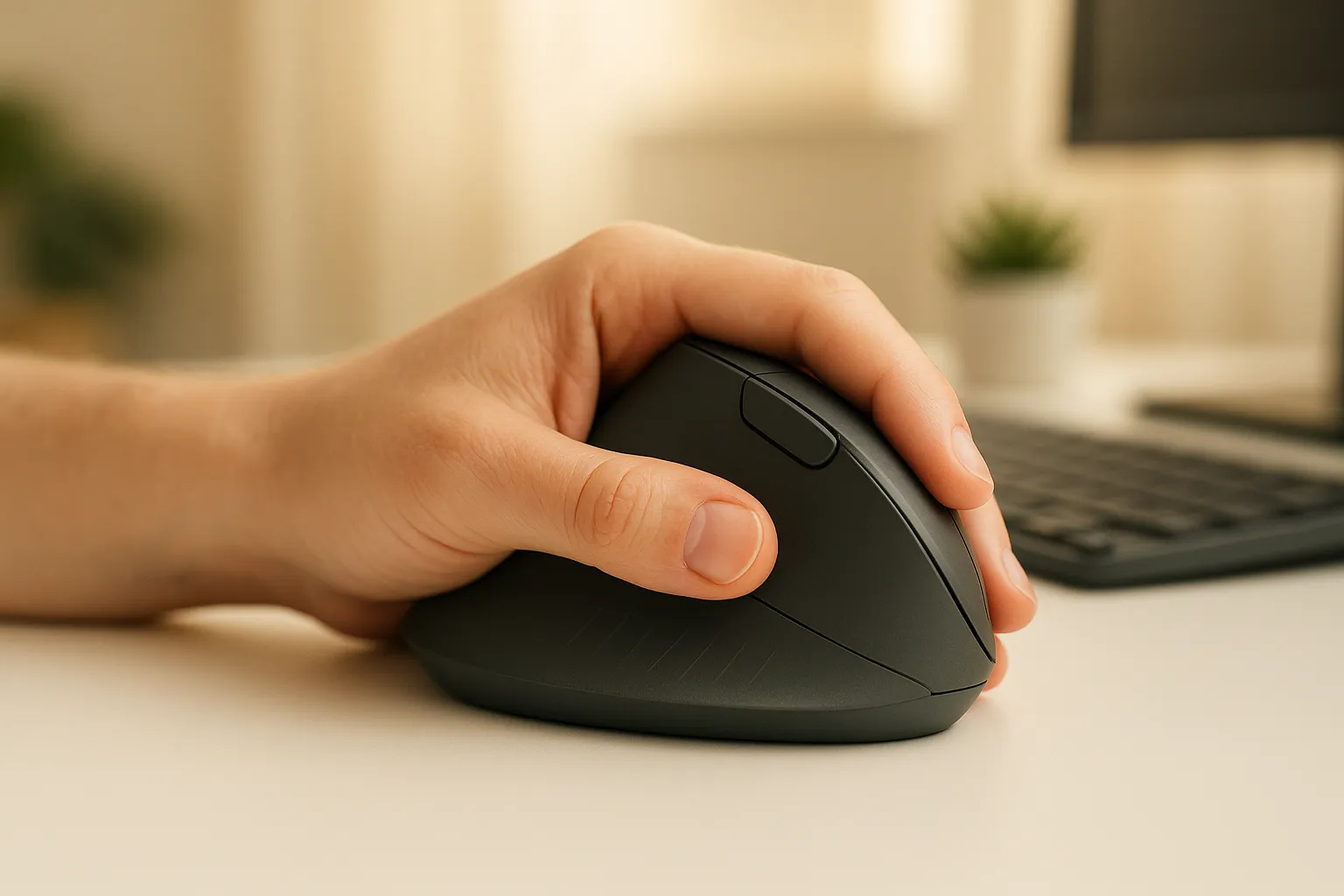
The best ergonomic mice keep your hand in a neutral posture, somewhere between fully pronated (flat) and fully vertical (handshake position). This reduces tension in the forearm muscles and relieves pressure on the median nerve.
Look for a mouse that positions your thumb above your index finger, not beside it. This slight rotation takes your forearm out of full pronation without requiring you to adapt to something completely foreign. Devices like the Contour Design UniMouse allow precise tilt adjustment so you can find your specific neutral angle rather than accepting whatever a fixed-angle mouse offers.
Adjustability: One Size Does Not Fit All
Hand size is the most overlooked factor in ergonomic mouse selection. A mouse that's too small forces your fingers to curl tightly, increasing grip tension. A mouse that's too large causes your wrist to extend to reach the buttons.
The ideal mouse lets your fingers rest gently on the buttons without stretching or curling. Some tiltable models reduce muscle activity by up to 27% compared to standard flat mice, according to ergonomic testing data. Contour Design addresses this directly with multiple sizing options across its product range, because one shape cannot fit every hand comfortably.
For left-handed users or those wanting to alternate hands to distribute strain, an ambidextrous mouse design eliminates the bias built into most right-handed mice. Alternating hands is one of the most effective strategies for reducing cumulative RSI load.
Reduced Reach and Lateral Movement
The further you move your arm to mouse, the more strain you accumulate. A narrow keyboard that keeps your mouse close to center reduces shoulder reach by several centimeters, which adds up significantly across a full workday.
Centralized pointing devices, like roller mice placed directly in front of your keyboard, eliminate lateral arm movement entirely. Your hands stay in front of your body where they belong, which aligns with Cornell University's computer workstation ergonomics guidelines recommending that all primary input devices stay within the neutral reach zone.
Types of Ergonomic Mice That Help Prevent Carpal Tunnel
Vertical Mice: Better, But Not the Whole Story
Vertical mice rotate your hand to approximately 57–90 degrees, the handshake position, which reduces forearm pronation and takes pressure off the median nerve. For many users, switching from a flat mouse to a vertical mouse is the first real relief they've felt.
But vertical mice still require lateral arm movement across the desk. You still reach, sweep, and return thousands of times per day. For users with shoulder or forearm issues alongside wrist pain, that repeated motion continues to accumulate strain. Vertical mice are a meaningful improvement over standard mice, but they're not the complete solution for everyone. If you're ready to switch, consider the Contour RollerMouse Pro3.
They're also typically designed for one hand, which limits your ability to alternate and distribute load.
Centralized Roller Mice: A Smarter Way to Work
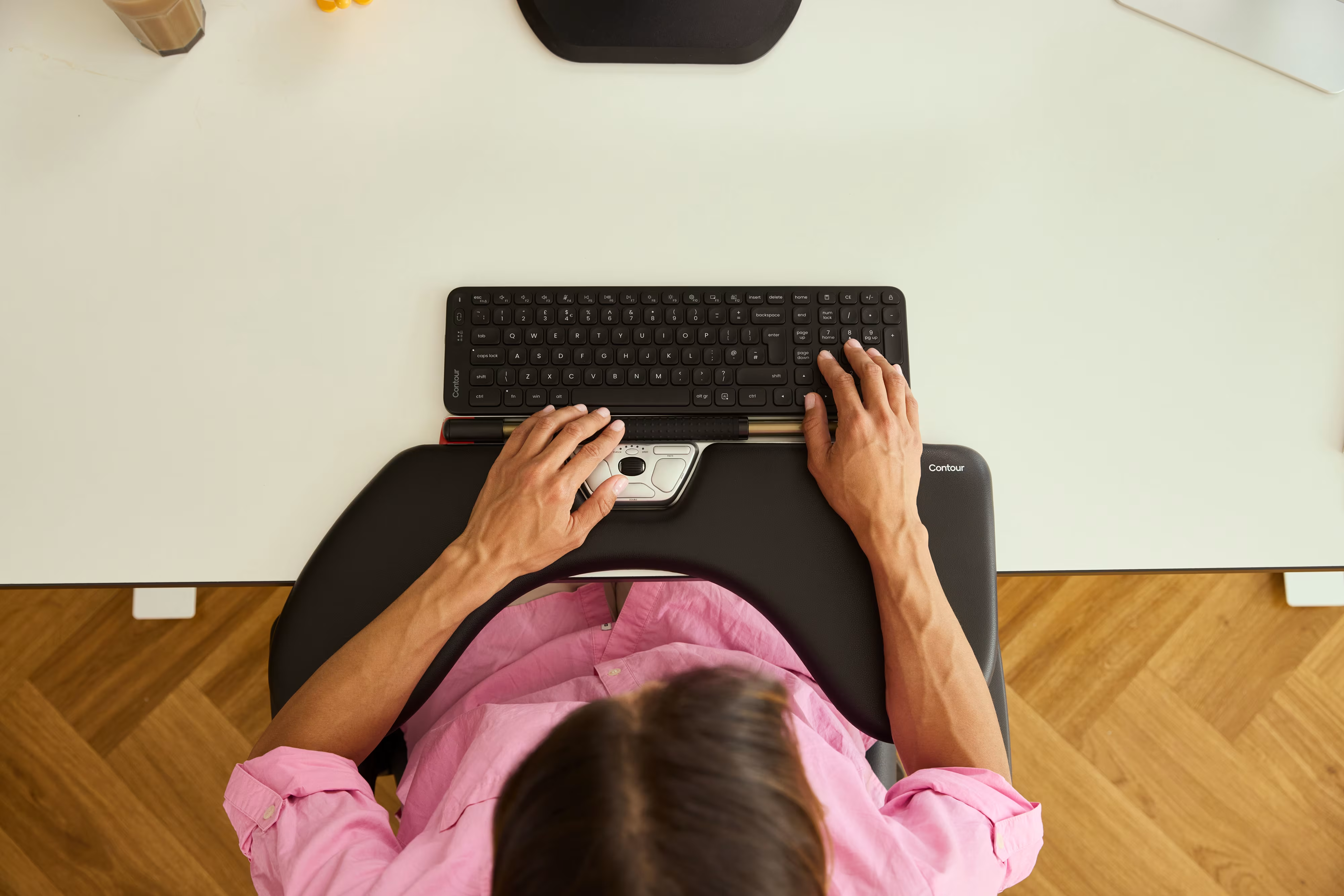
Centralized roller mice sit in front of your keyboard rather than to the side. This design keeps both hands close to the body's center line, eliminating the lateral reaching that strains the shoulder and forearm throughout the day.
The Contour Design RollerMouse uses a patented Rollerbar, a textured rubber bar that you roll, slide, and click to navigate. Your hands stay naturally positioned on or near the bar, with no gripping required. This centered mouse design can relieve wrist pain by removing the most RSI-generating movements from the equation entirely.
The RollerMouse Red and RollerMouse Pro are available with three sizes of palm rest (including memory foam options), made from 100% post-consumer recycled materials. They've been tested and refined over more than 30 years of ergonomic engineering, which means you're not a beta tester.
Who this is best for: Anyone with wrist, forearm, shoulder, or neck pain from mousing. Especially effective for users who've tried vertical mice without enough relief.
Trackballs and Touchpads: Worth Considering?
Trackballs keep your hand stationary while your thumb or fingers move the cursor. This eliminates arm sweeping entirely and can reduce forearm muscle strain by around 25% compared to standard mice. They work well on small desks and don't require much surface area.
The trade-off is precision, trackballs take a few weeks to master, and thumb-operated models can shift strain from the wrist to the thumb if overused. For users with thumb or trigger finger issues alongside carpal tunnel, this is a real concern.
Touchpads offer a flat, low-resistance alternative that spreads movement across the fingers rather than concentrating it at the wrist. They're worth considering if grip-based devices cause pain regardless of orientation.
Tips to Get the Most Out of Your Ergonomic Mouse

Switching to an ergonomic mouse is a start, not a finish. Here's how to make sure the change actually protects your wrists long-term.
Set up your workstation correctly first. Your mouse can only do so much if your chair height, monitor position, and desk layout are forcing you into poor posture. A proper ergonomic workstation setup addresses the full chain from chair to screen, and the mouse is just one piece of that system. The NYT Wirecutter's ergonomic workstation guide offers a clear practical checklist if you're building your setup from scratch.
Give yourself a genuine adjustment period. Most ergonomic mice feel awkward for the first one to two weeks. That's normal, you're reprogramming muscle memory developed over years. Don't judge the mouse in the first three days. Commit to two full weeks before deciding if it's working.
Practical tips that make a real difference:
- Keep your elbow at roughly 90 degrees with your forearm level and parallel to the desk
- Don't rest your wrist on the desk while actively moving the cursor, contact should happen during pauses, not during movement
- If your mouse has adjustable DPI, increase it so the cursor travels further with less physical movement, fewer millimeters of motion means less cumulative strain
- Take a one-to-two minute break every 30–45 minutes: stand, shake out your hands, and roll your wrists
- Consider alternating between two different mouse types or switching hands occasionally to redistribute the load across different muscle groups
Customize your settings. Most ergonomic mice, especially Contour Design devices, offer programmable buttons that let you assign frequently used shortcuts to a single click. Reducing the number of times you navigate to the same menu or shortcut by 30–40% is a real, measurable reduction in cumulative movement.
This advice is for: Full-time computer users who want to prevent or recover from carpal tunnel and wrist RSI. If you're experiencing severe or worsening symptoms, consult a physician or occupational therapist alongside any equipment changes, ergonomic tools support recovery, they don't replace medical care. To understand the design behind it, learn about our honest roller ball mice buyer's guide.
Conclusion
The best computer mouse to prevent carpal tunnel isn't just the one with the best reviews, it's the one that fits your hand, supports your wrist in a neutral position, and removes the repetitive movements that cause the most damage.
Vertical mice improve on standard mice. Centralized roller mice go further by eliminating lateral arm motion entirely. Trackballs and touchpads offer useful alternatives depending on your specific pain patterns. The key is finding the design that matches your body, your workstyle, and the nature of your discomfort.
Contour Design has spent more than 30 years building devices around this exact problem. The RollerMouse, UniMouse, and SliderMouse Pro all exist because one size and one design can't solve every person's pain. Start with what fits, adjust what you can customize, and give it real time to work.
Your wrists carry a significant load every working day. Protect them with intention.
Frequently Asked Questions About Ergonomic Mice and Carpal Tunnel Prevention
What is the best ergonomic mouse to prevent carpal tunnel?
The best ergonomic mouse for carpal tunnel prevention depends on your hand size and work style. Centralized roller mice like RollerMouse Red eliminate lateral arm movement entirely, while vertical mice reduce forearm pronation. The key is finding a design that supports your wrist in a neutral position and fits your hand comfortably without forcing you to grip tightly.
How does a standard mouse make carpal tunnel worse?
Standard flat mice force your forearm into full pronation (palm-down position), which increases pressure on the median nerve. The constant lateral reaching motion, combined with repetitive clicking—averaging 3,000 to 7,000 clicks daily—accumulates strain on wrist tendons over time, progressively worsening carpal tunnel symptoms.
Can an ergonomic mouse cure carpal tunnel syndrome?
An ergonomic mouse cannot cure carpal tunnel syndrome, but it can significantly reduce pain and prevent further damage by supporting your wrist in a neutral position and minimizing repetitive strain. For severe symptoms, consult a physician or occupational therapist alongside equipment changes, as ergonomic tools support recovery but don't replace medical care.
Why are wrist rests not recommended for active mousing?
Wrist rests add upward pressure directly on the carpal tunnel when used during active mouse movement. They're intended only for pauses in typing or mousing, not for continuous contact during movement. Using them while actively mousing actually compresses the nerve further, increasing discomfort rather than relieving it.
How long does it take to adjust to an ergonomic mouse?
Most ergonomic mice feel awkward for the first one to two weeks as you reprogram muscle memory developed over years. Give yourself a genuine adjustment period of at least two full weeks before deciding if the mouse is working for you. Don't judge effectiveness based on the first few days of use.
What role does hand size play in choosing an ergonomic mouse?
Hand size is one of the most overlooked factors in ergonomic mouse selection. A mouse that's too small forces your fingers to curl, increasing grip tension and strain. A mouse that's too large causes wrist extension to reach buttons. The ideal mouse lets your fingers rest gently on the buttons without stretching or curling, making adjustable and multi-sized options essential for proper fit.

Which Device Is Right for You?
Take a quick quiz and get a personalized recommendation based on how you work.

