
Forearm Support for Desk: How to Relieve Tension and Work in Comfort
-1649-p.avif)
Forearm support for desk work isn't a luxury. It's the difference between finishing your workday feeling fine and crawling to the couch with aching shoulders and wrists.
If you spend 6+ hours a day at a computer, your forearms absorb thousands of micro-movements. Clicking. Scrolling. Typing. Each motion seems harmless on its own. But multiply that by 2,000+ hours per year, and you've got a recipe for chronic tension, repetitive strain injuries, and the kind of nagging pain that makes you dread Monday mornings.
Here's the good news: the right forearm support setup can prevent these problems before they start. And if you're already dealing with discomfort, small changes to your workstation can bring real relief. This guide walks you through why forearm support matters, what's causing your pain, and exactly how to set up your desk for lasting comfort.
Key Takeaways
- Forearm support for desk work prevents chronic tension, repetitive strain injuries, and shoulder or wrist pain caused by thousands of daily micro-movements.
- Proper forearm support reduces muscle fatigue, prevents compensatory postures, and improves mouse precision by keeping arms in a neutral resting position.
- Desk-mounted armrests, gel wrist rests, and ergonomic peripherals like vertical mice or centered pointing devices are effective forearm support solutions.
- Position your keyboard and mouse at elbow height, keep wrists neutral, and adjust chair armrests so shoulders stay relaxed—not elevated.
- If pain improves over weekends but returns during the workweek, your current desk setup likely needs ergonomic upgrades.
- Persistent numbness, weakness, or pain despite ergonomic changes warrants professional medical attention to rule out nerve compression.
Why Your Forearms Need Support During Desk Work

Your forearms do more work than you realize. Every time you reach for your mouse, hover over your keyboard, or adjust your trackpad, those muscles engage. Without proper support, they stay partially contracted for hours.
The result? Fatigue sets in faster than you'd expect. One study from the CDC on pointing device design found that different mouse types significantly affect upper extremity posture and muscle activity.
When forearms hang unsupported, your shoulders compensate. They hunch. They elevate. Over weeks and months, this creates a cascade of tension that travels up to your neck and down to your wrists.
Proper forearm support does three things:
- Reduces muscle fatigue by letting your arms rest at a neutral position
- Prevents compensatory postures that strain your shoulders and neck
- Improves precision because relaxed muscles control the mouse more accurately
Think about it this way: if you held a 2-pound weight at arm's length for 8 hours, you'd collapse. Yet that's essentially what unsupported forearms experience daily. The weight is lighter, but the duration is brutal.
Action step: Right now, notice where your forearms are positioned. Are they floating? Pressed against a hard desk edge? Resting on cushioned support? This awareness is your starting point.
Common Causes of Forearm Pain and Tension

Understanding what's causing your discomfort helps you fix it faster. Most forearm pain traces back to two culprits.
Poor Posture and Arm Positioning
Here's a mistake I see constantly: people position their keyboards and mice too far forward. This forces the arms to reach, which elevates the shoulders and rotates the wrists into awkward angles.
Without proper arm support, your shoulders tend to either elevate or slouch. Both create tension in the upper back and neck over time. Your body tries to stabilize, recruiting muscles that weren't designed for sustained effort.
Poor wrist positioning compounds the problem. When wrists bend upward (extension) or downward (flexion) for hours, tendons rub against their sheaths. This friction causes inflammation. The Mayo Clinic's office ergonomics guide recommends keeping wrists in a neutral, straight position to prevent this strain.
Warning signs of postural strain:
- Shoulders that ache by midday
- Neck stiffness after computer work
- Forearms that feel "heavy" or fatigued
Repetitive Mouse and Keyboard Use
The average office worker clicks their mouse 5,000 to 10,000 times per day. Each click requires a small muscle contraction. Multiply that across weeks and years, and you understand why repetitive strain injuries (RSIs) are so common among knowledge workers.
Extended keyboard and mouse work can lead to carpal tunnel syndrome, tendonitis, and De Quervain's tenosynovitis. These conditions develop gradually. At first, you notice occasional tingling. Then stiffness. Eventually, persistent pain that doesn't fade over weekends.
The tricky part: these injuries often sneak up on professionals in their 30s and 40s who "never had problems before." Years of poor positioning suddenly catch up.
Action step: Track your symptoms for one week. Note when pain appears, what activities trigger it, and how long it lasts. This log helps identify patterns and guides your ergonomic upgrades.
Types of Forearm Support Solutions
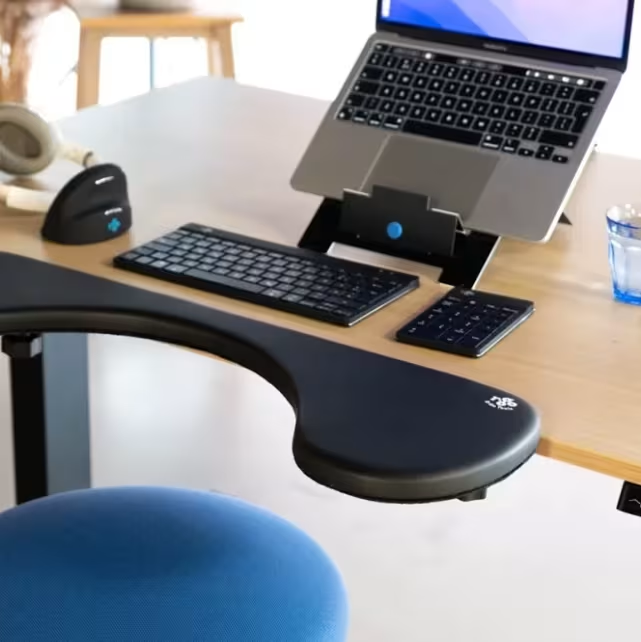
Not all forearm support solutions work the same way. Some attach to your desk. Others replace your current peripherals entirely. Here's what actually helps.
Desk-Mounted Armrests and Pads
Desk-mounted forearm supports clamp directly to your workstation edge. They extend outward, providing a padded platform for your forearms while you type and mouse.
The Ergorest Ergonomic Forearm Support, for example, uses an adjustable clip that secures to desks of various thicknesses. Height adjustment allows you to customize the fit so your forearms rest at exactly the right angle.
Benefits of desk-mounted solutions:
- Work with any chair (no armrest compatibility issues)
- Follow your arm movements naturally
- Keep forearms supported during both typing and mousing
Simpler options include gel wrist rests and padded desk mats. According to CCOHS guidelines on wrist rests, these devices support the wrist during typing pauses, though they shouldn't be pressed against during active typing.
If you want a desk-mounted solution that pairs directly with your keyboard and pointing device, the Universal ArmSupport is designed to do exactly that - supporting your forearms at the right height without any hard pressure points.
Ergonomic Peripherals That Reduce Forearm Strain
Sometimes the best forearm support isn't a pad or rest. It's eliminating the movements that cause strain in the first place.
Centered pointing devices like the RollerMouse position your cursor control directly in front of your keyboard. Instead of reaching to the side for a traditional mouse, your hands stay centered. This alone eliminates the shoulder rotation and forearm extension that causes so much tension.
Vertical mice reduce forearm pronation (the twisting motion that puts strain on tendons). The Unimouse, for instance, adjusts from 35° to 70° of tilt, letting you find the exact angle that feels natural for your hand.
Ergonomic keyboards with split or tented designs keep wrists neutral. Combined with proper forearm support, they address strain at multiple points simultaneously.
Action step: Identify your primary pain source. Wrist pain? Consider a vertical mouse or wrist rest. Shoulder tension? A centered pointing device may help more than any pad.
How to Set Up Your Desk for Proper Forearm Support

Getting forearm support right requires more than buying equipment. Positioning matters just as much as the products you choose.
Step 1: Set your chair height first.
Your feet should rest flat on the floor. Thighs parallel to the ground. This establishes your baseline.
Step 2: Position your keyboard and mouse.
Both should sit at elbow height or slightly below. When your hands rest on them, your forearms should form roughly a 90-degree angle with your upper arms. No reaching forward. No stretching to the side.
Step 3: Adjust armrests or forearm supports.
If using chair armrests, set them so forearms rest comfortably without elevating your shoulders. Your elbows should stay close to your body, not flared outward.
For desk-mounted supports, use height adjustment screws to match your keyboard and mouse level. The padding should contact your forearm without pressing hard.
Step 4: Check your wrist position.
Wrists should float in a neutral position, not bent up or down. If you use a wrist rest, rest on it during pauses, not while actively typing.
Step 5: Position your monitor.
This seems unrelated, but monitor height affects posture throughout your upper body. Top of screen at eye level. About an arm's length away.
The 2-minute test: After setup, work for 10 minutes, then pause. Notice any tension points. Adjust and repeat. For a complete guidance of every adjustment covered here, work through the ergonomic workstation setup checklist to make sure nothing gets missed.
Common mistakes to avoid:
- Setting armrests too high (forces shoulder elevation)
- Placing keyboard on a tray that's too low (causes wrist extension)
- Using a mouse pad that positions the mouse higher than the keyboard
Who this setup is NOT for: Standing desk users need different positioning. If you alternate between sitting and standing, invest in easily adjustable supports that move with you. A height-adjustable ergonomic stand keeps your screen at eye level whether you sit or stand.
Action step: Measure the height from floor to your elbow while seated with proper posture. Your keyboard and mouse should match this height within 1-2 inches.
Signs It's Time to Upgrade Your Workstation Ergonomics

Not every ache means you need new equipment. But certain patterns signal that your current setup isn't working.
Upgrade if you experience:
- Persistent shoulder strain that doesn't resolve with rest
- Neck tension that appears specifically during or after computer work
- Wrist discomfort or tingling in fingers
- Reduced productivity because physical discomfort breaks your focus
- Pain that worsens throughout the week, improving only on weekends
The weekend test: If symptoms fade significantly after 2 days away from your desk, your workstation is likely the culprit.
Who benefits most from upgrades:
- Professionals with diagnosed RSI or carpal tunnel syndrome
- Workers logging 8+ hours daily at computers
- Anyone over 35 noticing new aches from "the same setup I've used for years"
- Remote workers whose home offices were assembled quickly during pandemic transitions
A honest assessment: Ergonomic equipment isn't magic. If you've tried basic solutions like wrist rests and generic ergonomic mice without relief, the issue might be positioning rather than products. Consider a professional ergonomic assessment before investing in expensive gear.
When to see a professional: Numbness, weakness, or pain that persists even though ergonomic changes warrants medical attention. These symptoms can indicate nerve compression requiring treatment beyond equipment adjustments.
Action step: Rate your current discomfort on a 1-10 scale. Track this daily for two weeks. Consistent scores above 4 suggest your workstation needs attention. Scores that spike during specific tasks (mousing vs. typing) point toward targeted solutions.
Conclusion
Proper forearm support transforms desk work from a daily grind into sustainable productivity. The investment pays off in fewer aches, better focus, and a career that doesn't cost you your physical wellbeing.
Start with positioning. Get your keyboard and mouse at elbow height, your chair adjusted correctly, and your monitor at eye level. Then layer in support solutions that address your specific pain points.
Whether you choose desk-mounted forearm rests, ergonomic peripherals like the RollerMouse or Unimouse, or a combination of both, the goal remains the same: work without physical compromise. Your forearms will thank you. So will your shoulders, neck, and long-term productivity.
Frequently Asked Questions
Why is forearm support important for desk work?
Forearm support for desk work reduces muscle fatigue, prevents repetitive strain injuries, and improves overall posture. Without proper support, your shoulders compensate by hunching or elevating, creating tension that spreads to your neck and wrists over thousands of hours of computer use annually.
What causes forearm pain when using a computer?
Forearm pain typically results from poor posture, improper arm positioning, and repetitive mouse and keyboard use. Positioning your keyboard too far forward forces arms to reach, elevating shoulders and straining wrists. The average office worker clicks 5,000–10,000 times daily, leading to cumulative strain.
What types of forearm support solutions work best for desk workers?
Effective forearm support solutions include desk-mounted armrests like the Ergorest Ergonomic Forearm Support, gel wrist rests, and ergonomic peripherals. Centered pointing devices and vertical mice reduce strain by eliminating awkward reaching and forearm rotation during extended computer use.
How do I set up my desk for proper forearm support?
Position your keyboard and mouse at elbow height with forearms forming a 90-degree angle. Adjust chair armrests so forearms rest comfortably without elevating shoulders. Keep wrists neutral—not bent up or down—and ensure your monitor sits at eye level about an arm's length away.
When should I upgrade my workstation ergonomics?
Upgrade if you experience persistent shoulder strain, neck tension during computer work, wrist discomfort, or tingling fingers. If symptoms improve significantly over weekends away from your desk, your workstation is likely the culprit. Professionals with RSI or carpal tunnel benefit most from ergonomic upgrades.
Can ergonomic equipment prevent carpal tunnel syndrome?
Yes, ergonomic equipment like wrist rests and vertical mice help maintain neutral wrist positioning, reducing stress on tendons and nerves. Combined with proper forearm support and correct desk setup, these tools significantly lower the risk of developing carpal tunnel syndrome and other repetitive strain injuries.

Which Device Is Right for You?
Take a quick quiz and get a personalized recommendation based on how you work.

