
Ergonomic Office Setup: Your Complete Guide to Pain-Free, Productive Workdays

Your ergonomic office setup could be the difference between thriving at work and counting down the minutes until you can ice your wrists. If you spend 6+ hours a day at a computer, every inch of your workspace matters.
Here's the reality: 1 in 3 workplace injuries stem from poor ergonomics. That nagging shoulder tension? The stiff neck after video calls? These aren't just annoyances. They're warning signs that your setup needs attention.
The good news? You don't need to overhaul everything at once. Small, strategic adjustments can deliver real relief. This guide walks you through exactly what to change, why it matters, and how to build a workspace that supports your body instead of working against it.
Key Takeaways
- A proper ergonomic office setup starts with adjusting your chair height so your feet rest flat and thighs are parallel to the floor.
- Position your monitor at eye level, 20-40 inches away, to prevent neck strain and tension headaches.
- Use a compact keyboard to bring your mouse closer to your body's centerline, reducing shoulder and wrist strain.
- Move every 30 minutes—the best posture is your next posture, as no single position works all day.
- Address discomfort within days, not months, since pain signals indicate your workspace needs adjustment.
- Personalize your ergonomic setup over 4 weeks by making foundational adjustments first, then refining based on where you feel tension.
Why Your Current Setup Might Be Hurting You

That standard office chair and desk you've been using? They were designed for "average" bodies. Problem is, no one is actually average.
Poor office ergonomics strain your joints, spine, and muscles in ways you might not notice until damage accumulates. According to the Cleveland Clinic, spending several hours daily at a poorly configured desk leads to predictable aches and pain patterns.
Common culprits include:
- Chairs that don't support your lower back
- Monitors positioned too high or too low
- Keyboards forcing your wrists into awkward angles
- Mice placed too far from your body, straining shoulders
Here's what makes this tricky: discomfort often builds gradually. You adapt. You shift in your seat. You roll your shoulders. Then one day, simple mouse movements send pain shooting up your forearm.
Research shows that ergonomically correct workstations reduce injury risk and actually save money through fewer sick days and higher productivity. The math works in your favor.
Take action today: Spend 10 minutes observing your body while you work. Where do you feel tension? When do you shift positions? These clues point directly to what needs fixing.
Essential Elements of an Ergonomic Workspace
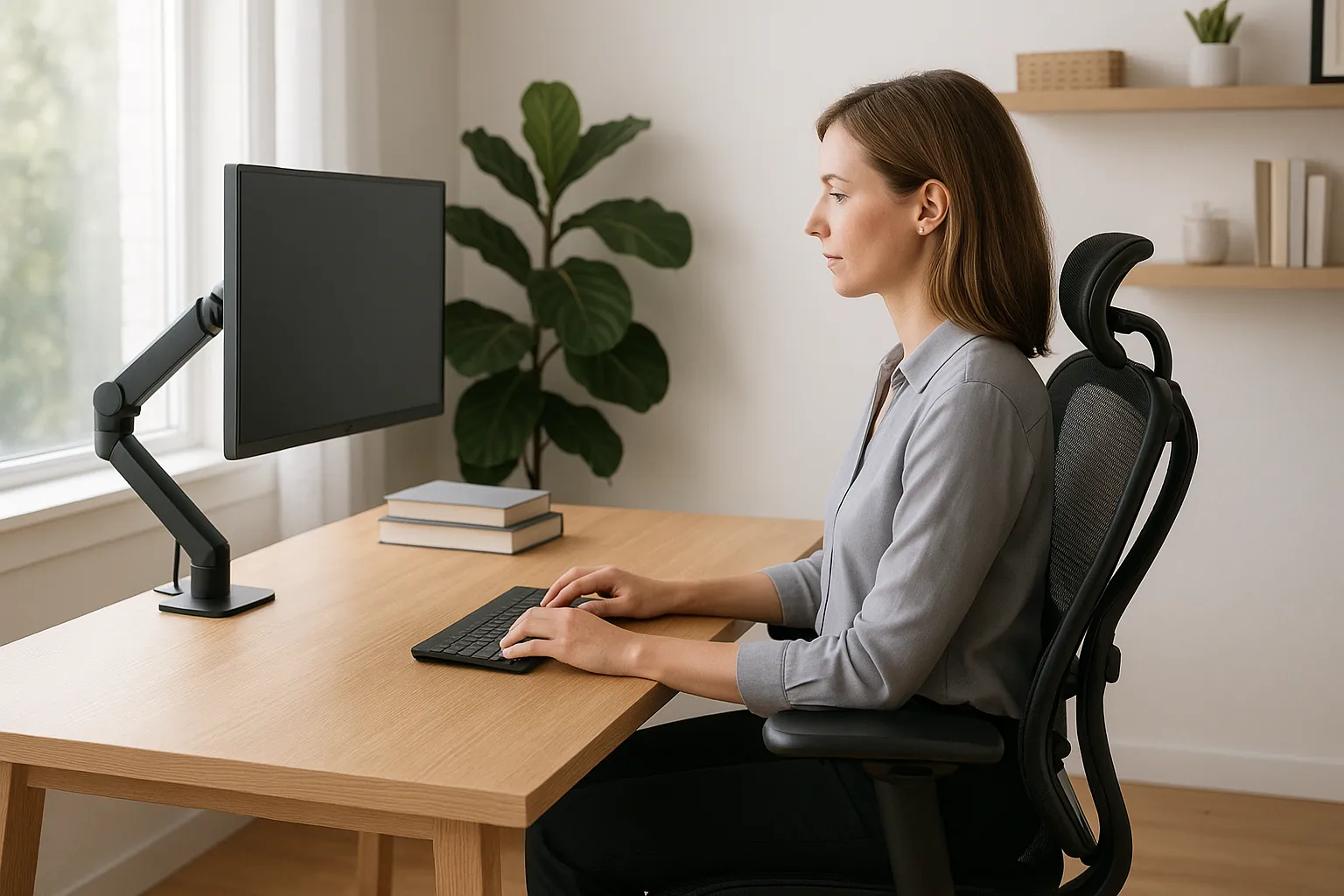
An effective ergonomic office setup rests on six core components: desk height, monitor placement, seating, lighting, movement, and input devices. Miss one, and the others can't fully compensate.
Think of your workspace as a system. Your chair affects your posture. Your posture affects where your eyes fall on the screen. Your screen position affects your neck. Your input devices affect your shoulders, wrists, and hands. Everything connects.
Desk and Chair Positioning
Your chair does the heavy lifting for spinal support. Look for chairs with adjustable height, backrest tilt, and armrest positions. Your feet should rest flat on the floor with knees bent at 90 degrees.
Here's a detail most people miss: seat depth matters. Maintain a 2-3 finger gap between the back of your knee and the chair edge. This prevents circulation problems in your legs during long sessions.
Your desk should provide ample legroom. No boxes, printers, or space heaters stored underneath. Desk height should allow your forearms to rest parallel to the floor when typing. If your desk sits too low, sturdy blocks under the legs can raise it to the correct height.
The Mayo Clinic's ergonomics guide offers a helpful visual for setting up a sitting workspace that truly fits your body.
Take action today: Adjust your chair height so your thighs are parallel to the floor. This single change takes 30 seconds and immediately improves hip and knee alignment.
Monitor Placement for Neck and Eye Comfort
Position your monitor at eye level, approximately 20-40 inches away. An easy way to test this is to extend your arm fully. Your fingertips should just touch the screen.
Your eyes should align with the top third of the screen. This prevents the forward head posture that causes neck strain and tension headaches. Looking down slightly is natural: craning up or jutting your chin forward is not.
For laptop users, this creates a challenge. Your keyboard and screen are locked together. The solution? A separate monitor or laptop stand paired with an external keyboard. Yes, it's extra equipment. But your neck will thank you after every 8-hour workday. If you go that route, our guide to picking a good laptop stand walks through the features that matter most.
If you're setting up a home office space, lighting matters too. Position your screen perpendicular to windows to minimize glare. Direct light behind or in front of your monitor causes eye strain within hours.
Take action today: Stack books under your monitor until the top of the screen reaches eye level. Test this for one week before investing in a monitor arm.
Choosing the Right Ergonomic Mouse and Keyboard
Standard mice and keyboards can force your hands into unnatural positions. Your palm faces down. Your wrist bends sideways to reach keys. Over thousands of repetitions daily, this creates strain.
Keyboard choice plays a major role in upper-body comfort. Whether you use a compact or full-sized keyboard, focus on keeping your forearms parallel to the floor and your shoulders relaxed. Features like adjustable (including negative) tilt and low-profile key design can help maintain a more neutral wrist posture. Position your keyboard so you’re not reaching forward or elevating your shoulders to type.
For mice, you have options. Vertical mice place your hand in a handshake position, reducing forearm rotation. Trackballs eliminate arm movement entirely. Centered pointing devices like the RollerMouse position control directly in front of your keyboard, distributing work across both hands. For more mouse options that keep you pain-free all day, read our article on 7 ergonomic picks for centered control and lasting relief.
Contour Design's ergonomic mice are specifically engineered for people experiencing or looking to prevent RSI. The Unimouse offers 35-70 degrees of adjustable tilt, which means you can find the exact angle that feels right for your hand. The RollerMouse centers below your keyboard, eliminating the reach-and-grip pattern that causes so much wrist and shoulder tension.
Whatever you choose, position your keyboard and mouse within arm's reach. Extending your arm fully to use your mouse creates shoulder strain that compounds over weeks and months.
Take action today: Measure the distance from your keyboard's center to your mouse. If it's more than 8 inches, consider adjusting your keyboard placement or exploring a centered pointing device. This advice works best for anyone experiencing shoulder or wrist discomfort from daily computer use.
Optimizing Your Posture Throughout the Day

Even the perfect ergonomic office setup can't overcome one problem: sitting in any position for hours damages your body.
Here's your posture checklist:
- Hips, knees, and ankles at 90-degree angles
- Elbows close to your body, also at 90 degrees
- Shoulders relaxed, not hunched toward your ears
- Feet flat on the floor or a footrest
But posture isn't static. The best posture is your next posture. Movement matters more than perfection.
Stand and stretch every 30 minutes. Set a timer if needed. Walk to get water. Do shoulder rolls. Stretch your wrists. These micro-breaks prevent the stiffness that accumulates during focused work sessions.
Want to go further? Alternate between sitting and standing throughout the day. Standing desks or desk converters let you shift positions without interrupting your work. Even 15 minutes of standing per hour makes a measurable difference in spinal compression.
The Canadian Centre for Occupational Health and Safety emphasizes that good workstations let you sit with your back straight and supported. But they also note that no single position works all day.
Take action today: Set a phone timer for 30-minute intervals. When it rings, stand up and move for 60 seconds. This works for everyone except those with mobility limitations who should consult their healthcare provider for appropriate alternatives.
Common Ergonomic Mistakes to Avoid

Knowing what to do helps. Knowing what not to do prevents costly setbacks.
Mistake #1: Dangling feet. When your chair sits too high and your feet don't touch the floor, your thighs bear extra pressure. Blood flow decreases. Numbness follows. Use a footrest or lower your chair.
Mistake #2: Monitor too close or too far. Leaning forward to read text strains your neck and eyes. Sitting too far back forces you to squint. Find the 20-40 inch sweet spot and adjust font size rather than your distance.
Mistake #3: Keyboard at the wrong height. If your shoulders are hunched when you type, your keyboard sits too high. If your wrists bend upward, it's too low. Forearms should stay parallel to the floor.
Mistake #4: Storing items under your desk. That box of files or space heater limits your leg movement and forces awkward postures. Keep the area clear.
Mistake #5: Ignoring pain signals. Discomfort is information. Pushing through pain doesn't build resilience. It builds injury. Address discomfort within days, not months.
For a deeper look at workplace ergonomics principles, Contour Design offers comprehensive guides that explain the science behind these recommendations.
Take action today: Pick one mistake from this list that applies to you. Fix it before the end of the day. Small corrections compound into major relief over time.
Creating Your Personalized Ergonomic Action Plan
Generic advice only goes so far. Your body, your work habits, and your existing equipment create a unique situation that needs a personalized approach.
Week 1: Foundation adjustments (30 minutes total)
- Adjust chair height until feet rest flat and thighs are parallel to floor
- Raise or lower monitor to eye level
- Position keyboard so forearms stay parallel to floor
- Move mouse closer to keyboard
Week 2: Evaluate and refine
Track where you feel tension throughout workdays. Note which adjustments helped and which created new problems. Small tweaks often solve remaining issues.
Week 3: Add accessories if needed
Consider a footrest if your desk can't lower enough. A monitor arm provides precise positioning. A document holder eliminates neck rotation when referencing papers. Add only what addresses specific problems you've identified.
For comprehensive setup guidance, the ergonomic office accessories guide from Contour Design walks through each element in detail.
Week 4: Assess input devices
If wrist or shoulder discomfort persists after environmental adjustments, your mouse and keyboard likely need attention. This is where purpose-built ergonomic peripherals make the biggest difference.
Remember: ergonomics is personal. What works for a 5'4" graphic designer differs from what works for a 6'2" software engineer. Test adjustments. Give changes a few days before judging their effectiveness.
Take action today: Block 15 minutes on your calendar this week for Phase 1 adjustments. Write down your current pain points before starting so you can measure improvement.
Conclusion
Building an ergonomic office setup isn't about buying expensive furniture or achieving some perfect posture. It's about creating a workspace that adapts to your body and supports how you actually work.
Start with chair and monitor positioning. Add movement throughout your day. Pay attention to what your body tells you. When standard equipment can't eliminate discomfort, ergonomic peripherals designed for pain prevention become worthwhile investments.
The goal isn't perfection. It's progress. Each adjustment moves you closer to workdays where you focus on your projects instead of your pain. Your body has been adapting to your workspace. Now it's time for your workspace to adapt to you.
Frequently Asked Questions
What are the essential elements of an ergonomic office setup?
An effective ergonomic office setup rests on six core components: desk height, monitor placement, seating, lighting, movement, and input devices. These elements work together as a system—your chair affects posture, posture affects screen position, screen position affects your neck, and your input devices affect your shoulders and wrists. Missing one component prevents the others from fully compensating.
How should I position my monitor for proper ergonomics?
Position your monitor at eye level, approximately 20-40 inches away from your face. Your eyes should align with the top third of the screen to prevent forward head posture and neck strain. An easy way to test this is to extend your arm fully so your fingertips just touch the screen.
Why does my back hurt after sitting at my desk all day?
Back pain typically results from poor chair support, incorrect desk height, or prolonged static posture. Standard office chairs often lack proper lumbar support, and sitting in any position for hours strains your spine. Adjust your chair for 90-degree knee angles, ensure feet rest flat, and stand every 30 minutes.
What type of ergonomic mouse reduces wrist and shoulder pain?
Vertical mice place your hand in a natural handshake position, reducing forearm rotation and strain. Trackballs eliminate arm movement entirely, while centered pointing devices like the RollerMouse distribute work across both hands. Using proper keyboard placement also helps reduce unnecessary shoulder reach.
How often should I take breaks when working at a computer?
Stand and stretch every 30 minutes to prevent stiffness and reduce spinal compression. Set a timer if needed, then walk, do shoulder rolls, or stretch your wrists for 60 seconds. The best posture is your next posture—movement matters more than maintaining any single perfect position.
Can a standing desk improve my ergonomic office setup?
Yes, alternating between sitting and standing throughout the day reduces spinal compression and promotes movement. Even 15 minutes of standing per hour makes a measurable difference. Standing desks or desk converters let you shift positions without interrupting work, complementing your overall ergonomic strategy.

Which Device Is Right for You?
Take a quick quiz and get a personalized recommendation based on how you work.

