
Roller Ball Mouse Wireless: The Smarter Way to Work Without the Wrist Pain
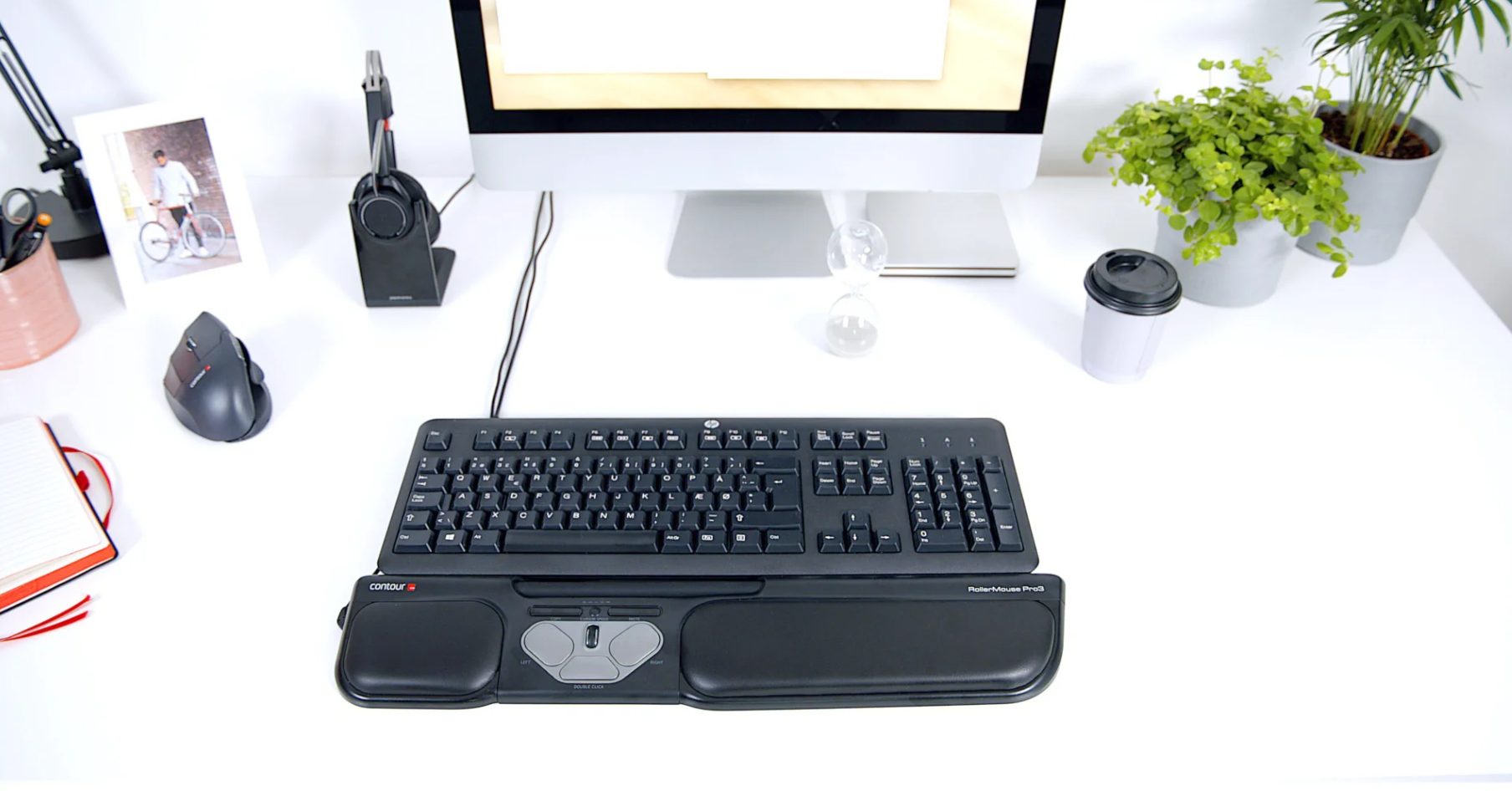
A roller ball mouse wireless setup sounds simple. But if you have spent years fighting wrist ache, shoulder tension, or forearm soreness at your desk, it can feel like a real change. Unlike a traditional mouse, a wireless roller ball keeps the base completely still. You move the ball with your thumb or fingers instead of dragging your whole arm across the desk.
That one shift changes a lot: the muscles you use, the strain you pile up, and how your arm feels by 5 PM. Here is the honest version, including what a wireless roller ball fixes well, what it does not, and the centered alternative worth knowing about if your shoulder is the real problem. For a broader overview, start with our guide to the best ergonomic mouse.
Key Takeaways
- A wireless roller ball mouse reduces repetitive strain by keeping your arm stationary while your thumb or fingers control the cursor.
- It cuts down on the three movements that load the arm over years of computer work: wrist deviation, forearm pronation, and repeated shoulder reaching.
- Proper setup matters: place the device beside your keyboard, match cursor speed to your monitor, and remap a couple of buttons to save keyboard trips.
- Most people need a few days to two weeks to adapt, after which cursor control feels precise without a mousepad or constant arm repositioning.
- A side-mounted ball shortens the reach but still parks one hand off to the side, so a centered rollerbar usually does more for shoulder and neck strain.
What Is a Wireless Roller Ball Mouse, and Why Does It Feel So Different?
A wireless roller ball mouse, more commonly called a wireless trackball, is a pointing device with a stationary base. A ball sits in a socket on top or on the side. You roll the ball with your thumb or fingers, and internal sensors track that motion to move the cursor. The device itself never slides across your desk.
That is the key difference. With a standard mouse, your hand, wrist, and forearm travel constantly. With a roller ball, only your thumb or fingertips do the steering. The rest of your arm stays relaxed and supported.
The motion feels unusual at first. Most people need a few days to two weeks to adapt. Once your hand learns it, cursor control gets precise, and you stop needing a mousepad, clear desk space, or constant arm repositioning. Wireless models connect by Bluetooth or a 2.4 GHz USB receiver for a clean, cable-free setup. If you want the bigger picture first, this guide to what roller ball mice can and can't fix sets the context.
New to the motion? Roll any small ball between your thumb and fingers for 30 seconds. That low-effort movement is roughly what replaces the arm travel you do now.
Show Image
Why Traditional Mice Cause Pain, and How a Roller Ball Helps
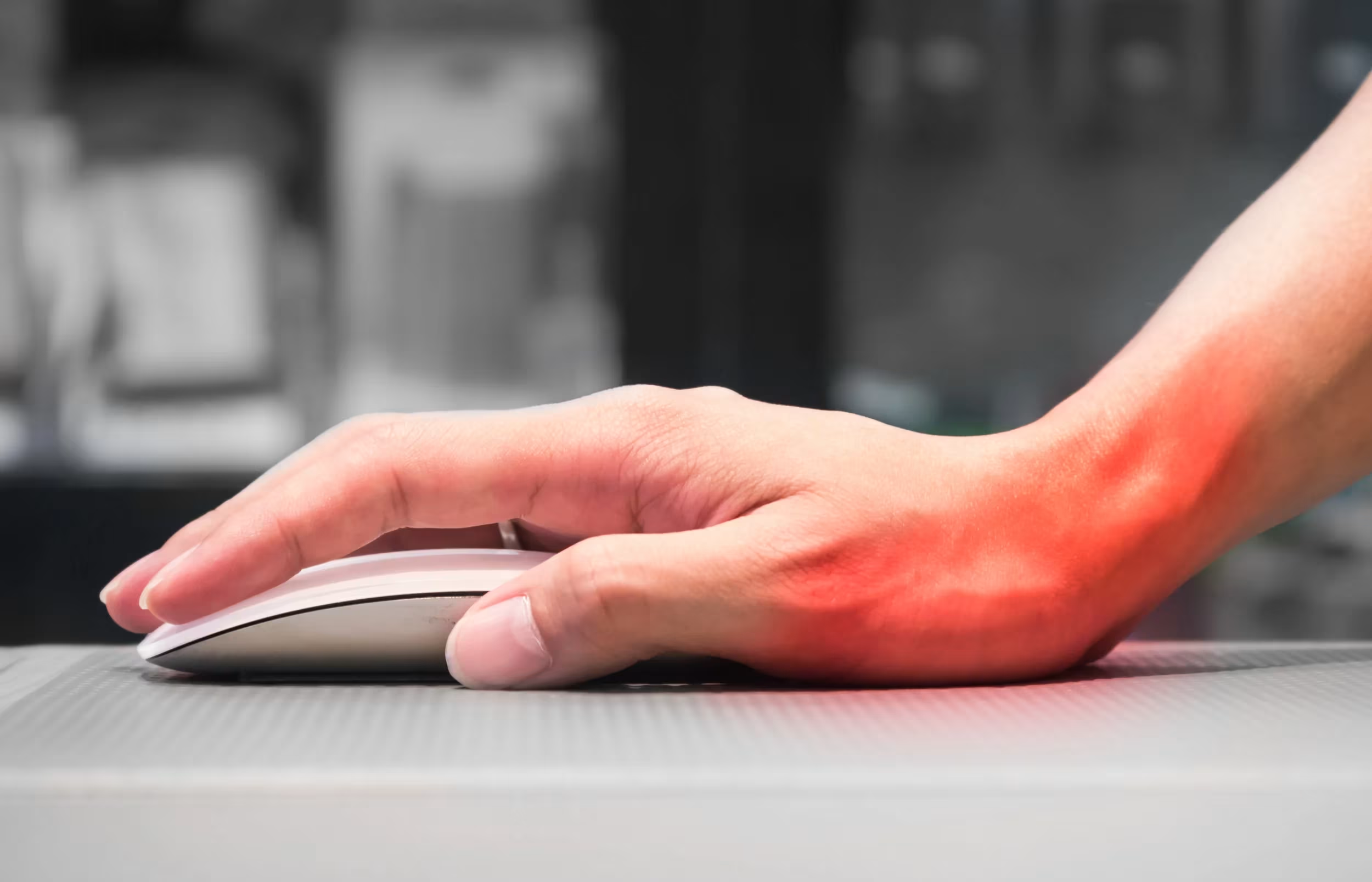
Most people blame mouse pain on bad posture or long hours. Those play a role. But the deeper driver is repetitive small-movement stress built up over years of use.
Three specific movements tend to do the most:
- Wrist deviation, bending your wrist left and right to steer the cursor
- Forearm pronation, rotating your forearm palm-down across the desk
- Shoulder reaching, swinging your arm out to the side mouse, again and again
A CDC pointing device study found that different mouse designs produce measurably different levels of muscle activity in the forearm and shoulder, and that designs reducing arm movement showed lower muscular load. That is the principle a roller ball targets. It keeps your arm stationary, so the cursor moves from ball rotation rather than wrist steering, and many designs let the hand sit at a more neutral angle.
What it does not do on its own is erase shoulder reaching, because a side-mounted ball still sits off to one side. For a sense of the neutral joint positions a setup should protect, the CCOHS wrist ergonomics guidance outlines what your wrist should be doing, and how far a standard mouse pushes you from it.
Tightest by mid-afternoon? Notice which part of your arm aches most after two hours. That points to where the strain is concentrated, and which fix to prioritize.
Show Image
Where Contour Fits: Rollerbar vs Roller Ball
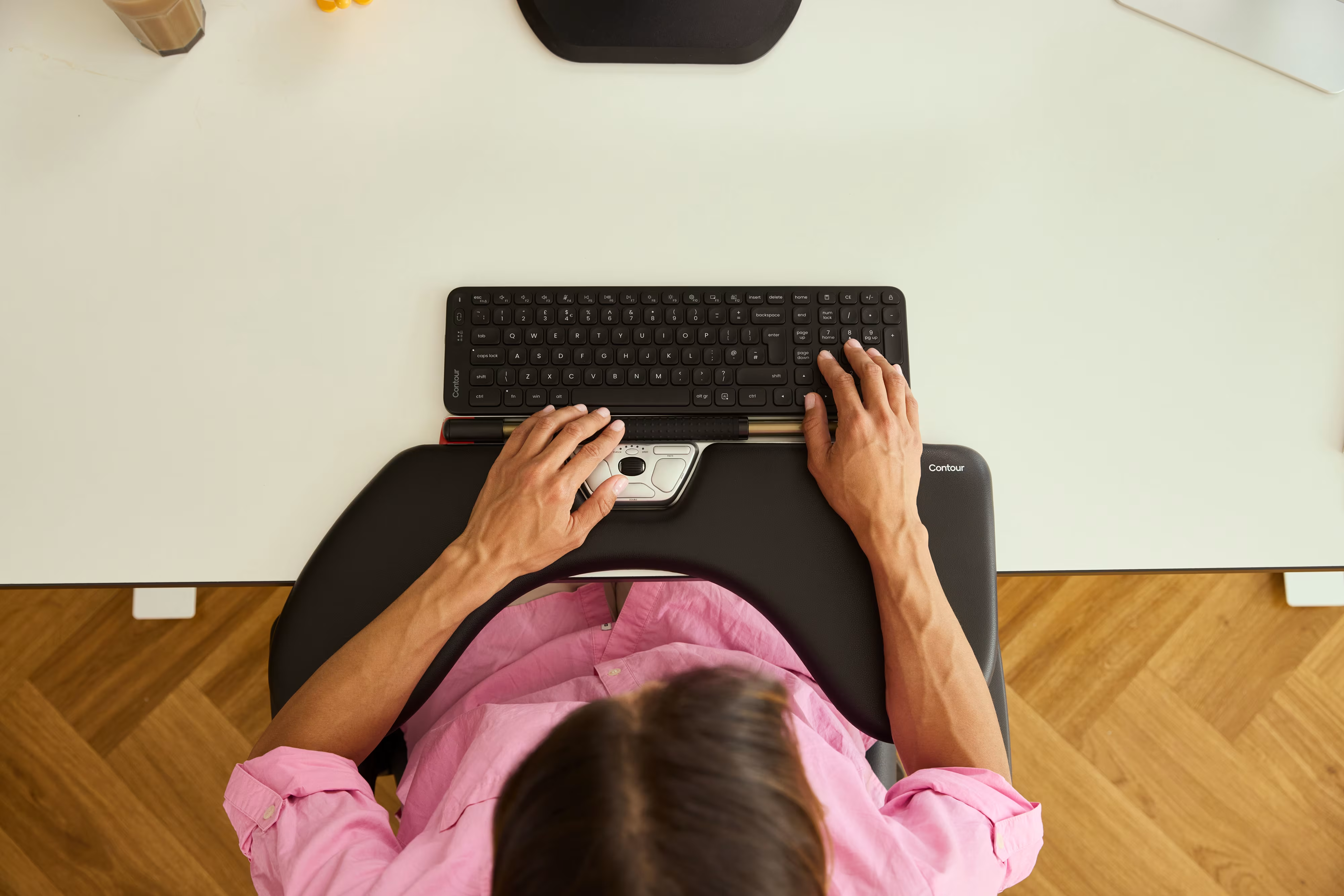
You will run into Contour Design® in this category, so it is worth being clear about what it makes. Contour does not make a trackball. It makes the centered category, and the difference is real.
A roller ball mouse sits to one side, and you spin a ball. A rollerbar sits in front of your keyboard, just below the spacebar, and you move the cursor by rolling and sliding a bar with your fingertips. Same core idea, the device stays still. Different placement: centered, and reachable from either hand.
That difference matters for one specific group. A side-mounted wireless trackball shortens your reach but still keeps one hand off to the side, so it tends to do more for the wrist than the shoulder. If your pain pattern is shoulder, neck, or strain that started at the wrist and climbed up your arm, a centered device like the wireless RollerMouse Red removes that sideways trip entirely, and both hands reach it from a neutral position. The benefits of a centered mouse explain why that placement helps.
Show Image
Key Features to Look for in a Wireless Roller Ball Mouse
Not every wireless trackball is built the same. For a closer look at how comfort and fit differ across ergonomic roller ball mouse styles, compare these features before you buy.
Ball position: thumb vs finger control. Thumb-operated trackballs let your fingers rest while the thumb steers. Finger-operated models use a larger ball that several fingers share, which some people find steadier.
Adjustable cursor speed (DPI/CPI). This sets how far the cursor travels per ball rotation. Two or more sensitivity levels (commonly 400–2000) let you switch between fine precision and fast travel across large screens. On-device speed buttons save you from opening software mid-task. If you're ready to switch, consider the Contour RollerMouse range.
Programmable buttons. Five or more remappable buttons let you assign undo, copy, paste, or app switching, which cuts down on trips to the keyboard across the day.
Wireless reliability. A 2.4 GHz USB receiver usually delivers lower latency than Bluetooth alone. Models offering both, plus multi-device pairing, help if you move between a desktop and a laptop.
Power. Rechargeable models cut down on battery waste over time. Replaceable-battery models trade that for never stopping to recharge.
One honest note on precision. Finger-operated trackballs can feel steady for everyday detailed work, but for sub-pixel design, photo retouching, or CAD, a handheld mouse still gives the most fingertip control. Contour's pick there is the adjustable UniMouse, a vertical handheld, not a ball or a bar. If you are weighing vertical options, this look at why a vertical mouse can be an upgrade covers the trade-offs.
Start by listing your top three daily tasks. Then match each one to a feature: precision editing wants a wide speed range, multi-app work wants programmable buttons, and a travel setup wants compact size with Bluetooth.
Who Benefits Most from a Wireless Roller Ball Mouse?
A roller ball mouse wireless setup is not for everyone. For a specific group, though, it is one of the better ergonomic moves available.
You will benefit most if you:
- Work 6 or more hours a day in roles like software engineering, graphic design, video editing, architecture, or data analysis
- Already feel wrist tightness, forearm strain, or shoulder tension by mid-afternoon
- Have limited desk space or a cluttered surface
- Run multiple monitors and want wide cursor travel without moving your arm
- Want programmable shortcuts to cut keyboard trips
You may want a different option if you:
- Mostly use a laptop trackpad and rarely need precise cursor work
- Are a competitive gamer, since trackballs are not built for fast-twitch aiming
- Prefer a touchpad-style feel, in which case a central touchpad may suit you better
If your symptoms sit mainly in the shoulder or neck, weigh a side-mounted ball against options built for mouse use and shoulder pain specifically, because that is where a centered design usually pulls ahead. And if you want a fuller read on the trackball trade-offs first, this computer mouse roller ball overview is a good comparison point.
Already in real pain? A new mouse alone will not fix it. Pair any device change with workstation adjustments, and if needed, a conversation with an occupational therapist. This article is general information, not medical advice. See a clinician for pain that is sharp, spreading, or not improving.
How to Set Up Your Wireless Roller Ball Mouse
Most people unbox a trackball, plug it in, and get frustrated because it feels awkward. That is normal. Set it up well and the adjustment period gets shorter.
- Place it directly beside your keyboard, not out by the monitor. Your forearm should rest on the desk with your elbow near 90°.
- Set the cursor speed before you start. For a single 1080p monitor, a mid range works well. For large or 4K displays, go higher.
- Remap at least two buttons. Assign your most-used shortcut, like undo, copy, or app switch, to a thumb button to save keyboard trips.
- Clean the ball and bearings every couple of weeks. Pop the ball out, wipe it, and clear the small bearing points so tracking stays smooth.
For a complete wireless setup, pairing the roller ball or rollerbar with a narrow keyboard shortens the reach between typing and pointing. The Balance Keyboard is built to sit flush alongside a RollerMouse for exactly that reason. For more on the shoulder side of this, read about an ergonomic mouse for shoulder pain.
Still deciding between a side ball, a centered bar, and a vertical mouse? Match the device to where your pain actually is, not to review counts. Our Help Me Choose tool walks you through it in a couple of minutes.

Frequently Asked Questions About Wireless Roller Ball Mice
What is a wireless roller ball mouse and how does it work?
A wireless roller ball mouse, or trackball, has a stationary base with a ball you control using your thumb or fingers. Internal sensors track the ball's movement to steer the cursor, while the device itself never slides across your desk. That keeps your arm still and cuts repetitive movement.
Why does a roller ball mouse wireless setup reduce wrist and forearm strain?
Traditional mice add up wrist deviation, forearm pronation, and shoulder reaching over time. A trackball reduces those motions by keeping your arm stationary. Research on pointing devices shows that designs reducing arm movement produce measurably lower muscle activity in the forearm and shoulder.
How long does it take to adapt to a wireless roller ball mouse?
Most people need a few days to two weeks. At first it feels unusual because your fingers do the work your whole arm used to do. Once your hand learns the motion, cursor control becomes precise and feels natural for daily use.
What is the difference between a roller ball mouse and a rollerbar?
A roller ball mouse uses a ball you spin, usually mounted to one side. A rollerbar, like the Contour RollerMouse, sits centered in front of the keyboard and moves the cursor with a sliding bar you reach from either hand. Both keep the device still, but only the centered bar removes the sideways reach.
What features should I prioritize when choosing a wireless roller ball mouse?
Look for adjustable cursor speed, reliable wireless via a 2.4 GHz receiver or Bluetooth, and programmable buttons for shortcuts. Decide between thumb-controlled and finger-controlled designs, and between rechargeable and replaceable-battery power based on your daily workflow.
Is a wireless roller ball mouse good for precision design work?
A finger-operated trackball can feel steady for everyday detailed work. For sub-pixel design, photo retouching, or CAD, though, a handheld vertical mouse like the UniMouse gives the most fingertip control. Pairing a precision mouse with a centered device for general work is a normal setup.
Your Next Move
A wireless roller ball will not erase years of strain overnight, but it does target the root cause: too much repetitive arm and wrist movement, day after day. Set it up properly, dial in the cursor speed, and give yourself a couple of weeks to adapt. If the wrist is the story, start with a roller ball. If the shoulder keeps showing up, try a centered rollerbar and feel the reach disappear.

Which Device Is Right for You?
Take a quick quiz and get a personalized recommendation based on how you work.

