
Roller Ball Mouse: The Smarter Way to Work Pain-Free at Your Desk
.avif)
If you spend 6 to 10 hours a day at a computer, your mouse might be working against you. A roller ball mouse keeps your hand stationary while a spinning ball moves the cursor, and for millions of office workers dealing with wrist strain or forearm tension, that single difference changes everything.
This guide explains how these devices work, why they reduce pain, how they compare to other ergonomic options, and what to look for when choosing one. By the end, you'll know exactly whether a mouse roller ball deserves a spot on your desk, and how it compares with the best ergonomic mouse for RSI options. For a broader overview, start with our guide to the best ergonomic mouse.
Key Takeaways
- A roller ball mouse keeps your hand stationary while a spinning ball controls the cursor, eliminating repetitive arm sweeping that causes wrist and forearm strain in office workers.
- Switching to a roller ball mouse can reduce tension within two weeks by using smaller finger muscles instead of large arm and shoulder muscle groups for precise, repeated cursor movements.
- When choosing a roller ball mouse, prioritize ball size (40mm+), control style (thumb or finger-operated), button accessibility, and scroll functionality to match your specific workflow and hand size.
- Expect a 1–3 week adjustment period before experiencing full comfort benefits; lowering cursor sensitivity, practicing on low-stakes tasks, and avoiding switching back to traditional mice will speed adaptation.
- A roller ball mouse outperforms vertical mice and trackpads for all-day precision work with minimal arm movement, making it ideal for accountants, writers, IT professionals, and architects dealing with repetitive strain injuries.
What Is a Roller Ball Mouse and How Does It Work?
A roller ball mouse, also widely called a trackball, is a stationary pointing device with an exposed ball on top or side. You roll the ball with your thumb, fingers, or palm to move the cursor. The device itself never slides across your desk.
Inside the housing, optical or laser sensors detect the ball's rotation along two axes. That motion gets translated into cursor movement on screen. Buttons handle clicking, dragging, and right-click functions, just like a standard mouse.
The key difference: your arm stays still. Every cursor movement comes from your fingers or thumb alone. If you want a deeper ergonomics breakdown focused specifically on trackballs, this ergonomic mouse roller ball guide expands on posture and fit.
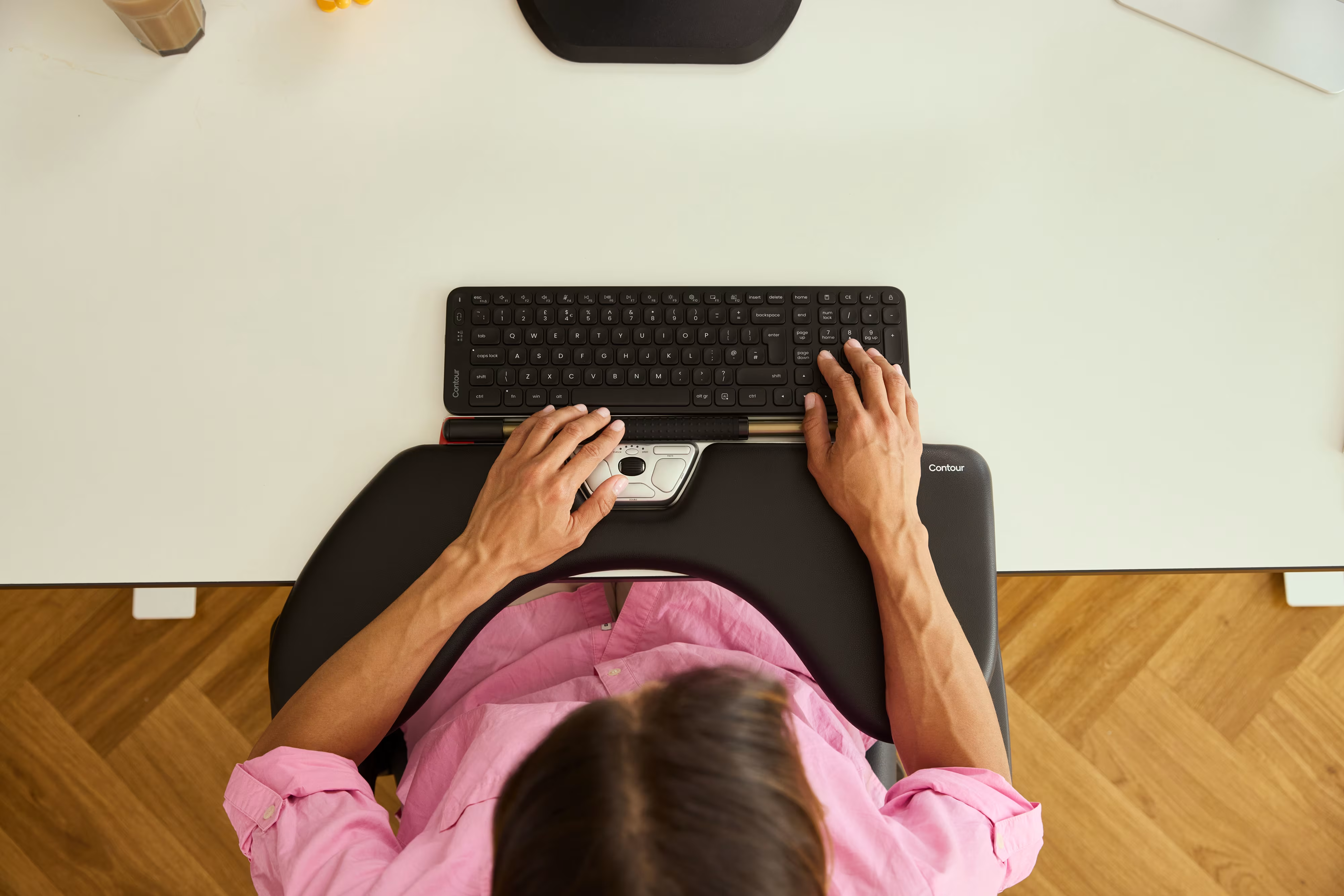
For context, the RollerMouse Red Plus from Contour Design takes the same "stationary base" idea further with a centered rollerbar design, placing the control point directly in front of your keyboard. If that centered style fits your workflow, the RollerMouse Red Plus + Balance Keyboard, Wireless bundle is one example to compare.

Start by reading the product manual for whichever roller ball mouse you choose. Learning the button layout before you start reduces frustration during the adjustment period.
Why Traditional Mice Cause So Much Wrist and Arm Pain
Traditional mice demand constant movement. Every time you reposition the cursor, your entire arm sweeps across the surface, wrist extended, forearm rotating, shoulder engaged. Do that thousands of times a day across a long work session, and the cumulative load adds up fast.
The OSHA Office Ergonomics guidelines note that sustained wrist extension and repetitive motion during computer work contribute to discomfort and strain. Holding your wrist at an awkward angle while gripping a mouse amplifies that risk.
Repetitive strain injuries (RSIs) don't appear overnight. They build quietly over months or years, often starting as mild stiffness in the morning and progressing to persistent pain that disrupts work and sleep. Research published via the CDC ergonomics studies evaluated how different pointing device designs affect upper extremity posture and muscle activity, findings that reinforce why device choice matters for long-term comfort.
Common pain patterns from traditional mouse use include:
- Wrist soreness and stiffness after long sessions
- Forearm tightness or tension from sustained grip
- Shoulder fatigue from reaching across a wide desk
- Finger numbness from extended gripping postures
The Real Ergonomic Benefits of Switching to a Mouse Roller Ball
Switching to a mouse roller ball removes the root cause of much of that repetitive arm movement. Your hand rests in one place. Your arm and shoulder stay largely relaxed. Control shifts to your fingers or thumb, which are built for precise, repeated motion.
Less Repetitive Motion, More Natural Movement
A roller ball mouse eliminates the need to sweep your arm across the desk repeatedly throughout the day. Instead of engaging your shoulder, elbow, and wrist together for every cursor move, only your fingers do the work.
That reduction in large-muscle repetition is where most of the ergonomic benefit lives. The benefits of a centred mouse add another layer: when your pointing device sits directly in front of you, you don’t reach sideways to use it, which helps keep your shoulder in a more neutral, relaxed position.
Key ergonomic benefits of a roller ball mouse:
- Stationary base reduces arm and shoulder movement throughout the day
- Finger-based control uses smaller, more precise muscle groups
- Neutral wrist position reduces sustained extension
- No need for a large mouse pad or wide desk clearance
Try this today: Place your current mouse in the center of your desk and notice how far your arm extends to reach it. That reach, repeated hundreds of times daily, is exactly what stationary devices help reduce.
Roller Ball Mouse vs. Other Ergonomic Options: How They Compare
The ergonomic peripheral market has grown significantly. You have real choices, and each option has a different mechanism, learning curve, and ideal use case. If you want a trackball-specific comparison inside this cluster, see this computer mouse roller ball comparison for additional context.
DeviceMovement TypeArm MotionBest ForTraditional mouseSlides across surfaceHighStandard tasksRoller ball mouseStationary ball controlLowPrecision, long sessionsVertical mouseSlides, handshake gripMediumForearm-rotation reliefTouchpad / trackpadFinger gestures on flat surfaceLowPortability and light use
A vertical mouse holds your hand in a handshake position rather than palm-down, which can reduce forearm pronation. But a vertical mouse still slides across a desk, so your arm still moves. A trackpad uses flat-surface gestures with no physical ball: it can work well for light use but may cause finger fatigue during precision-heavy work. If you're ready to switch, consider the Contour RollerMouse.
.avif)
The roller ball mouse wins for users who need all-day precision with minimal arm movement. It's not perfect for everyone. If you need extreme precision in fast-paced gaming scenarios or you're unwilling to invest two to three weeks in adjustment time, a different device may be a better fit.
What to Look for When Choosing the Right Roller Ball Mouse
Not all roller ball mice are built the same. The wrong choice for your hand size or work style can create new discomfort instead of solving existing problems. Focus on these criteria before buying.
Ball size and control style matter most. Larger balls (40mm+) are generally easier to control with precision over long sessions. Thumb-operated designs place the ball on the side: finger-operated designs sit the ball on top. Try both styles if possible before committing.
Button layout and accessibility should match your workflow. If you drag files, resize windows, or use multi-click shortcuts frequently, look for a layout where those buttons fall naturally under your fingers without repositioning your hand.
Scroll functionality is often overlooked. Some models use a scroll wheel: others use a scroll ring around the ball. For users who scroll through long documents or code, a scroll ring can feel more natural during extended use.
Additional factors worth evaluating:
- Wired vs. wireless: Wireless removes desk clutter; wired eliminates battery management
- DPI / sensitivity settings: Adjustable sensitivity helps match cursor speed to screen size and task
- Build quality and weight: A heavier base stays stable; lighter devices may shift during use
- Hand dominance: Some models are ambidextrous; others are right-hand only
If you are still not sure about what to choose, here is an ergonomic survey that helps you to find the right ergonomic mouse for you to relieve pain at work.

Tips for Getting the Most Out of Your Roller Ball Mouse
Most people who give up on a roller ball mouse do so in the first week. That's the hardest part. Your fingers and thumb need time to build the muscle memory that your whole arm has been handling for years.
Expect an adjustment period of 1 to 3 weeks. Cursor accuracy often improves after five to seven days of daily use. Give it a full month before making a verdict.
Practical tips to speed up that adjustment:
- Lower your cursor sensitivity for the first week so small ball movements don't send the cursor flying
- Practice on low-stakes tasks like reading email or browsing before you rely on it for high-precision work
- Keep the ball clean; dust and oils reduce responsiveness, so wipe the ball and sensors weekly
- Position the device directly in front of you, not off to the side, to maximize the shoulder-relief benefit
- Use keyboard shortcuts alongside your roller ball mouse to reduce overall pointing workload
One honest warning: if you switch back to a traditional mouse during the adjustment period, even for a day, you reset much of your muscle memory progress. Commit fully for the first two weeks. It also helps to pair the right hardware with these mouse arm syndrome exercises you can do at your desk.
If you want to build a broader prevention strategy beyond device choice, use this guide to reducing pain with an ergonomic mouse to align device selection with workstation setup and daily habits.
Frequently Asked Questions About Roller Ball Mice
What is a roller ball mouse and how does it work?
A roller ball mouse, also called a trackball, is a stationary pointing device with an exposed ball you roll with your thumb or fingers to move the cursor. Internal sensors detect the ball's rotation along two axes and convert it into on-screen movement. Your hand and arm remain still while controlling the cursor.
How does a roller ball mouse reduce wrist and arm pain?
Traditional mice require repeated arm sweeps daily, which adds cumulative strain. A roller ball mouse reduces this by keeping your hand stationary and shifting control to your fingers and thumb, which are built for precise, repetitive motion.
What's the difference between a roller ball mouse and a vertical mouse?
A vertical mouse can reduce forearm rotation by holding your hand in a handshake position, but it still slides across your desk, which requires more arm movement. A roller ball mouse stays stationary and uses ball control instead.
How long does it take to adjust to using a roller ball mouse?
Expect an adjustment period of one to three weeks. Cursor accuracy improves after five to seven days, but full comfort takes longer. The biggest mistake is switching back to a traditional mouse during adjustment, which resets your muscle memory. Commit fully for at least two weeks before deciding.
What should I look for when choosing a roller ball mouse?
Prioritize ball size (40mm+ for better control), operation style (thumb or finger-based), and button layout that matches your workflow. Consider scroll ring versus scroll wheel functionality, wired versus wireless, and adjustable DPI settings. Test both thumb and finger-operated designs if possible before committing.
Can a roller ball mouse help with computer ergonomics for long work sessions?
Yes. By minimizing repetitive arm movement, a roller ball mouse can reduce cumulative strain during long workdays. Positioning the device close to your keyboard and using shortcuts can further lower overall pointing workload.

Which Device Is Right for You?
Take a quick quiz and get a personalized recommendation based on how you work.

