
Ergonomic Mouse vs. Regular Mouse: What Your Wrists Wish You Knew
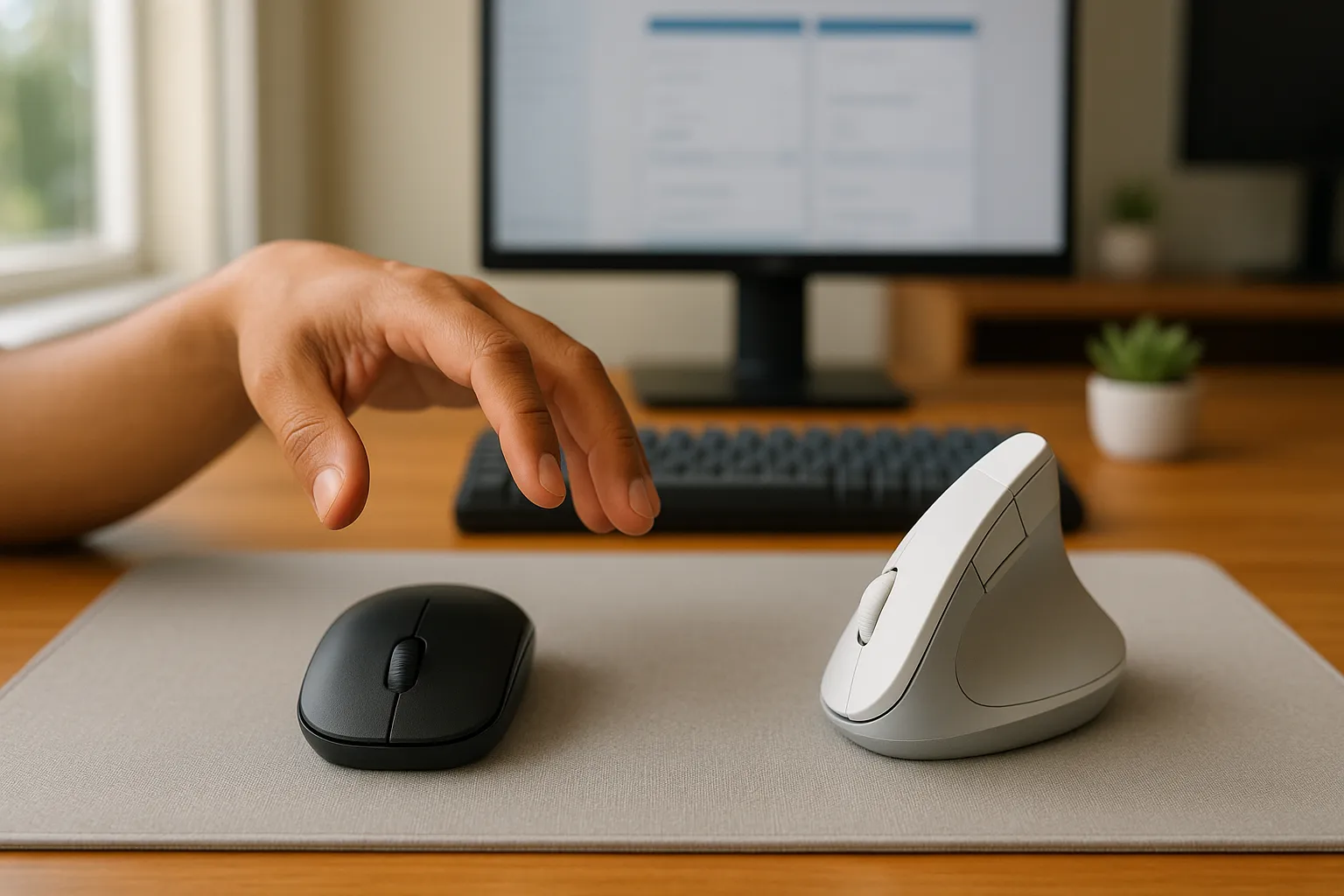
An ergonomic mouse vs. regular mouse comparison isn't just a gear debate. It's a question about whether your hands, wrists, and shoulders can keep up with your career for the next 10, 20, or 30 years.
If you spend six or more hours a day clicking, scrolling, and dragging, your pointing device is one of the most-used tools you own. And yet most people never question the flat, palm-down mouse that shipped with their first desktop. They just grip it, push it around the desk, and wonder why their forearm starts burning by Thursday afternoon.
Here's what's at stake: a standard mouse positions your forearm in full pronation, bones crossed, tendons under load, muscles working overtime to hold a posture your hand was never designed to maintain for hours. An ergonomic mouse changes that equation. But "ergonomic" gets slapped on a lot of packaging these days, so it's worth understanding what actually separates a well-designed device from a marketing claim. That's what this guide covers, from the biomechanics of wrist position to the real-world productivity tradeoffs, so you can make a decision grounded in evidence, not hype.
Key Takeaways
- An ergonomic mouse reduces forearm pronation, grip force, and side-reach compared to a regular mouse, targeting the three main causes of repetitive strain at the desk.
- A regular mouse forces full forearm pronation for hours, increasing the risk of lateral epicondylitis, carpal tunnel pressure, and shoulder tension over time.
- When comparing an ergonomic mouse vs. a regular mouse, most users experience noticeably less wrist and forearm discomfort within one to two weeks of switching.
- Ergonomic mice with adjustable DPI and programmable buttons can actually improve productivity after a short adjustment period—precision doesn't have to be sacrificed for comfort.
- Choose your device type based on your primary symptom: a vertical or adjustable-angle mouse for forearm and wrist pain, or a centered pointing device for shoulder and neck tension.
- You don't need to wait for a diagnosis—rate your current end-of-day discomfort on a 0–10 scale, switch devices for two weeks, and measure the difference.
What Makes a Mouse "Ergonomic" in the First Place?
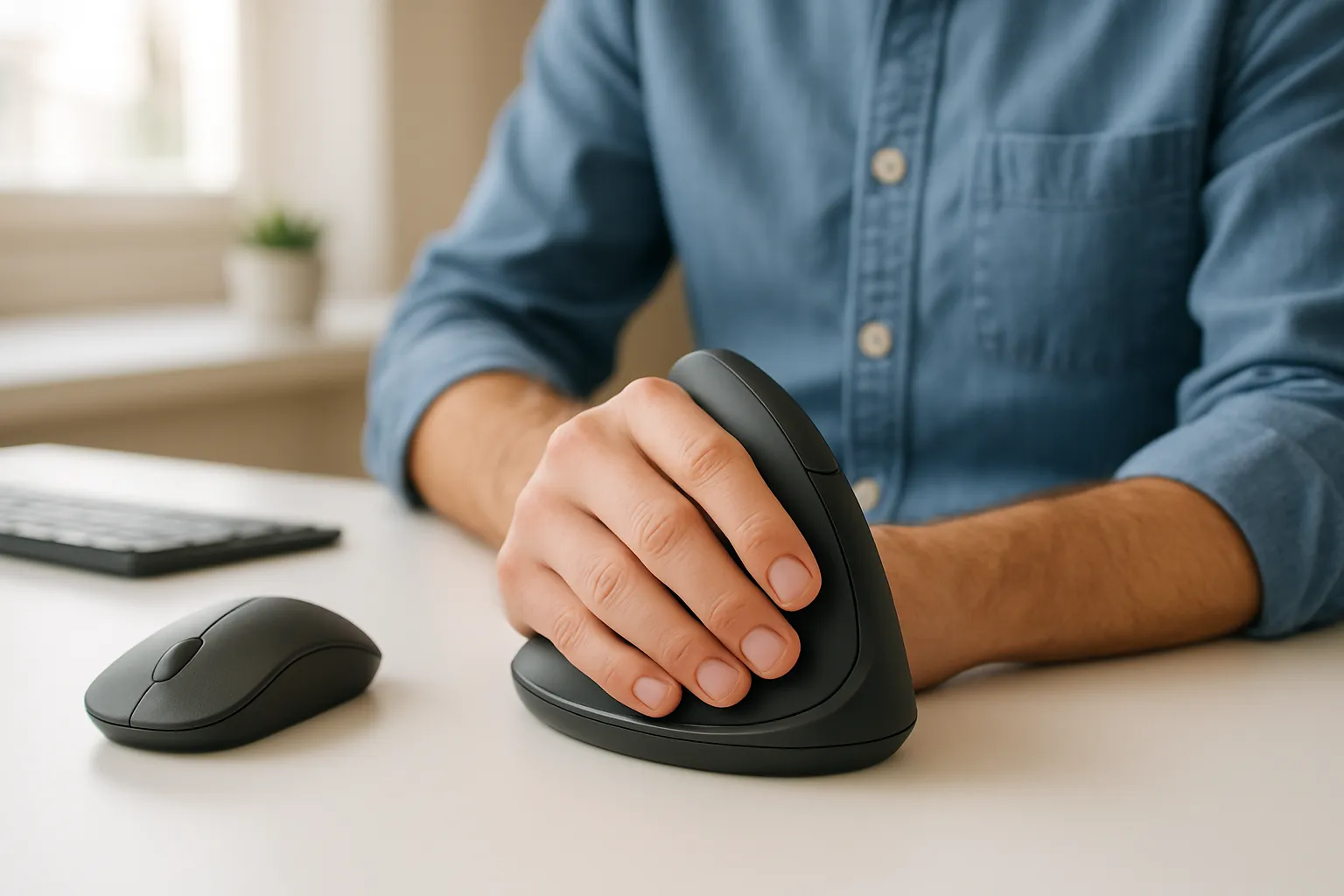
The word "ergonomic" gets used loosely. A mouse earns that label when its shape, angle, and control layout are specifically designed to keep your hand, wrist, and forearm in a neutral posture during use. "Neutral" means your joints sit near their midrange position, where muscles and tendons experience the least mechanical stress.
In practical terms, an ergonomic mouse does three things a regular mouse doesn't:
- Reduces forearm pronation by angling or tilting your hand toward a handshake position, so the radius and ulna bones in your forearm stay uncrossed or less crossed.
- Minimizes grip force through a contoured shape that lets your hand rest on the device rather than clench around it.
- Shortens reach distance by fitting closer to your keyboard or, in the case of centered pointing devices, sitting directly in front of you.
A 2020 study published through NIOSH evaluated four pointing device designs and found that devices promoting a more neutral wrist posture significantly reduced muscle activity in the forearm extensors compared to a standard mouse. That's the core idea: less muscular effort per click, per scroll, per hour.
Not every mouse labeled "ergonomic" delivers on all three points. Some only address angle. Others only address shape. The most effective designs tackle pronation, grip, and reach together. If you're unsure which ergonomic mouse matches your situation, start by identifying which of those three factors is causing your discomfort.
Quick action: Hold your current mouse right now. Notice whether your palm faces straight down. If it does, your forearm is fully pronated. That's your baseline.
Key Design Differences Between Ergonomic and Regular Mice
Hand and Wrist Position
This is the single biggest difference. A regular mouse sits flat on the desk, which forces your forearm into full pronation. In that position, your radius bone crosses over your ulna, and the muscles along the top of your forearm have to work continuously to stabilize your wrist. Do that for eight hours and those muscles fatigue, which is one reason your forearm feels tight or sore at the end of a long day.
An ergonomic mouse tilts your hand partially or fully toward a vertical "handshake" position. That uncrosses the forearm bones and lets the muscles along both sides of your forearm share the load more evenly. The degree of tilt varies by design. Some vertical mice go to a full 90 degrees. Others, like the Contour Design® UniMouse, offer an adjustable hinge between 35° and 70°, so you can find the exact angle that feels neutral for your hand.
According to CCOHS's ergonomic guidance, keeping the wrist in a neutral, non-deviated position is critical for reducing compression on the carpal tunnel and the tendons that pass through it.
Button Layout and Customization
Regular mice typically have two buttons, a scroll wheel, and maybe a side button or two. The placement is generic because the shape is generic.
Ergonomic mice place buttons where your fingers naturally rest when your hand is relaxed on the device. This means less finger stretching and less micro-repositioning to reach a side button or scroll wheel. Many ergonomic devices also let you program buttons to perform shortcuts (copy, paste, undo, switch desktops), which reduces total click count over a workday. Fewer clicks means fewer repetitions, which means less cumulative load on your finger tendons.
Size, Shape, and Adjustability
A flat, one-size-fits-all mouse forces your hand to conform to the device. If it's too small, you end up gripping with your fingertips (a "claw grip") that loads the finger flexor tendons. If it's too large, you stretch your fingers outward, which creates sustained tension in the hand.
Ergonomic mice are contoured to support the palm and fingers in a relaxed, open position. The best designs come in multiple sizes or offer adjustable features. For example, UniMouse lets you adjust thumb support position in five different ways, plus hand angle, so the mouse adapts to your hand instead of the other way around.
Quick action: Measure from the base of your palm to the tip of your middle finger. If that measurement is under 17 cm, look for a small or medium device. Over 19 cm, look for a large. This one number narrows your search significantly.
How a Regular Mouse Contributes to Pain and Strain

Ever notice that your wrist aches more on Mondays after a weekend away from the desk, then again on Fridays after a full week of use? That pattern is a clue. The discomfort isn't random. It's cumulative mechanical stress from a posture your body tolerates in small doses but rebels against over time.
Here's what happens biomechanically when you use a standard flat mouse for hours:
- Full pronation loads the wrist extensors. Your forearm muscles on the thumb side have to work harder to stabilize the wrist in a palm-down position. Over months and years, this contributes to tendon microdamage and degeneration in the lateral epicondyle, the bony bump on the outside of your elbow. That's lateral epicondylitis, commonly called "mouse elbow" or "tennis elbow."
- Reaching to the side strains the shoulder. Most people place their mouse to the right of a full-size keyboard, which means your arm is abducted (moved away from your body) and your shoulder has to hold that position all day. According to Cornell University's Ergonomics Guidelines, keeping the mouse far from the body increases static loading on the shoulder and upper trapezius muscles.
- Gripping increases finger tendon stress. A flat mouse without palm support encourages a pinch or claw grip. The finger flexor tendons pass through the carpal tunnel at the wrist, and sustained gripping increases pressure inside that tunnel, which is one contributing factor for carpal tunnel syndrome symptoms like numbness and tingling.
A widely cited estimate suggests the average office mouse you moves their mouse the equivalent of 17 miles per year. Every inch of that travel involves micro-contractions in your forearm, wrist, and shoulder. With a regular mouse, those contractions happen in a biomechanically disadvantaged position.
None of this means a regular mouse will definitely injure you. But if you're already feeling discomfort, stiffness, or tingling, the flat-mouse posture is very likely making it worse.
Important: This article is general information, not medical advice. If you're experiencing numbness, weakness, or pain that doesn't improve with rest, see a healthcare provider. Those can be signs of nerve compression or tendon damage that needs clinical evaluation.
Health Benefits of Switching to an Ergonomic Mouse
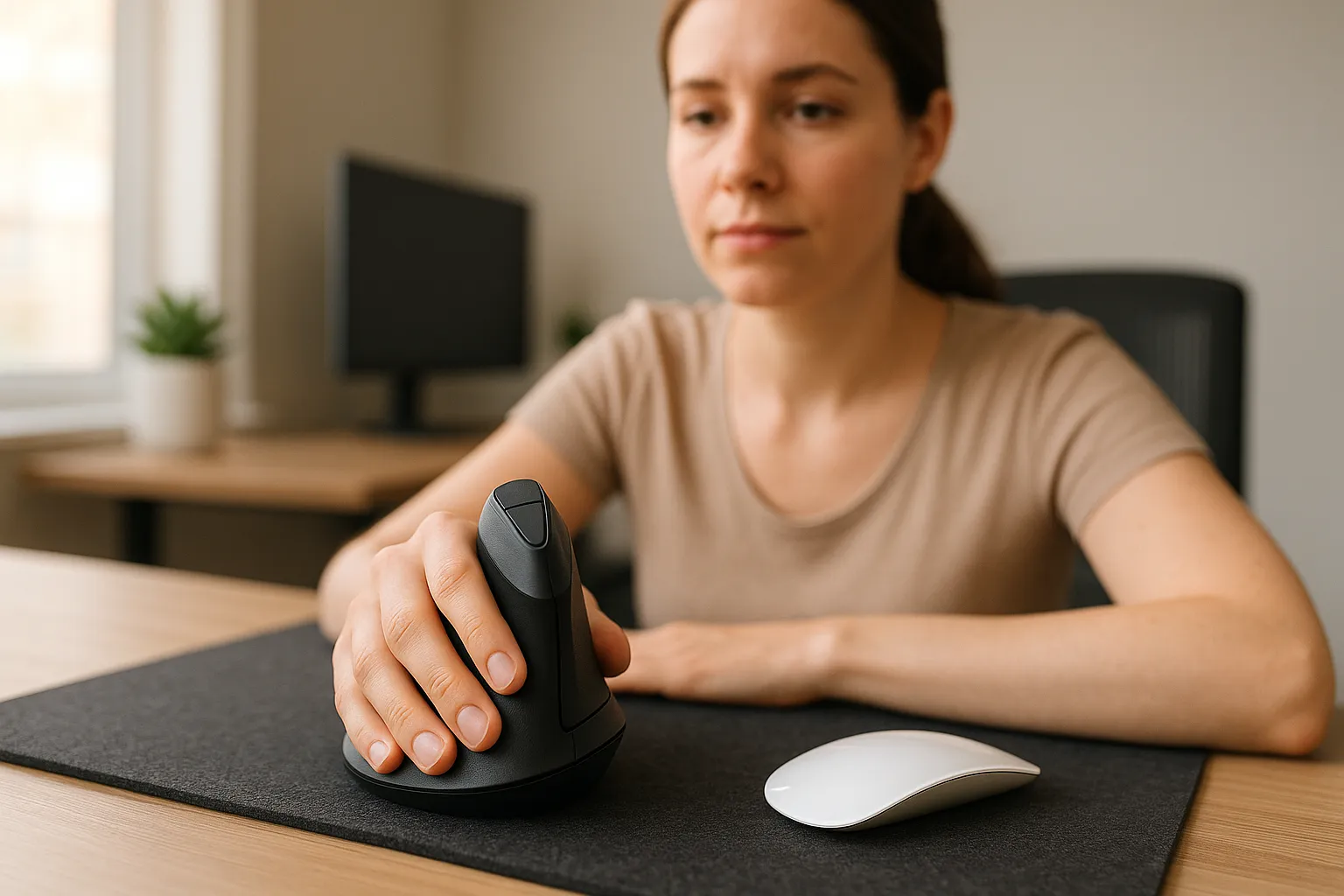
Switching to an ergonomic mouse won't reverse years of tendon damage overnight. But it changes the mechanical equation your body deals with every workday, and that matters more than most people realize.
The primary benefits, supported by ergonomic research, include:
- Reduced forearm muscle activity. Devices that promote a neutral wrist position lower the sustained contraction in your wrist extensors. Less sustained contraction means slower fatigue and less cumulative strain on the tendons attaching at the elbow.
- Lower carpal tunnel pressure. Keeping your wrist straight, rather than extended or deviated, reduces compression on the median nerve. This doesn't cure carpal tunnel syndrome, but it removes one aggravating factor.
- Less shoulder loading. Centered pointing devices like the RollerMouse sit directly in front of your keyboard, which means you don't reach to the side at all. That eliminates the shoulder abduction problem entirely. If shoulder or neck tension is your main complaint, reducing pain with a centered device is one of the most impactful changes you can make.
- Fewer total hand movements. Devices with programmable buttons and adjustable cursor speed let you do more with less physical effort. Some users report reducing hand movement by up to 4x compared to a standard mouse.
Short-Term Relief vs. Long-Term Prevention
In the short term, most people notice reduced forearm tension and less end-of-day stiffness within the first one to two weeks of switching. That's the immediate payoff: you simply feel less beat up after a full workday.
The long-term value is harder to see but arguably more important. Repetitive strain injuries develop over months and years of cumulative microtrauma. By changing the posture your hand and arm maintain for 6–10 hours a day, you're reducing the daily dose of mechanical stress that drives that progression. Think of it less as treatment and more as removing an ongoing aggravating factor.
Some evidence suggests that early ergonomic intervention, making changes before symptoms become chronic, is significantly more effective at preventing lost workdays than waiting until pain forces a change. For businesses, that translates directly to fewer accommodation requests and lower injury-related costs.
Quick action: If you're currently pain-free but use a flat mouse more than six hours a day, this is your prevention window. Exploring why an ergonomic mouse is worth the investment now is far easier than managing a repetitive strain injury later.
Performance and Productivity: Does Ergonomic Mean Slower?
This is the concern that keeps a lot of people on their standard mouse: "I can't afford to be slower." Fair enough. If you're a video editor cutting on tight deadlines or an architect working in CAD for 10 hours straight, cursor precision is non-negotiable.
Here's the thing: ergonomic mice don't sacrifice precision. Many actually improve it.
Most ergonomic devices offer adjustable DPI (dots per inch), which controls how far the cursor moves relative to your hand movement. Higher DPI means the cursor covers more screen distance with less physical travel. This reduces total arm and wrist movement, which is both an ergonomic win and a speed win. You're moving less to do the same work.
Programmable buttons add another layer. Instead of moving your cursor to the toolbar for undo, copy, or paste, you press a thumb button. That saves seconds per action, and those seconds compound. A designer doing 200+ copy-paste operations in a session could easily save 15–20 minutes per day just from button shortcuts.
There is an adjustment period. Expect one to two weeks of slightly awkward movement as your muscle memory resets, especially if you switch to a vertical mouse or a roller-bar style device. Some people feel mild forearm fatigue during that window because they're using muscles in a new orientation. It passes.
After that break-in period, most users find they're as fast or faster than before. A Wirecutter guide on ergonomic workstation essentials notes that correct peripheral positioning often improves workflow simply because you're not fighting discomfort or pausing to stretch.
Quick action: If you're worried about the transition, don't go cold turkey. Keep your old mouse plugged in for the first week and alternate. Use the ergonomic device for general work and switch back for precision tasks until your hand adapts. Most people stop reaching for the old mouse within five to seven days.
Types of Ergonomic Mice and How to Choose the Right One
Not all ergonomic mice solve the same problem. The right type depends on where your pain is, how you work, and what kind of desk space you have.
Vertical Mice
A vertical mouse rotates your hand to a full or near-full handshake position (typically 60°–90° of tilt). This is the most direct fix for forearm pronation. If your primary complaint is forearm tightness, wrist pain on the thumb side, or lateral elbow pain, a vertical mouse targets those issues specifically.
Contour's UniMouse is a standout in this category because its patented hinge lets you set the angle anywhere between 35° and 70° rather than locking you into a single fixed tilt. That adjustability matters because the "ideal" angle varies from person to person based on hand size, forearm length, and existing comfort. You can read more about why a vertical mouse boosts both comfort and productivity.
Centered Pointing Devices
Centered pointing devices sit directly in front of your keyboard, eliminating the side-reach entirely. Instead of gripping and pushing a mouse, you roll or slide a bar with your fingertips or palms.
Contour's RollerMouse line (including the RollerMouse Red and RollerMouse Pro) places a rollerbar along the front edge of your keyboard. Your hands stay in front of your body, your shoulders stay relaxed, and you never have to grip anything. This design is especially effective for people with shoulder or neck pain, because it removes the abduction and static hold that traditional mousing demands.
The RollerMouse Pro takes this further with memory foam palm rests in three sizes, 100% post-consumer recycled materials, and programmable buttons. If you're exploring alternative computer mouse options beyond the traditional shape, centered devices are worth serious consideration.
Adjustable-Angle Mice
Some ergonomic mice fall between flat and fully vertical, offering a fixed angle of 30°–60°. These can be a good middle ground if you find vertical mice too extreme but still want pronation relief.
The key question is whether the angle is adjustable or fixed. A fixed-angle mouse is better than flat, but it's a guess about what angle works for your hand. An adjustable device like UniMouse lets you experiment and dial in the position that feels most natural. You can also explore ergonomic mouse alternatives to compare designs side by side.
| Feature | Vertical Mouse | Centered Device | Adjustable-Angle Mouse |
|---|---|---|---|
| Pronation reduction | High (60°–90°) | Moderate (hands rest flat but relaxed) | Moderate to high (35°–70°) |
| Shoulder relief | Low to moderate | High (no side-reach) | Low to moderate |
| Grip force | Low | Very low (no gripping) | Low |
| Best for | Forearm/wrist pain | Shoulder/neck pain | Mixed symptoms, adjustability preference |
| Learning curve | 1–2 weeks | 1–2 weeks | Minimal |
Quick action: Identify your primary symptom. Forearm or wrist pain? Start with a vertical or adjustable-angle mouse. Shoulder or neck tension? Look at a centered device. Both? Consider pairing a centered device with an adjustable mouse like UniMouse for varied postures throughout the day.
When It's Time to Make the Switch
You don't need to wait for a diagnosis to justify an ergonomic mouse. But certain signals mean the switch is overdue:
- Persistent aching or stiffness in your wrist, forearm, or elbow that starts during computer work and lingers after you stop.
- Tingling or numbness in your fingers, especially the thumb, index, or middle finger (median nerve distribution).
- Shoulder or neck tension that worsens through the week and improves on days off.
- Visible awkward postures when you work. If your elbow sits more than a few inches away from your torso while mousing, you're overreaching.
- You use a full-size keyboard with a number pad, which pushes your mouse even further to the right and increases shoulder abduction.
If you have arthritis or joint conditions, specialized mouse alternatives for arthritis can reduce the specific grip and pinch forces that aggravate those conditions.
Here's a useful before/after test: at the end of your next full workday, rate your wrist and forearm discomfort on a 0–10 scale. Write it down. Then switch to an ergonomic device for two full weeks and rate again. Most people see a noticeable drop, often 2–4 points, in that simple subjective score.
For IT managers and health and safety specialists evaluating devices for a team, Contour® offers demo programs so employees can test devices before a full rollout. That takes the guesswork out of a bulk buy and lets you measure comfort improvements across real workflows.
Quick action: Tonight, after your last work session, write down your discomfort score (0–10) for wrist, forearm, and shoulder. That number is your baseline. Without it, you can't measure whether any change, ergonomic or otherwise, actually helps.
Conclusion
Your hands and wrists have been doing this job every single workday. The least you can do is give them a tool that's designed to work with them instead of against them. Pick the one symptom that bothers you most, match it to the right device type from the guide above, and try it for two weeks. That's it. Two weeks, one change, and a real shot at working without pain dragging you down.
Frequently Asked Questions
What is the main difference between an ergonomic mouse and a regular mouse?
The biggest difference is hand and wrist position. A regular mouse forces your forearm into full pronation (palm-down), crossing the radius and ulna bones and straining muscles. An ergonomic mouse tilts your hand toward a neutral handshake position, reducing forearm muscle activity and lowering cumulative strain on tendons and joints.
Can an ergonomic mouse help with carpal tunnel syndrome?
An ergonomic mouse can reduce one aggravating factor by keeping your wrist straight rather than extended or deviated, which lowers compression on the median nerve. While it won't cure carpal tunnel syndrome, removing sustained grip force and pronation helps minimize symptoms like numbness and tingling over time.
How long does it take to adjust to an ergonomic mouse?
Most users experience a one-to-two-week adjustment period when switching from a regular mouse. During this time, cursor movement may feel slightly awkward as muscle memory resets. After that break-in period, most people find they are as fast or faster than before, with noticeably less end-of-day discomfort.
Is an ergonomic mouse worth it if I don't have wrist pain yet?
Yes. If you use a flat mouse more than six hours a day, switching before symptoms develop is your prevention window. Repetitive strain injuries build from months of cumulative microtrauma, so reducing daily mechanical stress now is far easier than managing a chronic condition later.
What type of ergonomic mouse is best for shoulder and neck pain?
A centered pointing device like a RollerMouse is the most effective option for shoulder and neck pain. It sits directly in front of your keyboard, eliminating the side-reach that causes shoulder abduction and static upper trapezius loading. Your hands stay centered and your shoulders remain relaxed throughout the workday.
Do ergonomic mice sacrifice precision or slow you down?
No. Most ergonomic mice offer adjustable DPI settings and programmable buttons that can actually improve precision and speed. Higher DPI reduces physical hand travel, while shortcut buttons eliminate repetitive toolbar clicks. Users doing frequent copy-paste operations report saving 15–20 minutes per day from button customization alone.

Which Device Is Right for You?
Take a quick quiz and get a personalized recommendation based on how you work.

