
Contour RollerMouse Pro3 Review: The Centered Mouse That Could Save Your Wrists
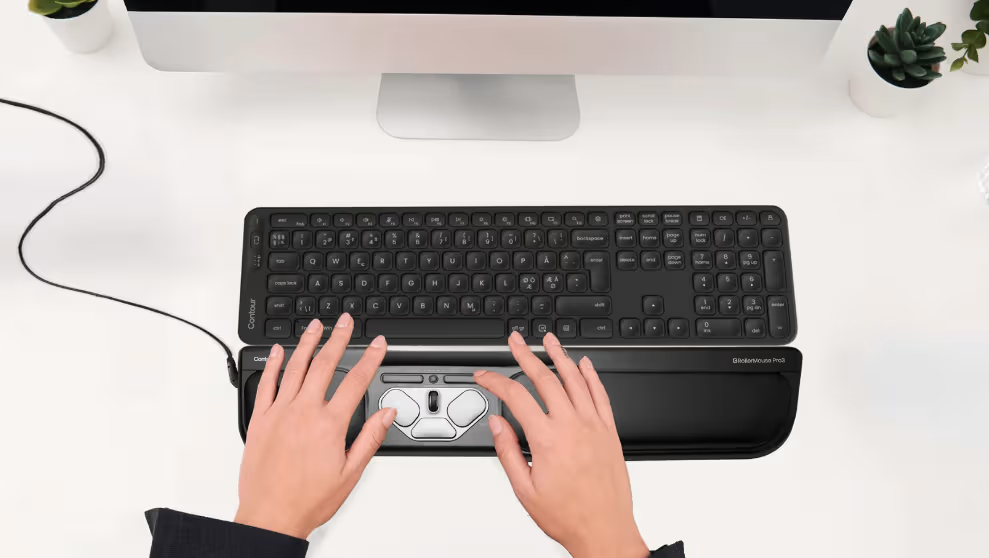
If you're logging 8-plus hours a day at a keyboard, your wrists are paying a price you can't afford to ignore. The Contour RollerMouse Pro3 is built around one core idea: your hands should not have to reach, twist, or grip to control your cursor. This centered ergonomic device sits directly in front of your keyboard, letting you navigate with relaxed arms and neutral posture. Whether you're managing RSI symptoms or trying to prevent them, this review breaks down exactly what the Pro3 does, who it helps most, and whether it's worth your investment.
Key Takeaways
- The Contour RollerMouse Pro3 eliminates side-reaching by positioning your hands in a centered, neutral posture that reduces repetitive strain injuries and shoulder tension built up from traditional mouse use.
- The Pro3's 67% longer Rollerbar with adjustable speed (600-2400 DPI) and five click-force levels allows both hands to share cursor control equally, making it ideal for users managing RSI symptoms or working 6+ hours daily.
- This ergonomic device is genuinely ambidextrous and built from durable recycled materials, offering a sustainable alternative to standard mice without requiring software installation or battery management.
- Setup takes under 5 minutes with plug-and-play USB connectivity, and the included keyboard risers ensure your wrists stay neutral; most users adapt to the RollerMouse Pro3's motion within one to two hours.
- The RollerMouse Pro3 outperforms vertical mice and trackballs by keeping both hands centered and distributing effort across multiple fingers, making it best suited for professionals like developers, designers, and data analysts rather than casual gamers.
What Makes the RollerMouse Pro3 Different from a Standard Mouse

A standard mouse forces your arm to reach sideways, rotate your wrist, and grip a device for hours. That repeated motion is one of the leading causes of repetitive strain injuries in office workers. A CDC-published study on pointing device designs found measurable differences in upper extremity posture and muscle activity depending on which type of device was used. For a broader overview, start with our guide to the best ergonomic mouse.
The Pro3 eliminates the side-reach entirely. It sits below your spacebar, centered in front of your keyboard. You control the cursor with your fingers and thumbs from a natural, resting position. Both hands share the work equally, which means no one side carries the load.
This centered design reduces shoulder tension, forearm fatigue, and neck strain that builds up over years of traditional mouse use. The full RollerMouse lineup from Contour Design is built on this same principle, and the Pro3 remains one of the most proven options for full-day desk work.
Key Features That Put Comfort First
The Rollerbar: Precision Control Without the Strain
The cylindrical optical Rollerbar is the core of the Pro3. It's 67% longer than the bar on earlier models, which means more contact area and less awkward finger positioning. You roll it side to side and forward and back to move the cursor. A light press registers a left-click.
The Rollerbar supports single-finger control, which matters if you're managing trigger thumb, tendonitis, or carpal tunnel symptoms. The action is smooth and silent. There is no jerky acceleration or sticky resistance.
This is a meaningful upgrade if you've tried a trackball and found it imprecise or fatiguing. The Rollerbar keeps your fingers in one place rather than spinning a ball across your desk, and this practical comparison aligns with benefits of a centred mouse findings in daily office use.
Adjustable Speed, Click Force, and Wrist Rest

The Pro3 gives you 10 cursor speed settings ranging from 600 to 2400 DPI, adjusted via a dedicated button with LED feedback. You can shift between precision work (low DPI for detailed design tasks) and fast navigation (high DPI for scrolling dashboards) without leaving your keyboard.
Click force on the Rollerbar has 5 adjustable tension levels. If pressing down causes discomfort, you dial it back. Sensitive fingers get a light touch; users who prefer tactile feedback can increase resistance.
The full-length wrist rest is made from anti-bacterial vegan leather over memory foam, which means it contours to your wrist rather than forcing a fixed position. Included keyboard risers (short and long) let you adjust the height angle so the Pro3 aligns with your desk and keyboard setup, and this approach is consistent with guidance on reducing pain with an ergonomic mouse.
Who Benefits Most from the RollerMouse Pro3
The Pro3 is built for anyone who spends 6 or more hours daily at a keyboard and feels it in their wrists, forearms, or shoulders. That covers a wide range of roles:
- Software engineers and developers doing extended coding sessions
- Graphic designers and architects working with precision tools
- Writers, editors, and content managers with high word-count days
- Accountants and data analysts navigating spreadsheets for hours
- IT professionals managing multiple systems and windows
It's also genuinely ambidextrous, which means left-handed users finally get an ergonomic solution that does not compromise control. Most vertical mice and many trackballs are still designed primarily for right-handed users.
If you work at a small desk, the Pro3's slim profile (19.21" x 3.99" x 1.14", 1.66 lbs) frees up the side real estate a standard mouse normally occupies. If you are comparing categories before buying, this related guide to what the Contour RollerMouse is provides broader context across models.
This product is not ideal for casual users or gamers who need rapid high-precision tracking at variable distances. It's designed for sustained, steady-paced professional work.
How the Pro3 Stacks Up Against Other Ergonomic Mice

There's no shortage of ergonomic mouse options, and the comparisons matter. Here's how the Pro3 performs against the most common alternatives:
Vs. the previous RollerMouse Pro2: The predecessor was already strong, but the Pro3 adds a slimmer profile, higher maximum DPI, a smoother scroll wheel, and an updated wrist rest material. If you're upgrading from a Pro2, the difference is noticeable. For more on the shoulder side of this, read about why your mouse causes shoulder pain.
Vs. vertical mice: Vertical mice reduce wrist pronation, but they still require side-reaching and single-hand use. The Pro3 keeps both hands centered and eliminates gripping entirely.
Vs. trackballs: Trackballs reduce arm movement, but spinning a ball repeatedly can stress the thumb or index finger. The Rollerbar distributes effort across multiple fingers with less concentrated pressure.
Vs. basic ergonomic accessories: A padded wrist rest or gel pad helps at the margins. The Pro3 addresses posture at the source by repositioning how and where you interact with your cursor. Evidence from RollerMouse muscle-effort research supports this broader shift in workload distribution.
The Pro3 is also built from durable recycled materials, which means it supports sustainability goals without sacrificing build quality. It's wired (USB plug-and-play), which removes battery management entirely.
Setting Up and Getting Comfortable: What to Expect
Setup takes under 5 minutes. Plug the USB cable into your computer, slide the Pro3 in front of your keyboard, and you're working. No software installation is required for basic operation. Windows and macOS both recognize it immediately.
Use the included keyboard risers to raise the back of your keyboard so it aligns flush with the Pro3's surface. This keeps your wrists in a neutral position and prevents the awkward angle that causes most forearm tension. If you need neutral-position benchmarks for workstation adjustments, this external reference on wrist support guidance is useful.
The first hour matters. Start with a mid-range DPI setting (around 1200) and a lighter click force. Your fingers will adapt faster than you expect. Most users report the motion feeling natural within one to two hours of regular use.
For power users who want to program the six to eight buttons (copy, paste, double-click, scroll, and more), download the optional driver from the RollerMouse Pro3 product page. This unlocks custom shortcuts that save meaningful time across repetitive tasks.
Do this today: Set your DPI to 1200, lighten the click force to level 2, and use the Pro3 exclusively for one full workday. By the end of that session, you'll know whether the centered control model works for your workflow. It also helps to pair the right hardware with these mouse arm syndrome exercises you can do at your desk.
If you're not sure which ergonomic mouse to choose, our Help Me Choose Tool narrows it down and finds the mouse that fits you in under a minute.
Frequently Asked Questions About the Contour RollerMouse Pro3
What is the RollerMouse Pro3 and how does it differ from a standard mouse?
The RollerMouse Pro3 is a centralized ergonomic pointing device that sits directly in front of your keyboard, eliminating the side-reaching and wrist twisting required by traditional mice. Unlike standard mice, it enables ambidextrous control from a neutral, centered position, reducing shoulder tension, forearm fatigue, and neck strain during extended work sessions.
How does the Rollerbar work and what makes it better than a trackball?
The Rollerbar is a cylindrical optical bar you control with your fingers and thumbs for smooth, precise cursor movement, 67% longer than previous models for greater contact area. Unlike trackballs, which concentrate pressure on a single finger, the Rollerbar distributes effort across multiple fingers with less strain and no sticky resistance.
Can the RollerMouse Pro3 help with carpal tunnel, trigger thumb, or other repetitive strain injuries?
Yes. The Pro3's centered design and single-finger support directly address RSI symptoms like carpal tunnel, trigger thumb, and tendonitis. Its adjustable click force has five tension levels, allowing you to dial down pressure if pressing causes discomfort.
What customization options does the RollerMouse Pro3 offer?
The Pro3 features 10 cursor speed settings (600-2400 DPI), five adjustable click-force levels on the Rollerbar, and 6-8 programmable buttons for shortcuts like copy, paste, and double-click. Included keyboard risers (short and long) help align the device with your desk height for neutral wrist positioning.
How long does it take to adjust to using the RollerMouse Pro3?
Setup takes under 5 minutes: plug in the USB cable and position the device in front of your keyboard. Most users report the centered control model feeling natural within one to two hours of regular use. Start with mid-range DPI (around 1200) and lighter click force for fastest adaptation.
Is the RollerMouse Pro3 suitable for left-handed users?
Yes, the RollerMouse Pro3 is genuinely ambidextrous, making it one of the few ergonomic solutions that does not compromise control for left-handed users. Both hands share the work equally from the centered position.

Which Device Is Right for You?
Take a quick quiz and get a personalized recommendation based on how you work.

