
What Is the Contour RollerMouse? The Pain-Free Mouse That Could Change How You Work

The Contour RollerMouse sits front and center on your desk, literally. Instead of reaching sideways for a mouse all day, you control your cursor with a bar positioned directly in front of your keyboard. It sounds like a small shift. For anyone logging 8+ hours daily at a computer, it can be the difference between leaving work energized and leaving with a numb forearm. Here's exactly what the RollerMouse is, how it works, and whether it's right for your setup.
Key Takeaways
- The Contour RollerMouse eliminates lateral reaching by positioning a horizontal control bar directly in front of your keyboard, significantly reducing shoulder and forearm pain caused by traditional mouse use.
- A RollerMouse supports two-handed, ambidextrous operation with your hands in a neutral position, distributing physical load evenly and interrupting the repetitive strain patterns that develop from off-center mouse placement.
- Multiple RollerMouse models address different workflows: the Red prioritizes precision and DPI, the Pro3 offers modularity with swappable parts, and the Go provides portability for hybrid workers.
- Users with 6+ hours of daily computer work, existing RSI or carpal tunnel diagnosis, or design-heavy roles see the most measurable benefit, with most noticing reduced end-of-day tension within the first week.
- Successful RollerMouse adoption requires 30-60 minutes of adjustment time, proper positioning below your spacebar with elbows at 90 degrees, and commitment to exclusive use during your adaptation period.
What Makes the RollerMouse Different From a Traditional Mouse

A traditional mouse forces you to reach to the right, grip a pointing device, and move your entire arm in a sideways arc hundreds of times per hour. That's the root of most mouse-related shoulder and forearm pain. For a broader overview, start with our guide to the best ergonomic mouse.
The RollerMouse replaces that motion entirely. Instead of gripping and dragging, you roll a horizontal bar with your fingers to move the cursor left, right, up, and down. Your hands rest naturally on the bar, palms down, directly in front of your body.
This centered placement means:
- No lateral reaching, your shoulders stay relaxed and aligned
- No grip tension, your fingers roll the bar with minimal force
- Ambidextrous by default, both hands can operate it equally
- No hand-lifting, your hands barely leave the keyboard area
A CDC-published study evaluating pointing device designs found that alternative mouse designs significantly reduce upper extremity muscle activity compared to standard mice, which means less fatigue building up across your workday.

If you've tried a vertical mouse and still felt shoulder tension, it's because vertical mice still require lateral placement. The RollerMouse solves a different problem: the distance and angle between you and your pointing device.
Try this today: Place your hands on your keyboard, then slide them forward 2-3 inches without moving your arms outward. That's your ideal pointing zone, and it's exactly where the RollerMouse lives.
How the RollerMouse Relieves Wrist, Shoulder, and Forearm Pain
Repetitive strain injuries (RSI) develop when the same muscles and tendons fire in the same pattern, day after day, without relief. Traditional mousing asks your shoulder to abduct outward, your forearm to pronate, and your wrist to deviate sideways, all at once, all day.
The RollerMouse interrupts that pattern at the source.
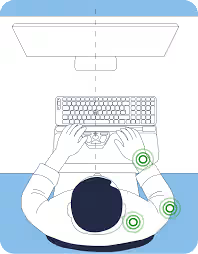
Here's what changes physically when you switch:
- Shoulders: Stay directly over your torso instead of rolled forward and out
- Forearms: Rest flat on the desk rather than hovering or twisting
- Wrists: Stay in a neutral, straight position instead of bending toward the thumb side
- Neck: Releases tension that creeps in from compensating for shoulder misalignment
The rollerbar supports two-handed operation, so the load distributes across both sides of your body. That's a meaningful advantage if one arm has been carrying the full burden for years.
For professionals already managing diagnosed RSI, carpal tunnel syndrome, or tendinitis, the RollerMouse is often recommended by occupational therapists as part of a broader ergonomic adjustment. It's not a cure, but it removes one of the primary mechanical triggers.
The full RollerMouse lineup includes models with padded wrist rests, which means you get additional forearm support built directly into the device.
Start here: If your dominant shoulder or forearm aches by 2 p.m. most workdays, that's a clear signal your current pointing device is working against your body.
The RollerMouse Lineup: Finding the Right Fit for Your Setup
Contour Design makes several RollerMouse models, each tuned for different users and workflows. Picking the right one comes down to three things: how much precision you need, how much you want to customize, and what your desk setup looks like.
Pair any model with a low-profile keyboard for best results. Thick keyboards raise your hands above the rollerbar, reducing the ergonomic benefit.
RollerMouse Red, Pro, and Free: What Sets Each Model Apart
RollerMouse Red / Red Plus
Built for users who prioritize speed and precision. The rollerbar reaches up to 4,000 DPI, which means pixel-level accuracy for designers, video editors, and architects. It includes a memory foam wrist rest and is made with recycled aluminum. Both wired and wireless options are available.
RollerMouse Pro3
The Pro lineup focuses on modularity. The RollerMouse Pro3 features swappable wrist rests and a silent, tactile rollerbar, which means you can reconfigure the device as your needs change. It's a strong choice for shared workstations or users who want long-term flexibility.
The RollerMouse Pro is the predecessor with a proven track record in office environments. It's worth understanding what to look for in a mouse to prevent carpal tunnel too.
RollerMouse Go
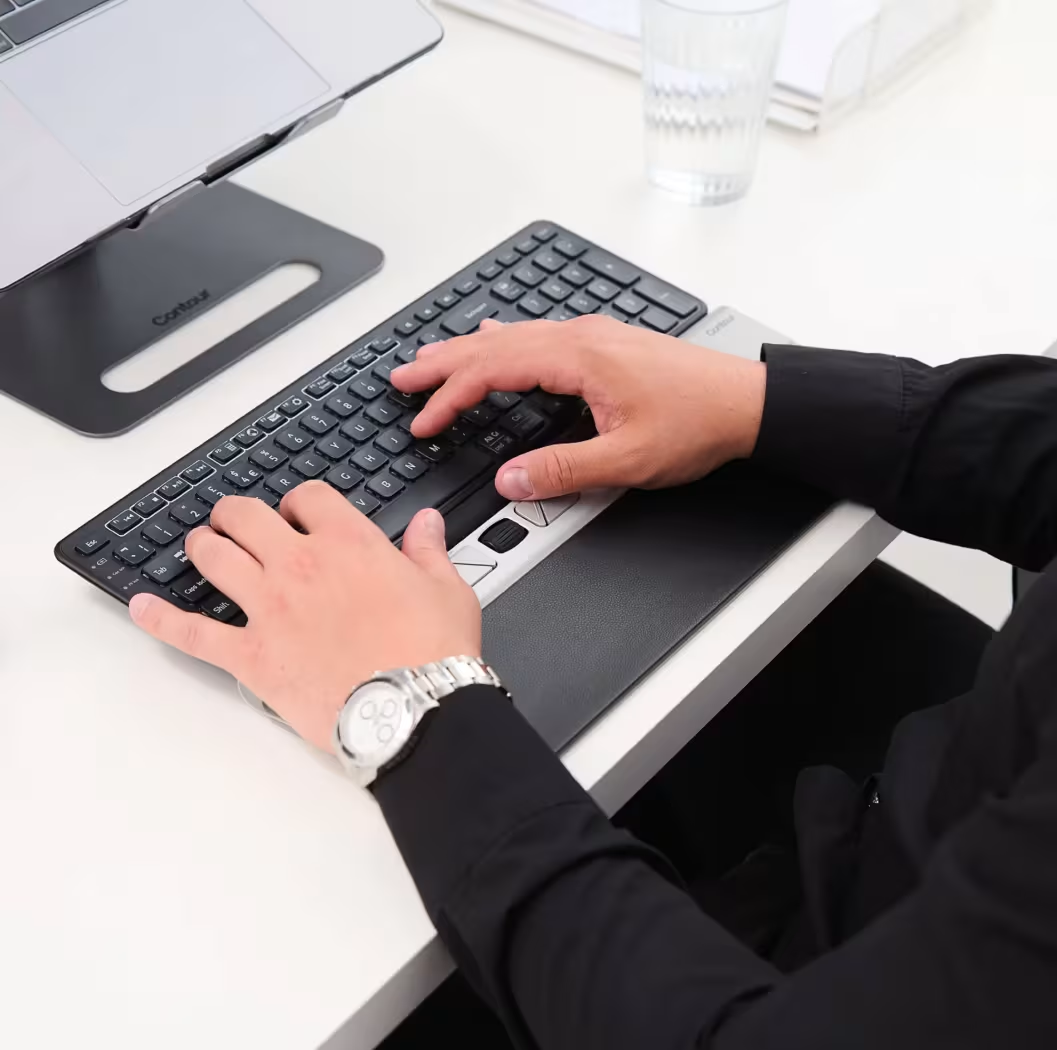
Designed for portability and clean desk setups. The RollerMouse Go is the compact option, ideal for laptop users or hybrid workers who split time between home and office. Pair it with the RollerMouse Go + Dock bundle for a seamless transition between workspaces.
Do this now: List your top three daily tasks (typing-heavy, design work, data entry) and match them to the model specs above.
Who Benefits Most From Using a RollerMouse
The RollerMouse solves a specific problem: pain and fatigue caused by repetitive, off-center mouse use. Not everyone needs it, but for certain workers, it's genuinely transformative.
You'll likely see the most benefit if you:
- Work 6-10+ hours daily at a computer
- Experience recurring shoulder, wrist, or forearm discomfort
- Have been diagnosed with RSI, carpal tunnel, or tendinitis
- Work in design, video editing, architecture, writing, or data-heavy roles
- Are proactively building an ergonomic setup before injury sets in
- Manage a team and need ergonomic solutions that work for left- and right-handed users equally
It's a less ideal fit if you:
- Use a mechanical keyboard with high-profile keycaps (the bar access becomes awkward)
- Need a gaming mouse with rapid directional flicks and variable grip styles
- Rarely use a mouse and primarily navigate by keyboard shortcuts
Health and safety specialists sourcing ergonomic equipment for open-plan offices frequently recommend the RollerMouse because it removes the shared-handedness problem. One device works for any employee at a hot desk, which means less friction and more consistent use across teams.
Honest assessment: The RollerMouse has a real learning curve. Most users report 30-60 minutes of adjustment time before the rolling motion feels natural. Don't judge it in the first 10 minutes.
How to Get Started and Make the Most of Your RollerMouse
Setup is straightforward. The RollerMouse connects via USB (or wirelessly on supported models) and is plug-and-play compatible with Windows and macOS. No software is required to start, but installing Contour's driver unlocks meaningful customization.
Follow these steps for the best first experience:
- Position it directly below your spacebar. Your palms should rest flat on the bar with your wrists in a neutral position.
- Start at 1,200-1,600 DPI. This is the middle range, which gives you responsive but controlled cursor movement while you adapt.
- Install the Contour driver. You can then adjust DPI (600-4,000), click force, click volume, and program up to 6 buttons to match your workflow.
- Use it for full sessions, not just part of the day. Switching back and forth between a traditional mouse slows adaptation significantly.
- Pay attention to your shoulders and forearms after 2-3 days. Most users notice reduced end-of-day tension within the first week.
Common mistake to avoid: Gripping the bar instead of rolling it. Rest your fingers lightly. The motion should come from your fingertips, not your wrist or elbow.
If you're setting up a standing desk workstation or dual-monitor setup, position your keyboard and RollerMouse so that your elbows stay at roughly 90 degrees. The ergonomic benefit compounds when your entire workstation is aligned.
Do this today: Download the Contour driver, set your DPI to 1,400, and commit to using only the RollerMouse for one full workday. Note how your shoulders feel by 5 p.m. To understand the design behind it, learn about what an ergo roller mouse is.
If you're not sure which ergonomic mouse to choose, our Help Me Choose Tool narrows it down and finds the mouse that fits you in under a minute.
Conclusion
The Contour RollerMouse doesn't ask you to work harder, it asks your body to work smarter. By centering your pointing device and removing the lateral reach that wears you down, it addresses RSI pain where it starts.
If daily computer work is costing you comfort and focus, this is one of the most evidence-backed swaps you can make. Your future self at 5 p.m. will notice the difference.
Frequently Asked Questions About the Contour RollerMouse
What is a Contour RollerMouse and how does it differ from a traditional mouse?
The Contour RollerMouse is a centered pointing device positioned directly in front of your keyboard where you roll a horizontal bar with your fingers to move the cursor, eliminating the lateral reaching and gripping required by traditional mice. This design keeps your shoulders relaxed and wrists neutral throughout the day.
How does the RollerMouse help relieve wrist, shoulder, and forearm pain?
The RollerMouse eliminates repetitive strain by keeping your shoulders aligned over your torso, wrists in neutral position, and forearms flat on the desk. Its two-handed operation distributes load evenly across both sides of your body, reducing tension that accumulates from traditional mousing patterns.
Which RollerMouse model should I choose for my work?
Choose based on your needs: the Red/Red Plus offers up to 4,000 DPI for precision work like design or video editing; the Pro3 provides modularity with swappable wrist rests; the Go prioritizes portability for laptop users. Pair any model with a low-profile keyboard for optimal ergonomic benefit.
How long does it take to adjust to using a RollerMouse?
Most users require 30-60 minutes of adjustment time before the rolling motion feels natural. Avoid judging it in the first 10 minutes. For best results, use only the RollerMouse for full work sessions rather than switching between devices, and start at 1,200-1,600 DPI for controlled cursor movement.
Can both left-handed and right-handed users operate the RollerMouse equally?
Yes, the RollerMouse is ambidextrous by default. Both hands can operate the bar equally without modification, making it ideal for shared workstations, hot desks, or teams with mixed-handed employees. Its centered design works perfectly for either hand.
Is the RollerMouse suitable for gaming or graphic design work?
The RollerMouse is excellent for graphic design and precision work, particularly the Red or Red Plus models with up to 4,000 DPI for pixel-level accuracy. However, it's less ideal for gaming that requires rapid directional flicks and variable grip styles. For design-heavy workflows, its precision and ergonomic support make it highly effective.

Which Device Is Right for You?
Take a quick quiz and get a personalized recommendation based on how you work.

