
Contour RollerMouse Pro Review: The Centered Mouse That Could End Your Wrist Pain for Good
.avif)
If the Contour RollerMouse Pro has been on your radar, there's probably a reason: your wrists hurt, your shoulder aches after long sessions, or you've already tried the vertical mouse that everyone swears by and felt nothing but disappointment. This review cuts straight to what matters. You'll find out how the RollerMouse Pro works, who it's genuinely built for, and whether its centered rollerbar design can actually reduce the daily strain that comes with 8-hour stretches at a keyboard.
Key Takeaways
- The Contour RollerMouse Pro eliminates repetitive strain by positioning cursor control at your body's centerline instead of forcing your dominant hand to reach outward, reducing upper extremity muscle activity and injury risk.
- The device is ideal for professionals working 6+ hours daily who experience wrist, forearm, or shoulder discomfort, and is equally effective for both left-handed and right-handed users due to its centered design.
- With 10 DPI sensitivity levels, five click resistance options, and six programmable buttons, the RollerMouse Pro offers significant customization to match your workflow and tactile preferences.
- Most users adapt to the RollerMouse Pro within 5-10 days when starting with low-demand tasks like email and document work, and the learning curve is worthwhile for those prioritizing precision over speed.
- The RollerMouse Pro performs best as part of a complete ergonomic setup that includes proper monitor height, keyboard design, and seating position; pairing it with Contour's Balance Keyboard maximizes its benefits.
- This device is not suitable for competitive gaming or fast graphic design work, and requires users willing to invest a week or two in adapting to a new input method.
What Makes the RollerMouse Pro Different From Every Mouse You've Tried

Most mice force your dominant hand out to the right, your shoulder to rotate inward, and your wrist to hover at an unnatural angle for hours. Multiply that by 200+ workdays a year and you understand why RSI is so common. For a broader overview, start with our guide to the best ergonomic mouse.
The RollerMouse Pro takes a fundamentally different approach. It sits directly in front of your keyboard, between you and the spacebar. Cursor control comes from a central rollerbar you roll, slide, and press with your fingertips, keeping both hands in a symmetric, relaxed position at all times.
There's no reaching, no gripping, and no twisting. A CDC-funded study evaluating pointing device designs found that centralized input devices like rollerbars can meaningfully reduce upper extremity muscle activity compared to standard mice, which means less fatigue and lower injury risk over time.
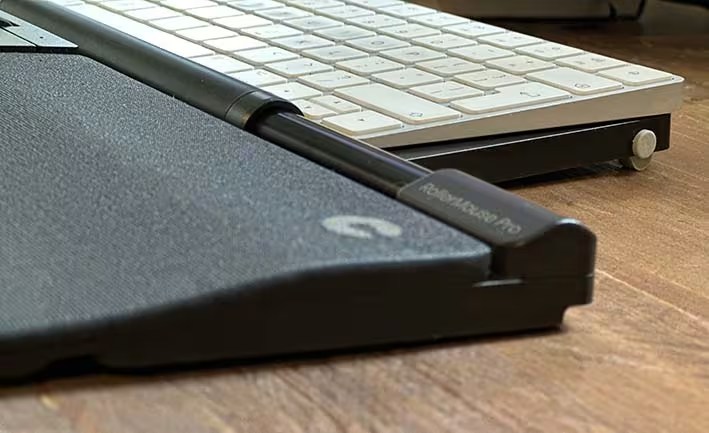
This isn't just an ergonomic upgrade. It's a different philosophy entirely. Traditional mice ask your body to adapt to the device. The RollerMouse Pro adapts to your body instead.
Try this today: Sit at your desk and notice where your right hand lives for most of the workday. That outward reach is the problem. The RollerMouse Pro eliminates it.
Who Actually Benefits From the RollerMouse Pro Contour Design
The honest answer: not everyone needs this device, and that's worth saying upfront.
You'll get the most out of the RollerMouse Pro if you:
- Work 6-10+ hours daily at a computer (software engineers, designers, writers, accountants, architects)
- Already experience wrist pain, forearm tension, or shoulder discomfort from mousing
- Perform high-volume data entry, editing, or document navigation that demands consistent cursor precision
- Work in a limited desk space and need a compact, low-footprint input solution
- Are ambidextrous or left-handed (the centered design works equally well for both hands)
This device is probably not the right fit if you:
- Need fast, sweeping cursor movements for competitive gaming or high-speed graphic design
- Prefer a traditional grip-and-move interaction style
- Are not willing to invest 1-2 weeks adapting to a new input workflow
Health and safety specialists sourcing ergonomic tools for teams will also find practical evidence in this guide on mouse arm and repetitive strain injuries, especially for shared workstations where removing dominant-hand bias matters.
The bottom line: If repetitive strain is your concern, and precision matters more than speed, this device is designed with you in mind.
Key Features Worth Knowing Before You Buy

The Rollerbar: Precision Control Without the Reach
The rollerbar is the core of the RollerMouse Pro experience. Roll it left or right for horizontal movement. Roll it forward or back for vertical movement. Press down to click. It supports diagonal movement too, which means you can navigate any part of your screen without shifting posture.
A large, dedicated scroll wheel sits just above the rollerbar for smooth document scrolling. Single and double clicks register through the bar itself, which means your fingers never have to travel far.
Because your arms rest symmetrically on either side of the keyboard, adaptation feels different from any peripheral you've set up before. Most users report feeling the postural difference within the first session, though full adaptation typically takes 5-10 days. In practice, this aligns with measured outcomes in RollerMouse muscle-effort findings.
Start here: Spend your first week using the rollerbar exclusively for email and document tasks before switching over completely.
Adjustability, DPI, and Customization That Fit Your Workflow
The RollerMouse Pro gives you 10 DPI sensitivity levels ranging from 600 to 2800, which means you can dial in precise control for detailed design work or bump up speed for general navigation.
Five click resistance options let you match the tactile feel to your preference, which matters more than it sounds if you're dealing with finger fatigue. Six programmable buttons handle shortcuts for copy, paste, back, forward, or any command you assign through the driver software. For more on the shoulder side of this, read about an ergonomic mouse for shoulder pain.
Physical dimensions sit at 15"W x 4.2"D x 0.9"H, which means it fits comfortably in front of full-size and compact keyboards alike. Swappable wrist rests (slim or vegan leather) ship with the unit, so comfort customization starts on day one.
Windows and Mac compatible. Wired USB connectivity comes standard, with Bluetooth options available on select configurations. If you're building a prevention-focused setup, use a consistent sensitivity baseline and monitor your shoulder and wrist load during the first week.
Do this before buying: Check which DPI range your current workflow demands. If you use design software, go for a higher-sensitivity setting from day one.
How the RollerMouse Pro Fits Into Your Ergonomic Setup

The RollerMouse Pro doesn't work in isolation. It performs best as part of a thoughtfully arranged workstation where your keyboard, monitor height, and seating position already support neutral posture.
Pairing it with a keyboard designed for the same ergonomic goals makes a significant difference. A flat, low-profile keyboard keeps your wrists in line with the rollerbar, so neither hand has to compensate for height differences.
If you want a complete desk solution from day one, follow a structured checklist for monitor height, input placement, and movement breaks from this ultimate home office ergonomics guide, which removes setup guesswork before you buy extras.
For teams or shared workstations, this deep dive on the benefits of a centred mouse helps explain why centered input often improves consistency across mixed-handed users without driver conflicts.
Desk space is another real benefit. Because the RollerMouse Pro replaces your mouse entirely and sits directly in front of the keyboard, you reclaim the real estate your traditional mouse used to occupy. For compact home offices or standing desk setups, that matters. If shoulder symptoms are already present, compare your setup against this related resource on computer mouse shoulder pain.
Take this step today: Map out your current desk layout and identify where your mousing hand travels furthest. The RollerMouse Pro is most effective when your entire input zone stays within a 12-inch radius of your body's centerline. For neutral wrist positioning benchmarks, review OSHA guidance on wrist support.
If you're not sure which ergonomic mouse to choose, our Help Me Choose Tool narrows it down and finds the mouse that fits you in under a minute.
Conclusion
The Contour RollerMouse Pro isn't a minor upgrade. It's a genuine rethink of how you interact with your computer, and for anyone battling wrist or shoulder strain, that rethink may be exactly what's needed. To understand the design behind it, learn about a keyboard with a built-in mouse roller.
If you're ready to stop working through the pain and start working without it, the RollerMouse Pro is one of the most well-engineered solutions available today.
Frequently Asked Questions About the Contour RollerMouse Pro
How does the RollerMouse Pro reduce wrist and shoulder strain?
The RollerMouse Pro sits centrally in front of your keyboard, eliminating the outward reach required by traditional mice. This centered design keeps both hands in a symmetric, relaxed position, reducing upper extremity muscle activity and lowering injury risk during long work sessions.
What DPI settings does the RollerMouse Pro offer?
The RollerMouse Pro provides 10 customizable DPI sensitivity levels ranging from 600 to 2800, allowing you to adjust precision for detailed design work or increase speed for general navigation based on your workflow needs.
Is the RollerMouse Pro suitable for left-handed users?
Yes, the centered design of the RollerMouse Pro works equally well for both right-handed and left-handed users, eliminating the dominant-hand bias found in traditional mice. This makes it an excellent ergonomic solution for ambidextrous workers and shared workstations.
How long does it take to adapt to the RollerMouse Pro?
Most users report feeling the postural difference within the first session, though full adaptation typically takes 5-10 days. Starting with email and document tasks before switching completely can ease the transition to the rollerbar interface.
Can the RollerMouse Pro be used with both Windows and Mac computers?
Yes, the RollerMouse Pro is compatible with both Windows and Mac operating systems. Wired USB connectivity comes standard, with Bluetooth options available on select configurations, making it suitable for various computer environments.
What ergonomic accessories complement the RollerMouse Pro?
Pairing the RollerMouse Pro with a flat, low-profile keyboard like the Balance Keyboard bundle ensures your wrists remain in line with the rollerbar, preventing height compensation. The Ultimate Work Station bundles everything most users need for a complete ergonomic setup.

Which Device Is Right for You?
Take a quick quiz and get a personalized recommendation based on how you work.

