
How to Set Up an Ergonomic Office Desk That Protects Your Wrists, Neck, and Back
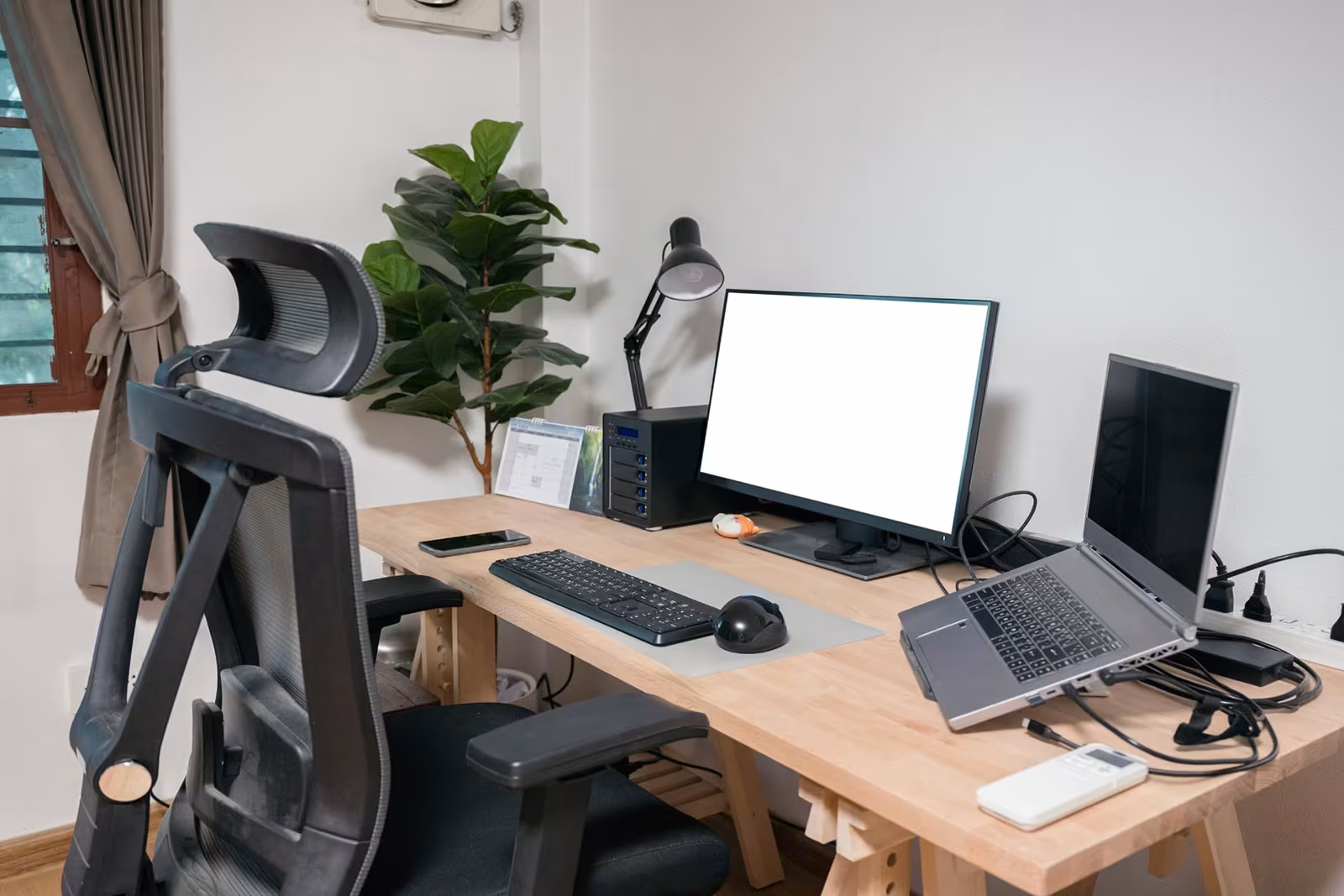
You office desk setup could be the reason you're finishing each workday with stiff shoulders, aching wrists, or a throbbing neck. After 8+ hours hunched over a poorly configured workspace, those minor discomforts compound into real problems.
Here's the good news: most desk-related pain stems from fixable positioning errors. A few strategic adjustments to your chair, monitor, keyboard, and mouse can transform your workspace from a source of strain into a place where you actually feel-good working.
This guide walks you through every element of an ergonomic office desk setup, step by step. You'll learn exactly where and how to position each piece of equipment, why it matters for your body, and how to make changes today that protect you for years to come.
Key Takeaways
- A proper office desk ergonomic setup starts with your chair—adjust seat height so your feet are flat and thighs parallel to the floor.
- Position your monitor at arm's length with the top edge at eye level to eliminate neck strain from looking up or down.
- Keep your keyboard just below elbow height with wrists straight to prevent carpal tunnel syndrome and tendinitis.
- Move your mouse within 3 inches of your keyboard and consider a vertical or centered pointing device to reduce the likelihood of repetitive strain injuries.
- No ergonomic setup can replace movement—stand, stretch, or change positions every hour to prevent the effects of prolonged sitting.
- Start with one adjustment that targets your worst symptom, then gradually optimize your entire office desk ergonomic setup over time.
Why Your Current Desk Setup Might Be Causing Pain

Pain doesn't arrive all at once. It builds quietly, one awkward reach at a time.
When your desk, chair, and monitor aren't properly aligned, your body compensates in ways you barely notice. You lean forward to see the screen. Your shoulders creep upward. Your wrist bends at an unnatural angle to reach the mouse.
These micro-adjustments create repetitive strain injuries (RSI) and musculoskeletal discomfort that accumulate over months and years. According to the CDC's computer workstation guidelines, poor ergonomics directly contributes to neck strain, lower back pain, wrist tension, and shoulder injuries.
The warning signs often start small: tingling in your fingers after typing, neck stiffness by 3 PM, lower back tightness after sitting. Ignore them, and they become chronic.
The Hidden Costs of a Non-Ergonomic Workspace
Beyond physical pain, a poorly configured desk drains your productivity and energy.
Discomfort kills focus. When your body constantly signals distress, your brain can't fully engage with your work. Studies show uncomfortable workstations reduce concentration and increase fatigue throughout the day.
The financial impact adds up too. Ergonomic-related injuries cost U.S. businesses over $20 billion annually in workers' compensation claims. For individuals, chronic pain means medical bills, lost work time, and diminished quality of life outside the office.
Perhaps worst of all: the longer you work in a bad setup, the harder recovery becomes. What starts as occasional wrist soreness can progress to carpal tunnel syndrome requiring surgery. Early intervention through proper workstation ergonomics prevents these outcomes.
Your action step: Spend 2 minutes right now noticing your posture. Are your shoulders relaxed? Wrists straight? Eyes level with the screen? That quick check reveals where your setup is failing you.
Start With Your Chair: The Foundation of Comfort
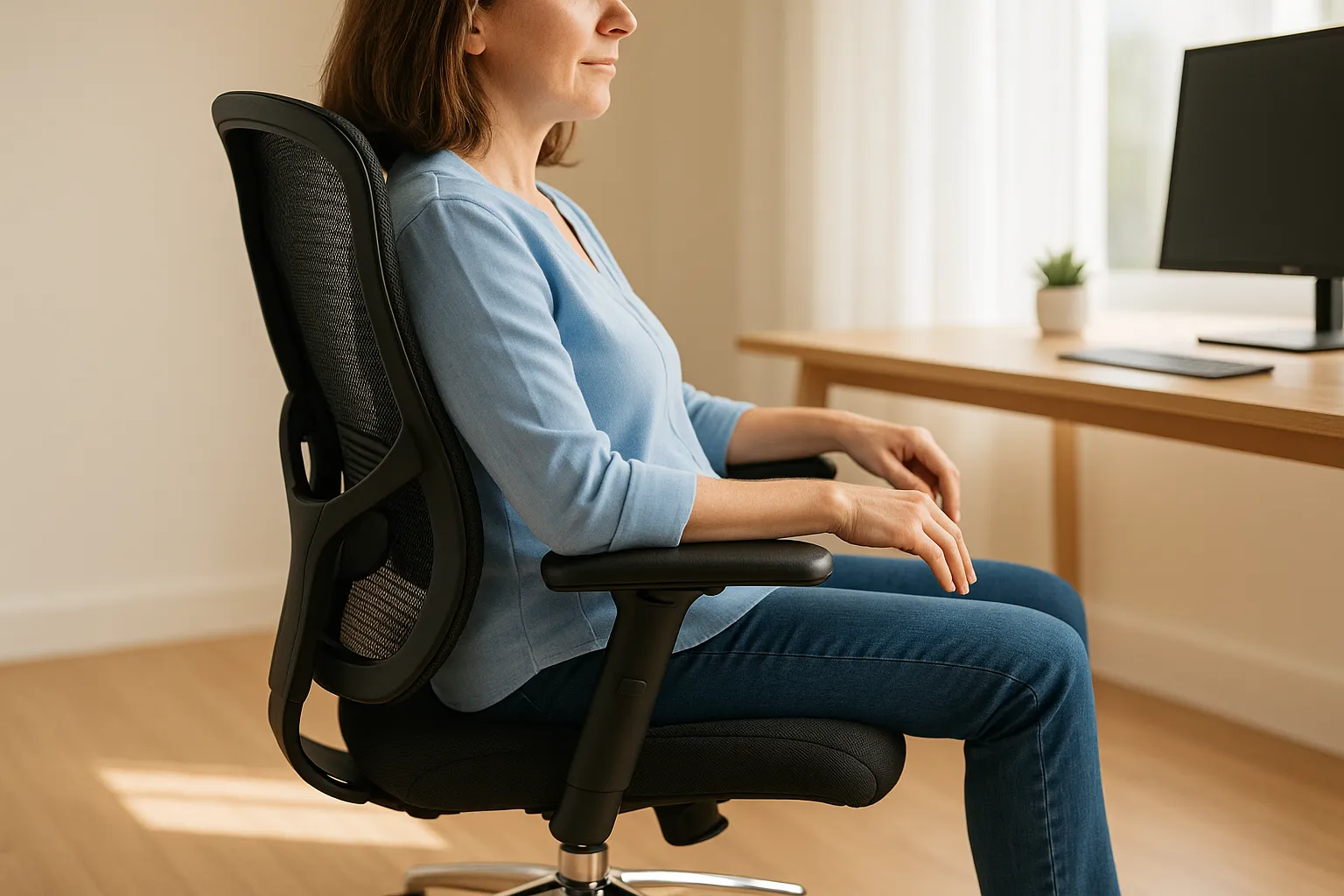
Every ergonomic office desk setup begins with the chair. Get this wrong, and nothing else can compensate.
Your chair should support your spine's natural S-curve, not flatten or exaggerate it. Look for adjustable lumbar support that fills the small of your back without pushing you forward.
The chair should recline slightly (100-110 degrees) and feature tension adjustment so you can lean back without fighting or flopping. A reclined position actually reduces spinal disc pressure compared to sitting fully upright.
Adjust Seat Height and Depth for Neutral Posture
Proper seat height creates a cascade of correct positioning throughout your body.
Set your chair so your feet rest flat on the floor with knees bent at approximately 90 degrees. Your hips should sit slightly higher than your knees, which opens the hip angle and reduces lower back strain.
Seat depth matters too. Aim for about 2-3 fingers of space between the seat edge and the back of your knees. According to Cornell University's ergonomics research, ideal seat depth ranges from 14-18.5 inches for adjustable seats.
If your feet don't reach the floor comfortably, use a footrest rather than lowering your chair. Dangling feet create thigh pressure that restricts circulation.
Set Armrests to Support, Not Strain, Your Shoulders
Armrests should gently support your forearms while your shoulders remain relaxed and dropped.
Position them so your elbows rest at roughly 90 degrees, close to your body. Armrests set too high force your shoulders upward, creating neck and trapezius tension. Too low, and you'll slump to reach them.
Ideally, armrests should pivot inward slightly to match your natural arm position when typing. If your armrests interfere with positioning your body close enough to your desk, consider removing them entirely.
Your action step: Adjust your chair height until your thighs are parallel to the floor, then check that your feet are flat. This 30-second fix solves half of all seating-related discomfort.
Position Your Monitor to Eliminate Neck Strain

Your monitor position determines whether you spend the day with a neutral spine or a forward-jutting neck.
When the screen sits too low, you tilt your head down constantly. Too high, and you crane your neck back. Both positions strain the cervical spine and upper back muscles.
The fix is precise positioning that lets your head balance naturally atop your spine.
Find the Right Height, Distance, and Angle
The top of your screen should align with or sit slightly below eye level. This allows your gaze to fall naturally at the center of the screen with a slight 10-15 degree downward tilt.
Place the monitor directly in front of you, not off to one side. Turning your head repeatedly throughout the day creates asymmetrical neck strain.
Distance matters: Position the screen about arm's length away (20-26 inches). At this distance, you can read comfortably without leaning forward. If you find yourself squinting, increase font size rather than moving closer.
Angle the monitor slightly upward (10-20 degrees) to reduce glare and keep the viewing angle perpendicular to your line of sight. A monitor arm makes these adjustments infinitely easier than a fixed stand.
For laptop users, this positioning is nearly impossible without an external monitor or laptop stand plus separate keyboard. The NIH's workstation self-assessment confirms that laptop-only setups create unavoidable ergonomic compromises.
Your action step: Stack books under your monitor until the top edge reaches eye level. If the improvement feels significant after one day, invest in a proper monitor arm.
Choose an Ergonomic Keyboard Placement That Reduces Wrist Tension
Wrist injuries from typing don't happen because keyboards are inherently dangerous. They happen because most people position keyboards incorrectly.
Your keyboard should sit just below elbow height, with your forearms roughly parallel to the floor. This creates the neutral wrist position that prevents carpal tunnel syndrome and tendinitis.
Keep these positioning rules in mind:
- Wrists stay straight, not bent up, down, or sideways
- Elbows remain at your sides, not flared outward
- Shoulders stay relaxed, not hunched or raised
Many people make the mistake of placing keyboards too high (on a standard desk surface) or too far away. Both force your wrists into bent positions and your shoulders into elevated tension.
A keyboard tray that mounts below your desk surface often solves height problems better than adjusting your chair. These trays also pull the keyboard closer, eliminating the reach that strains shoulders.
If you've experienced wrist pain from typing, consider learning more about ergonomic office equipment options designed specifically for pain prevention.
Your action step: Check your wrist angle while typing right now. If they're bent in any direction, lower your keyboard or raise your chair until they straighten.
Upgrade Your Mouse Setup to Prevent RSI

Your mouse might be the most dangerous item on your desk.
The average office worker clicks a mouse 5,000+ times per day. Each click requires the same small motion, the same muscle activation, the same joint position. Multiply that by 250 workdays per year, and you've performed over 1.25 million repetitive movements annually with one hand.
Why Traditional Mice Cause Repetitive Strain
Conventional mice force your forearm into pronation, the palm-down position that twists the two forearm bones (radius and ulna) across each other. Hold this position for hours while making tiny, repetitive movements, and you're creating the perfect conditions for RSI.
Also, handheld mice require constant reaching. This sustained lateral reach strains the shoulder joint and upper back muscles.
The symptoms build gradually: tingling in the fingers, forearm tightness, shoulder ache by day's end. Many people don't connect these symptoms to their mouse until the damage requires medical intervention.
Centered Pointing Devices vs. Traditional Mice

The ergonomic solution involves two changes: hand position and device placement.
Vertical or angled mice keep your forearm in a more neutral "handshake" position, reducing pronation strain. This single change provides relief for many RSI sufferers.
Centered pointing devices like a RollerMouse or Contour Touch eliminate the shoulder strain of reaching sideways. Positioned directly in front of you, between the keyboard halves, they keep both arms symmetrically aligned.
Contour Design's RollerMouse combines both benefits: a centered bar that your hands reach naturally, operated with fingers in a relaxed position. Users report elimination of shoulder and wrist pain caused by traditional mice.
Whatever mouse style you choose, position it at the same height as your keyboard and keep your wrist straight during use.
Your action step: Measure how far you reach for your mouse from the keyboard. If it's more than 3 inches, you're straining your shoulder with every click. Move it closer today.
Organize Your Desk for Effortless Reach and Movement
Desk organization isn't about aesthetics. It’s about reducing the reaching, wasted movements, and awkward twists that accumulate into pain.
Keep frequently used items within arm's reach without leaning or stretching. This includes:
- Your phone (if used regularly)
- Notepads or documents you reference
- Water bottle or coffee mug
- Any tools you grab multiple times daily
Items used less often can sit further away. The 30-second stretch to reach them actually provides beneficial movement variety.
Under your desk, maintain at least 2 feet of clearance for your legs. Cramped leg space forces awkward positioning and prevents the position changes your body needs. Clear out storage bins, CPU towers, or anything that restricts free leg movement.
For documents you reference while typing, use a document holder positioned at monitor height and angle. Repeatedly looking down at papers on your desk strains your neck far more than glancing sideways at eye level.
If you're setting up a home office workspace, you have full control over desk organization from day one. Use that freedom to build good habits.
Your action step: Clear everything off your desk, then return only items you use daily. Position each within easy reach without twisting.
Fine-Tune Lighting and Reduce Eye Fatigue
Eye strain might not seem related to an ergonomic office desk setup, but it directly affects your posture.
When you can't see your screen clearly, you lean forward. When glare obscures content, you tilt your head awkwardly. These compensations create neck and back strain that proper lighting prevents.
Position your monitor perpendicular to windows, not facing them or with them behind you. Direct sunlight creates glare: backlighting creates contrast strain. Side lighting minimizes both problems.
For artificial light:
- Avoid overhead fluorescents shining directly on your screen
- Use task lighting directed at documents, not the monitor
- Match ambient room brightness to screen brightness
Your monitor itself contributes to eye strain. Set brightness to match your surrounding environment, not maximum. Enable blue light filtering in the evening hours when it can disrupt sleep patterns.
The 20-20-20 rule helps prevent eye fatigue: every 20 minutes, look at something 20 feet away for 20 seconds. This relaxes the focusing muscles that tense during close screen work.
Your action step: Look at your monitor now. Can you see window reflections? If yes, reposition the screen or add a glare-reducing filter.
Build Movement Into Your Workday

Even a perfect ergonomic setup still can't overcome 8 hours of stillness. Human bodies need movement variation to stay healthy.
No single posture is meant to be held indefinitely. Static positioning restricts blood flow, fatigues muscles, and compresses joints. Movement reverses all three.
A sit-stand desk transforms your options. Standing for even 2-3 hours across the workday reduces spinal compression and engages different muscle groups. The transition itself provides beneficial movement.
If a standing desk isn't feasible, build micro-movements into your routine:
- Stand during phone calls
- Walk to a colleague instead of messaging
- Take a 2-minute stretch break every hour
- Shift positions within your chair regularly
Set a timer if needed. When focused on demanding work, hours pass without position changes unless you create deliberate interruptions.
For comprehensive guidance on workplace ergonomics principles, understanding the role of movement is essential. Ergonomics isn't just about equipment: it's about how you use your body throughout the day.
Your action step: Set a phone alarm for every 55 minutes. When it rings, stand and stretch for 2 minutes before continuing work. This small habit prevents the worst effects of prolonged sitting.
Your Next Steps Toward a Pain-Free Workspace
You don't need to overhaul everything at once. Start with the adjustment that addresses your worst symptom.
Neck pain? Fix your monitor height first. Wrist discomfort? Lower your keyboard and evaluate your mouse. Lower back ache? Focus on chair adjustment and lumbar support.
Make one change, work with it for a few days, then address the next priority. This approach lets you feel the impact of each adjustment clearly.
The equipment matters, but positioning matters more. A $1,000 chair set at the wrong height causes as much pain as a cheap one. Master the fundamentals covered in this guide before investing in premium gear.
When you are ready to upgrade, prioritize items touching your body most: chair, keyboard, mouse. These create the most direct ergonomic impact per dollar spent.
Your future self will thank you. Every adjustment you make today prevents cumulative damage that becomes harder to reverse with time. Start now.
Frequently Asked Questions
What is the ideal monitor height for an ergonomic office desk setup?
The top of your monitor should align with or sit slightly below eye level, positioned directly in front of you at arm's length (20-26 inches). This placement allows your gaze to fall naturally at the screen center with a slight 10-15 degree downward tilt, preventing neck strain and maintaining neutral spine alignment.
How should I adjust my chair height for proper ergonomic posture?
Set your chair so your feet rest flat on the floor with knees bent at approximately 90 degrees. Your hips should sit slightly higher than your knees to open the hip angle and reduce lower back strain. If your feet don't reach the floor, use a footrest rather than lowering your chair.
Why does my wrist hurt after typing all day?
Wrist pain from typing typically results from incorrect keyboard positioning. When keyboards sit too high or too far away, your wrists bend unnaturally. Position your keyboard just below elbow height with forearms parallel to the floor, keeping wrists straight—not bent up, down, or sideways—to prevent carpal tunnel syndrome and tendinitis.
What is the best mouse position to prevent repetitive strain injury?
Place your mouse at the same height as your keyboard and within 3 inches of it to avoid shoulder strain from reaching. Keep your wrist straight during use and consider a vertical mouse or centered pointing device, which maintains a neutral forearm position and reduces the pronation that causes RSI over time.
How often should I take breaks from sitting at my desk?
Take a brief movement break every 55-60 minutes to prevent the negative effects of prolonged sitting. Stand, stretch, or walk for at least 2 minutes. Additionally, follow the 20-20-20 rule for eye strain: every 20 minutes, look at something 20 feet away for 20 seconds.
Can a standing desk improve my office desk ergonomic setup?
Yes, a sit-stand desk significantly improves ergonomics by allowing you to alternate positions throughout the day. Standing for 2-3 hours reduces spinal compression and engages different muscle groups. The transition between sitting and standing provides beneficial movement that static positioning cannot offer.

Which Device Is Right for You?
Take a quick quiz and get a personalized recommendation based on how you work.

