
Ergonomic Stand: How to Set Up Your Workspace for Comfort and Productivity

An ergonomic stand can transform your workday from a cycle of pain and fatigue into something surprisingly comfortable. If you've spent years hunched over a laptop or craning your neck toward a too-low monitor, you already know the toll it takes. The stiff shoulders by 2 PM. The lower back ache that lingers into the evening.
Here's the good news: small changes to how your screen sits can produce outsized results. Studies show that proper monitor positioning reduces neck and shoulder pain while improving focus and output. Whether you're battling existing discomfort or trying to prevent it, the right stand setup puts you back in control.
This guide walks you through the types of ergonomic stands available, how to choose one that fits your workflow, and the setup details that actually matter. Let's get your workspace working for you.
Key Takeaways
- An ergonomic stand positions your monitor at eye level, preventing neck strain and reducing chronic pain from poor posture.
- Alternating between sitting and standing throughout the day improves circulation, reduces spinal pressure, and boosts productivity.
- Choose an ergonomic stand based on your equipment compatibility, desk dimensions, work style, and budget for the best fit.
- Set your monitor about arm's length away (20-26 inches) with the top of the screen at or slightly below eye level for optimal comfort.
- Pair your stand with an anti-fatigue mat, supportive chair, and ergonomic input devices to create a complete workspace system.
- Start with 15-30 minute standing intervals and gradually increase over 2-3 weeks to let your body adapt.
Why Ergonomics Standing Matters for Your Health

Proper ergonomics standing isn't just about comfort. It's about protecting the body you depend on for work.
Alternating between sitting and standing keeps blood flowing, reduces pressure on spinal discs, and helps maintain muscle engagement throughout the day. Research published in the journal BMC Public Health found that sit-stand workstations significantly reduced sitting time, decreased neck and shoulder pain, and improved workers' self-rated health and productivity.
Prolonged sitting is linked to increased risks of cardiovascular disease, type 2 diabetes, obesity, and chronic musculoskeletal problems. The human body simply wasn't designed to stay frozen in one position for 8+ hours.
An ergonomic stand gives you options. It lets you raise your monitor or laptop to the correct height, which means your neck stays neutral instead of tilting forward. That single adjustment can prevent the cascade of strain that travels from your cervical spine down through your shoulders and back.
The Hidden Costs of Poor Posture at Your Desk
When you sit without proper support, your body compensates in ways that create long-term damage. You round your back. You collapse over your keyboard. Your head drifts forward, adding up to 30 extra pounds of pressure on your cervical spine for every inch of forward tilt.
This sustained strain compresses spinal nerves and tightens muscles that should be relaxed. The result? Chronic neck pain, tension headaches, and stiffness that doesn't fully resolve even after you leave your desk.
But the costs go beyond physical discomfort. Poor ergonomics leads to:
- Reduced productivity from fatigue and distraction
- More sick days due to pain-related absences
- Higher healthcare expenses for treatment and therapy
- Long-term injury risk, including repetitive strain injuries (RSI)
One study estimates that musculoskeletal disorders cost U.S. employers between $45 and $54 billion annually in direct costs alone. For individuals, the toll is personal: interrupted sleep, limited activities, and the frustration of not being able to work without discomfort.
Understanding the anatomy of ergonomics helps you see why small positioning changes create big relief. When your screen sits at eye level and your arms rest at proper angles, your body can finally relax into a sustainable posture.
Action step: Notice your posture right now. Is your head forward? Are your shoulders rounded? Awareness is the first step toward change.
Types of Ergonomic Stands for Your Workspace
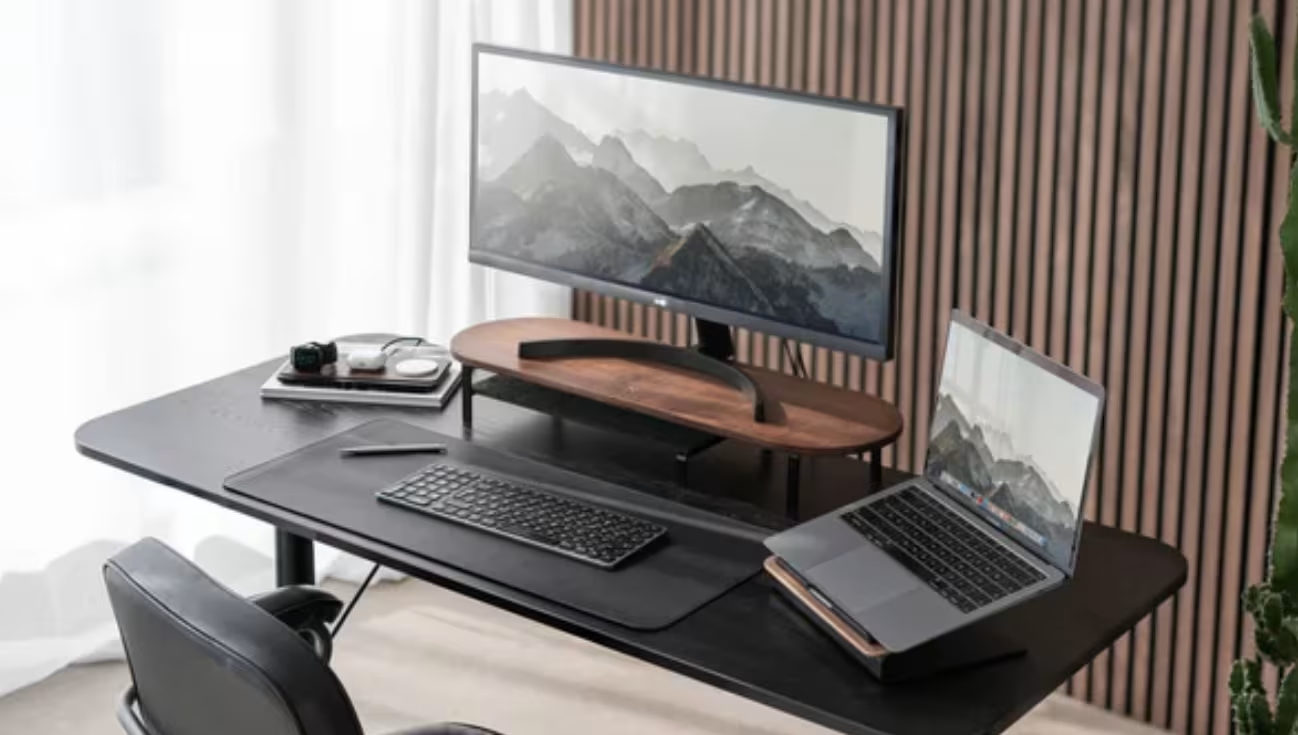
Not all ergonomic stands solve the same problem. The right choice depends on your equipment, your desk setup, and how much flexibility you need.
Monitor Stands and Arms
Monitor stands elevate your display to eye level, preventing the neck tilt that causes so much strain. A basic fixed stand adds 4-6 inches of height and often includes storage space underneath for keyboards or office supplies.
Monitor arms offer more adjustability. They clamp to your desk and let you move your screen in multiple directions: up, down, forward, back, and side to side. This is especially useful if you switch between tasks that require different viewing angles, or if you share your workspace with someone of a different height.
Look for arms that support your monitor's weight (most screens weigh between 5-20 pounds) and offer smooth, easy repositioning. Gas-spring mechanisms allow single-hand adjustment, which means you'll actually use the flexibility instead of leaving your screen in one spot forever.
Laptop Stands and Risers
Laptops create an ergonomic puzzle: the screen and keyboard are attached, so raising one means the other becomes unusable. That's why laptop stands work best when paired with an external keyboard and mouse.
A quality laptop riser positions your screen at eye level while also improving airflow to prevent overheating. Research from a study on adjustable laptop stands confirms that proper laptop elevation helps users maintain better posture during typing tasks.
The Contour Laptop Stand features adjustable height settings and sturdy construction that keeps your device stable during use. It folds flat for portability, which is ideal if you work from multiple locations or need to free up desk space.
Pro tip: Using a laptop stand properly means positioning the top of your screen at or slightly below eye level. Your gaze should fall naturally on the upper third of the display.
Sit-Stand Desk Converters
Sit-stand converters sit on top of your existing desk and let you switch between sitting and standing without replacing your furniture. They're a practical solution if you rent, have limited space, or want to test standing before committing to a full standing desk.
According to the Canadian Centre for Occupational Health and Safety, sit-stand desks allow users to alternate positions throughout the day, which reduces the health risks associated with prolonged sitting while avoiding the fatigue of standing continuously.
Converters range from simple manual risers to motorized units with preset height memories. Consider your workflow: if you switch positions frequently, an electric converter saves time and effort. If you only stand for a few hours daily, a manual option may be sufficient.
Action step: Measure your current desk height and your standing elbow height. The difference tells you how much range you need from a converter.
How to Choose the Right Ergonomic Stand for Your Needs

Choosing an ergonomic stand comes down to four factors: your equipment, your space, your work style, and your budget.
Equipment compatibility matters most. A monitor stand needs to fit your display size and weight. A laptop riser should match your device's footprint. Sit-stand converters must accommodate your keyboard, mouse, and any other tools you keep within reach.
Measure your desk dimensions before you shop. A converter that looks perfect online might overwhelm a 48-inch desk or feel cramped on a spacious 72-inch surface. Write down:
- Desk width and depth
- Monitor size (diagonal inches) and weight
- Current desk height
- Your standing elbow height (arms relaxed at sides, forearms parallel to floor)
Work style influences which features matter. Do you collaborate with colleagues who need to see your screen? A swiveling monitor arm helps. Do you switch between deep focus work and video calls? Quick height adjustment saves time. Do you travel between home and office? Portability becomes essential.
Budget ranges widely. Basic laptop stands start around $25-40. Quality monitor arms run $80-200. Sit-stand converters cost $150-500+ depending on size and motorization. Think of this as an investment in your health and productivity, not just office furniture.
One often-overlooked consideration: stability. A wobbly stand creates distraction and frustration. Look for solid construction, non-slip surfaces, and secure mounting mechanisms. The small cost difference between a flimsy stand and a sturdy one pays off every day you use it.
If you're unsure where to start, exploring our comprehensive ergonomic office setup can help you understand how different tools work together.
Action step: This week, spend 10 minutes measuring your workspace and listing your equipment. Having these numbers ready makes shopping faster and more accurate.
Setting Up Your Ergonomic Stand for Maximum Comfort
Buying the right stand is only half the battle. Setup determines whether you actually get relief.
Start with monitor height. The top of your screen should sit at or just below eye level. When you look straight ahead with your head neutral, your gaze should land on the upper third of the display. This prevents the forward head posture that strains neck muscles.
Distance matters too. Position your monitor about arm's length away (roughly 20-26 inches from your eyes). Too close causes eye strain. Too far forces you to lean forward, undoing the postural benefits of your stand.
For sit-stand setups, adjust the standing height so your elbows form a 90-degree angle when your hands rest on the keyboard. Your wrists should stay neutral, not bent up or down. Many people set their standing desks too high, which creates shoulder tension.
Use an anti-fatigue mat when standing. These cushioned surfaces reduce pressure on your feet, knees, and lower back. They also encourage subtle movements that improve circulation. Standing on hard floors without a mat leads to fatigue within 30-60 minutes.
Transition gradually. If you're new to standing, don't try 8 hours on day one. Start with 15-30 minute standing intervals, then build up over 2-3 weeks. Your body needs time to adapt to the new demands.
A practical schedule: sit for 45-60 minutes, stand for 15-20, repeat. Some people prefer alternating every 30 minutes. Find what works for your energy and focus levels.
Don't forget lighting. Position your monitor to minimize glare from windows or overhead lights. Glare forces you to shift awkwardly to see the screen, which defeats ergonomic positioning.
Action step: Set a timer to remind yourself to change positions every 45-60 minutes. Consistency matters more than perfection.
Pairing Your Stand with Other Ergonomic Tools
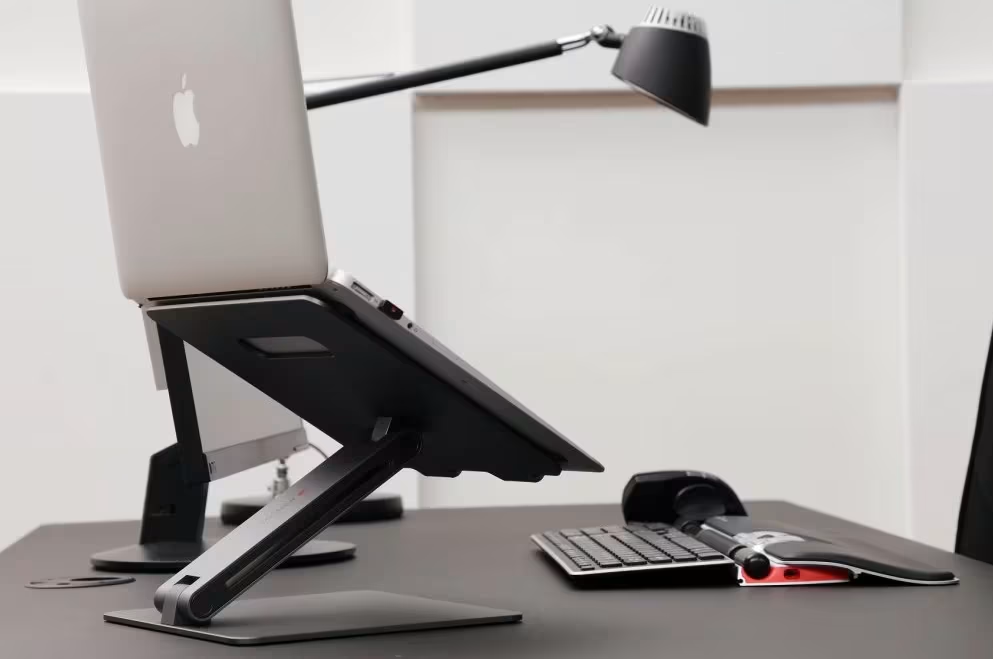
An ergonomic stand solves the screen-height problem. But your workspace is an ecosystem, and optimizing one element highlights weaknesses in others.
Your mouse and keyboard deserve equal attention. Traditional mice force your hand into a pronated position (palm down) that strains the forearm. Centrally-positioned pointing devices, like the RollerMouse series, keep your hands within shoulder width and eliminate the reaching that causes shoulder tension.
If you've tried vertical mice or wrist rests with limited success, the issue might be positioning rather than the tool itself. A raised laptop or monitor combined with a keyboard at desk level creates an awkward angle. External keyboards positioned at elbow height restore neutral wrist posture.
Chair support complements standing intervals. When you sit, your chair should support your lower back's natural curve, keep your feet flat on the floor, and position your thighs parallel to the ground. Even the best ergonomic stand can't compensate for a chair that forces poor posture.
Movement breaks round out the system. Every 30-60 minutes, take 60 seconds to stretch your neck, roll your shoulders, and move your wrists through their range of motion. These micro-breaks prevent the stiffness that accumulates even with perfect positioning.
Consider these additions to your setup:
- Document holder positioned next to your monitor to prevent neck rotation
- Footrest if your desk height doesn't allow feet to rest flat
- Task lighting to reduce eye strain and awkward leaning
Building the ideal workplace takes time, but each improvement compounds. Start with your stand, then address the next source of discomfort.
Action step: Identify the one tool in your current setup that causes the most strain. Research a replacement this week.
Conclusion
Setting up an ergonomic stand isn't complicated, but it does require intention. The right stand, properly positioned, transforms your workspace from a source of daily strain into a place where you can actually focus on your work.
Start by understanding your needs: your equipment, your space, your work patterns. Choose a stand that matches those requirements. Then take the time to set it up correctly, because height and distance matter more than most people realize.
Remember that your stand works best as part of a complete ergonomic system. Pair it with proper input devices, a supportive chair, and regular movement breaks. These elements work together to protect your body over the long hours you spend at your desk.
If you're dealing with existing pain, relief won't come overnight. But consistent good habits, supported by the right tools, can make a real difference. Many users report noticeable improvement within 2-4 weeks of optimizing their setup.
Your body does the work that pays your bills. It deserves a workspace that supports it.
Frequently Asked Questions
What are the health benefits of using an ergonomic stand?
An ergonomic stand reduces strain on your neck, shoulders, and lower back by positioning your screen at eye level. Studies show that proper monitor height prevents forward head posture, decreases chronic pain, and improves focus and productivity throughout the workday.
How do I set up an ergonomic stand correctly?
Position your monitor so the top of the screen sits at or just below eye level, about arm's length away (20-26 inches). For standing setups, adjust the height so your elbows form a 90-degree angle when typing, and use an anti-fatigue mat for comfort.
What is the difference between a monitor stand and a sit-stand desk converter?
A monitor stand or arm elevates your screen to the correct height on your existing desk. A sit-stand desk converter sits on top of your desk and raises your entire workstation, allowing you to alternate between sitting and standing positions throughout the day.
Can an ergonomic stand help reduce neck and shoulder pain?
Yes. Research published in BMC Public Health found that sit-stand workstations significantly decreased neck and shoulder pain. By raising your screen to eye level, an ergonomic stand eliminates the forward head tilt that causes muscle strain and tension headaches.
How often should I alternate between sitting and standing at my desk?
A practical schedule is sitting for 45-60 minutes, then standing for 15-20 minutes. If you're new to standing, start with shorter intervals and gradually increase over 2-3 weeks. Consistency in changing positions matters more than standing for extended periods.
What other ergonomic tools should I pair with my stand?
Combine your ergonomic stand with an external keyboard and mouse positioned at elbow height, a supportive chair for seated work, and an anti-fatigue mat for standing. Regular movement breaks and stretching further enhance the benefits of your setup.

Which Device Is Right for You?
Take a quick quiz and get a personalized recommendation based on how you work.

