

Many office workers experience wrist, hand, or elbow pain after long sessions at the computer, which can also resemble early signs of carpal tunnel syndrome. One of the more common conditions behind this discomfort is ulnar nerve entrapment—a compression of the ulnar nerve that runs from the neck down through the elbow and into the hand. An ergonomic mouse designed to reduce strain can make a significant difference, especially when symptoms are linked to repetitive cursor control.
This guide explains what causes ulnar nerve entrapment, how to recognize early warning signs, and how choosing the best ergonomic mouse can help reduce pain. For broader context on treating repetitive strain injuries, see our full guide.
What Causes Ulnar Nerve Entrapment?
The ulnar nerve is vulnerable at both the elbow and wrist. When it is compressed or irritated, users may feel tingling in the ring and little fingers, reduced grip strength, or aching along the forearm.
Several everyday computer habits increase this risk:
- Repeated movements with a traditional computer mouse
- Reaching too far to the side of the keyboard
- Resting the wrist or elbow on hard desk edges
- Long periods of gripping or pinching a mouse
- Poor wrist position that forces the hand out of neutral alignment
Because most people use a computer mouse for hours at a time, even small misalignments can lead to discomfort and musculoskeletal disorders over time. This makes workstation setup—and mouse design—critical for preventing nerve compression.
Source: London Pain Clinic
Symptoms to Watch For
Early symptoms often start subtly and grow over time:
- Tingling or numbness in the palm, ring finger, and little finger
- Weakness in the hand or reduced coordination in the fingers
- Tenderness at the elbow joint
- Sensitivity to cold
- A feeling that the hand “falls asleep” during computer work
- Rising wrist pain during long sessions
Consistently noticing even one of these symptoms is a sign that your current mouse setup may be contributing to nerve irritation.
Source: Physical Therapist's Guide to Cubital Tunnel Syndrome
Why an Ergonomic Mouse Helps Reduce Pain
A well-designed ergonomic mouse keeps the wrist, fingers, and forearm in a neutral position. This reduces compression on the ulnar nerve, improves overall support, and limits the strain caused by gripping, twisting, or reaching. However, the effectiveness varies significantly depending on the mouse style.
Not all ergonomic mice solve the problem the same way. Here’s how various designs compare:
Vertical Ergonomic Mouse
A vertical mouse places the hand in a handshake position, easing strain on the forearm muscles and reducing rotation. While this can help some users, the device still requires gripping and side-to-side movements, and many users experience a notable learning curve.
Read More About Unimouse - Adjustable Vertical Mouse

Trackball Mouse
Trackball mice minimize arm movement because the fingers or thumb move the ball instead of sliding the device across the desk. This reduces repeated movements but may increase strain in the thumb or palm depending on hand size and usage patterns.
Roller-Bar Mouse like RollerMouse
A roller-bar mouse sits directly in front of the keyboard, placing the pointing device in the most natural location for computer work. Instead of reaching off to the side, users control the cursor with a central roller bar, keeping their hands, arms, and shoulders aligned with the keyboard at all times. This centered position allows both hands to participate in cursor control, reducing the workload on any single finger, wrist, or forearm.
Read More: RollerMouse reduces muscle effort by 20%
This central layout reduces the major risk factors for ulnar nerve compression:
- Arms stay close to the body instead of abducted to the side
- Wrists remain in a neutral, relaxed position
- Minimal elbow movement is required
- The device eliminates the need to grip or clutch a traditional mouse
- Both hands can share button clicks and cursor navigation
- Shoulder, forearm, and wrist strain is significantly reduced
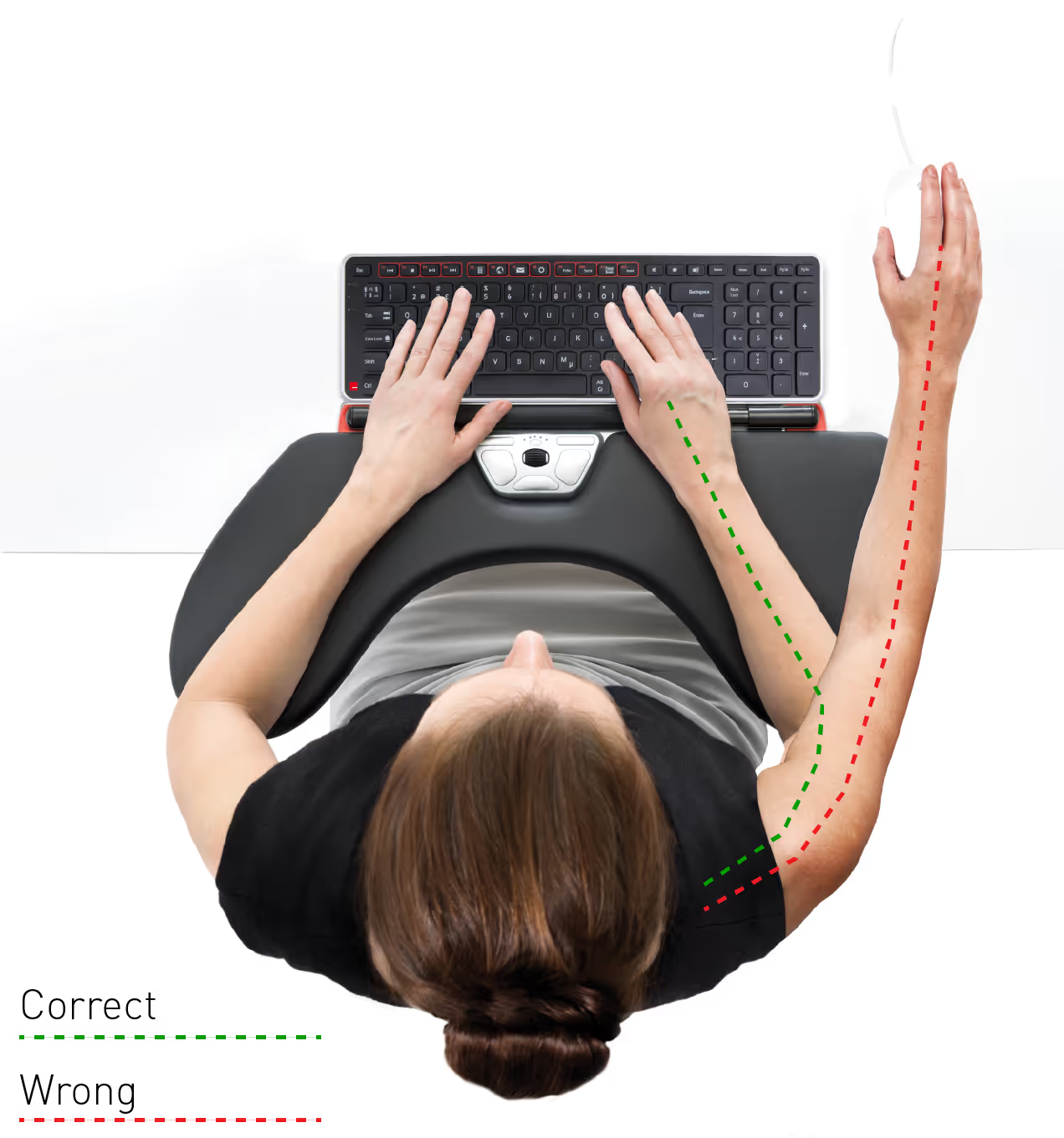
By bringing the pointing device into the center of the workstation, the roller-bar mouse eliminates the reach and gripping forces that contribute to ulnar nerve irritation. This makes it one of the best ergonomic mouse alternatives for people seeking to prevent or relieve ulnar nerve entrapment.
What We Recommend: The RollerMouse
Contour’s RollerMouse is designed specifically to reduce the repeated movements and side reaching that lead to wrist and elbow strain. Positioned centrally in front of the keyboard, it keeps the user’s body aligned and supported throughout the workday.
Explore about RollerMouse | Contour Design
Key benefits include:
- Best pain relief and prevention across shoulder, neck, wrist and forearm
- A neutral, comfortable wrist position
- Smooth cursor control using the roller bar
- Natural and efficient switch between mousing and typing
- Adjustable cursor speed and programmable buttons
- Models available with wrist rests for added comfort
- Ambidextrous use - control with both of your hands
- Wireless and wired options
.avif)
These features make RollerMouse a highly effective device for users who feel pain from a regular mouse or who want to prevent nerve irritation before it escalates.
When to Consider Switching Your Mouse
If you experience any of the following during long computer sessions, it may be time to move to an ergonomic mouse:
- Wrist pain or forearm discomfort
- Tingling in the fingers
- A feeling of numbness after using the mouse
- Ongoing elbow irritation
- The sense that your shoulders lift or tighten while working
Changing to the right ergonomic mouse can relieve symptoms and protect your muscles and nerves before the pain progresses. A roller-bar design offers the most complete solution because it addresses the root causes of ulnar nerve strain—not just the symptoms.
Get a free RollerMouse demo here!
Which Device Is Right for You?
Take a quick quiz and get a personalized recommendation based on how you work.

