
Ambidextrous Mouse: The Smart Way to Prevent Pain and Work Comfortably With Either Hand
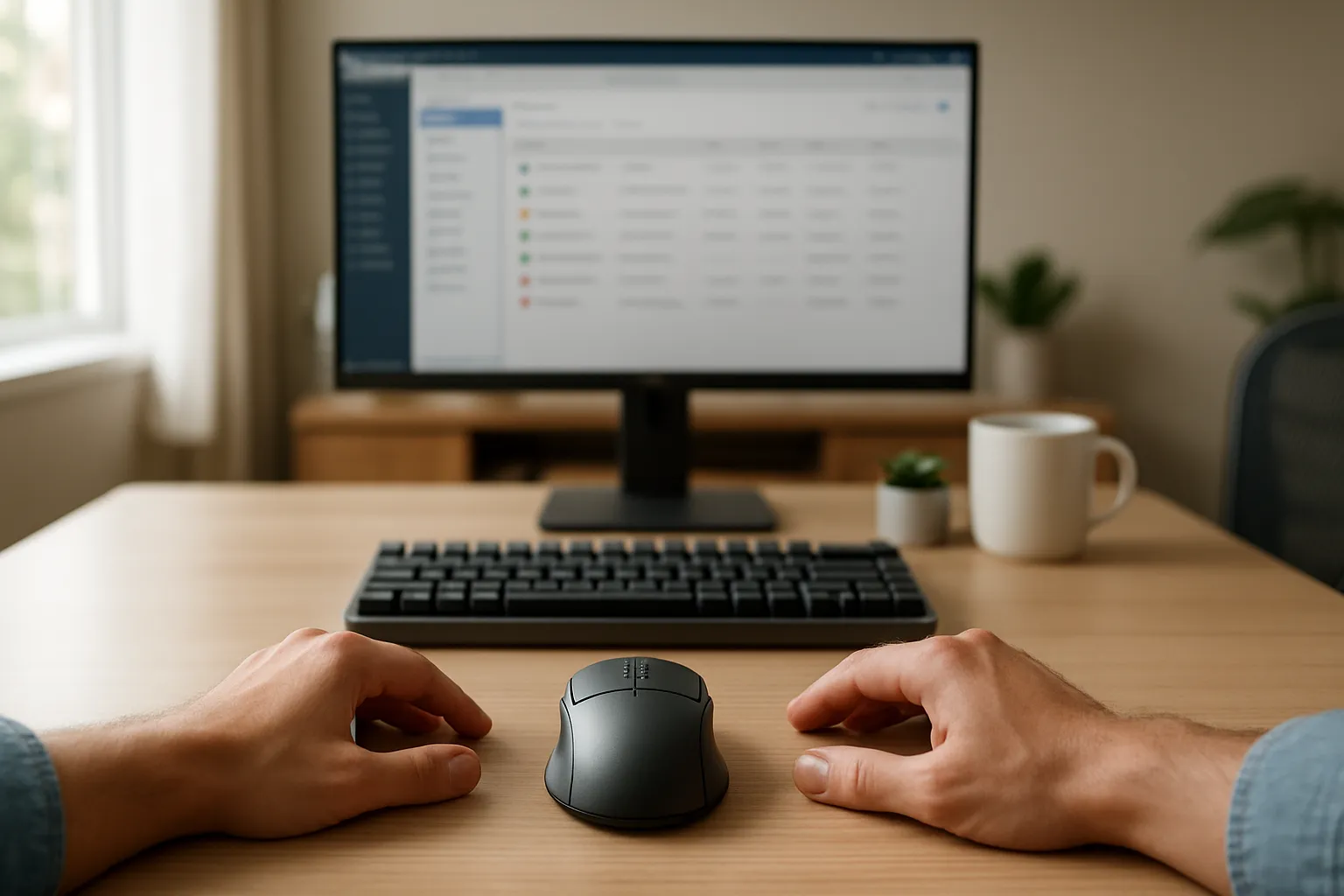
An ambidextrous mouse might be the simplest ergonomic change you never considered. If you spend 6–10 hours a day clicking, scrolling, and dragging with the same hand, you're asking one wrist, one forearm, and one shoulder to absorb thousands of repetitive movements every single workday. Over months and years, that adds up. Switching hands, or using a device designed to let you switch, can spread that load and keep your body healthier for the long haul.
But not every symmetrical mouse is truly ergonomic, and not every pain problem is best solved by alternating hands. In this guide, you'll learn what an ambidextrous mouse actually does, who benefits most from one, what features matter, and when a centered pointing device might relieve even more strain. You'll walk away with a clear plan to protect your wrists and keep your productivity high.
Key Takeaways
- An ambidextrous mouse features a symmetrical design that lets you swap hands freely, reducing repetitive strain on your dominant wrist, forearm, and shoulder.
- Shifting even 20–30% of your daily mouse use to your non-dominant hand can meaningfully lower cumulative strain and RSI risk.
- When choosing an ambidextrous mouse, prioritize a palm-filling shape, adjustable DPI settings, and programmable buttons accessible from both sides.
- Pairing your ambidextrous mouse with a compact keyboard moves the device closer to your body's midline, helping keep your shoulders even and reducing lateral reach.
- If hand alternation alone doesn't relieve your symptoms, a centered pointing device like a rollerbar eliminates sideways reaching entirely and lets both hands share the workload.
- Most users reach roughly 80% of their dominant-hand accuracy with their non-dominant hand within two weeks of consistent practice.
What Is an Ambidextrous Mouse and Who Needs One?
An ambidextrous mouse is a pointing device with a symmetrical body. The left and right sides mirror each other, so the shape doesn't favor one hand over the other. You can pick it up, swap it to your opposite hand, and keep working without fighting a contoured grip meant for somebody else's dominant hand.
This design appeals to a few distinct groups:
- Left-handed users tired of right-hand-biased shapes.
- People recovering from or preventing RSI who want to alternate hands throughout the day.
- Shared workstation users in labs, studios, or hot-desk offices.
- Travelers and minimalists who want one mouse that works in any situation.
If you've ever wondered how an ergonomic mouse compares to a regular one, the ambidextrous category sits somewhere in between: it removes the handedness lock of a standard mouse but doesn't always go as far as a fully ergonomic design in correcting wrist posture.
How Repetitive One-Handed Use Leads to Strain
Every time you grip a traditional mouse, your forearm rotates palm-down into a position called pronation. Hold that posture for eight hours, five days a week, and the tendons and muscles in your forearm stay under constant low-grade tension. A NIOSH-funded study evaluating four pointing device designs found measurable differences in upper-extremity muscle activity depending on device type, confirming that the mouse you choose directly affects how hard your forearm muscles work.
Over time, that sustained pronation and repetitive clicking can contribute to:
- Lateral epicondylitis (tennis elbow or "mouse elbow"), involving microtears in the forearm tendons at the outer elbow.
- Carpal tunnel syndrome, where swelling compresses the median nerve inside the wrist.
- Extensor tendinopathy, pain along the top of the forearm from constant finger extension.
The issue isn't that one click hurts you. It's that 5,000+ clicks per day, all routed through the same hand, create cumulative strain with no recovery window.
Signs It's Time to Switch Hands or Upgrade Your Mouse
Your body usually sends warning signals before RSI becomes a serious problem. Pay attention if you notice:
- Dull aching in your mouse-side wrist or forearm that wasn't there a year ago.
- Grip fatigue after short work sessions, especially noticeable when you pick up a coffee cup.
- Tingling or numbness in your fingertips, particularly your thumb, index, or middle finger.
- Loss of precision, where your cursor drifts or you overshoot targets more than usual.
- Morning stiffness in your dominant hand that loosens after 15–20 minutes.
If tingling or numbness persists, that's a red flag worth discussing with a clinician. These symptoms can indicate nerve compression that won't fix with a new mouse alone.
Your action step: Spend one minute right now flexing and extending your mouse-side wrist. If you feel tightness, stiffness, or a twinge at the outer elbow, that's your cue to start alternating hands or exploring a different pointing device.
Key Benefits of Using an Ambidextrous Mouse
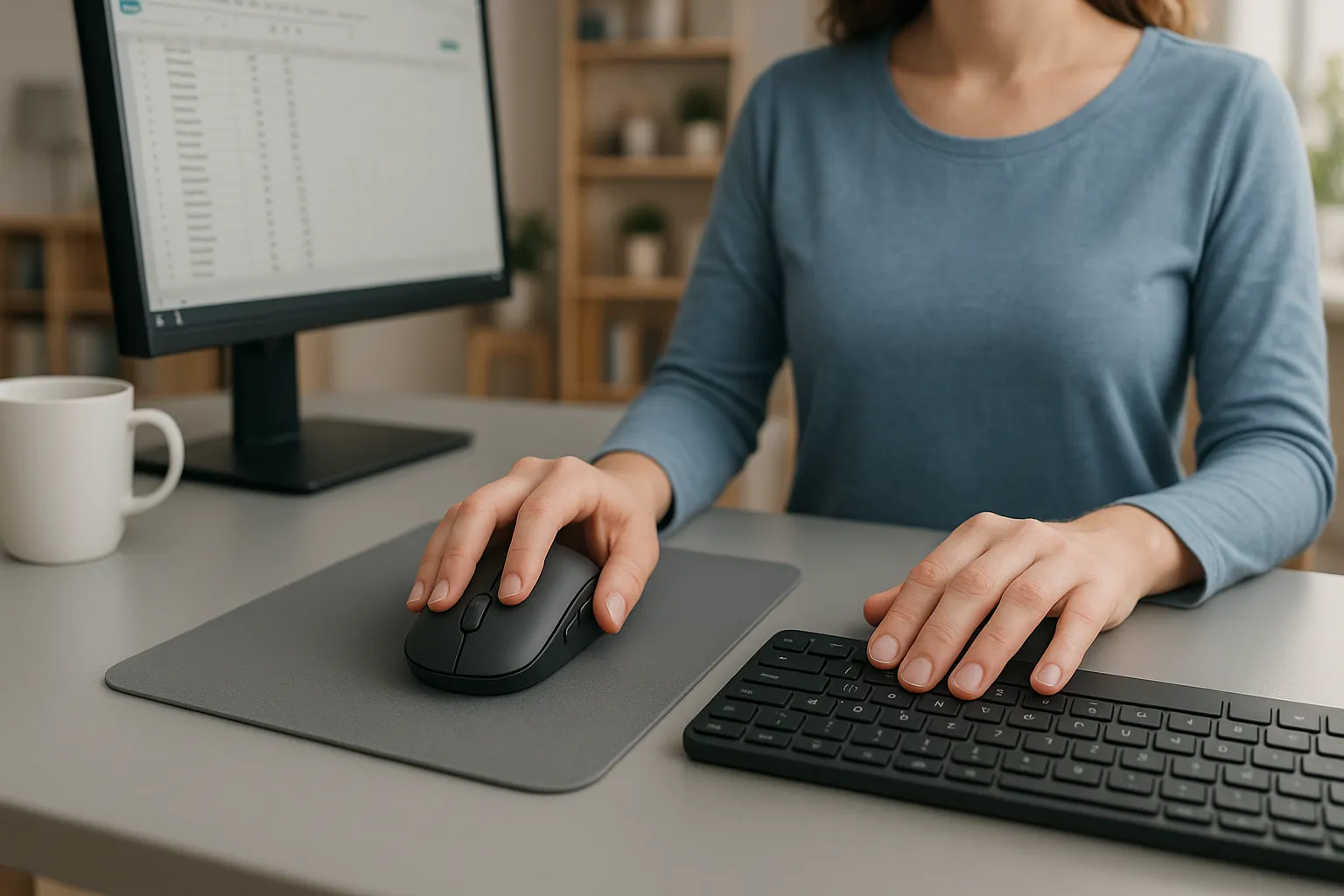
An ambidextrous mouse doesn't reshape your hand position the way a vertical or angled mouse does. Its real advantage is flexibility. You can distribute work across both hands, adapt your grip on the fly, and share the device with anyone.
Reduced RSI Risk Through Hand Alternation
Splitting mouse time between your left and right hand cuts the repetitive load on each side roughly in half. Think of it like alternating which shoulder carries a heavy bag. Neither side gets overworked.
Hand alternation is especially useful if you're in the early stages of discomfort. Rather than pushing through pain on your dominant side, you shift some of the daily clicking burden to your non-dominant hand. This gives strained tissues a partial rest without stopping work entirely.
A few practical notes on alternation:
- Most people find their non-dominant hand reaches about 80% of their dominant-hand accuracy within two weeks of consistent practice.
- You don't need to split 50/50. Even shifting 20–30% of your mouse time to your other hand reduces cumulative strain.
- Swapping the primary and secondary click buttons in your operating system takes about 10 seconds and makes left-hand use feel more intuitive.
That said, alternation isn't a cure. If you already have a diagnosed condition like carpal tunnel syndrome, switching hands helps reduce further aggravation but won't reverse existing nerve damage. Always consult a healthcare provider for persistent symptoms.
A More Balanced, Natural Posture at Your Desk
Ever notice your right shoulder sits slightly lower or more send than your left? If you're right-handed, years of reaching for a mouse positioned to the right of a full-size keyboard can pull that shoulder send and down. This creates an asymmetric posture that strains your neck and upper back.
An ambidextrous mouse lets you alternate the side of your desk where you place the device, which means you're not always reaching in the same direction. That simple change helps keep your shoulders more even and your upper back less twisted.
For even better results, pair your ambidextrous mouse with a compact keyboard. A narrower keyboard moves the mouse closer to your body's midline, reducing lateral shoulder reach on either side. Contour's Balance Keyboard is deliberately narrower than standard keyboards for exactly this reason, shrinking the gap between your typing and mousing positions.
Your action step: Tomorrow, try placing your mouse on the opposite side of your keyboard for 30 minutes. Use your operating system's mouse settings to swap the primary click button. Notice how your shoulders feel compared to your usual setup.
What to Look for in an Ambidextrous Mouse
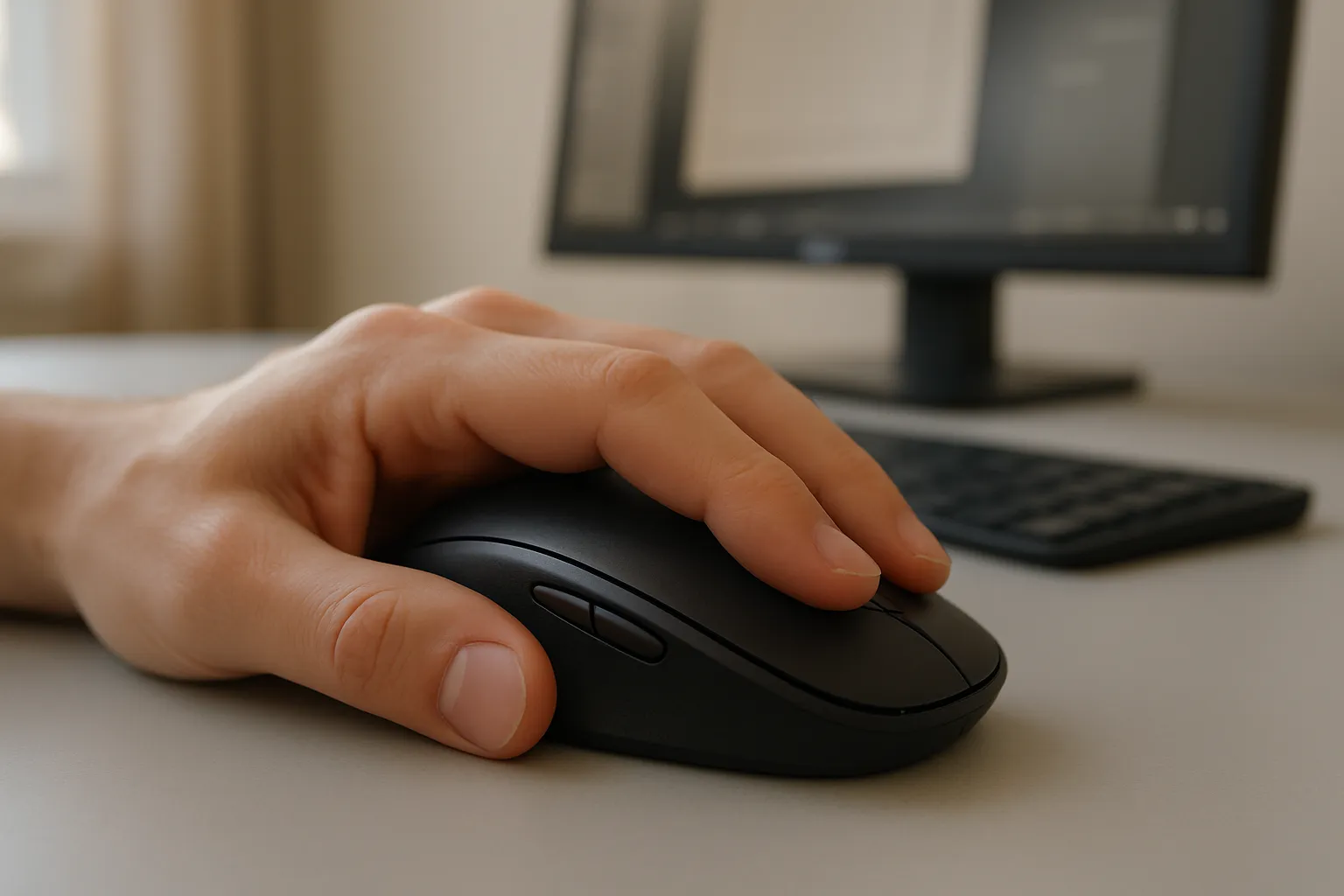
Not all symmetrical mice are created equal. A cheap, flat ambidextrous mouse might let you swap hands, but it can still force both wrists into full pronation. Here's what separates a genuinely helpful device from a generic one.
Ergonomic Shape and Adjustability
Contour matters more than symmetry. A good ambidextrous mouse should feel comfortable in a relaxed grip without requiring you to clench or flatten your hand. Look for:
- A body height that fills your palm. Your hand should rest on the mouse, not hover above it. If your fingers feel like they're reaching down to a flat surface, the mouse is too low-profile for sustained use.
- Some degree of tilt or curvature that encourages a more neutral wrist position rather than full palm-down pronation.
- Adjustable DPI/sensitivity settings so you can reduce the physical distance you need to move the mouse, which means less forearm travel.
If you find that symmetrical shapes still don't relieve your discomfort, that's worth noting. An adjustable ergonomic mouse like Contour Design®'s UniMouse takes a different approach: its patented hinge lets you set your hand at an angle anywhere between 35° and 70°, and the thumb support adjusts in five different ways. It's available in both right-handed and left-handed models, so while it's not ambidextrous in the traditional symmetrical sense, it gives each hand a purpose-built ergonomic fit. For people exploring alternative mouse designs beyond the standard shape, it's worth comparing both approaches.
Programmable Buttons and Software Compatibility
Customizable buttons save your hands real effort. Every shortcut you assign to a mouse button is a keyboard reach you don't have to make. For heavy users, that adds up to hundreds of fewer hand movements per day.
When evaluating an ambidextrous mouse, check for:
- Side buttons on both flanks, not just one. Some mice marketed as ambidextrous have programmable buttons only on the left side, which become useless when you switch to left-hand use.
- Cross-platform driver support for both Windows and macOS. Microsoft's accessibility tools can supplement any mouse's built-in software with system-level button remapping and pointer adjustments.
- On-the-fly DPI switching so you can toggle between precision work (low DPI for detail in CAD or photo editing) and fast navigation (high DPI for large monitors) without opening a settings panel.
Your action step: Before buying any ambidextrous mouse, confirm that its programmable buttons are accessible from both sides. Check the manufacturer's product page for a top-down image showing button placement on both flanks.
Ambidextrous vs. Centered Mouse Designs: Which Approach Relieves More Pain?
Here's the thing: alternating hands with an ambidextrous mouse reduces strain, but it doesn't eliminate the root cause. You're still reaching to one side of your keyboard to grab a mouse. You're still pronating your forearm to grip it. You're just doing it on two sides instead of one.
A centered pointing device takes a fundamentally different approach. It sits directly in front of you, between your keyboard and your body, so you don't reach sideways at all. Your hands stay in your natural working zone, close to the keyboard and close to your body's midline.
| Feature | Ambidextrous Mouse | Centered Pointing Device |
|---|---|---|
| Hand alternation | Yes, easy to swap sides | Not needed: both hands can operate it |
| Lateral shoulder reach | Reduced vs. one-handed, but still present | Eliminated: device sits at midline |
| Forearm pronation | Still palm-down unless mouse is tilted | Reduced: hands rest palms-down on a bar or surface in front of you |
| Learning curve | Minimal for dominant hand: 1–2 weeks for non-dominant | 1–3 days for most users |
| Best for | Moderate use, shared workstations, travelers | Heavy daily use (6+ hours), chronic shoulder or neck pain |
For someone logging 8+ hours of mouse work daily, a centered design like Contour's RollerMouse often provides more relief than hand alternation alone. The patented rollerbar sits just below your spacebar, so your fingers simply drop down from typing to navigate. No reaching, no gripping, no twisting. Both hands can share the work naturally.
That doesn't mean an ambidextrous mouse is wrong. If your pain is mild, your usage is moderate, or you need portability, an ambidextrous design may be all you need. But if you've tried alternating hands and your symptoms persist, a centered device addresses the biomechanical problems that symmetry alone can't fix.
For a broader look at ergonomic mouse alternatives including vertical, trackball, and centered options, that comparison can help you narrow down what matches your specific pain pattern.
How a Centered Design Eliminates the Need to Choose a Side
With a centered pointing device, there's no "mouse side." The device lives in front of you at the midline of your body. You can operate it with your left hand, your right hand, or both at the same time.
This eliminates the primary ergonomic compromise of any side-mounted mouse, ambidextrous or not: lateral reach. Every inch you reach sideways to grab a mouse pulls your shoulder send and out of its neutral position. According to Wirecutter's ergonomic workstation guide, keeping your input devices close to your body is one of the most important factors in preventing upper-body strain.
With a RollerMouse or SliderMouse, your forearms rest on the desk surface in front of you. Your shoulders stay relaxed and even. And because the device works ambidextrously by default, you never need to reconfigure buttons or retrain your muscle memory.
Your action step: Measure the distance from the B key on your keyboard to the center of your current mouse. If it's more than 6 inches, you're reaching further than your shoulder wants to. Consider whether a centered device would close that gap.
Tips for Transitioning to Ambidextrous or Centered Mouse Use
Switching your mousing hand or changing device types is easier than most people expect. But a few strategies make the transition smoother.
Start with short sessions. Use your non-dominant hand (or new centered device) for 20–30 minutes at a time during low-stakes tasks like email, web browsing, or file management. Save precision work for your dominant hand until you build coordination.
Lower your mouse sensitivity at first. A slower cursor speed gives your less-practiced hand more control. Increase the DPI gradually over 5–7 days as your accuracy improves.
Swap your primary click button. On Windows, go to Settings > Bluetooth & devices > Mouse and toggle "Primary mouse button" to Right. On macOS, go to System Settings > Mouse and change the primary click side. This takes 10 seconds and makes left-hand mousing feel much more natural.
Give yourself two weeks. Most people report their non-dominant hand feels competent within 10–14 days of regular use. You won't match your dominant hand's speed immediately, and that's fine. The goal is distributing strain, not becoming equally fast on both sides.
For centered devices, the curve is shorter. Users switching to a RollerMouse or SliderMouse typically feel comfortable within 1–3 days because the finger movements are similar to using a laptop touchpad. The learning curve involves getting used to the position, not a completely new motion.
If you're dealing with arthritis or joint stiffness, the transition period matters even more. Start gently, and don't push through sharp pain.
Your action step: Set a recurring 30-minute calendar reminder labeled "Switch hands" for the next two weeks. During that window, move your mouse to the opposite side and swap the primary click button. Track how your comfort changes day by day.
Building a Pain-Free Workstation Around Your Mouse
Your mouse is one piece of a larger ergonomic puzzle. Even the best ambidextrous or centered device can't compensate for a desk that's too high, a monitor that's too low, or a chair that doesn't support your back.
Here's how to set up the rest of your workstation so your mouse change actually sticks.
Set your desk height so your elbows form a 90-degree angle. Sit in your chair with your feet flat on the floor. Adjust the desk (or chair) until your forearms rest on the desk surface with zero upward or downward wrist angle. Your shoulders should feel relaxed, not hiked up toward your ears.
Position your monitor at arm's length (20–30 inches). Close your eyes, then open them. Your gaze should land on the top third of the screen without any head movement. If you're looking down, raise the monitor. If you're looking up, lower it.
Keep your keyboard centered with your body. The B key should align with your belly button. This keeps both hands equidistant from center and prevents you from twisting your torso.
Use a compact keyboard to reduce lateral reach. A tenkeyless or 75% keyboard moves your mouse 3–4 inches closer to your body's midline. If you use a centered device like a RollerMouse, a compact keyboard like Contour's Balance Keyboard creates a nearly seamless typing-to-navigating transition, with almost no gap between the keys and the rollerbar.
Follow the Cornell 20-8-2 principle for movement. According to Cornell University's Human Factors Lab, the recommended pattern is 20 minutes sitting, 8 minutes standing, and 2 minutes moving. This keeps blood flowing and breaks up static postures that contribute to pain. Note: this is a sit/stand/move guideline, distinct from the 20-20-20 rule, which applies to eye strain.
Add wrist support that rests your palm, not your wrist. According to the Canadian Centre for Work-related Health and Safety, a wrist rest should support the heel of your palm during pauses, not while actively typing or mousing. Resting your actual wrist on a hard edge can compress the carpal tunnel.
Your action step: Grab a tape measure. Check the distance from your belly button to the center of your mouse. Then check the height of your elbows relative to your desk surface. Adjust one thing today. Even a single correction, like raising your monitor by two inches, can reduce neck strain noticeably within a week.
Disclaimer: This article provides general ergonomic information, not medical advice. If you're experiencing persistent pain, numbness, or weakness, please consult a qualified healthcare provider.
Your Next Move
You don't have to overhaul your entire desk today. Pick one change: swap your mouse to the other hand for 30 minutes, measure your keyboard-to-mouse distance, or test whether a centered device fits your workflow. Small shifts, made consistently, are what keep your hands healthy over a 20- or 30-year career. Your future self will thank you for starting now.

Which Device Is Right for You?
Take a quick quiz and get a personalized recommendation based on how you work.

