
Computer Mouse Roller: A Smarter Way to Work Without Wrist Pain
.avif)
If you spend 6, 8, or 10 hours a day at a computer, your mouse is either working for you or working against you. For millions of professionals, it's the latter.
A computer mouse roller places cursor control directly in front of your keyboard, where your hands already are. No reaching sideways. No gripping. No repetitive lateral movement that quietly wrecks your wrists, forearms, and shoulders over months and years. For a broader overview, start with our guide to the best ergonomic mouse.
This guide breaks down exactly how a roller mouse works, why traditional mice contribute to repetitive strain injury (RSI), and what to look for when choosing one. Whether you're already in pain or want to stay ahead of it, you'll find clear, practical answers here.
Key Takeaways
- A computer mouse roller eliminates lateral reaching by placing cursor control directly in front of your keyboard, reducing the repetitive motions that cause wrist and shoulder strain.
- Repetitive strain injury (RSI) affects desk workers primarily due to awkward wrist posture, sustained grip, and constant side-reaching, conditions that a centered roller mouse design eliminates.
- The ambidextrous design of a roller mouse distributes movement across both hands, reducing cumulative strain on any single muscle group and allowing hands to share the workload naturally.
- A computer mouse roller keeps your arms closer to your body, elbows near 90 degrees, and wrists in a neutral position, removing two of the three main causes of upper-body tension: reaching and gripping.
- Most users report noticeable reduction in shoulder and wrist tension within the first week of using a roller mouse, with meaningful improvements in existing RSI symptoms within two to four weeks.
What Is a Computer Mouse Roller-and How Does It Work?
.avif)
A computer mouse roller is a centered ergonomic input device that sits in front of your keyboard, replacing your traditional side-mounted mouse. Instead of gripping and sliding a handheld device, you control the cursor by rolling a horizontal bar with your fingertips.
The most widely known roller mouse design is Contour Design's RollerMouse, which uses a patented Rollerbar made from textured rubber. You push the bar left, right, up, or down to move the cursor. Buttons for left and right clicks, copy/paste, and cursor speed sit directly alongside the bar, so your hands rarely need to leave the home position.
Because everything lives on one centered device, both hands share the workload. You use whichever hand feels natural at any given moment, which means no single muscle group carries the full strain of a workday.
The Key Difference Between a Roller Mouse and a Traditional Mouse
A standard mouse lives to the right (or left) of your keyboard. Every time you switch from typing to clicking, your arm travels outward and your shoulder rotates away from center. Do that a few hundred times a day and you're accumulating stress in the same muscles, over and over.
A roller mouse stays centered. Your hands drop from the keyboard to the Rollerbar in milliseconds, with almost no lateral movement. This keeps your arms closer to your body, your shoulders more relaxed, and your wrists in a more neutral position throughout the day. If that side-reach pattern already shows up as discomfort, this guide on computer mouse shoulder pain explains why that pattern escalates over time.
The practical result: less muscle recruitment per transition, fewer awkward angles, and a setup that supports upright posture rather than fighting it.
Try this today: Notice how far your right arm travels the next time you reach for your mouse after typing. Multiply that motion by 200 transitions in a workday. That's the load a roller mouse eliminates.
Why Your Standard Mouse May Be Hurting You

Most wrist and shoulder pain from computer use doesn't come from one bad movement. It comes from thousands of small, repetitive movements performed in slightly wrong positions, day after day.
A standard mouse forces your forearm into pronation (palm-down), which compresses the tendons and nerves running through your wrist. Add a full day of clicking and scrolling, and you've created the exact conditions that lead to repetitive strain injury.
The Repetitive Strain Connection
Repetitive strain injury (RSI) is an umbrella term for pain and damage caused by repeated physical stress. In office workers, it commonly affects the wrists, forearms, elbows, shoulders, and neck. Conditions like carpal tunnel syndrome and tendinitis fall under this category.
The US Bureau of Labor Statistics consistently reports that musculoskeletal disorders account for a significant share of workplace injury cases involving days away from work. For desk workers, the mouse is a major contributor, specifically the combination of awkward wrist posture, sustained grip, and constant side-reaching. Guidance from OSHA workstation posture recommendations supports reducing these repeated awkward positions wherever possible.
The problem isn't just the mouse itself. It's the gap between keyboard and mouse that forces the repetitive reaching motion. A roller mouse eliminates that gap entirely.
Who's Most at Risk? (Hint: It Might Be You)
You're at higher risk of mouse-related RSI if you:
- Work 6 or more hours daily at a computer
- Use a standard flat desk without a keyboard tray or riser
- Type and click in rapid alternation (software engineers, designers, editors, data analysts)
- Have already noticed wrist fatigue, tingling, or stiffness after long sessions
- Use a laptop trackpad for extended periods as a mouse substitute
Architects, content editors, and accountants are especially vulnerable because their work demands constant cursor precision alongside heavy keyboard input.
If any of those descriptions fit, you're not just at risk. You may already be accumulating damage without recognizing it as RSI in the early stages.
Do this now: Rate your wrist and shoulder comfort on a scale of 1-10 at the end of your next full workday. If you score below 7, your current setup is costing you something.
How a Roller Mouse Relieves Strain and Supports Better Posture
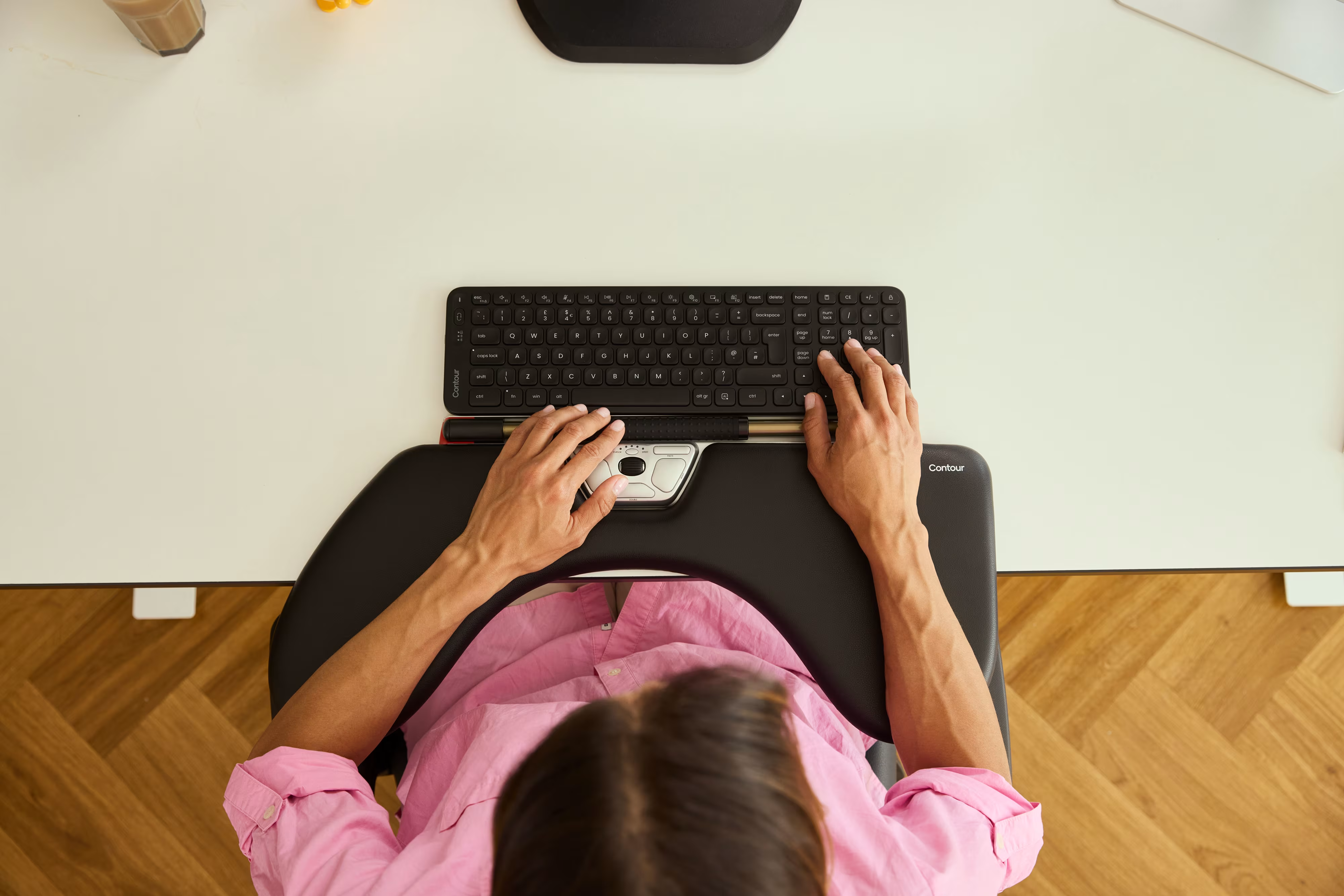
A roller mouse doesn't just move cursor control to a different location. It fundamentally changes how your body positions itself during computer use, and that shift matters more than most people expect.
Centered Design and Shared Muscle Load
Because the Rollerbar sits centered in front of your keyboard, both hands can use it interchangeably. This ambidextrous design distributes movement across both arms instead of loading everything onto your dominant side.
If your right forearm is sore, your left hand picks up some of the navigation. If one wrist needs a break, the other covers it. Over a full workday, this shared load reduces cumulative strain on any single muscle group by a meaningful amount.
Contour Design's RollerMouse line has been tested by ergonomic specialists and is built around this principle: no single body part should bear the full weight of your computing day. The result is consistent with what ergonomists recommend, which is distributing repetitive motion across more muscles to reduce peak stress on any one area.
Less Reaching, Less Tension, More Control
With a traditional mouse, your arm extends outward and your shoulder elevates slightly with every reach. Most people don't notice this in the first hour. By hour six, the trapezius muscle running from your neck to your shoulder is holding sustained tension.
A roller mouse keeps your arms close to your body, elbows near 90 degrees, and wrists in a more neutral position. Combine that with a quality palm rest and you've removed two of the three main causes of upper-body tension at a desk: reaching and gripping.
The Contour RollerMouse Red, for example, offers three sizes of memory foam palm support. Choosing the right size for your hand keeps your wrist supported without compression, which means less fatigue and fewer of the tiny micro-stresses that add up to real injury.
Start here: If you use a roller mouse, spend the first two days consciously resting your palms on the support between clicks. That habit alone significantly reduces forearm tension during the adjustment period.
Key Features to Look for in a Roller Mouse
Not every roller mouse is the same. Here's what actually matters when you're comparing options:
Rollerbar responsiveness. The bar should feel smooth and precise, not sticky or loose. Textured rubber (like Contour's patented Rollerbar) gives tactile feedback while remaining comfortable under prolonged use.
Ambidextrous button layout. Buttons on both sides of the bar let you click, copy, and paste without shifting your hand position. This is essential if you want to share load between hands.
Palm rest sizing options. One size does not fit all. Look for products that offer multiple palm rest sizes so your wrist sits in a neutral position, not flexed up or bent down. Contour's RollerMouse Red comes in three sizes: Red for smaller hands, Red Plus for average and larger hands, and Red Max for fully integrated arm support.
Adjustable cursor speed. Being able to tune DPI or cursor sensitivity directly on the device, without visiting settings menus, saves time and lets you adapt to different tasks (fine design work vs. general navigation). If you're ready to switch, consider the Contour RollerMouse Pro.
Connectivity. Wired options are reliable and zero-latency. Wireless options (Bluetooth or USB receiver) keep your desk cleaner. Some models offer both.
Build quality and sustainability. Roller mice take a lot of use. Look for durable construction with replaceable parts. Contour's RollerMouse Pro and RollerMouse Red are built from 100% post-consumer recycled materials, which means they're both longer-lasting and lower-impact on the environment.
Compatibility with your keyboard. If you're pairing a roller mouse with a keyboard, check the gap between device and keys. Contour's Balance Keyboard collection is designed to sit flush alongside RollerMouse and SliderMouse devices, leaving almost no gap between your keys and the Rollerbar.
Do this before buying: Measure the depth of your keyboard and the available desk space between your keyboard and monitor. This helps you choose the right roller mouse size and confirm you have room for palm rests or arm supports.
Who Gets the Most Out of a Roller Mouse?

A roller mouse isn't the right fit for every user. Here's an honest breakdown.
You'll get the most from a roller mouse if you:
- Alternate frequently between keyboard and mouse (software developers, writers, data entry professionals)
- Already experience wrist, forearm, shoulder, or neck discomfort from computer use
- Want to prevent RSI before symptoms develop
- Prefer ambidextrous control or need to reduce load on a dominant hand recovering from strain
- Work at a fixed desk most of the day
You may find a roller mouse less ideal if you:
- Do high-precision graphic design or illustration work that demands fine cursor control comparable to a drawing tablet
- Move frequently between multiple workstations and don't want to carry peripherals
- Prefer a traditional grip and haven't experienced any discomfort with it
For most RSI-conscious professionals, especially those in software engineering, content creation, architecture, accounting, and similar roles, the centered design of a roller mouse addresses the exact motions causing long-term damage.
Contour Design's customers include individuals who describe the RollerMouse as a life-changing experience, as well as health and safety specialists sourcing ergonomic solutions for entire teams.
Ask yourself this: Have you tried a vertical mouse or wrist rest and still felt discomfort? That's a strong signal the problem is reaching, not grip angle. A roller mouse solves the reaching problem directly. If you still compare side-by-side designs, these benefits of a centred mouse can help frame the trade-offs.
How to Get Started with a Roller Mouse Setup
Switching to a roller mouse takes about one to two weeks to feel fully natural. Here's how to make that transition easier and get the most out of your setup from day one.
Step 1: Position the device correctly.
Place the roller mouse directly in front of your keyboard, centered with your body. The Rollerbar should sit within easy reach of both hands without any shoulder elevation. If your keyboard sits too high, add a keyboard tray or riser to bring it to the right height.
Step 2: Choose and attach the right palm rest.
Select a palm rest size that keeps your wrist flat or very slightly extended. Avoid resting your wrist in a bent-down or sharply bent-up position. Contour offers palm rests in fabric, bamboo, and vegan leather, which means you can match comfort preference and aesthetics.
Step 3: Calibrate cursor speed.
Adjust the cursor speed directly on the device until navigation feels controlled without requiring large arm movements. Start slightly slower than you think you need. You can increase it as you build familiarity with the Rollerbar.
Step 4: Practice bar gestures intentionally.
For the first few days, consciously practice pushing the Rollerbar in each direction before defaulting to small finger rolls. This builds muscle memory faster and reduces the temptation to revert to a traditional mouse. For more on the shoulder side of this, read about the link between mouse use and shoulder pain.
Step 5: Pair with a compatible keyboard.
If possible, use a keyboard designed to sit flush with your roller mouse. Contour's Balance Keyboard leaves almost no gap between keys and Rollerbar, which cuts down transition time between typing and navigating to near zero.
Expect this: Most users report noticeable reduction in shoulder and wrist tension within the first week. Some users with existing RSI symptoms report meaningful improvement within two to four weeks of consistent use.
Note: A roller mouse supports, but does not replace, good overall desk ergonomics. Combine it with a monitor at eye level, feet flat on the floor, and elbows at roughly 90 degrees for best results. For a broader prevention framework, pair this setup with a guide to reducing pain with an ergonomic mouse.
If you're not sure which ergonomic mouse to choose, our Help Me Choose Tool narrows it down and finds the mouse that fits you in under a minute.
Conclusion
Your mouse is a small device with a large impact. Used the wrong way, for long enough, it becomes the source of real, career-affecting pain. Used the right way, with a design built around how your body actually works, it becomes part of how you stay productive and pain-free for the long term.
A computer mouse roller solves the fundamental problem that traditional mice create: the constant lateral reach that strains your shoulders, tightens your forearms, and compresses your wrists. By centering cursor control in front of your keyboard, sharing load across both hands, and keeping your arms in a neutral position, it removes the root cause rather than masking the symptom.
If you're ready to take the next step, explore Contour Design's RollerMouse lineup to find the model that fits your hand size, workstyle, and desk setup.Demo programs and ergonomic expert support make it a low-risk decision with a potentially high return on your daily comfort and long-term health. If your symptoms include numbness or median nerve irritation, review this practical overview of what carpal tunnel syndrome involves as part of your decision process.
Frequently Asked Questions About Computer Mouse Rollers
What is a computer mouse roller and how does it work?
A computer mouse roller is a centered ergonomic input device that sits in front of your keyboard. Instead of gripping a side-mounted mouse, you control the cursor by rolling a horizontal bar with your fingertips, eliminating the need for lateral reaching and promoting neutral wrist positioning.
How does a RollerMouse help prevent repetitive strain injury?
RollerMouse relieves RSI by eliminating constant reaching between keyboard and mouse. Its centered design keeps your arms close to your body, wrists in neutral position, and allows both hands to share the workload, reducing strain on shoulders, forearms, and neck throughout the day.
Who benefits most from using a computer mouse roller?
Software developers, writers, data entry professionals, and anyone experiencing wrist or shoulder discomfort from computer use benefit most. Those who alternate frequently between typing and clicking, or want to prevent RSI before symptoms develop, will see the greatest advantages.
What are the key features to look for in a roller mouse?
Look for smooth, responsive rollerbar responsiveness with textured rubber, ambidextrous button layout on both sides, adjustable palm rest sizing options, customizable cursor speed, durable construction from recycled materials, and compatibility with your keyboard setup for minimal gaps.
How long does it take to adjust to using a roller mouse?
Most users report feeling comfortable with a roller mouse within one to two weeks. Many experience noticeable reduction in shoulder and wrist tension within the first week, with those having existing RSI symptoms reporting meaningful improvement within two to four weeks of consistent use.
Can a roller mouse replace a traditional mouse entirely?
Yes, for most office work and everyday computing tasks, a roller mouse can fully replace a traditional mouse. However, it's less ideal for high-precision graphic design or illustration work requiring fine cursor control comparable to a drawing tablet, where traditional mice may be preferable.

Which Device Is Right for You?
Take a quick quiz and get a personalized recommendation based on how you work.

